Convert PNG and JPEG images to WebP together and save a ZIP
Convert a transparent PNG logo and a JPEG photo to WebP in one batch. Follow the screenshots to preserve transparency, save the results as a ZIP, and see how choosing a background color for JPEG differs.
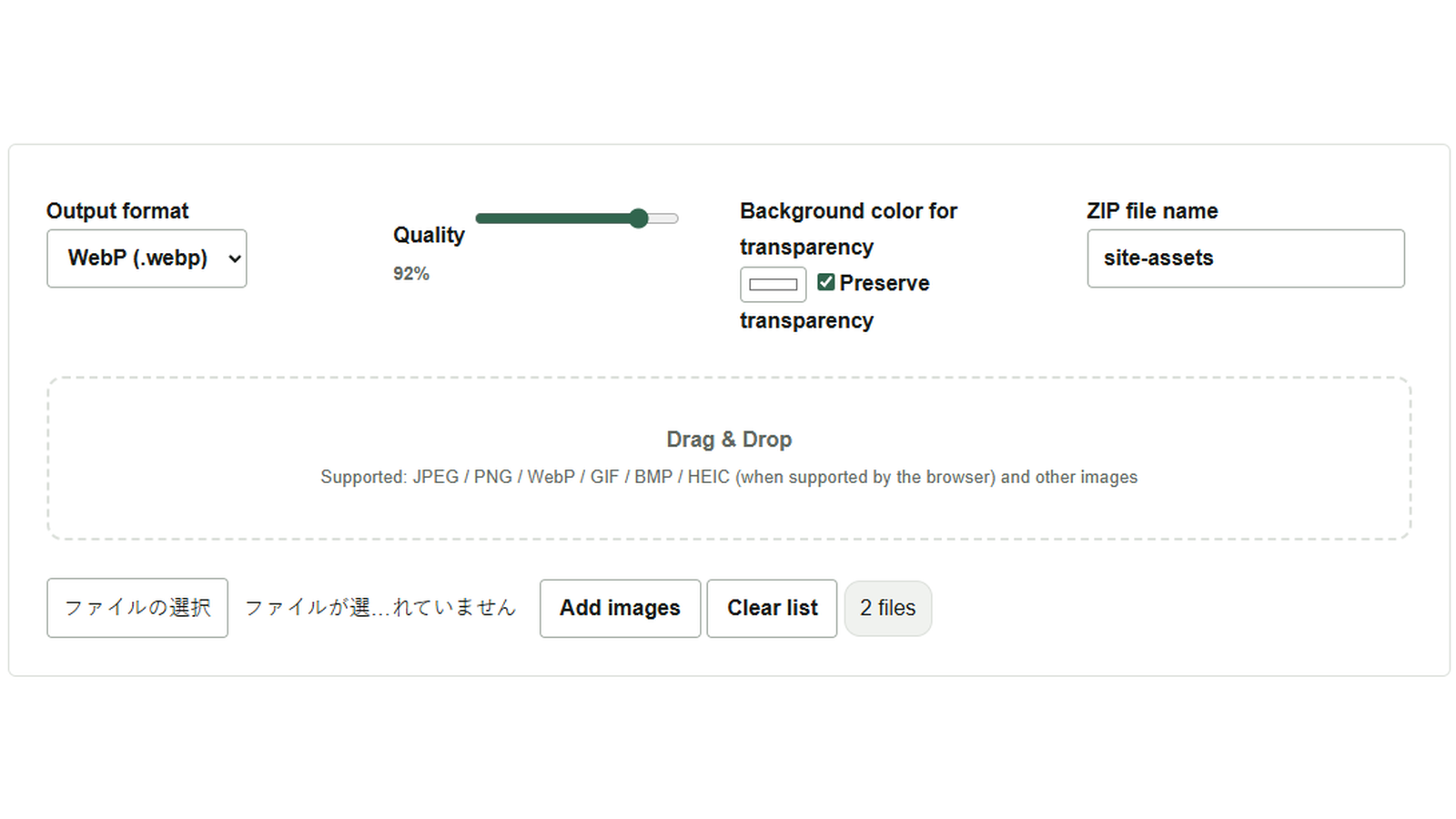
The images supplied for a web page include a JPEG photo and a PNG logo with a transparent background. To turn both into WebP, process them together with the Bulk Image Format Converter. This example uses logo.png and photo.jpg, keeping the logo transparent and saving both images in one ZIP.
Select WebP and preserve the logo’s transparency
- Press Add images and select both files. You can also add them by dragging them into the area with the dashed border.
- Set Output format to
WebP (.webp)and make sure Preserve transparency is checked. Images without transparent areas, such as the photo, are converted normally. - Leave Quality at its default of 92% for this example, and enter
site-assetsin ZIP file name. The.zipextension is added automatically.
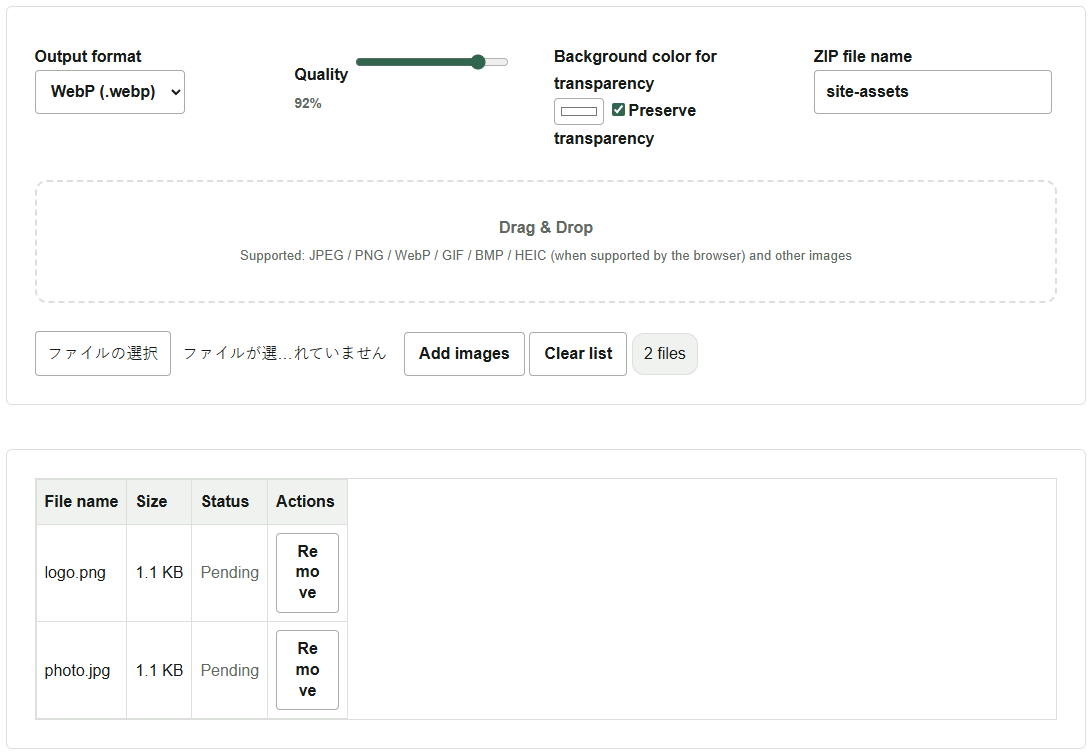
Extract the ZIP and inspect the results
Press Convert all and save ZIP. When both images have been converted, their status in the list changes to Completed, and site-assets.zip downloads. Extract the ZIP and check that it contains logo.webp and photo.webp. Placing the logo on a different background color makes it easier to check that the surrounding area remains transparent.
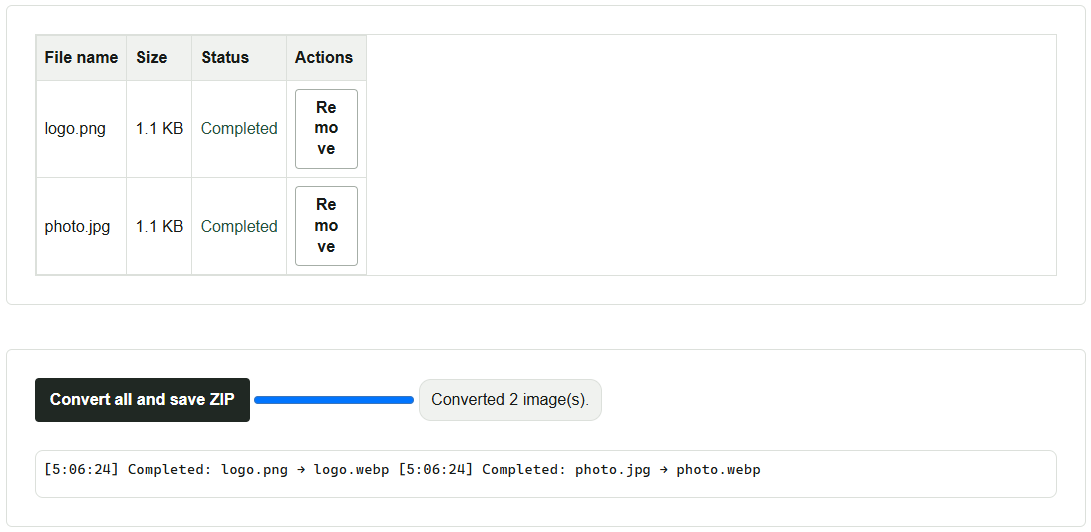
If some images could not be loaded, the ZIP contains only those that converted successfully. Check the status of each image and the log against the ZIP’s contents. Processing happens in the browser. If a batch of high-resolution images slows it down, split the batch into smaller groups.
Filling the background and format limitations
JPEG does not support transparency. When converting the logo to JPEG, use Background color for transparency to choose a color that suits its destination. With WebP or PNG, turning off Preserve transparency also fills transparent areas with the selected color.
JPEG and WebP allow quality adjustments. To reduce file size, try a few images first and compare how fine lines and text look, as well as the file sizes. PNG uses lossless compression, so the quality slider does not apply. Whether formats such as HEIC can be loaded depends on the browser. Animated GIF and APNG files are exported as still images of their first frame.