Check a Base64 string: decode Japanese text and restore files
Use Base64 Converter to round-trip Japanese text as UTF-8 and restore a file from Base64. Actual screenshots show which field to paste into, URL-safe and trailing = settings, and the downloaded filename.
For example, in an integration test with an external service, submitting a test order may return an invoice PDF encoded as Base64 through an API. Restoring and opening the PDF lets you check whether the order number and amount are as expected.
Base64 Converter lets you choose between reading the result as text and saving the original bytes as a file. Conversion and restoration happen entirely in the browser.
Round-trip text containing Japanese characters
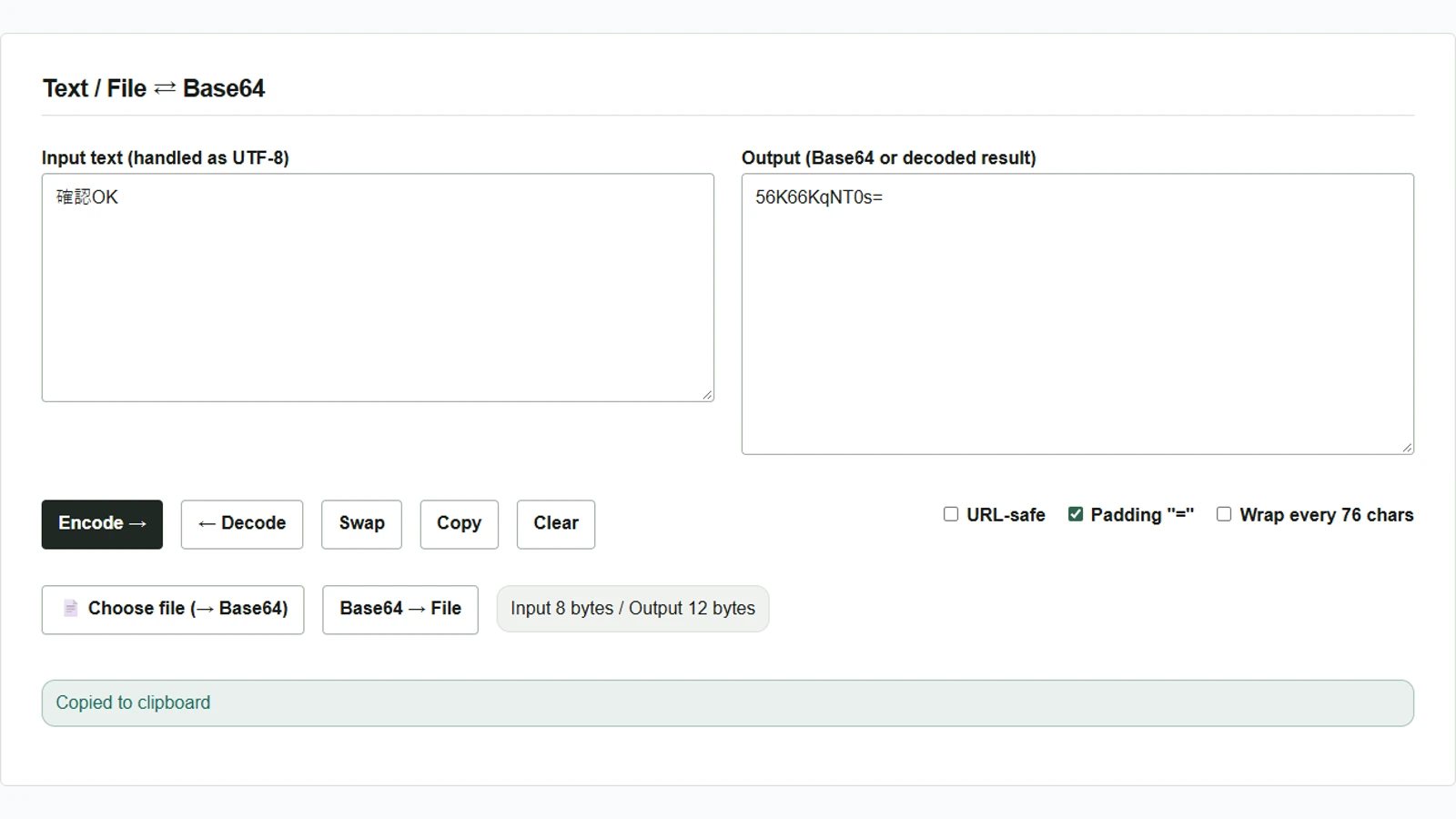
- Enter
確認OKin the left Input text field. This Japanese sample means roughly “confirmation OK”; keep the characters unchanged to reproduce the example. - Enable Padding “=”, disable URL-safe and Wrap every 76 chars, then press Encode →. The right Output field shows
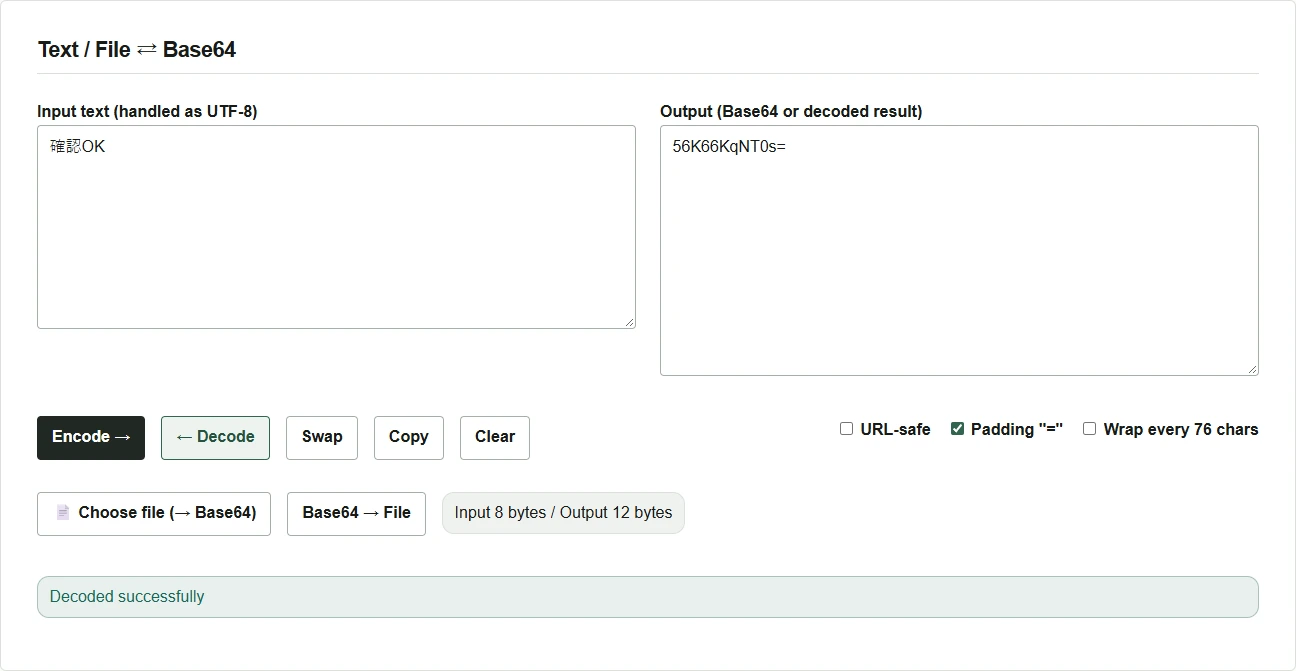
56K66KqNT0s=. Use Copy to copy that value. - Press Clear to empty both fields, then paste the copied value into the right field. Press ← Decode to restore
確認OKin the left field. To inspect Base64 you have received, you can start at step 3.
Convert a file to Base64 and save it again
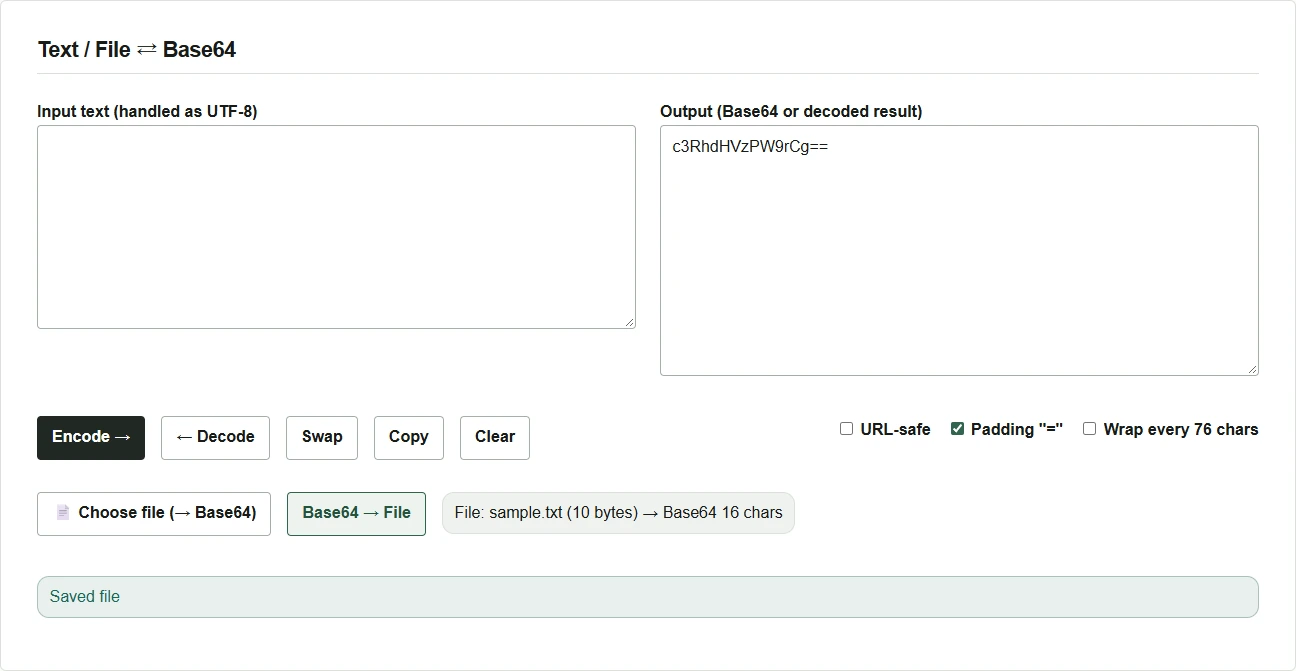
- Use Choose file (→ Base64) to select, for example, a UTF-8 sample named
sample.txtcontainingstatus=okfollowed by a newline. Its Base64 appears in the right field immediately. Images and other files can be converted the same way. - With Base64 in the right field, press Base64 → File. To restore Base64 you have received, paste it into the right field first.
- If you know the original format, you can change the extension of the downloaded
decoded.bin. In this example, rename itrestored.txtand check forstatus=okin a text editor.
Values to paste and conversion options
If a value has a prefix such as data:text/plain;base64,, paste only the Base64 portion after the comma. Before reading URL-safe values containing - or _, enable URL-safe. When passing output to another system, set URL-safe, trailing =, and 76-character line wrapping to match the receiving system’s requirements before converting.
← Decode displays the decoded bytes as UTF-8 text. For images or files in another character encoding, save with Base64 → File and open them in a suitable application. Base64 content becomes readable when decoded, so treat it like the original data before sharing it.