Why a video will not copy to a USB drive with free space: moving a 4 GB file on FAT32
Small files copy, but a large video is too big for the destination file system. Check two properties in Windows and move an exact 4 GiB file to another PC without formatting the drive.
The USB drive still has gigabytes free. Several short videos copied, but one long recording brings up “The file is too large for the destination file system.” Before you delete photos from the drive, check two places in Windows File Explorer.
- Right-click the destination USB drive in This PC, open Properties, and look under General. Does File system say
FAT32? - Right-click the original video and open Properties. Read the number of bytes in parentheses beside Size. Size on disk, directly underneath, is the space allocated to the file. Use the actual file size for the comparison.
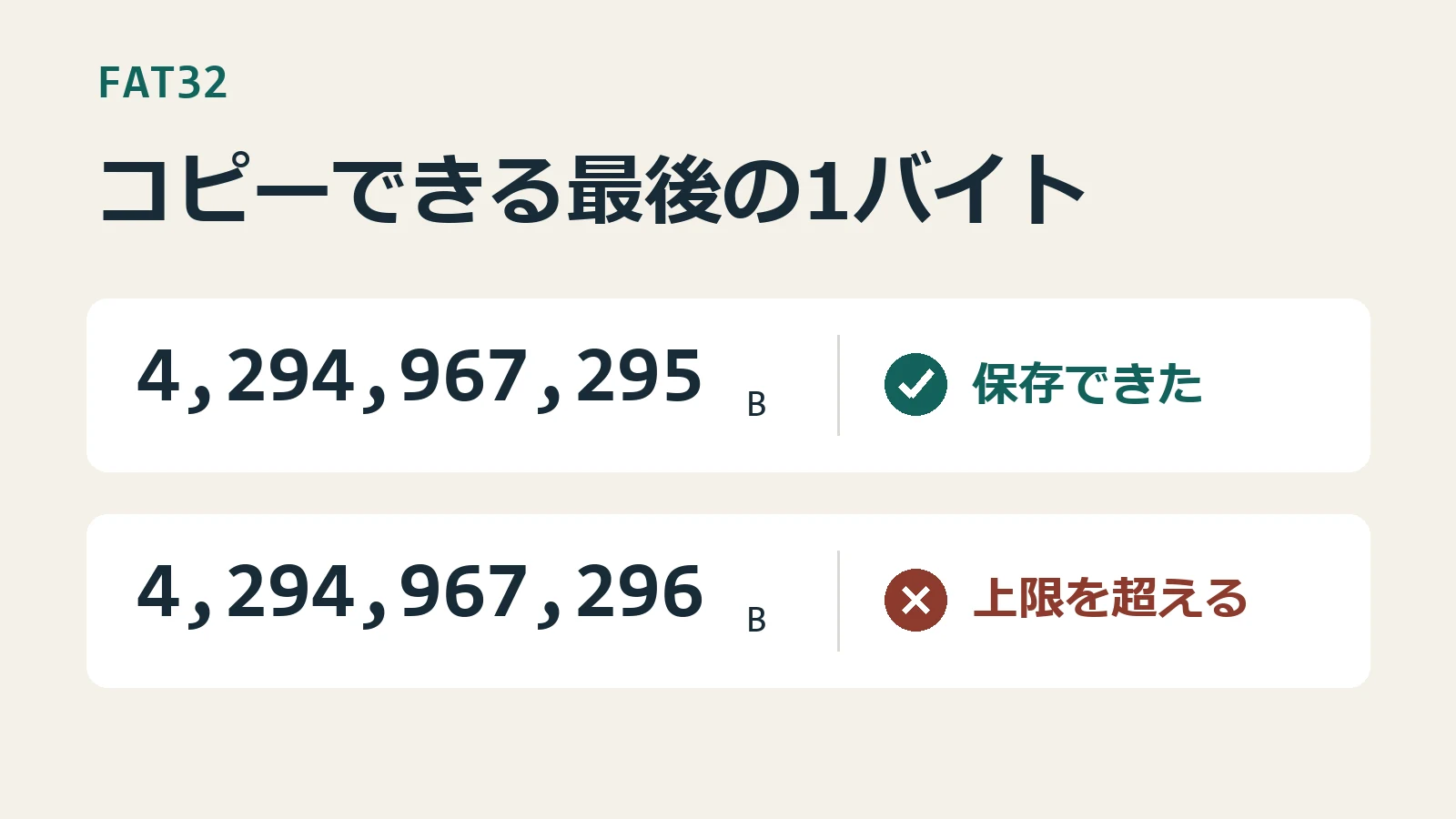
If the drive is FAT32 and the video is 4,294,967,296 bytes or larger, that explains the error. FAT32 can record an individual file up to 4,294,967,295 bytes long, regardless of free space. An exact decimal 4 GB (4,000,000,000 bytes) fits. A rounded “4 GB” display alone is insufficient. Elecom USB drive FAQ (Japanese) / FatFs file size limit
Add one byte with the same free space
To find the boundary, I created a FAT32 file system on a 6 GiB disk image. Using GNU mtools on Windows, I copied a test file at the limit, read it back, checked that its contents matched, and deleted the copy from the image. With the same free space available again, I put one more byte on the end of the source file and repeated the copy. One GiB is 1,073,741,824 bytes.
| File length (bytes) | Copy result |
|---|---|
| 4,294,967,295 | Saved, with identical contents |
| 4,294,967,296 | Destination remained empty |
The second file was exactly 4 GiB, and the copy gave File "over.bin" too big. The interesting part was the free space on the first copy, which fell from 6,429,868,032 to 2,134,900,736 bytes. The difference is 4,294,967,296 bytes. FAT32 allocates space in fixed-size chunks called clusters, so it had already reserved enough room for the extra byte at the end.
The extra byte still cannot be saved because the directory entry records the file’s length in a four-byte field. Its largest value is FF FF FF FF, or 4,294,967,295 in decimal. More free space cannot give that field another digit. Microsoft FAT specification, DIR_FileSize definition (PDF, p. 23)
Move the video to another PC without formatting the USB drive
For a transfer between Windows PCs, copy the original directly if you have another USB drive with free space formatted as exFAT or NTFS. If your only drive is FAT32 and you want to keep its photos and documents, 7-Zip for Windows on both PCs can carry the video in 2 GiB archive volumes. The USB drive needs room for all volumes, and the receiving PC needs room for the extracted video.
- On the sending PC, open 7-Zip File Manager, select the original video and click Add. For Archive, choose an empty working folder on the PC and name the archive
transfer.7z. - Set Archive format to
7zand Compression level to Store. Enter2048Min Split to volumes, bytes and click OK. The folder will get numbered files such astransfer.7z.001and.002. The sending PC also temporarily needs about as much room as the original video. - Copy all the numbered files to the USB drive. On the receiving PC, browse the USB in 7-Zip, select
transfer.7z.001and click Extract. Extract to a folder on the PC where the original size fits, such as an NTFS drive. 7-Zip reads the following volumes in order from the same folder.
I tried those settings on the exact 4 GiB file that would not fit earlier, using 7-Zip 24.08. With 2 GiB volumes, I expected two files. I got two files of 2,147,483,648 bytes and a third of just 130 bytes. Even with no compression, an archive stores information such as the original filename. All three fit on the same FAT32 image.
With only the two large volumes present, the 7-Zip test reported Unexpected end of archive. With the 130-byte .003 in place, extraction returned all 4,294,967,296 bytes and the SHA-256 hash matched. The tiny third volume is the easiest to miss during a handoff.
Try the same settings in PowerShell
This example assumes a default 7-Zip installation on Windows. On the sending PC, run the commands in the folder containing movie.mp4. Use a location where transfer.7z and its numbered volume names are available.
$zip = 'C:\Program Files\7-Zip\7z.exe'
& $zip a -t7z -mx=0 -v2048m transfer.7z movie.mp4
On the receiving PC, open the folder with the numbered files on the USB drive in File Explorer. Type powershell in the address bar and press Enter. Replace the output directory below with any new folder on the PC.
$zip = 'C:\Program Files\7-Zip\7z.exe'
$out = Join-Path $env:USERPROFILE 'Videos\USB受け取り'
& $zip x transfer.7z.001 "-o$out"
Use Get-FileHash -Algorithm SHA256 to check the original and received videos. For example, run Get-FileHash .\movie.mp4 on the sending PC and Get-FileHash (Join-Path $out 'movie.mp4') on the receiving PC. The Hash values should match.
Play the video straight from USB on a TV
Split archives are meant to be extracted on a PC. To play the original video directly from USB, check the device manual for supported USB file systems and video formats. With exFAT support, you can copy the video as one file to a different exFAT drive. Formatting your current drive erases its files, so copy them elsewhere first and check that you can read the copies. Microsoft file system functionality comparison
If the device supports only FAT32, use a video editor to export two playable parts at a natural break and keep each under the limit. The USB drive then contains two videos that the TV can open separately.