Preview Markdown tables and save them as HTML
Preview Markdown notes in your browser, check their headings and tables, and save an HTML file. Actual screenshots show when to copy HTML and when to download it.
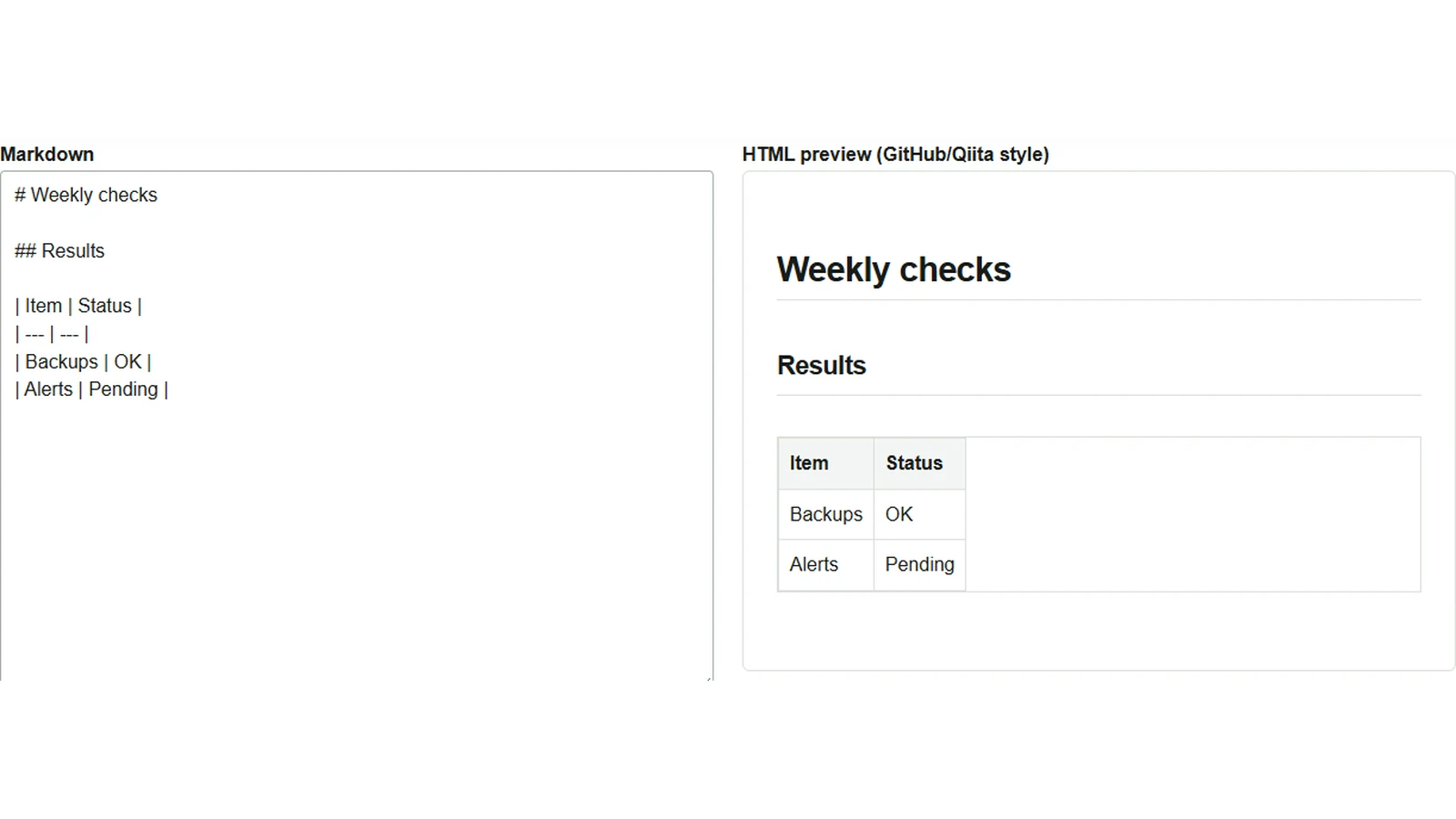
After writing check results in Markdown, you can give someone an HTML file to read in their browser, even if they do not use a Markdown editor. Markdown Preview / Converter lets you compare the source text with the rendered result and check that the table is arranged as intended.
Paste the check notes and inspect the table
- The tool opens with a sample. Select “Clear” and paste the following example into the “Markdown” field.
- Make sure the option for GFM tables and task lists is checked. In the English interface, it is called “GFM extensions (tables/tasks).”
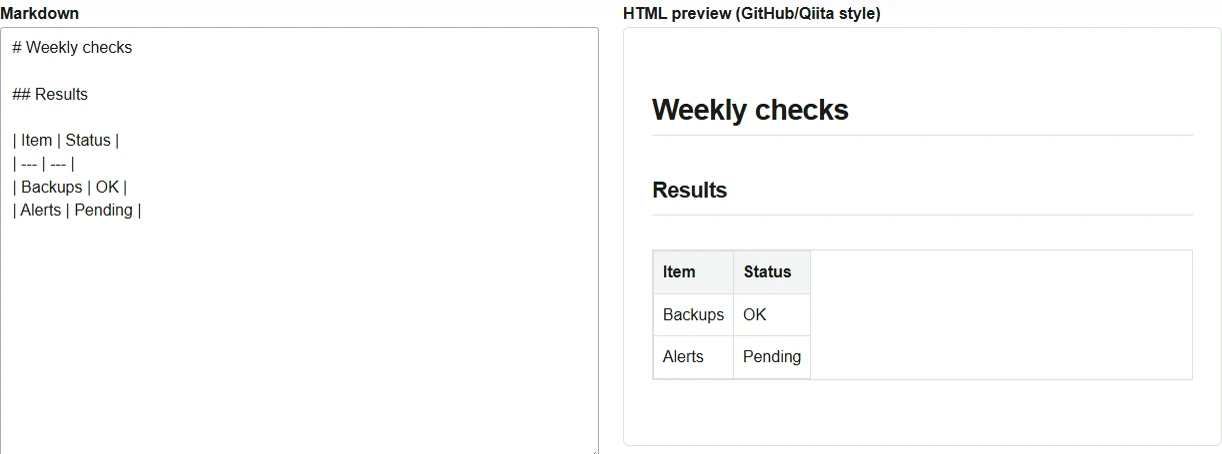
- “HTML Preview” shows the heading
Weekly checksand a table with two rows,BackupsandAlerts. If it does not become a table, check that a separator row using---sits immediately below the header row and that every row has the same number of columns.
# Weekly checks

## Results

| Item | Status |
| --- | --- |
| Backups | OK |
| Alerts | Pending |
Save an HTML file that opens in a browser
- Select “Download HTML” below the preview. The file is saved as
converted.html. - Open the saved file in a browser and check the heading and table contents. The file includes basic display styles, so the table borders and spacing differ slightly from the tool’s preview.
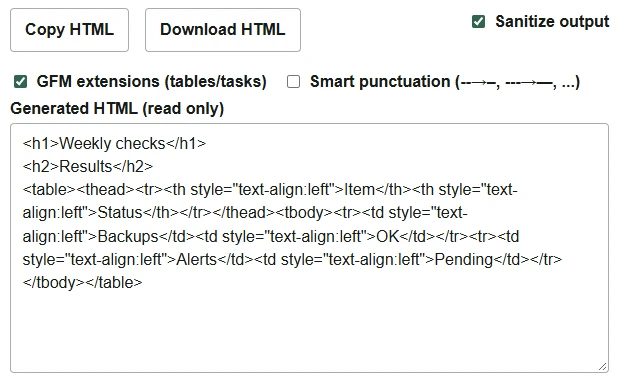
Use “Copy HTML” when inserting the converted result into an existing web page. It copies the body fragment shown in the “Generated HTML” field. If you will continue editing the Markdown, keep the source text too, for example in a .md file.
Conversion runs inside the browser, but if the Markdown includes images at external URLs, the browser may fetch them when showing the preview or opening the saved HTML. A document containing only headings and tables, as in this example, can also be read offline after saving it as HTML. When publishing to GitHub or Qiita, check the destination’s preview as well, because supported extensions and appearance can differ.