Replace text across multiple Word files at once: update a company name in every contract and manual
When a company renames itself or a new fiscal year starts, the same words have to change in dozens of Word documents, and Word's own Replace means opening and saving each file one by one. Using a browser tool that replaces text in many .docx files at once, I changed the company name and fiscal year in a contract, a manual and a purchase order, and checked what happens to headers and footers, words split inside the file, and bold formatting. The article also covers the difference between sequential and simultaneous replace when swapping Party A and Party B, unifying spelling variants with regular expressions, what the tool does not replace, and why the changes do not appear as tracked changes.
A company changes its name, two departments merge, a new fiscal year begins. Each time, someone has to rewrite the Word documents scattered around the office: contract templates, operating manuals, application and purchase order forms, with the same company name in dozens of files. Word’s Replace only works on the document that is open, so you end up opening each file, clicking “Replace All”, saving and closing, over and over. It is also easy to fix the body text and miss the company name sitting in a header or footer.
Batch Replace Text in Word Documents (.docx) loads several .docx files and replaces text in the body, tables, headers, footers, footnotes and comments according to a table of replacement rules. The files are processed inside the browser and not sent anywhere. I tried it on three documents, imagining a company name change, and opened the results as Word documents to see what actually came out. The screenshots are of the English UI; the Japanese version has the same layout.
The test documents and rules
The three files belong to a fictitious Japanese company, 株式会社見本商事. 株式会社 is the legal-form prefix for a stock company, roughly “Co., Ltd.”, and 見本商事 (Mihon Shoji) is the name itself, meaning something like “Sample Trading”. Since the files are Japanese, the strings in the screenshots are Japanese too; I gloss them as they come up.
- 業務委託契約書_ひな形.docx (service agreement template): the header reads 株式会社見本商事 法務部 (Legal Department) and the footer Copyright © 株式会社見本商事. The company name also appears at the start of the body and in the signature table at the end.
- 経費精算マニュアル.docx (expense reimbursement manual): the heading is 経費精算マニュアル(令和7年度), “Expense Reimbursement Manual (FY Reiwa 7)”, and the company name in the body is bold. As examples of how to address the company, it gives both (株)見本商事 and 株式会社見本商事; (株) is the common abbreviation of 株式会社. The header is 見本商事 経理部 (Accounting Department) and the footer 令和7年度版 (FY Reiwa 7 edition).
- 発注書テンプレート.docx (purchase order template): the company name in the orderer field and in the footer.
Japan counts years by imperial era as well as by the Western calendar, and fiscal years usually start in April. 令和7年度 is fiscal year Reiwa 7, which begins in April 2025; 令和8年度 begins in April 2026.
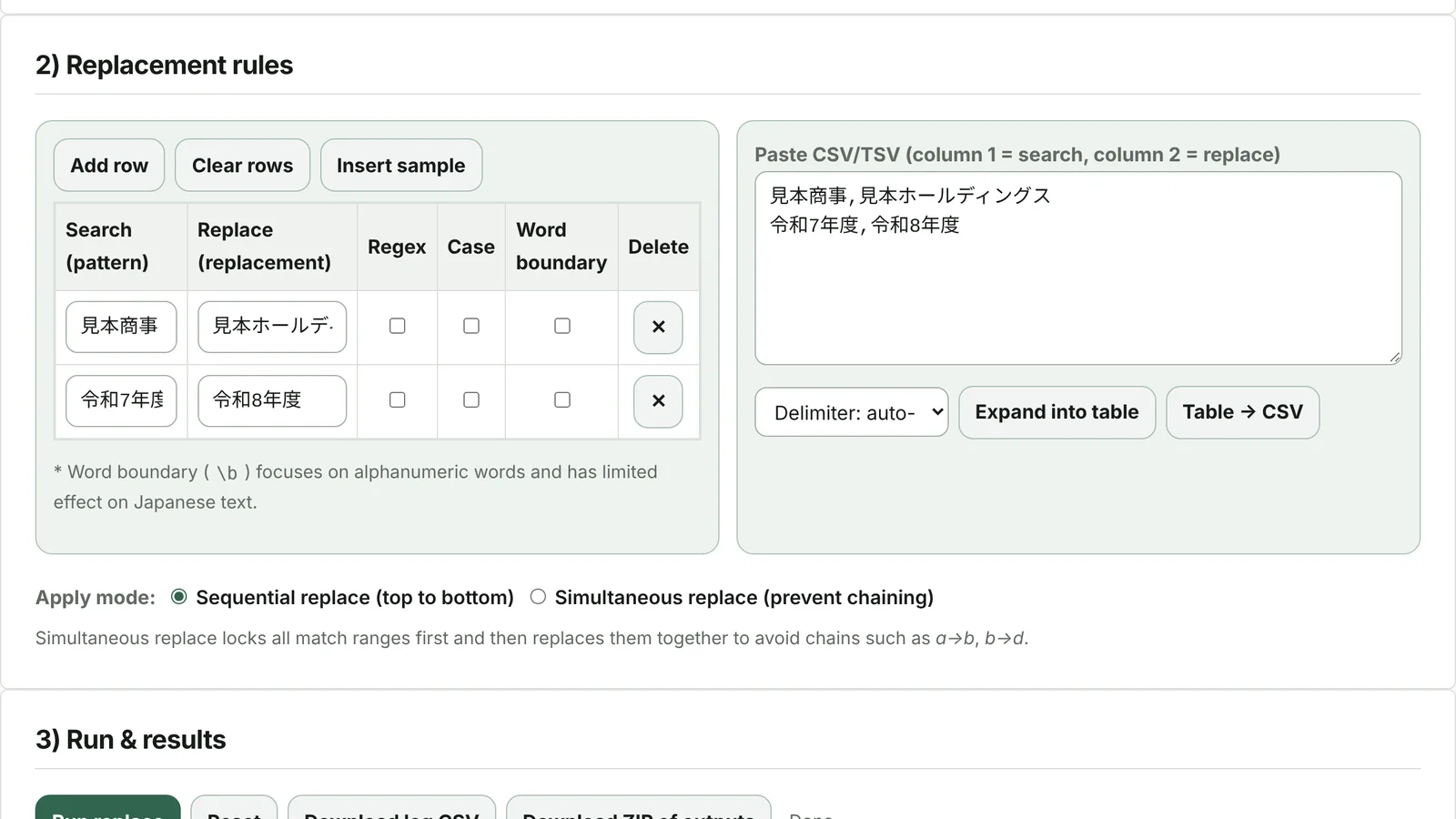
The plan is to change the company name 見本商事 to 見本ホールディングス (Mihon Holdings) and 令和7年度 to 令和8年度. I searched for 見本商事 rather than the full 株式会社見本商事 so that variants with something different in front, such as (株)見本商事 or 見本商事 経理部, are caught by the same rule.
Loading the files and entering the rules
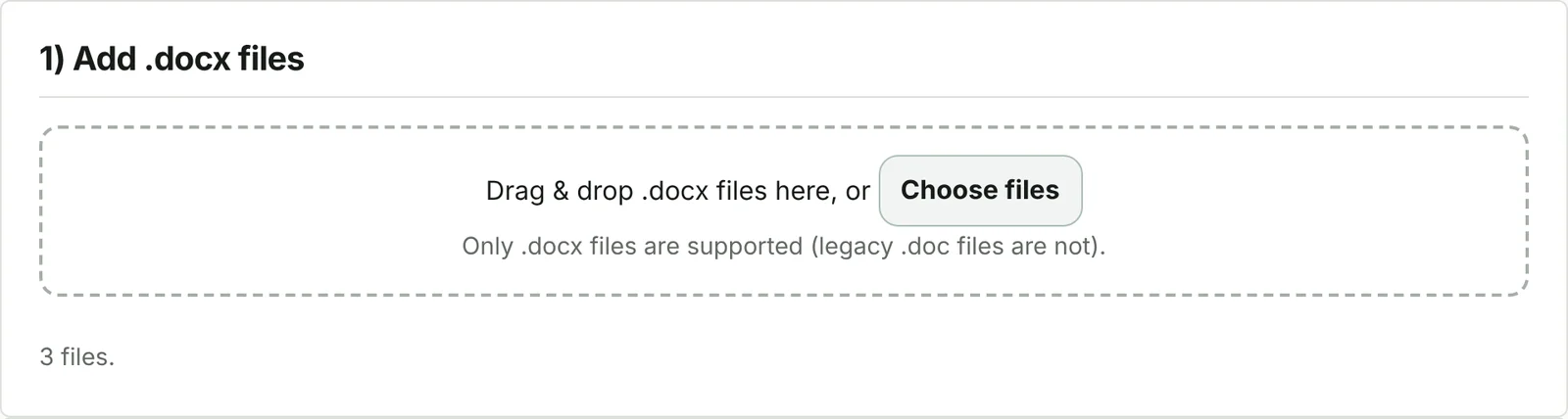
Drop the three files onto the “1) Add .docx files” area, or select them together with “Choose files”. The number loaded is shown, for example “3 files.”
Replacement rules go into the “2) Replacement rules” table, one per row. You can add rows with “Add row” and type into them, but with many rules it is faster to write “search,replacement” pairs one per line into the “Paste CSV/TSV” box on the right and click “Expand into table”. If you keep a two-column table of old and new names in Excel, copy the cell range and paste it; it is detected as tab-separated automatically.
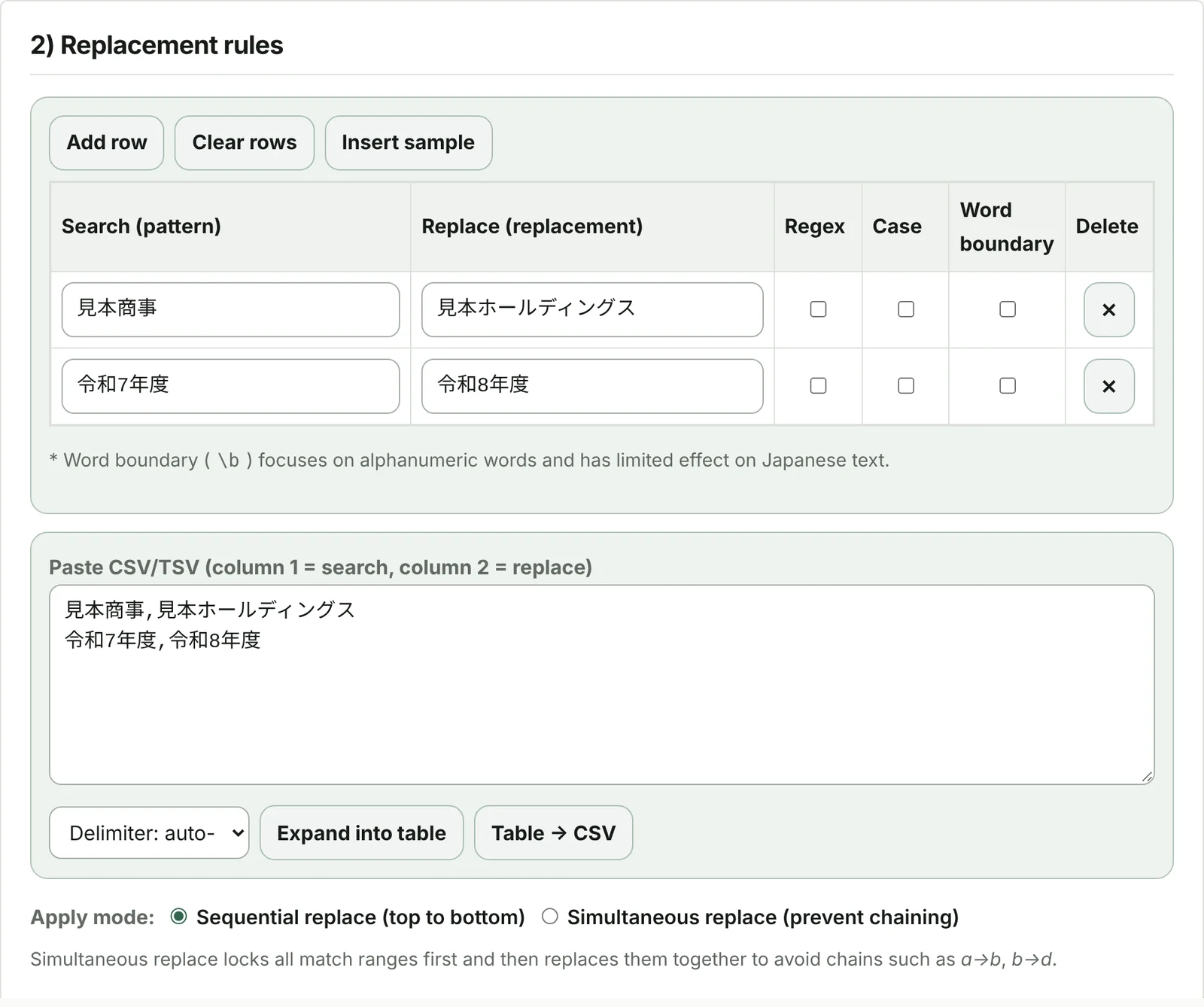
Each row has “Regex”, “Case” and “Word boundary” checkboxes. When “Case” is unchecked, the row ignores the difference between upper- and lowercase Latin letters, so “Mihon” also replaces “MIHON”. “Word boundary” keeps a match from starting or ending in the middle of an English word. Japanese is written without spaces between words, so this option has almost no effect on Japanese text. For this job all three stay unchecked.
Below the table, I left “Apply mode” at its default, “Sequential replace (top to bottom)”. I’ll come back to how it differs from simultaneous replace.
Running the replacement and checking the counts
Click “Run replace” in “3) Run & results” and the results list shows how many replacements were made in each file.
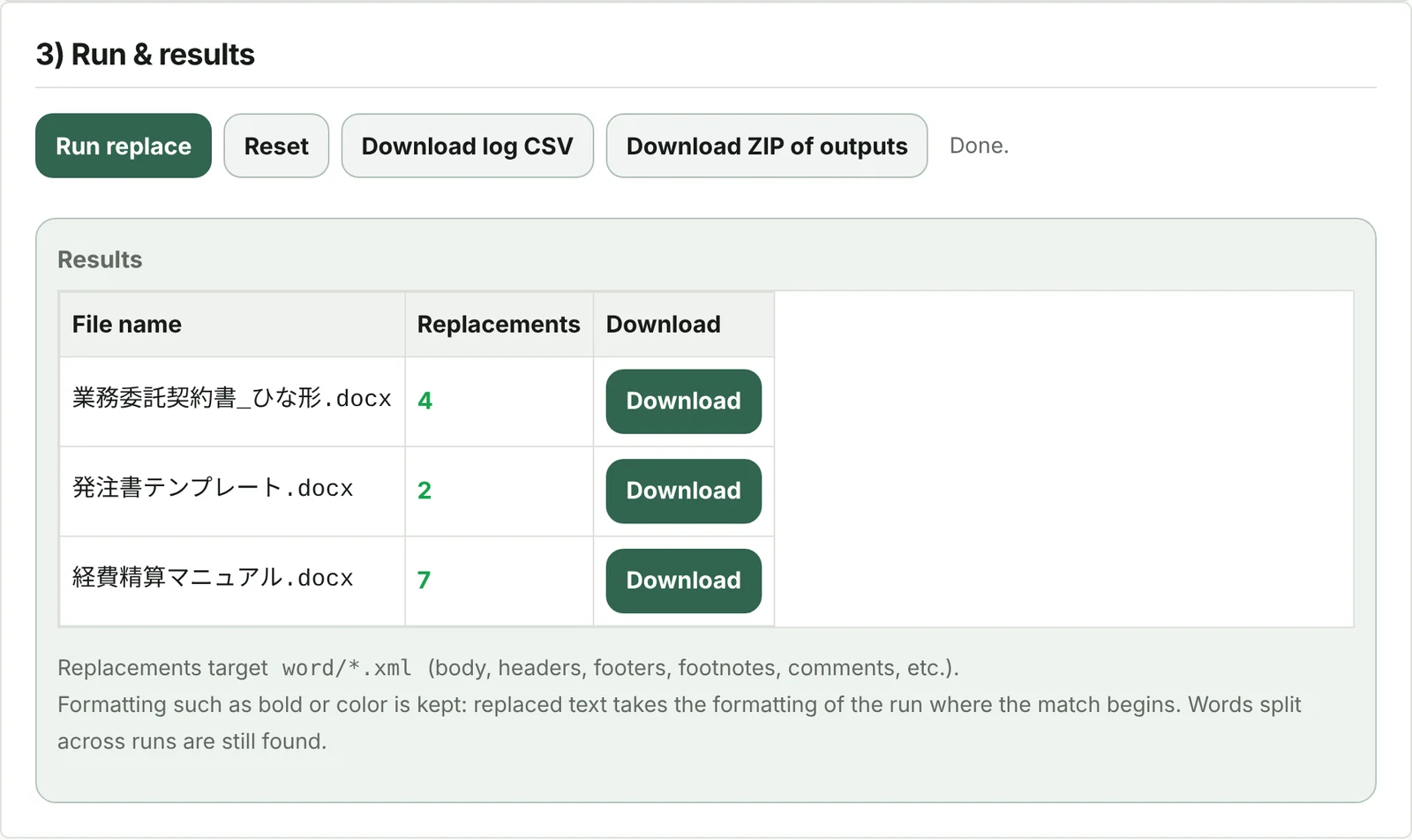
The counts matched the number of places where the company name or year appears. The 4 in the contract are the header, the start of the body, the signature table and the footer. The 7 in the manual are 4 company names (header, bold body text and the two addressing examples) and 3 years (heading, body and footer). A per-rule breakdown can be saved with “Download log CSV”. This run’s log looked like this:
file,replaced_total,rule1,rule2
業務委託契約書_ひな形.docx,4,4,0
発注書テンプレート.docx,2,2,0
経費精算マニュアル.docx,7,4,3
A file with 0 replacements, or with more than you expected, is a signal to review the search terms before saving. Searching only for 見本, for example, would also change a personal name such as 見本太郎 (Mihon Taro).
Save the results one at a time with each row’s “Download” button, or all together as replaced_docx.zip with “Download ZIP of outputs”. The file names stay the same as the originals, so saving them to a separate folder avoids mixing them up.
Opening the result as a Word document
I opened the saved manual and compared it with the original. The image below shows it in LibreOffice Writer.
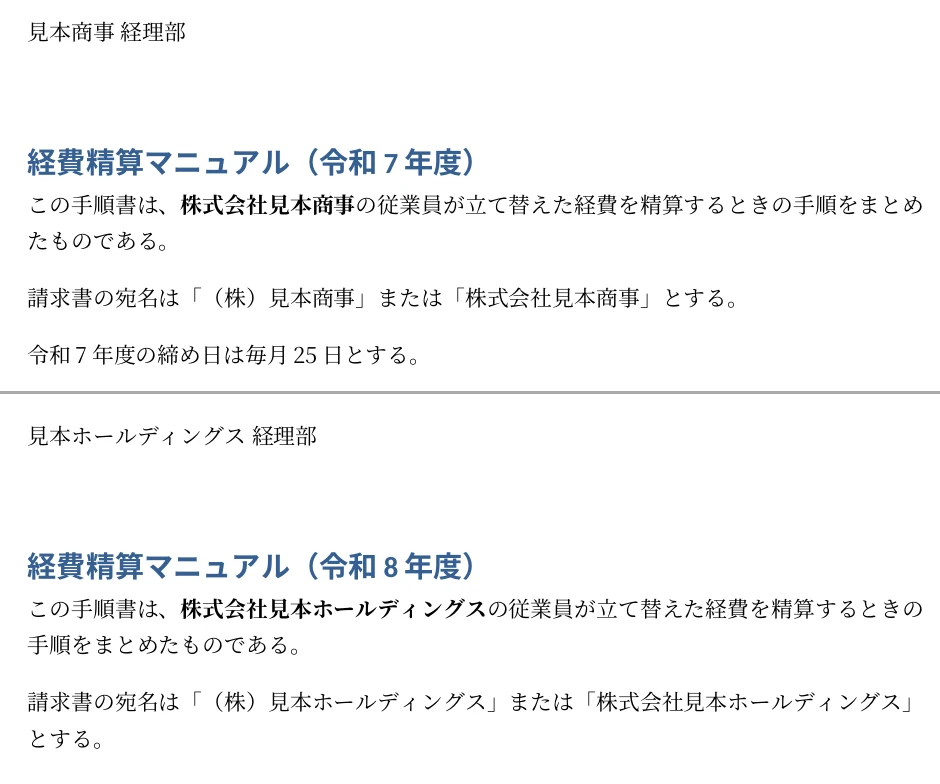
The company name and year were replaced everywhere: header, heading, body and the addressing examples. The heading’s color and the bold in the body were kept. The bold 株式会社見本商事 grew from 8 characters to 14, and the bold runs right to the last character of 株式会社見本ホールディングス.
Words split inside the file are replaced too
Internally, a Word document stores the text of a paragraph in formatting units called runs. It’s easy to see that bold and normal text end up in separate runs, but runs can also be split where the text looks uniform, depending on when it was typed, where the input method committed a conversion, or the spell checker. In the test contract, I split the company name at the start of the body into two runs internally: 株式会社見 and 本商事.
If you search the XML inside a .docx as plain text for 見本商事, such places do not match. This tool joins the text of the runs in each paragraph before searching, so the split company name is replaced as well. That is why the contract showed 4 replacements, and after replacement its opening read 株式会社見本ホールディングス(以下「甲」という)と、…, “Mihon Holdings Co., Ltd. (hereinafter ‘Party A’) and …”.
The replacement text goes into the same run as the first character of the match. That is why the bold company name stayed bold as it grew longer. Conversely, if the formatting changes partway through the matched text (say, only the second half of the company name is red), the whole replacement takes the formatting of the first character.
Swapping Party A and Party B needs simultaneous replace
The difference between the apply modes shows up clearly when you swap two words. Japanese contracts conventionally refer to the two parties as 甲 (kō) and 乙 (otsu), roughly “Party A” and “Party B”. Suppose you have a contract template written from the client’s side and want to reuse it for a contract in which your company is the contractor, so 甲 and 乙 have to trade places. The rules are two rows: 甲→乙 and 乙→甲.
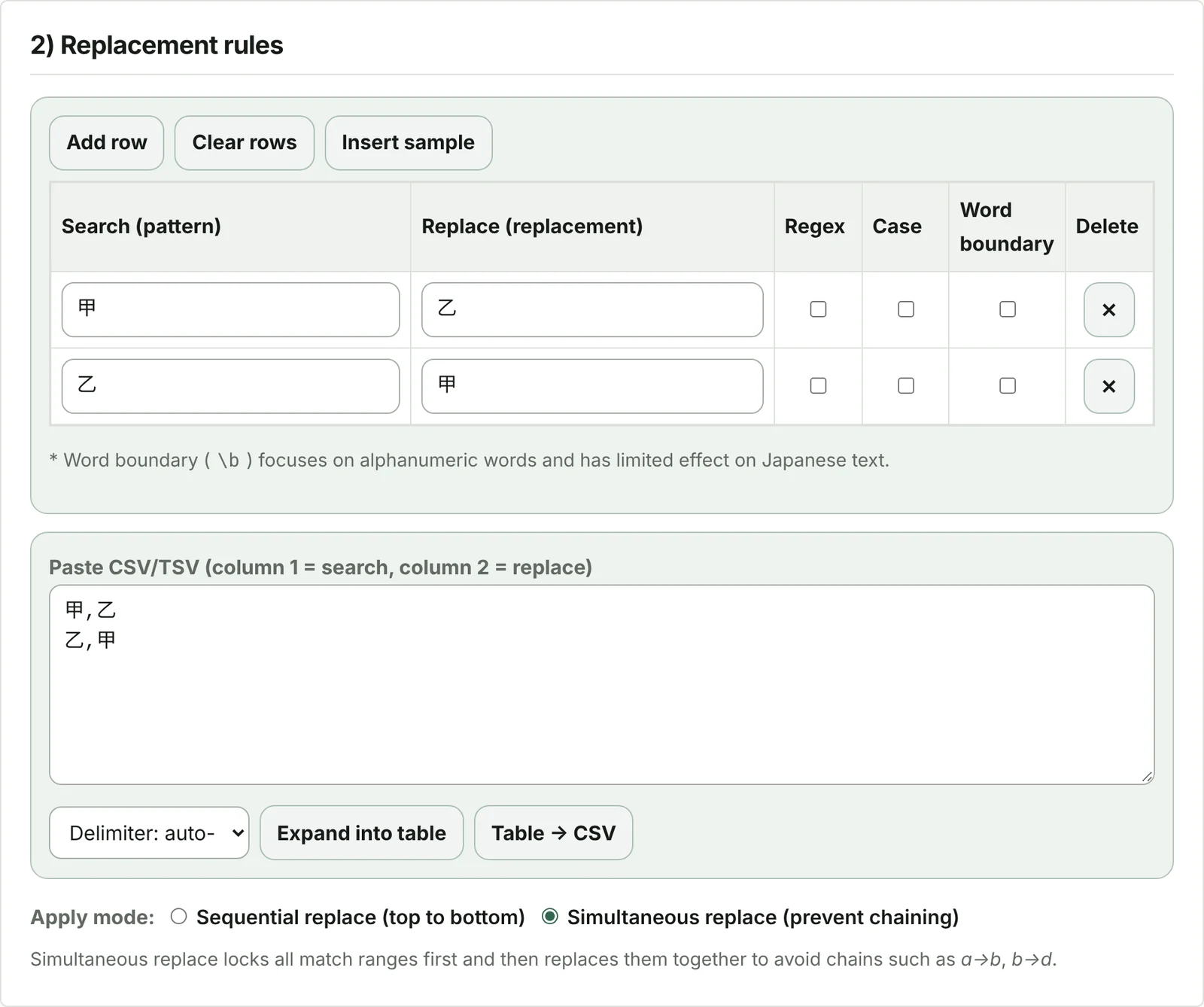
I ran the same contract through sequential and simultaneous replace.
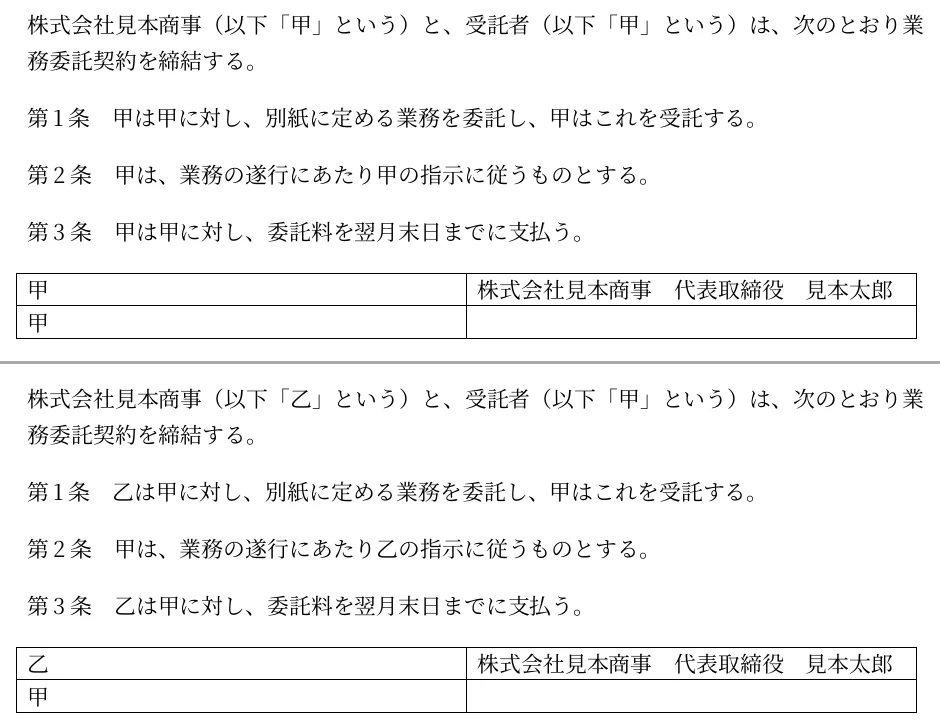
Sequential replace applies the first row’s rule to the whole document, then applies the next row to that result. Row 1 turned every 甲 into 乙, and row 2 then turned those 乙 together with the original 乙 back into 甲, so every 甲 and 乙 in the document became 甲. The counts were 5 for row 1 and 11 for row 2, shown as 16 in total.
“Simultaneous replace” first fixes the matches of all rules in the original text, then replaces them all at once. No rule can hit text that another rule has just inserted, so 甲 and 乙 were swapped correctly, and the count was 11: the original 5 instances of 甲 plus 6 of 乙.
When rules don’t interact, as with the company name and the year, both modes give the same result. When the output of one rule is the search term of another, as in “A→B” and “B→C”, choose simultaneous replace. Conversely, when you want to keep working on the result of an earlier replacement, use sequential replace and let the row order decide the processing order.
A one-character search term like 甲 also matches wherever that character appears in other words. If a document contains words such as 甲府 (the city of Kōfu) or 甲斐 (Kai, an old province name), either split the rule so it includes the neighboring characters, such as 甲は or 甲に (甲 followed by a grammatical particle), or check the count and the text after replacing.
Unifying spelling variants and date formats with regular expressions
Check “Regex” on a row and its search term is treated as a JavaScript regular expression. Japanese text mixes full-width and half-width characters: suppose a document contains both the full-width (株) and the half-width (株), and you want to turn both into 株式会社. Use the search term [((]株[))]. Without a regular expression, full-width and half-width parentheses count as different characters, so you would need a separate rule for each.
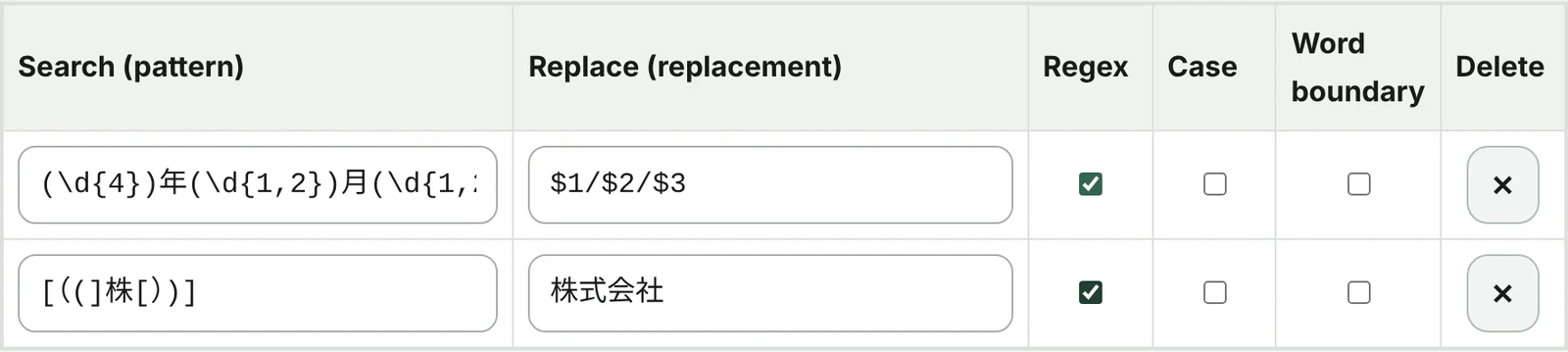
Parts in parentheses can be used in the replacement as numbered groups such as $1 and $2. Japanese dates are written year 年, month 月, day 日. With the first row, which replaces (\d{4})年(\d{1,2})月(\d{1,2})日 with $1/$2/$3, the paragraph 契約日:2025年4月1日、(株)見本商事と(株)見本物産 (“Contract date: April 1, 2025, Mihon Shoji and Mihon Bussan”) became 契約日:2025/4/1、株式会社見本商事と株式会社見本物産. Named groups (?<y>…) with $<y>, and $& for the whole matched string, also work. On rows without Regex checked, writing $1 simply inserts those literal characters.
It’s easy to misjudge exactly what a regular expression will match, so before using one on your documents, copy part of the text into the Regex Tester and check the matches. More examples of how to write them are in “Extract product codes from multiple lines with a regular expression”.
What isn’t replaced, and what to check afterwards
The tool rewrites the XML in the word/ folder inside the .docx, that is, the text of the body, tables, headers, footers, footnotes and comments. The following are not replaced:
- File properties: the title and author shown under File → Info are stored elsewhere, so the old company name remains there. If needed, open the file in Word and edit them.
- File names: if a file name contains the old company name, rename it separately.
- Embedded objects and images: an Excel table pasted into the document, or a logo or company seal inserted as an image, keeps its text.
- Legacy .doc files: open them in Word, use Save As to save them as Word Document (*.docx), then load them.
The replacements are not recorded in Word’s Track Changes either. For a document such as a contract, where you have to show the other party or your manager what changed, use Word’s Review → Compare on the original and the replaced file; the differences are shown as tracked changes. For a quick look at the text alone, you can also copy both versions into Side-by-Side Text Comparison (Diff) (see “Compare configuration changes with Text Diff” for how to use it).
One more thing you’ll notice is file size. The saved .docx stores its contents without compression, so it is larger than the original. Here the manual went from 38 KB to 832 KB. The content is the same and Word opens it as is, but if size matters, for instance before attaching it to an email, just open and save it once. Opening it in LibreOffice Writer and saving again brought it down to 23 KB.
To bulk-replace text in plain text files, CSV or HTML, use Bulk Find & Replace (Text), which works the same way. An example of replacing with a mapping table is in “Replace room numbers across multiple text files”.