Replace room numbers across multiple text files
Update room numbers across text files using a replacement table. English-interface screenshots show how simultaneous and sequential replacement differ, how to check counts, and how to save the output ZIP and CSV log.
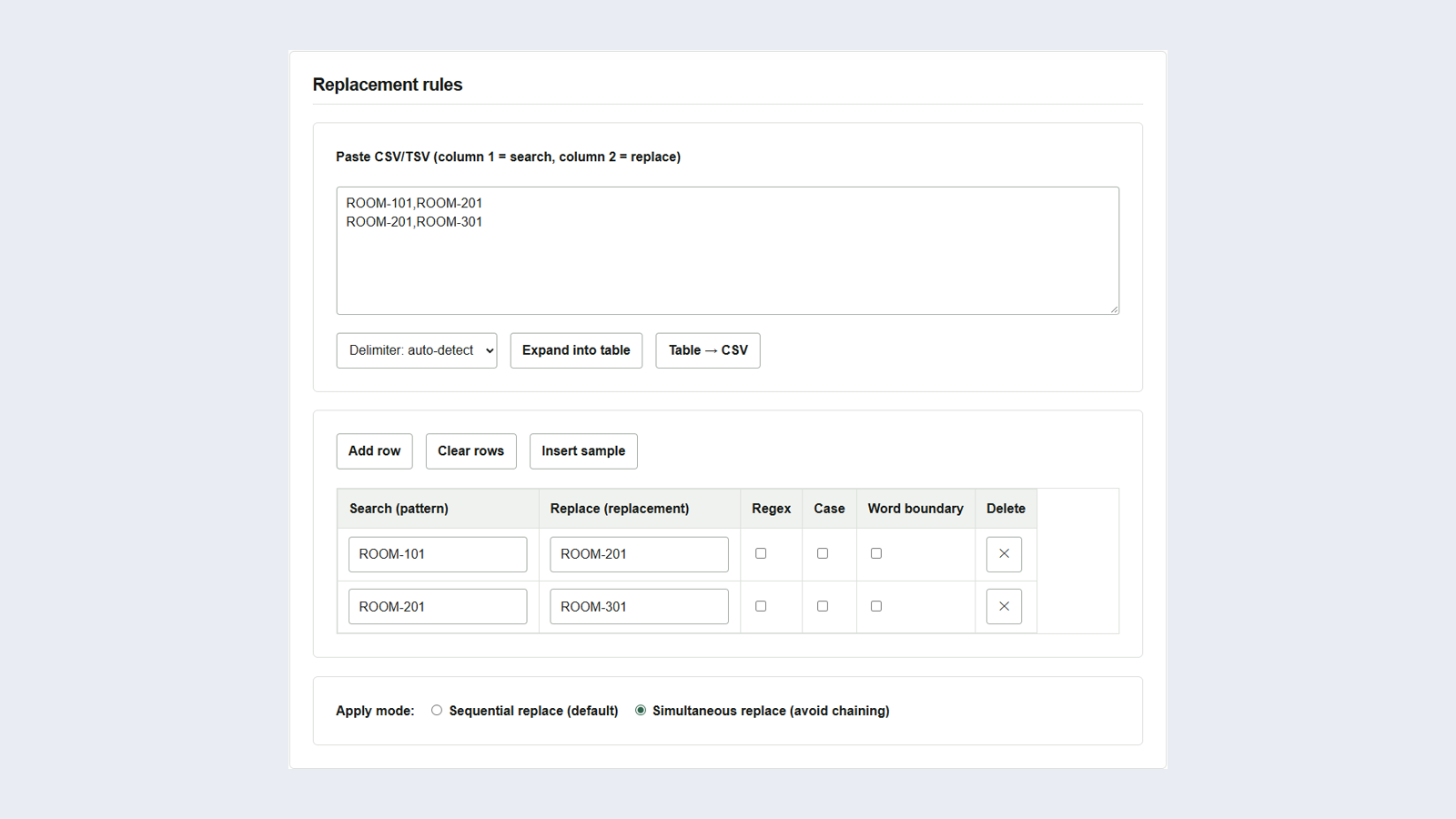
When room numbers change, references scattered through notices and schedules need updating too. Suppose old ROOM-101 becomes new ROOM-201, and old ROOM-201 becomes new ROOM-301. Repeating find-and-replace one rule at a time also turns the first rule’s results into ROOM-301. In Bulk Replace for text files, Simultaneous replace (avoid chaining) applies the mapping to the original text.
Paste the mapping and select simultaneous replacement
To try it, save the following two files as UTF-8. Each file needs only the single line shown.
| File name | Contents |
|---|---|
notice.txt |
Entrance: ROOM-101 / Reception: ROOM-201 |
schedule.txt |
09:00 ROOM-101 |
- Add both files with Choose files.
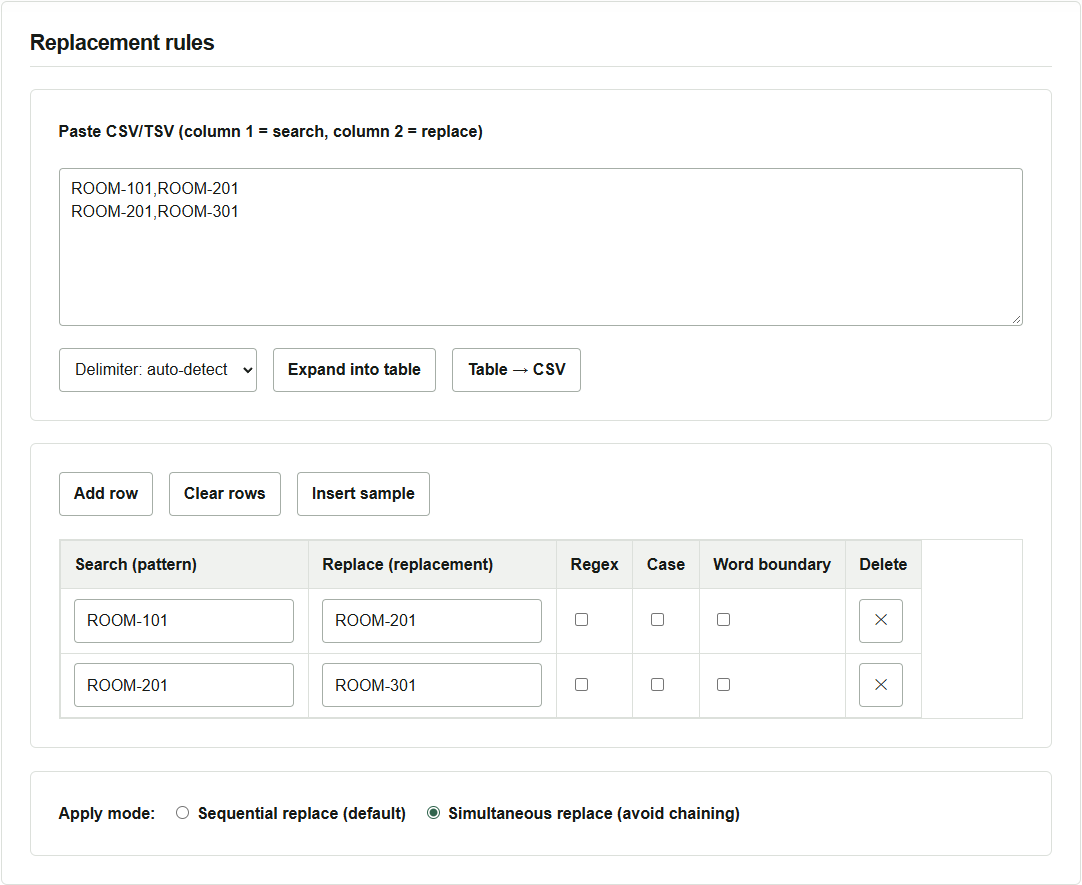
- Paste the CSV below into the replacement-rules area and click Expand into table. The first column is the search term and the second is its replacement; do not include a header row. If the table contains old rules, remove them first with Clear rows.
- Check that the table contains two rows and select Simultaneous replace (avoid chaining). Leave Regex off, since this example searches for literal strings.
ROOM-101,ROOM-201
ROOM-201,ROOM-301
Save the replaced files and the log
Click Run replace. In the results, Replacements shows 2 for notice.txt and 1 for schedule.txt. Use Download ZIP of outputs to save replaced.zip, extract it and check for the following text.
| File name | After replacement |
|---|---|
notice.txt |
Entrance: ROOM-201 / Reception: ROOM-301 |
schedule.txt |
09:00 ROOM-201 |
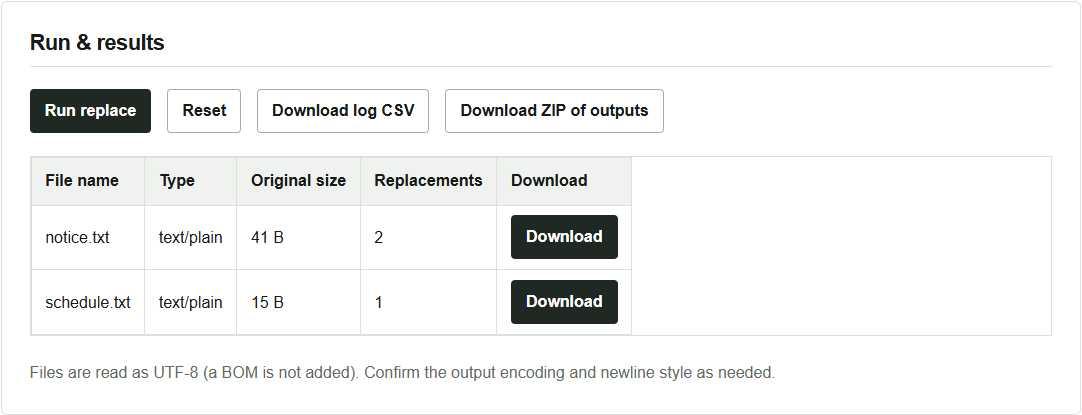
The replace-log.csv file saved with Download log CSV lists totals for each file and counts for each rule. In this example, the second rule has 0 matches in schedule.txt. If you process the same files with the default Sequential replace (default), the ROOM-201 produced by the first rule also matches the second rule. In that case, schedule.txt shows 2 replacements and becomes 09:00 ROOM-301. Use sequential replacement when changes from one rule should carry into the next.
Working with your actual files
Processing stays in the browser. Output files have the same names as the originals, so extract the ZIP into a separate folder and inspect the differences before replacing your files. Input is read as UTF-8 and output is also UTF-8. Convert files in Shift_JIS or another encoding to UTF-8 first.
By default, search terms are case-insensitive and can match part of a string. If a file also contains ROOM-1010, enable Word boundary for both rules in this example to prevent a match where another digit follows the room number. Trying a small number of files first makes partial matches and replacement counts easier to check.