Switch Windows network settings between work locations
Use netsh to switch a single adapter between static IPv4 and DHCP. Record the original settings, restore DNS, and check the proxy your apps use.
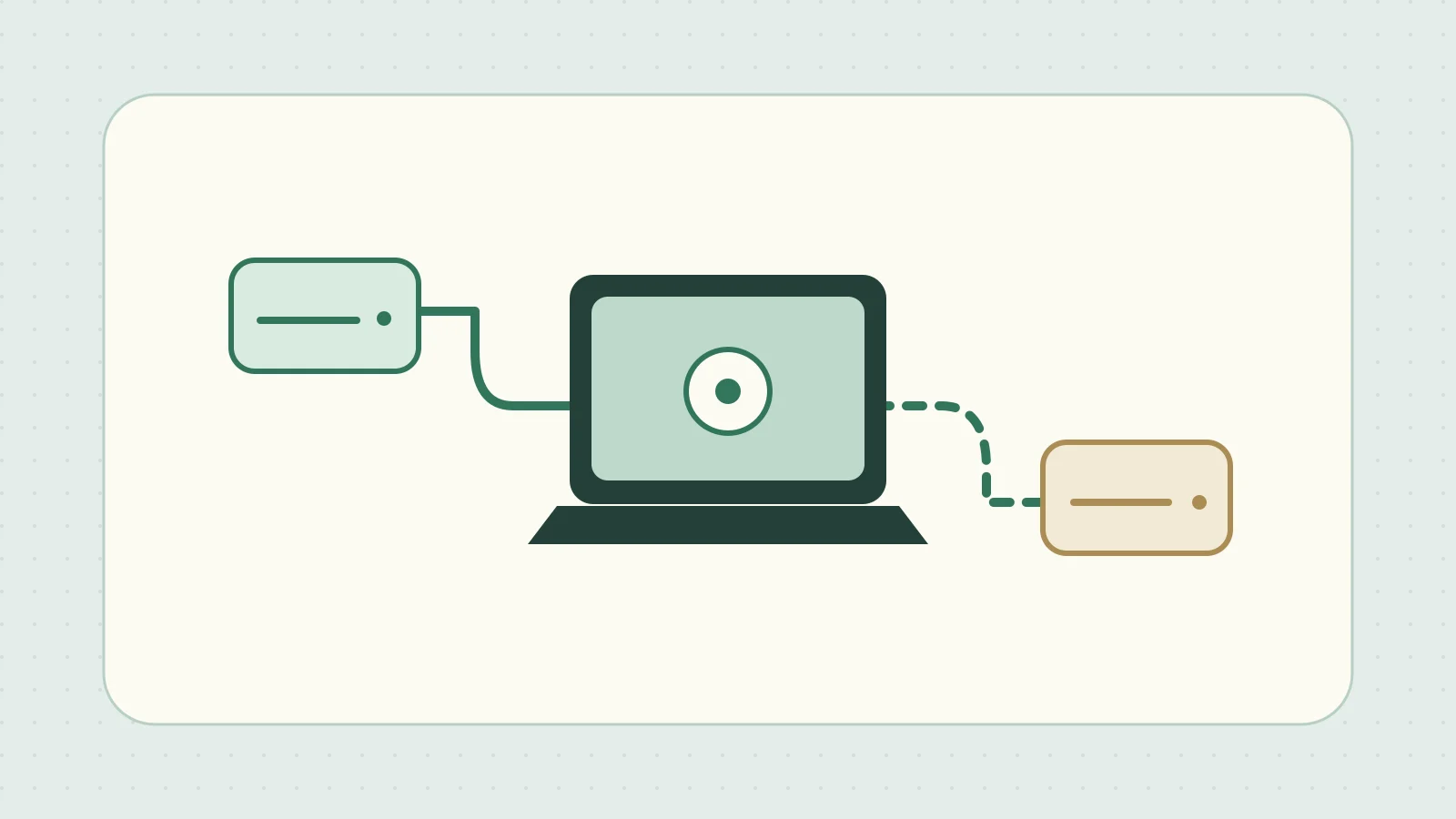
Suppose you use the same laptop in a test lab that requires a static IP address and at your usual desk, where DHCP assigns it. In Windows 11 Command Prompt, you can identify the wired adapter by name and change its IPv4 address and DNS servers together.
Record the adapter name and settings before changing them
Run these commands to list interfaces and capture the current configuration. Replace Ethernet with the name shown for the target adapter. Redirecting to an existing file overwrites it, so give every snapshot a fresh name, for example with the date.
netsh interface ipv4 show interfaces
netsh interface ipv4 show config name="Ethernet"
netsh interface ipv4 dump > "%USERPROFILE%\ipv4-before.txt"
Check show config to see whether the IP address and DNS are each automatic or manual. The dump output is a list of commands that can include multiple interfaces. Keep it as a record of the current values, and check how to handle internal addresses before sharing it. Microsoft’s netsh interface reference
Switch to the test lab’s static IPv4 settings
The addresses below are for illustration. Use the IP address, subnet mask, gateway, and DNS server assigned for your network. Because connectivity may drop, open Command Prompt as administrator on the PC itself and check the result of each line.
netsh interface ipv4 set address name="Ethernet" source=static address=192.0.2.20 mask=255.255.255.0 gateway=192.0.2.1
netsh interface ipv4 set dnsservers name="Ethernet" source=static address=192.0.2.53
netsh interface ipv4 show config name="Ethernet"
If setting the address fails, check the adapter name and assigned values before going on to DNS. If the DNS command fails, the IP address alone may already have changed. Review the current settings and verify both connectivity and name resolution before putting these commands in a batch file.
Return to DHCP at your usual desk
If the original network assigned both the IP address and DNS automatically, return both to DHCP. If either value was manual, restore the value you recorded.
netsh interface ipv4 set address name="Ethernet" source=dhcp
netsh interface ipv4 set dnsservers name="Ethernet" source=dhcp
netsh interface ipv4 show config name="Ethernet"
Confirm that DHCP has assigned an address, then try reaching a host you normally use. If the switch also requires VPN or Wi-Fi changes, decide separately what to change and how.
Save and restore a network configuration for each location
If the switch includes multiple adapters or per-user internet settings, create a backup and restore batch file for each location. For example, after checking the connection on the first floor, run a batch file that saves that floor’s settings, and repeat at the next location. Include the location in the file name and make a dated backup before overwriting a file.
| What to save | Save | Restore |
|---|---|---|
| Network interface configuration | Save netsh interface dump to a text file for each location |
Use netsh exec to execute the commands in the text file |
| Current user’s internet settings | Use reg export to save the relevant key to a .reg file per location |
Load the values with reg import |
Before restoring, save the current settings under another name and inspect the file you will load. netsh exec runs the commands in order, so if adapter names have changed since the backup, verify each command still targets the intended adapter. Microsoft’s netsh exec reference · reg export reference
Check the proxy settings your application uses
The registry key for per-user internet settings is HKCU\Software\Microsoft\Windows\CurrentVersion\Internet Settings. reg import writes all the values in the file, so inspect the keys and values first. To see the user proxy, open Settings → Network & internet → Proxy. For an app or service that uses WinHTTP, check its settings with netsh winhttp show proxy. Microsoft’s reg import reference · netsh winhttp reference