How to merge CSV and TSV files by column name
Combine CSV and TSV files with different columns or column orders. Use the sample files to see how the tool handles missing columns, tracks each row’s source, and saves the result.
Branches may start with the same template and customize different columns. When you combine their exports into one table, you need to align the columns they share and keep the ones that appear in only one branch’s file.
Columns can also drift when someone edits one of two otherwise similar files. They might reorder the existing columns or add one with extra information. Matching headers lets you bring the rearranged fields and the new information into the same table.
Suppose one branch puts the price in the first column of its product list and another puts it third. Pasting rows directly would put different kinds of values in the same column. The CSV Merger reads the first record in each file as a header and appends rows with the values aligned under matching column names. You can combine comma-separated CSV and tab-separated TSV files in the same run.
Inspect the two sample files
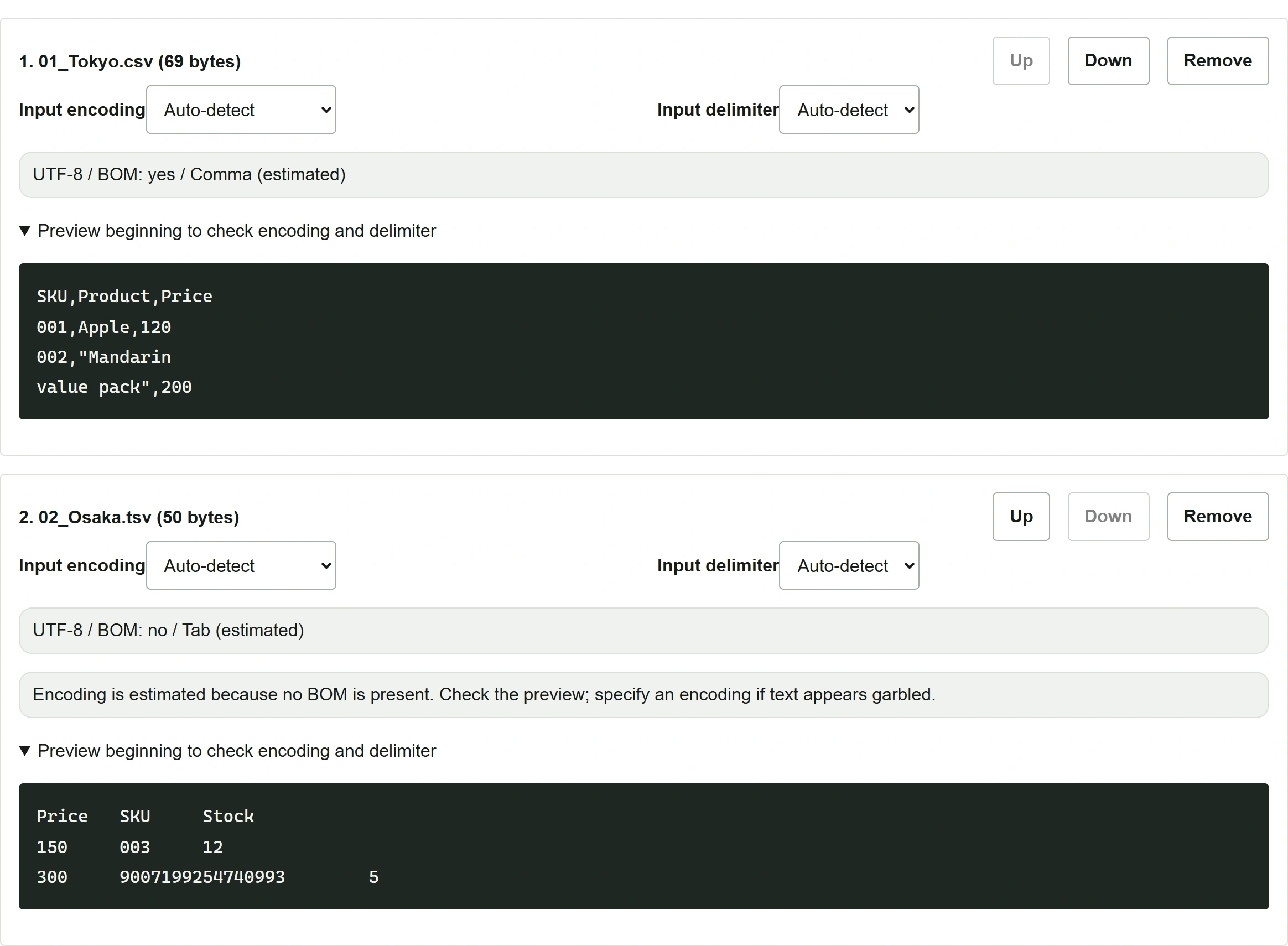
Open the tool and click Try sample files. The list will show one CSV and one TSV. Expand the preview at the beginning of each file to check the column order and make sure the text is readable.
| Sample in the English UI | Delimiter | Input column order |
|---|---|---|
01_Tokyo.csv |
Comma | SKU, Product, Price |
02_Osaka.tsv |
Tab | Price, SKU, Stock |
The screenshots show the English interface. The Japanese interface uses 01_東京.csv and 02_大阪.tsv, with 商品コード, 商品名, 価格, and 在庫 for SKU, product, price, and stock, respectively.
Merge and save with the source filenames
- Check that the CSV comes first and the TSV second in the file list. The first file establishes the output column order. New columns from later files are added at the end.
- Check Add the source filename as the final column. Keep the default output settings, UTF-8 with a BOM and comma-separated fields.
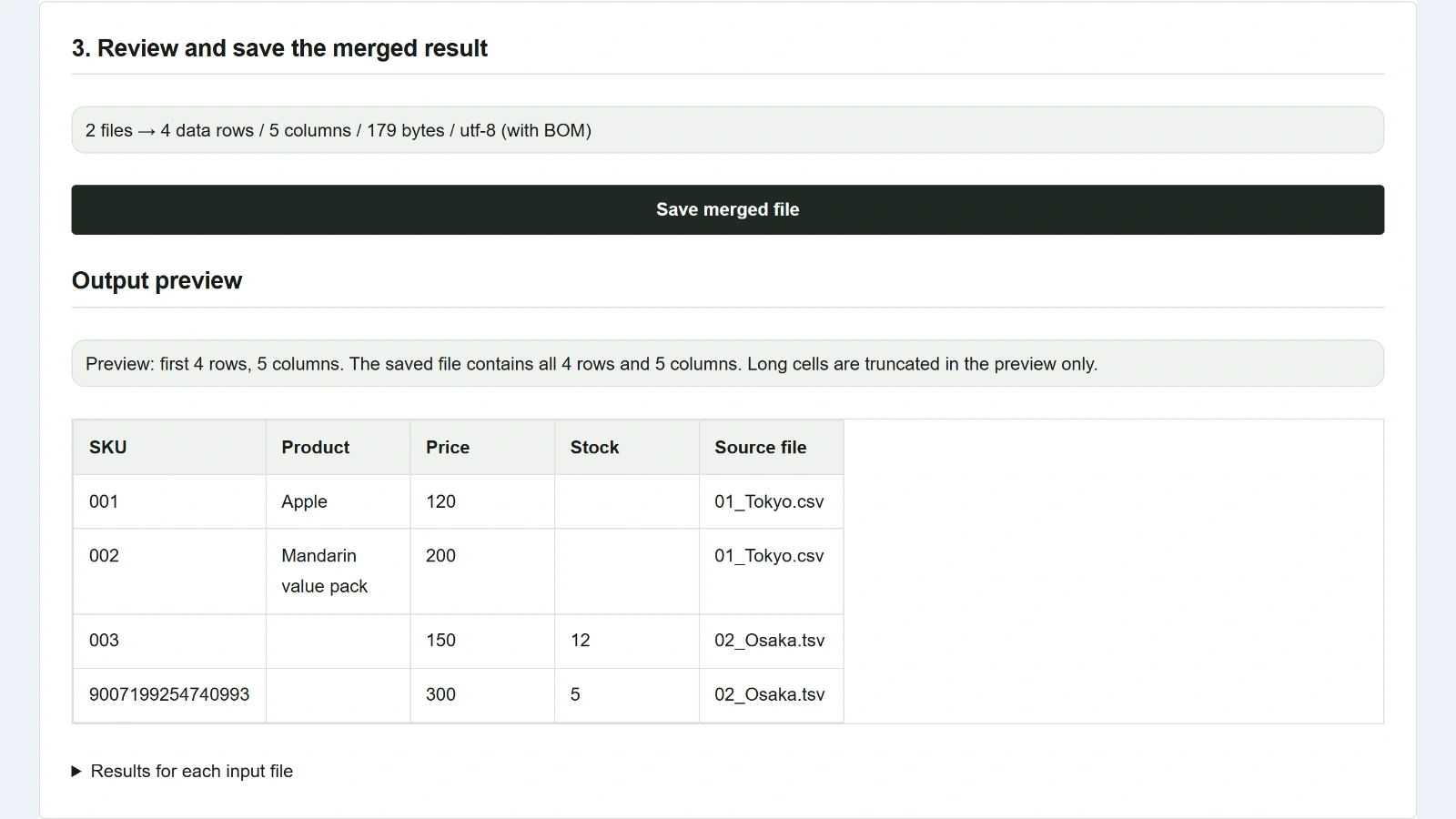
- Click Validate and merge. Four records appear in the preview. The final column tells you where each row came from.
- Click Save merged file to download
merged.csv.
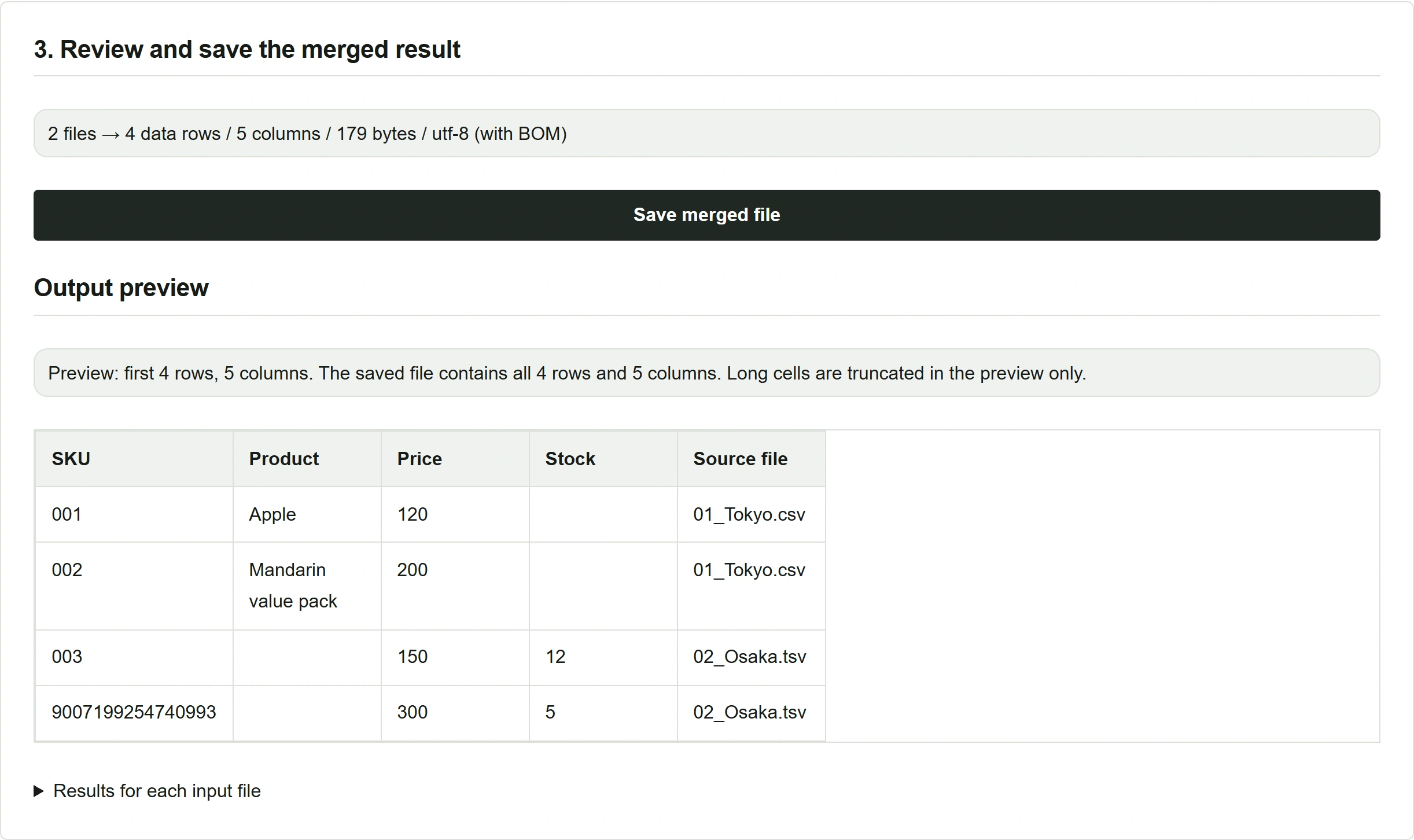
Both files have a Price column, so their prices line up. Only the CSV has Product and only the TSV has Stock, so rows from a file without one of those columns have a blank in its place. A SKU that appears in both files still appears on separate rows. To put the product name and stock count on one row per SKU, join the data using SKU as the key.
What to check when merging your own files
Select multiple files in the file picker or add them to the drop area. If one file has a column called Price and another calls it Unit Price, the output has two columns. Rename the headers in the input files to match if they represent the same field. Use the merge settings to trim leading or trailing whitespace in column names. If text is garbled or the delimiter is wrong, set the encoding or delimiter for that file.
If validation stops, use the displayed filename and record number to look for a duplicate header, an incorrect field count, or an unclosed quote. A product name in the sample includes a line break within a cell, so the record number can differ from the physical line number in a text editor.
The saved CSV still contains product codes such as 001 and 9007199254740993 as their original strings. In Excel, use From Text/CSV and set the SKU column to Text to preserve leading zeros and long IDs. The tool processes files in the browser from opening to saving.