How to Make a Favicon: Turning a Wide Logo into favicon.ico and apple-touch-icon, and Setting Up the link Tags
Turn a site logo into a favicon and the text vanishes in a 16 px tab, while the iPhone home screen fills the background with a color you never chose. Using a favicon generator that runs in the browser, this walkthrough builds favicon.ico, apple-touch-icon.png, Android/PWA icons and a manifest from a wide logo and from an SVG of just the symbol, then covers the tags for your head, what is inside an ICO and how big it gets, and what to check when the new icon does not show up.
Contents
Once you publish a blog or an internal web page, you will want a favicon, the small icon that appears in the browser tab. It sounds like a five-minute job if you already have a logo, but in practice there are more decisions than you would expect. Which pixel sizes go into favicon.ico? Do you need a separate icon for the iPhone’s “Add to Home Screen”? Which tags belong in the <head>?
Image editors can export PNGs, but most cannot produce an ICO file that bundles several sizes into one without a plugin. Online converters do the job, but then you are uploading a logo that may not even be public yet.
The Favicon Generator builds a complete favicon set from a logo image or from text and saves it as a ZIP. The images are processed in the browser and never sent to a server. In this article I use the logo of a fictional site, “Komorebi Field Notes” (komorebi is the Japanese word for sunlight filtering through the leaves of trees, hence the leaf mark), to see what happens when you use a wide logo as is, and what files you get when you start from an SVG of just the symbol.
The test images
I used the two images below. Save them and you can follow the same steps.
| File | What it is | Size |
|---|---|---|
| komorebi-logo.png | A logo with a leaf drawn in a rounded square, followed by the words “Komorebi FIELD NOTES”. Transparent background | 1200×400 px |
| komorebi-mark.svg | An SVG containing only the mark from the logo | Square (viewBox 280×280) |
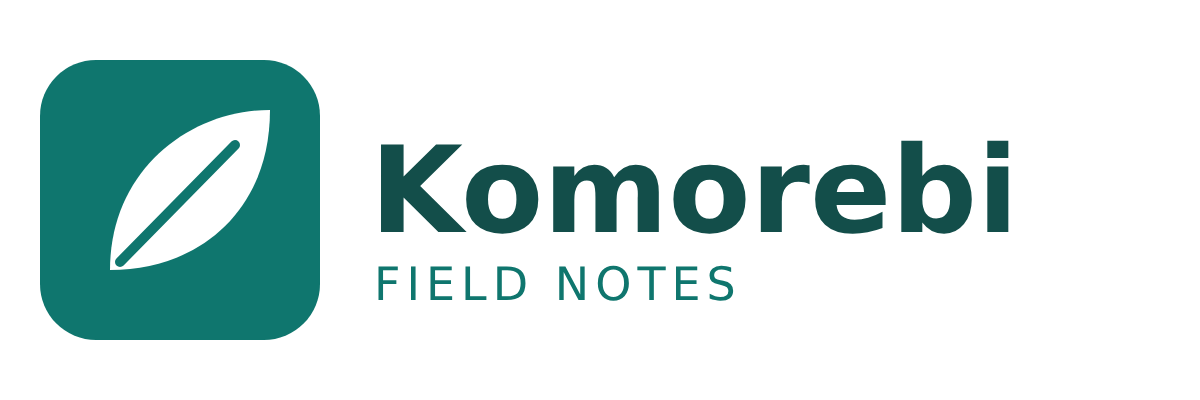

Logos that sit in a site header are often wide like this one. Let’s start by turning that into a favicon unchanged.
A wide logo used as is: the text becomes unreadable
Open the tool, leave “From an image file” selected, and choose komorebi-logo.png under “Image”. Right after I picked it, this note appeared below the field:
komorebi-logo.png (1200 × 400 px) The image is smaller than 512 px, so the 512 px icon will be upscaled and slightly blurry. The image is not square; use the “Non-square images” setting to choose how it is fitted.
The image is 1200 px wide, but once it is fitted into a square icon, what counts is the short side, 400 px. That is why the tool warns that the 512 px icon will be stretched.
Even without changing any settings, a preview appears at the bottom of the page right away. “Non-square images” was left at its default, “Fit the whole image (adds margins)”.
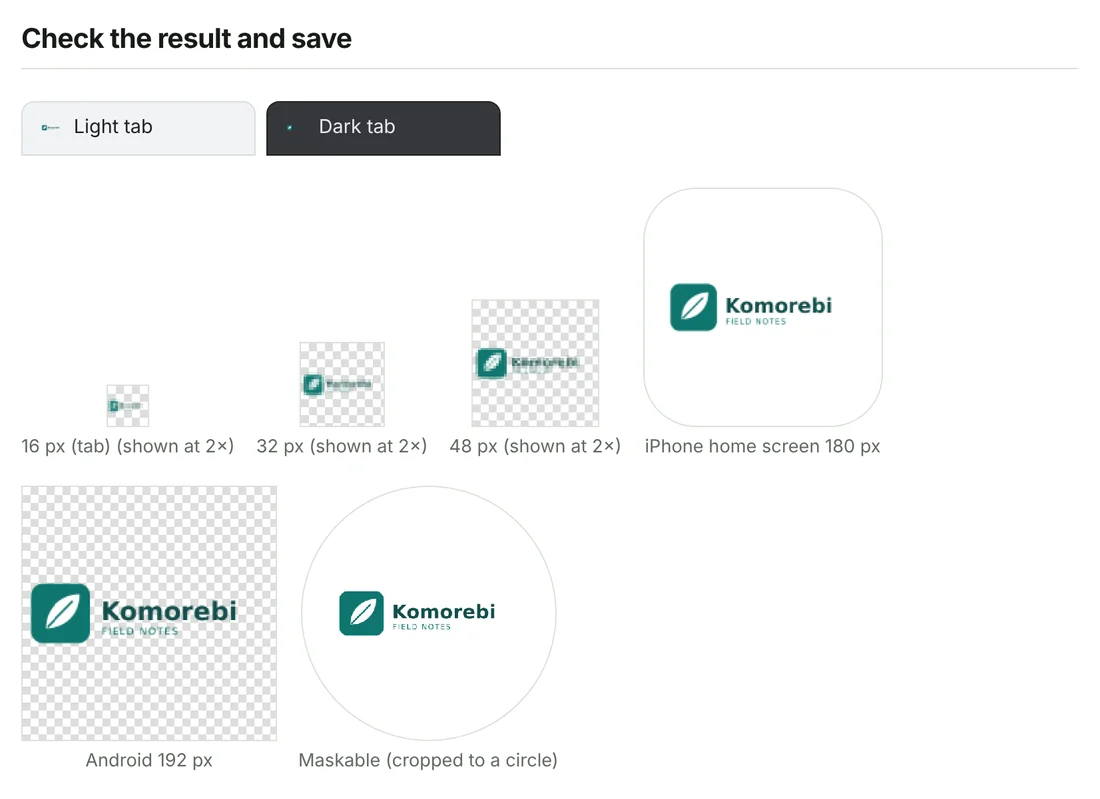
The “Light tab” and “Dark tab” at the top are samples of the icon as it appears in a browser tab at 16 px. Because the wide image is fitted into a square, large margins are added above and below, and the logo turns into a thin horizontal line. Even at 32 px and 48 px the word “Komorebi” is squashed beyond reading. In the home screen icons of 180 px and up you can make out the text, but the logo floats small in the middle of the icon.
Switching “Non-square images” to “Crop a square from the center” cuts out the middle of the image instead, and the result was an icon showing large fragments of “Komor” and “IELD NOTES”. In this logo the mark sits at the left edge, so a center crop does not produce anything usable either.
At 16 px, the icon is a grid of just 16 by 16 squares. Fitting the company name in there is not realistic. If your logo contains a symbol, use only the symbol; if it is a text-only logo, use its first one or two letters.
Building the full favicon set from an SVG of the mark
1. Choose the image, then set the background and names
Under “Image”, choose komorebi-mark.svg instead. When you pick an SVG, the tool shows “Because this is an SVG, the original file is added to the ZIP as icon.svg.” An SVG does not lose quality when scaled up, so if you have a vector source, pick it over a PNG. If you use a PNG, ideally it should be square and at least 512×512 px.
Then I set the following fields.
| Field | Value | Why |
|---|---|---|
| Background of favicon.ico and 192/512 px icons | Transparent (default) | The mark is already a rounded square, so the area outside it stays transparent |
| Background color (home screen and maskable) | #0f766e (the same green as the mark) |
Fills the spare area of the home screen icon with the mark’s color so it reads as one tile |
| Home screen icon padding (%) | 0 | With the default 8%, a frame of background color appears around the mark |
| Site name (name) | Komorebi Field Notes | The name written into the manifest |
| Short name (short_name) | Komorebi | The name shown under the icon on the home screen |
| Theme color | #0f766e |
The color mobile browsers use for the address bar and similar UI |
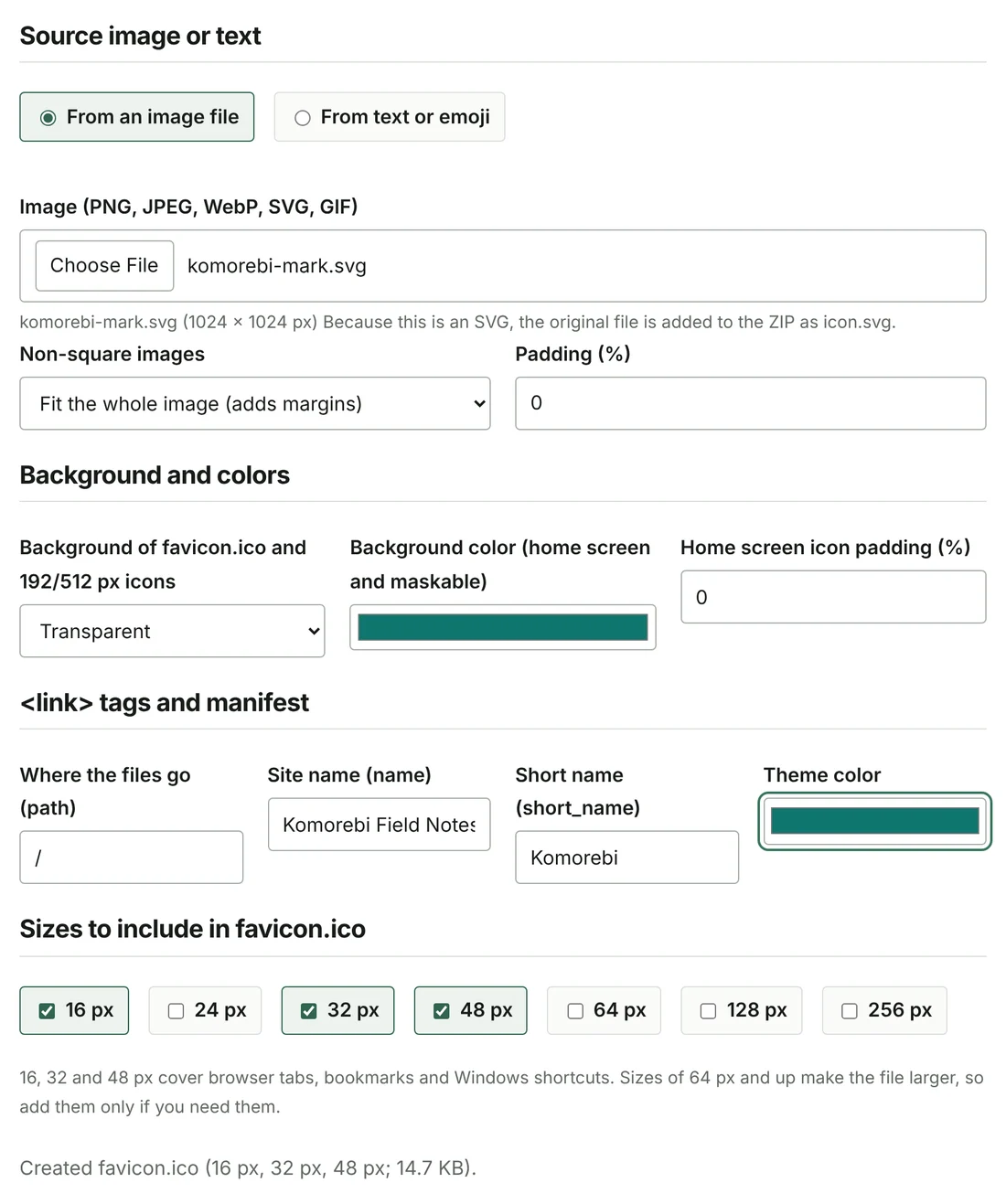
There are two background fields because some icons can be transparent and some cannot. The favicon.ico shown in browser tabs and the 192 and 512 px Android icons can stay transparent, and if they do, the tab color shows through. The iPhone home screen icon, apple-touch-icon.png, on the other hand, displays transparent areas as black, so the tool always fills it with the background color. The maskable icon (explained below) is filled with the same color.
2. Check the small sizes in the preview
Every time you change a setting, the preview is rebuilt.
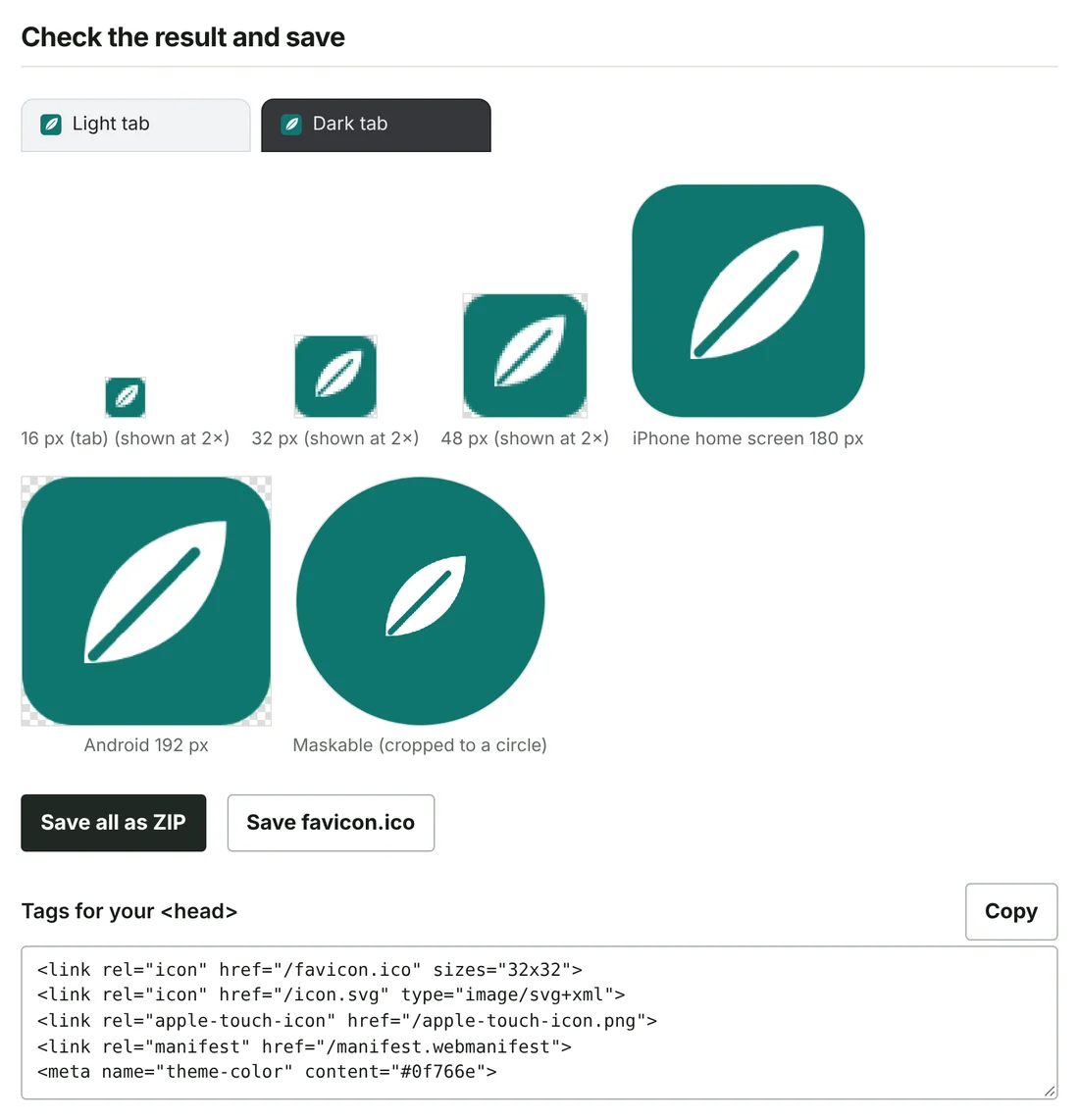
This time the white leaf on the green square is easy to make out in both the light and the dark tab. At 16 px the line inside the leaf is a little faint, but the shape holds up. Thin lines and fine patterns tend to disappear at 16 px, so when you try your own logo, look at the 16 px preview first.
The 180 px iPhone preview mimics how the home screen rounds off the corners. Because the padding is 0%, the area outside the mark’s rounded corners is also filled with green, giving a single green tile.
The rightmost preview, “Maskable (cropped to a circle)”, is an icon designed so that nothing important is cut off when Android and other launchers crop it into a circle or rounded square, which varies from device to device. The tool fits the whole image into a centered circle 80% of the icon’s width, so the mark comes out smaller and the background color fills the area around it.
3. Save the ZIP
Clicking “Save all as ZIP” saved favicon.zip. It contained these eight files:
| File | Size | Contents |
|---|---|---|
favicon.ico |
15,086 bytes | Three images: 16, 32 and 48 px |
icon.svg |
313 bytes | The loaded SVG, unchanged |
apple-touch-icon.png |
7,369 bytes | 180×180 px, background filled with green |
icon-192.png |
9,414 bytes | 192×192 px, transparent background |
icon-512.png |
24,756 bytes | 512×512 px, transparent background |
icon-mask.png |
19,479 bytes | 512×512 px, for maskable use |
manifest.webmanifest |
485 bytes | Settings for Android and PWAs |
head-snippet.html |
311 bytes | Tags to paste into the <head> |
icon.svg is included only when you load an SVG. If you start from a PNG, that file is missing and you get the other seven. If all you need is favicon.ico, “Save favicon.ico” saves the ICO file on its own.
The tags for your head
The “Tags for your <head>” box on the page and head-snippet.html in the ZIP contained these tags:
<link rel="icon" href="/favicon.ico" sizes="32x32">
<link rel="icon" href="/icon.svg" type="image/svg+xml">
<link rel="apple-touch-icon" href="/apple-touch-icon.png">
<link rel="manifest" href="/manifest.webmanifest">
<meta name="theme-color" content="#0f766e">
The first two lines are the icons shown in browser tabs. Browsers that support SVG favicons use icon.svg; anything else falls back to favicon.ico. The favicon.ico line declares a single size, sizes="32x32", so that browsers able to read SVG prefer the SVG, and the tool writes it this way whenever an SVG is included. When you start from a PNG, there is no SVG line, and the first line lists every size in the ICO, as in sizes="16x16 32x32 48x48".
The third line is for the iPhone and iPad home screen, and the fourth points to the manifest used by Android and PWAs. The manifest holds the names you set, the 192 px, 512 px and maskable icons, the theme color and the background color.
{
  "name": "Komorebi Field Notes",
  "short_name": "Komorebi",
  "icons": [
    { "src": "/icon-192.png", "type": "image/png", "sizes": "192x192" },
    { "src": "/icon-512.png", "type": "image/png", "sizes": "512x512" },
    { "src": "/icon-mask.png", "type": "image/png", "sizes": "512x512", "purpose": "maskable" }
  ],
  "theme_color": "#0f766e",
  "background_color": "#0f766e",
  "display": "standalone"
}
(In the actual file each entry in icons spans several lines. I put each on one line here to make it easier to read.)
Where to put the files, and the paths
The href values in the tags, such as /favicon.ico, assume the files sit at the root of the site. Upload the contents of the ZIP to the same level as your home page. With the static site generator Hugo, put them in the static/ folder and they are copied to the site root when you build.
If you want to keep the icons together in a folder such as /assets/icons/, enter /assets/icons/ in the tool’s “Where the files go (path)” field. Every path in the tags and the manifest is rewritten to that location. Even so, it is best to keep favicon.ico itself at the site root, because browsers request /favicon.ico even on pages that have no <link> tag.
Put the tags in the <head> of every page on the site. If you use a theme or templates, add them to the header template shared by all pages.
How many sizes belong in favicon.ico
An ICO file is a container that holds images of several sizes in one file. The browser or operating system picks the one that suits where the icon is shown. The tool’s default is 16, 32 and 48 px, which covers browser tabs, bookmarks and Windows shortcuts.
Loading the favicon.ico I had just made into the tool’s “Inspect an ICO file” section listed its contents.
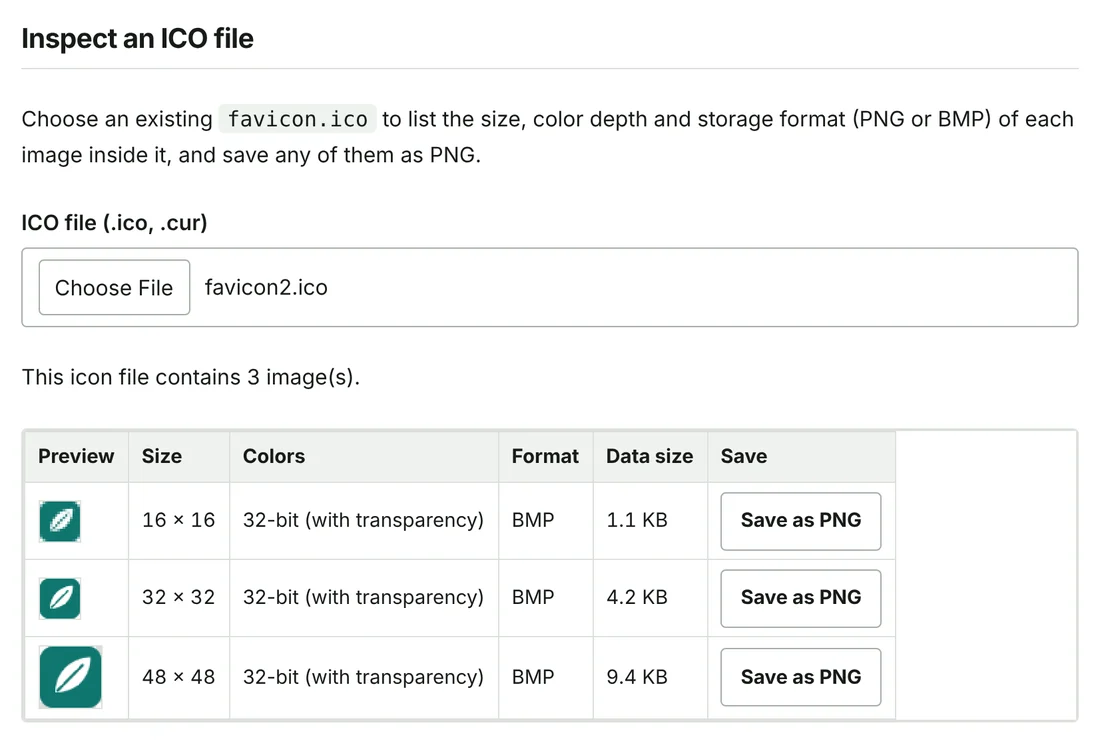
All three are stored as BMP (bitmap), at 1.1 KB for 16 px, 4.2 KB for 32 px and 9.4 KB for 48 px. The tool stores sizes up to 48 px as 32-bit BMP and sizes of 64 px and up as PNG. BMP is uncompressed, so the file size depends only on the width and height, not on what the image shows. Sure enough, the favicon.ico was exactly 14.7 KB both when I built it from the wide logo and when I built it from the SVG mark.
Changing the sizes included in the ICO changed its size as follows:
| Sizes in favicon.ico | File size |
|---|---|
| 16, 32 px | 5.3 KB |
| 16, 32, 48 px (default) | 14.7 KB |
| 16, 32, 48, 64 px | 17.1 KB |
| 16, 32, 48, 256 px | 25.9 KB |
Adding 256 px only adds about 11 KB because it is stored as PNG. Still, an icon that only appears in tabs does not need to be that large. The big icons on home screens and in app lists come from apple-touch-icon.png and the 192 and 512 px PNGs.
“Save as PNG” extracts one image from the ICO as a PNG. If an old favicon.ico is all you have left, you can check which sizes it contains and pull out the largest one as material for rebuilding it.
What to check when the new icon does not show up
Sometimes you upload the files and add the tags, and the tab icon still does not change. These are the things to check, in order.
First, whether the file is reachable. Open https://(your site)/favicon.ico directly in the browser and see if the icon appears. If you get a 404, either the upload location or the path in the tags is wrong.
Next, the cache. Browsers cache favicons for a long time, so a replaced icon may not change right away. Reopen the page in a private window, or change the href in the tag to something like /favicon.ico?v=2 so the browser treats it as a different URL.
Then, whether the .ico really is an ICO. A PNG whose extension was simply changed to .ico is displayed as is by some browsers, so the problem is easy to miss. When I renamed komorebi-logo.png to fake.ico and loaded it into “Inspect an ICO file”, the tool reported “Could not read the file: This is a PNG file (its extension may simply have been renamed to .ico).” It is worth checking before you use the file somewhere that expects a genuine ICO, such as a Windows shortcut.
The favicon shown in Google and other search results is separate from the browser cache and only changes once the search engine fetches the page and the favicon again. Google recommends a square favicon larger than 48×48 px. When you build from an SVG, the icon.svg referenced in the tags can be scaled to any size, so it meets that requirement.
No logo yet? Make one from text
If your site does not have a logo yet, choose “From text or emoji”. You can place one or two Latin letters, a single CJK character, or one emoji on a square, rounded square or circle in the color you choose. For example, entering “K” as the text with #0f766e as the background color gives you a white “K” on a green rounded square. The font comes from the standard fonts installed on your device, so the letter shapes may differ slightly between Windows and Mac even with identical settings. The finished files are images, though, so how they look does not depend on your visitors’ devices.
Tools that work well alongside it
If your logo is square but needs some breathing room, or you want to turn a wide photo into a square before using it, Make an Image Square with Padding lets you fix the shape first. To match the mark’s color to your site’s palette, the Color Code Converter converts between HEX and RGB. Its use is explained in “Convert RGB, HEX, and HSL to adjust colors in CSS”.
If you want to draw the SVG mark yourself or remove unwanted text from an existing SVG, use the SVG Editor. And for converting images for articles or social media to WebP and other formats, separate from your favicon, there is the Batch Image Format Converter.
Test environment
- Favicon Generator (operated in the English UI), Chromium (via Playwright)
- The test logo was created as an SVG, and the wide PNG was exported with Chromium
- File sizes inside the ZIP were checked with
unzip -l, and image dimensions and background colors with Python’s Pillow