Compare a resubmission folder: what if a cover moved when you only meant to edit the PDF?
Compare relative paths in two ZIP archives before resubmitting deliverables in a folder structure specified by a government agency. Check that the covers are in place and that the PDF contains the requested correction.
“Step 3 on page 4 says ‘Register’, but the button on the screen is labeled ‘Confirm registration’.” Suppose the person overseeing a government contract sends you that correction after you deliver the user guide for a facility booking system. The contract specification sets out where each file must go. The PDF needs one correction, and the resubmission ZIP still needs to contain the screen and print covers in their designated folders.
This fictional example uses the paths agreed for that project. For your own project, check the specification or the list of deliverables agreed with the client.
Start with the package you actually submitted
When the deliverables are spread across dozens of subfolders, opening them one by one makes it easy to miss an identically named file at another level. Use a copy of the ZIP you sent last time as your baseline, since your working folder may have changed since then. Extract the previous submission and the new candidate into separate locations. The example uses just three files from the previous submission.
docs/manual.pdf
images/cover.png
print/cover.png
The requested correction should change only the contents of docs/manual.pdf. If the new ZIP is packed correctly, the path comparison will show zero lines in “Only in A” and “Only in B”, and three in “In both lists”.
- Open List files in a folder and click “Select a folder (including subfolders)”. In the extracted copy of the previous submission, choose the folder that directly contains
docs. Leave “Filter by extension” blank and “Show only file names in the folder” unchecked. Click “Copy list”. - In another tab, open Compare two lists and paste into List A.
- Return to the file list tool and select the folder that directly contains
docsin the new candidate. Copy its list with the same settings and paste into List B. The list leaves out the name of the folder you selected.
Each list has one cover in a different location
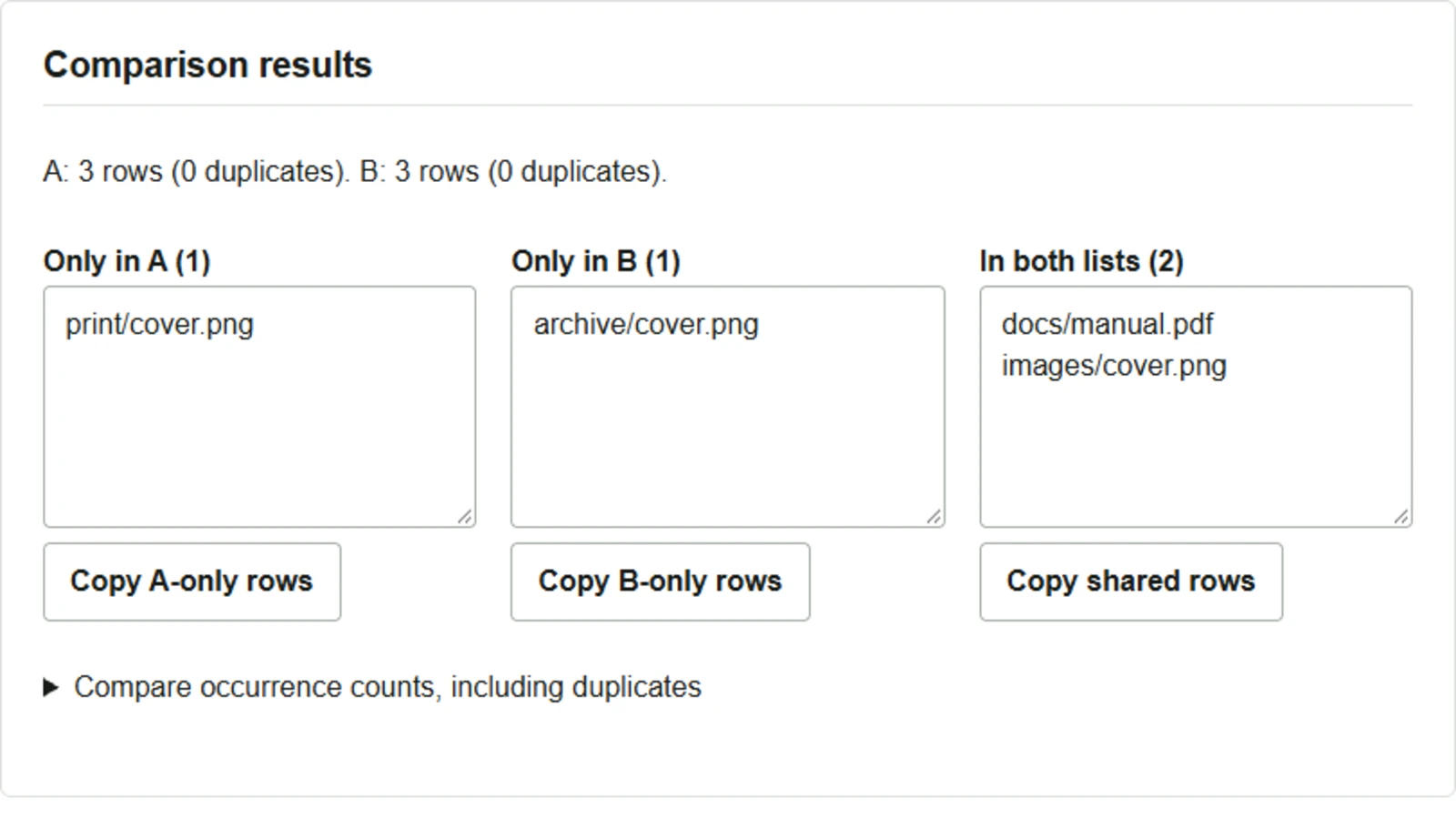
Suppose the new candidate contains the following three paths. Paste them into the comparison tool alongside the original paths to get the result shown above.
archive/cover.png
docs/manual.pdf
images/cover.png
| Comparison result | Paths in this example | What you learn |
|---|---|---|
| Only in A | print/cover.png |
The cover is missing from the agreed print folder. |
| Only in B | archive/cover.png |
An image with the same name is in a folder outside the agreed layout. |
| In both lists | docs/manual.pdf, images/cover.png |
The guide and the screen cover are in their previous locations. |
Both packages contain three files. If the image in archive is an older version, renaming its folder to print would put the wrong image in the designated location. Compare the SHA-256 values of the original print/cover.png and the new archive/cover.png. If they match, the original print cover has ended up in a different place. Move it from archive/cover.png to print/cover.png in your working copy of the package. If the values differ, copy the previous submission’s print cover to the agreed location and exclude the extra image from the submission.
Open the PDF and respond to the review item
After fixing the layout and rebuilding the ZIP, extract it to a fresh, empty location. Paste its file list into B again and confirm that both “Only in A” and “Only in B” are empty and that three paths appear in both lists. The SHA-256 values for the screen and print covers should match their counterparts from the previous submission.
If the old and new copies of docs/manual.pdf have the same SHA-256, the ZIP still contains the old file. A different value may simply mean the PDF was exported again. Open page 4 of the PDF extracted from the ZIP you will submit, and verify against the review sheet that step 3 refers to the “Confirm registration” button.
If the review sheet has a response field, give the reviewer the exact path and page. For example:
Item 1. In
docs/manual.pdf, page 4, step 3, we changed the button label from “Register” to “Confirm registration”. We extracted the resubmission ZIP and verified the wording on that page.
The reviewer can then open the correct file and go straight to the correction. If the specification also requires empty folders, check for them separately in the extracted package, since the lists contain only files.