Removing the blank page after a table in Word when 1 pt text is not enough
Find the required final paragraph after a table and reduce its exact line spacing. A practice document reproduces the two-page PDF in Word for Windows.
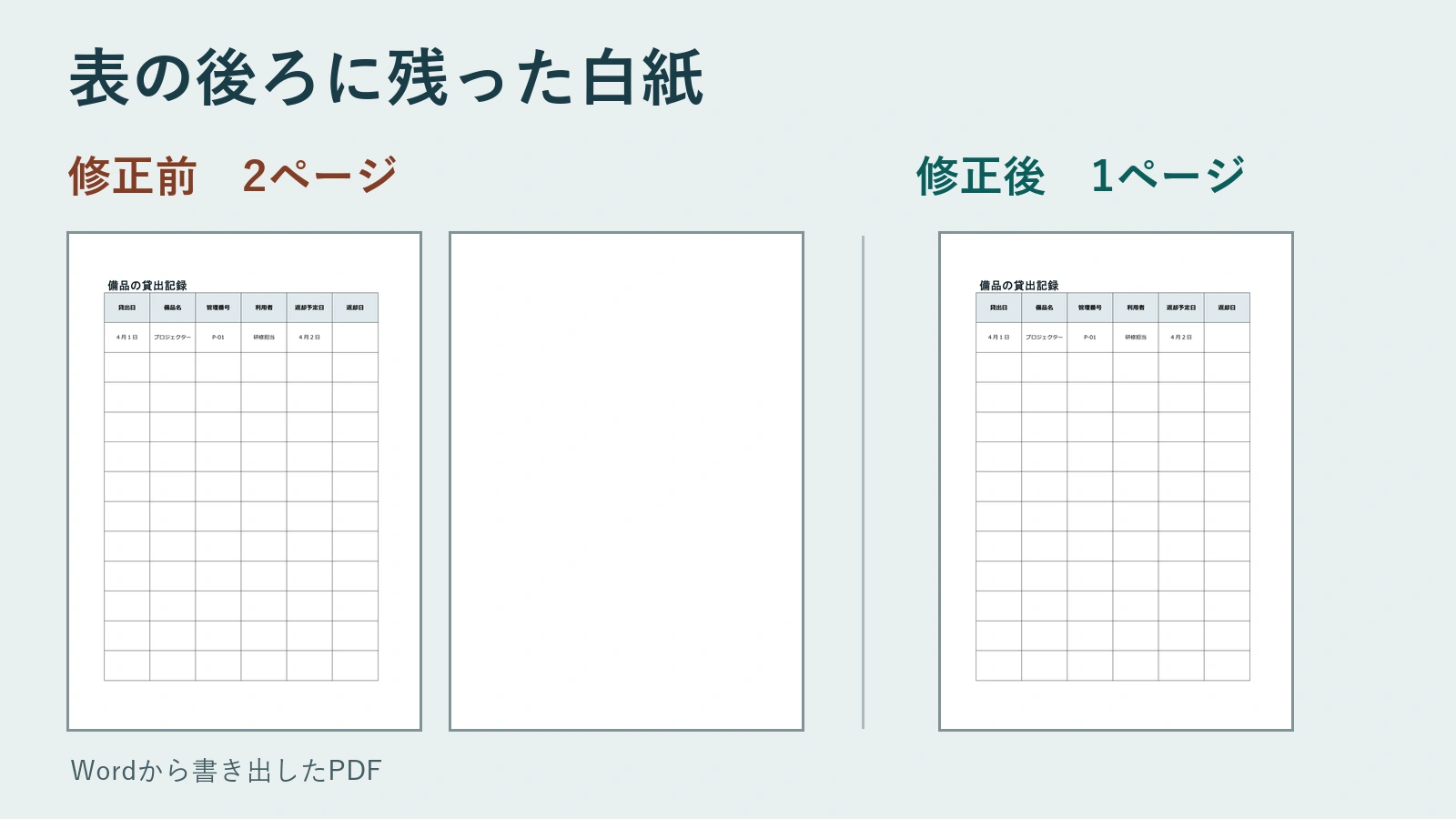
I made an equipment lending sheet that filled an A4 page. The last border of the table fit, but the PDF had a completely blank second page. Pressing Delete in Word did nothing, and removing a row would cost space people needed to write in.
Look for the paragraph mark immediately after the table, at the top of the blank page. Word requires a final paragraph. When the table reaches the bottom of the page, that one paragraph can spill onto the next. Other users have reported the same issue with Delete. Microsoft Q&A discussion in Japanese
What is on the second page?
In Word for Windows, press Ctrl+Shift+8 using the 8 on the number row to display formatting marks. Press Ctrl+End and look at the line with the cursor. Use the steps below if a single paragraph mark after the table is on page 2.
If you see a line marked Page Break, select and delete the manual break. A Section Break may control page orientation or headers. Check the type and formatting on both sides before changing it. Microsoft Support on blank pages and section breaks
Move only the final paragraph back to page 1
- Select only the last paragraph mark on page 2 with the mouse. Leave the mark in the last table cell out of the selection.
- On Home, enter 1 in the font size box and press Enter. If the mark returns below the table and the document now has one page, you are done.
- If it still has two pages, leave the cursor in that paragraph and open the small dialog launcher at the bottom right of Home → Paragraph. Check Line spacing on Indents and Spacing.
- If the spacing is Exactly with a large At value, change that value to 1 pt for this paragraph and click OK. Set any Before and After spacing to zero for this empty paragraph alone.
- Hide the marks with Ctrl+Shift+8, then check the page count and bottom of the table in the Ctrl+P print preview. Export the PDF again and open it to confirm the last thing visible is the last table row.
Three PDF exports from the same lending sheet
Download the Word practice document, Equipment Lending Record (Japanese). It has 13 table rows including the header, with an exact line height of 24 pt on the final empty paragraph. Try steps 2 and 4 before changing your own document. Font size controls the character. Exactly 24 pt reserves that height even when the character is set to 1 pt. If the smaller paragraph fits under the table, the borders and writing space stay in place.
| Final empty paragraph | PDF pages |
|---|---|
| 11 pt font, exactly 24 pt line spacing | 2 |
| 1 pt font, exactly 24 pt line spacing | 2 |
| 1 pt font, exactly 1 pt line spacing | 1 |
I exported the same document after each change in Word for Windows 16.0.20625. I overlaid 144 dpi images of the three first pages and found zero pixels with different colours. The extra page disappeared with the table and margins as they were.
If the PDF is all you need to submit, you can also export page 1 alone by setting the range to 1–1 in Options.