Make a self-grading quiz without an account and share it by URL | How grading works without putting the answers in the link, and when not to use it
How to use Quiz & Test Maker to build a short quiz that mixes single-choice, multiple-choice and short-answer questions, then send just a URL so participants can grade themselves on the spot, with no sign-up. We walk through the three sample questions from creation to grading, cover the grading rules for multiple choice and short answers (for example, a full-width "30" is marked wrong), explain how answers are checked without being written into the URL, and why responses are never collected and the tool is unsuitable for formal exams.
Contents
At the end of a study group or an internal training session, you often want people to work through a few questions to check what they understood. The same goes for handing out a short review quiz after a class, or having your child practise English vocabulary at home. Printing it on paper means you have to mark it yourself, and form services built for surveys require the author to have an account. Often you don’t even want to collect results; it is enough if the person who solved the quiz can check their own answers right away.
Quiz & Test Maker is built for that kind of use. You create a quiz of up to 20 questions mixing three formats (single choice, multiple choice and short answer), generate a shareable link and send it out. Whoever opens the link answers the questions and presses Grade answers; they see immediately which answers are right, and for correctly answered questions the explanation written by the author is shown. Neither the author nor the participants need to sign up.
This article uses the three sample questions built into the tool to go through creating, sharing and grading a quiz step by step. After that, it explains the grading rules worth knowing when you write questions, how the tool checks answers without writing them into the link, and the “unsuitable uses” that follow from that design.
Writing questions, using the three samples
When you open the tool, you land on the Create a quiz screen. It starts with a single empty question, so the fastest way to see how the three formats are entered is to press Insert three examples. This fills in a mini ASCII quiz with the following three questions.
| Question | Type | Question text | Correct answer |
|---|---|---|---|
| 1 | Single choice (one answer) | Which character corresponds to ASCII code 0x41? | A (options: A, B, a) |
| 2 | Multiple choice | Select all characters used for line breaks. | CR and LF (options: CR, LF, TAB, NUL) |
| 3 | Short answer | Enter the two-digit hexadecimal ASCII code for the digit 0. | 30 |
The examples can only be inserted while both the title and the questions are empty. If you press the button after typing something, the tool shows “Examples can only be inserted into an empty editor to avoid overwriting your work.” and your half-written questions stay as they are.
Open Question 2 and you will see a field next to each option for marking it as correct.
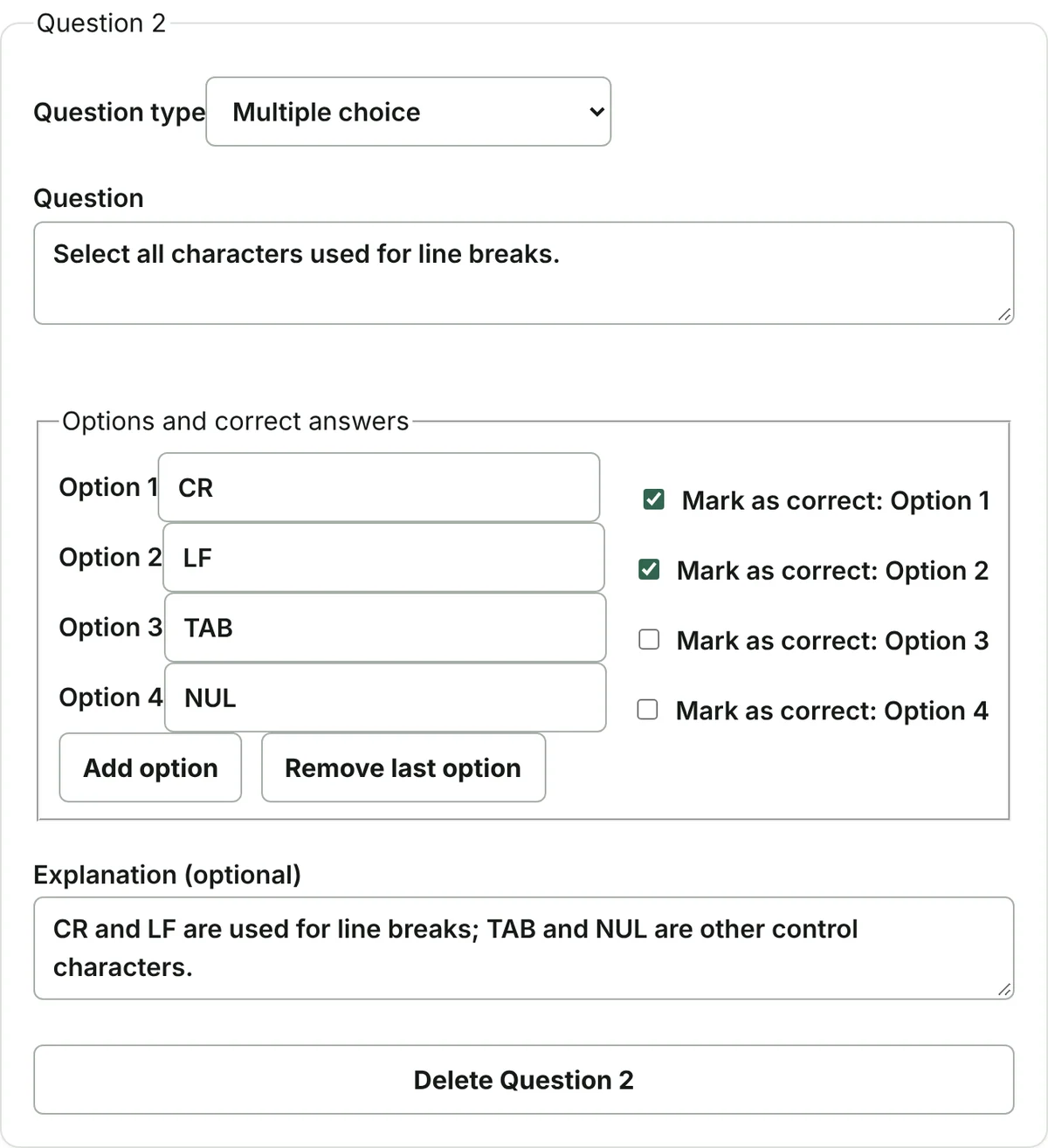
For each question you choose a Question type, write the Question, and for choice questions enter the options and mark the correct ones. In single choice the correct-answer markers are radio buttons, so only one can be selected; in multiple choice they become checkboxes, so several options can be correct. In short answer, a single Correct answer field appears instead of options.
Each question starts with two options, and Add option lets you go up to eight. You cannot enter two options with identical text. Explanation (optional) is text that participants see only when they answer correctly; it may be left blank. To add more questions, press Add question at the bottom of the screen.
There are limits on how much you can enter: the title can be up to 100 characters, a question 400 characters, each option 120 characters, a short-answer correct answer 100 characters, and an explanation 500 characters. A quiz has 1 to 20 questions; for a longer test, split it into several quizzes.
Generating a shareable link and sending it to participants
When you have finished entering the questions, press Generate shareable link. If anything is missing, a message at the top of the screen tells you which question lacks what. For example, if you have not marked any correct answer for a multiple-choice question, you get “Question 2: Select the correct answer.”
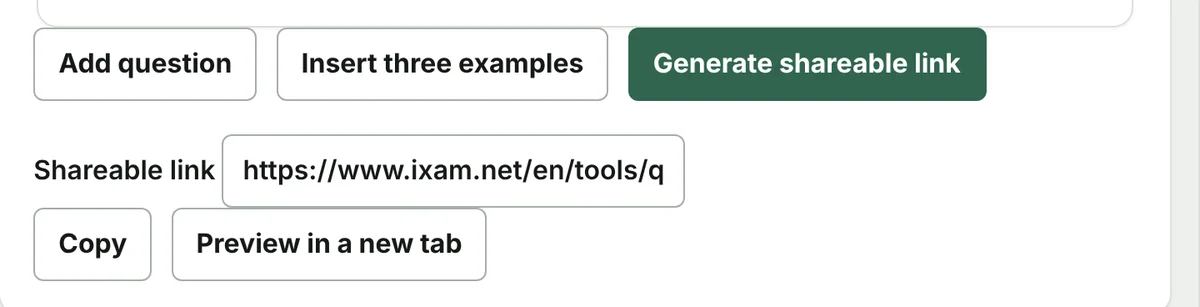
The Shareable link field now contains a long URL beginning with https://www.ixam.net/en/tools/quiz-maker/#q1., and the length of the link is shown at the top of the screen. For the three sample questions it was 713 characters in the English version (822 in the Japanese version). The question and explanation text is compressed into the link, so the length grows with the length of your text. It also changes by a few characters each time you generate it, because a random value is added to each question, as explained later.
Press Copy to put the URL on your clipboard, then paste it into a chat or email. Before sending it, press Preview in a new tab to solve your own quiz on exactly the screen participants will see.
When a link exceeds 2,000 characters, the tool warns “Long URLs may be truncated when shared.” Some apps cut long URLs off partway, and the recipient then cannot open them. Links longer than 12,000 characters are not generated at all. If you have many questions, it is easier to split them into two or three quizzes by topic. If you want to hand out the quiz on a classroom screen, you can also turn the shareable link into a QR code with the QR Code Generator. Keep in mind that the longer the URL, the denser the QR code pattern becomes.
Nothing you type while creating a quiz is saved anywhere. Closing the page discards the questions, so keep a copy of any link you plan to distribute. Also, if you edit the questions after generating a link, you need a new link; links you have already handed out do not change.
What participants see, and how grading results look
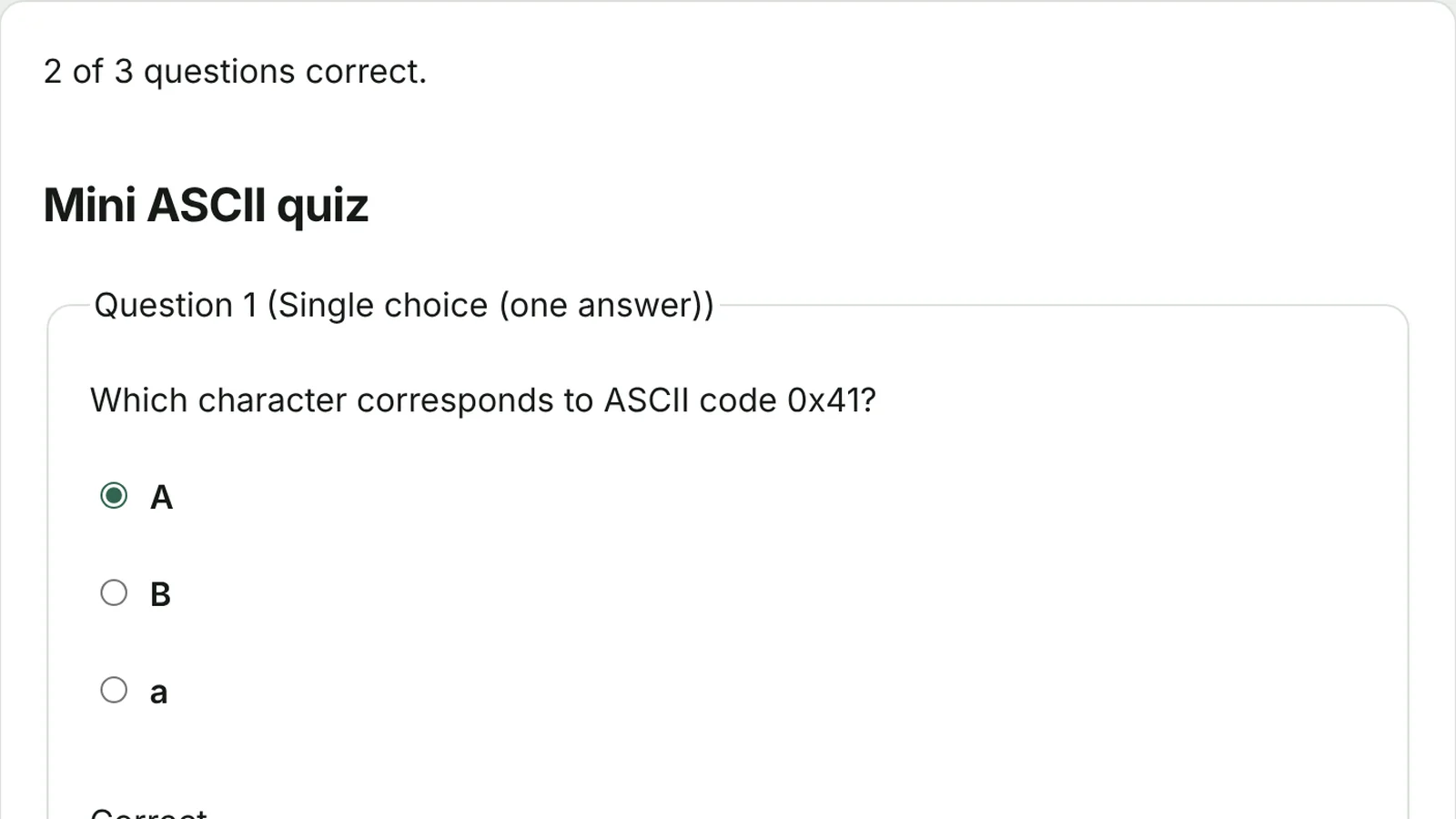
Opening a shareable link shows the answer screen rather than the editor. The questions, options and short-answer fields are listed; after choosing answers and pressing Grade answers, each question shows Correct, Incorrect or Unanswered, and a score such as “2 of 3 questions correct.” appears at the top of the screen.
The screen below is the result of choosing A for Question 1, ticking only CR for Question 2, typing 30 for Question 3, and grading.
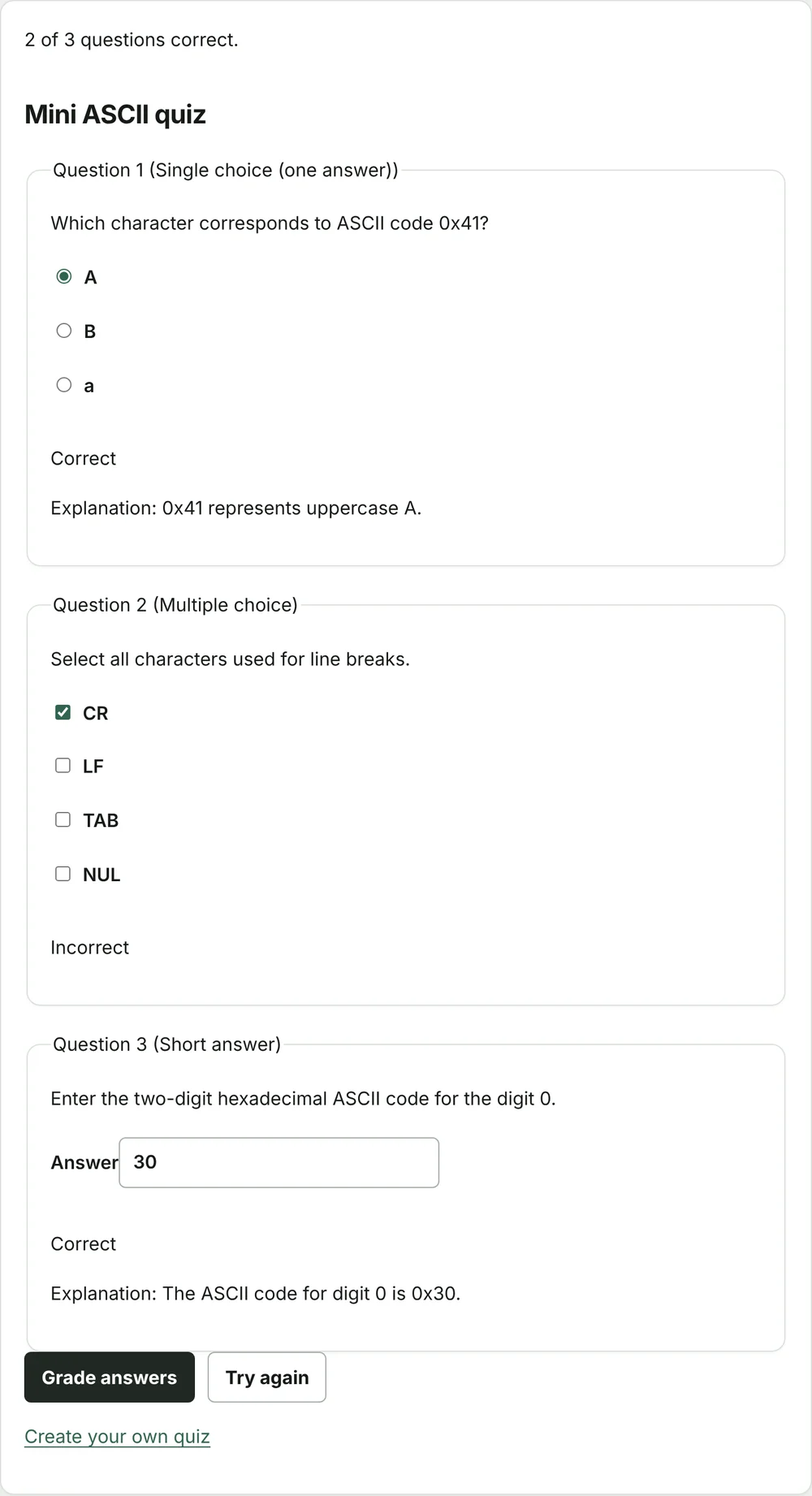
Question 2 is marked Incorrect because, of the correct answers CR and LF, only CR was selected. The important point is that incorrect questions show neither the correct answer nor the explanation. Participants can change their answers and press Grade answers again. After also ticking LF and regrading, Question 2 became correct and its explanation appeared. As soon as an answer is changed, the previous grading result for it disappears. Try again clears all answers so the quiz can be solved again from the start.
In other words, this tool’s grading suits a “keep thinking until you get it right” style. If you want to show the answer to a missed question immediately, you will have to add a hint in the question text or tell participants the answers some other way after the quiz.
The score is shown only on the participant’s screen and is never sent to the author. There is no feature for saving, sending or tallying answers or scores, and the author cannot see a list of who scored what. If you need to know the scores, ask participants to report their results. If you want to collect responses and manage grades, a form service with response aggregation is the better choice.
Writing questions with the grading rules in mind
A choice question is correct only when the set of selected options exactly matches the correct set. In the multiple-choice question, ticking TAB in addition to CR and LF was marked Incorrect, even though both correct options were included. There is no partial credit. This is why a question phrased “Select all…” can keep the number of correct options hidden.
Short answers need a little more care. Spaces before and after the answer are removed before comparison, so 30 with spaces on both sides was still marked correct. Typing a full-width 30, however, was marked wrong. Full-width characters are the wide versions of Latin letters and digits used in Japanese, Chinese and Korean text; 30 looks like 30 but consists of different characters (U+FF13 and U+FF10 instead of U+0033 and U+0030). They can appear when a participant types with a Japanese, Chinese or Korean input method still switched on. The tool treats upper and lower case, and full-width and half-width characters, as different characters. Only one correct answer can be registered, so you cannot, for example, accept both 30 and 0x30.
For short-answer questions, therefore, specify in the question how the answer should be written. Sample Question 3 says “two-digit hexadecimal” for exactly this reason. Adding instructions such as “in half-width (regular) digits” for numbers or “in lower case” for English words reduces the chance that someone who knows the answer is marked wrong because of formatting. Answers whose spelling inevitably varies (people’s names, words with British and American spellings such as colour/color, and so on) are fairer as choice questions.
Leading and trailing spaces are removed, but invisible characters inside the text remain. If you copy the correct answer from a web page or document and paste it in, an invisible character such as a zero-width space can come along with it, and then even a correctly typed answer will not match. This “looks identical but doesn’t match” problem is the same as the Excel example covered in “Why VLOOKUP returns #N/A when the code is right there, and how to fix it”. Retype the correct answer by hand, or check it with the Invisible Character Checker before pasting. On the other hand, when the same character can be stored internally in different ways, such as an accented letter like é that may be one precomposed character or e followed by a combining accent, the tool unifies them before comparison (Unicode normalization), so a difference in how it was typed does not cause a wrong answer.
How answers are checked without being written into the link
The shareable link contains the questions and options. So where is the correct answer? If the link contained the answer as-is, anyone could find it just by looking at the URL. This tool is designed so that the correct answer is not put into the link, and the tool only checks whether a given response is correct.
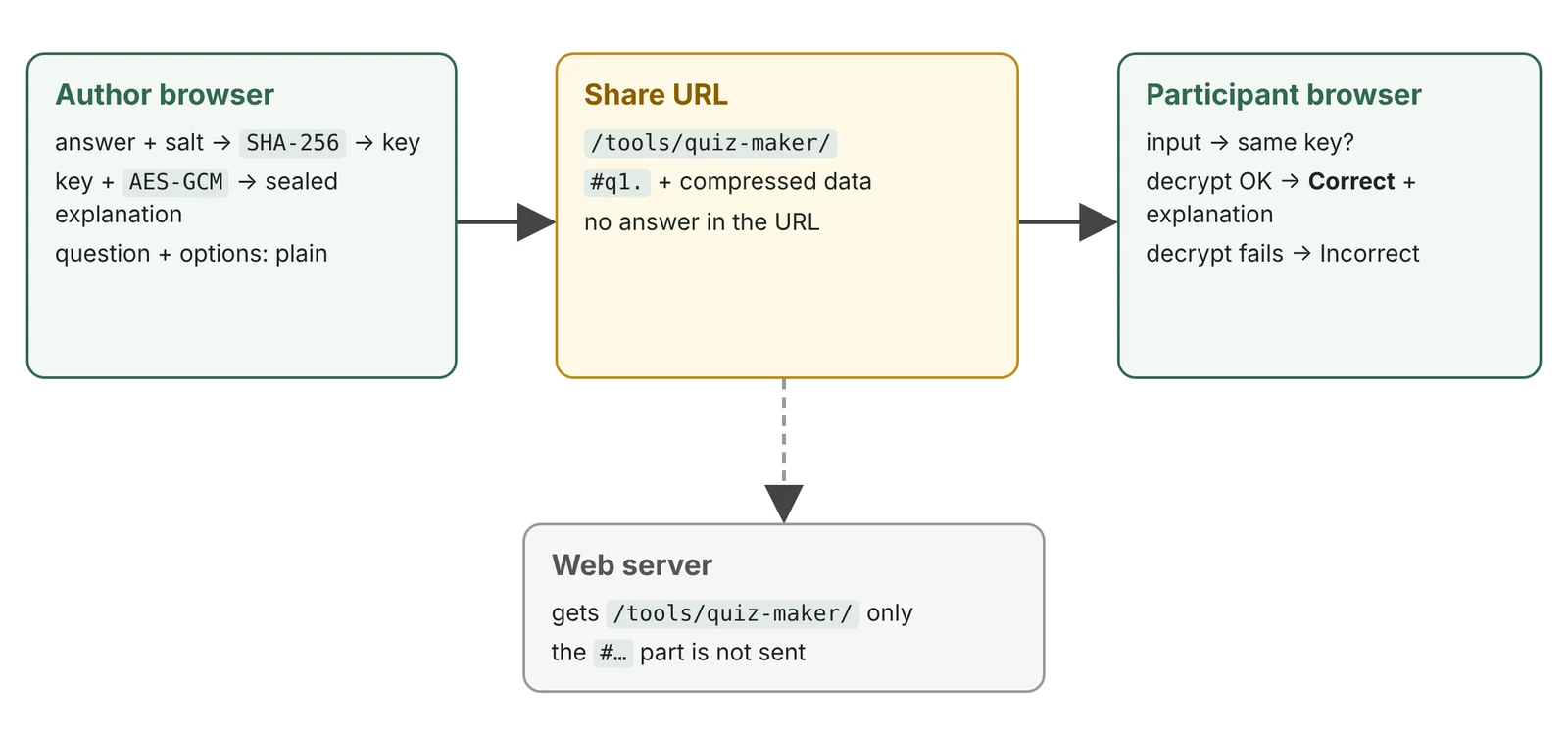
When the author presses Generate shareable link, the browser creates a key for each question based on its correct answer. It takes the correct answer (the numbers of the correct options for choice questions, or the normalized word for short answers), adds a random per-question value (a salt), hashes it with SHA-256, and uses the result as an encryption key. With that key it encrypts the explanation text using a method called AES-GCM, and only the ciphertext goes into the link. Even when the explanation is blank, the encrypted form of the empty text is included. The correct answer string itself appears nowhere in the link.
When a participant presses Grade answers, the browser derives a key from their response by the same steps and tries to decrypt that question’s ciphertext. If the response is the same as the correct answer, the same key results and decryption succeeds. That is the “correct” verdict, and the decrypted explanation is displayed as is. If the response is different, the key is different, decryption fails, and the answer is “incorrect”. AES-GCM is a method that can detect when the key is wrong or when the ciphertext has been tampered with. The question text and options are also included in what gets verified, so if someone edits only the question text in the link, even the right answer will no longer be judged correct.
The questions and ciphertexts are compressed together and placed after the # in the URL (the fragment). When a browser opens a page, it does not send the part after # to the web server. All the server receives is a request for the page itself (/en/tools/quiz-maker/ in the English version); neither the quiz content nor the answers ever reach ixam.net’s server. All grading happens inside the participant’s browser. This page is also set up not to load the ads and analytics used on other pages of the site.
Compression and encryption rely on features built into the browser. As a result, in an old browser, or if the page is opened over a non-HTTPS connection, the tool shows “Compression or cryptography is unavailable. Use HTTPS and an up-to-date browser.” and cannot be used.
The same approach of putting data after the # in a URL for sharing is also used by the Event Invitation Maker.
Why it cannot be used for formal exams or confidential questions
The answers are not written in the link. That does not mean there is no way to find them, though. The mechanism “the right answer decrypts it” also means, conversely, that trying candidate answers one after another will eventually hit the right one.
With a single-choice question with three options, three tries are guaranteed to find the correct answer, and no special technique is needed: just pick an option and regrade. A multiple-choice question with four options has only 15 possible selections. For short answers, too, if the answer is a short number like 30 or a well-known word, a program can try huge numbers of candidates. The tool does not use any measures to slow such guessing (such as the deliberately slow computations used for storing passwords). The answers are inherently guessable, so the mechanism is not treated as a way to keep secrets.
For this reason, do not use it for formal exams where scores affect evaluations, or for internal exams whose questions must not leak. Anyone who receives the link can solve the questions, and the link can be copied and forwarded or left in browser history. There is also no way to confirm a participant’s identity. Do not put personal or confidential information in question text or explanations.
Conversely, in situations where nobody has a reason to look up the answers, such as a short quiz for checking your own understanding, a review after a study group, or practice questions for a quiz night, this mechanism is perfectly useful. Since the answers are not visible on screen or in the URL, nobody will see them by accident.
Finding material for your quizzes
The three sample questions were about ASCII codes. What CR and LF in a line break are, and which code the digit 0 has, are explained using the ASCII Code Table in “Read 0D 0A line endings and distinguish the digit 0 with an ASCII table”. You can also write a few questions based on an article like that and have people solve them after reading it.
If you want to compute the average, standard deviation or standardized scores after collecting quiz scores from a class or team, the Japanese article “How to calculate the deviation score (hensachi)” (in Japanese) can help. Hensachi is the standardized score commonly used in Japanese schools, with the mean set to 50 and one standard deviation to 10.