Tune a violin with your phone's microphone: G, D, A, E frequencies, 442 Hz, and how tuning by fifths differs from the tuner
How to tune the four violin strings G, D, A, and E with a browser-based violin tuner. Using test tones — an A string 16 cents flat, D, G, and E strings tuned from the A in pure fifths, and an A string tuned at 440 Hz measured with the reference set to 442 Hz — this guide explains how to read cents and the ±5-cent “In tune” range, how strings tuned by ear in double stops look on the tuner, the frequency of each string at 442 Hz, and what -200 cents means when you switch to AEAE or GDGD cross-tuning.
Contents
The violin is an instrument you tune every time you sit down to practice. Strings stretch and contract with humidity and temperature, and the pegs are held only by the friction of wood against wood, so the pitch drifts a little after a night in the case. At a lesson your teacher may give you an A, but when you practice alone at home you have to tune by yourself. There are days when you forget your clip-on tuner, and there is the early stage of learning when you haven’t bought one yet.
The Violin Tuner is a tuner that works as soon as you open it in a browser. It can play the reference tone for the selected string, and it can show how far the sound picked up by your microphone is above or below that reference. Besides standard G–D–A–E, you can choose the AEAE and GDGD cross-tunings used in fiddle music, and the reference A4 can be changed from 440 Hz to anywhere between 390 and 480 Hz. The microphone audio is analyzed inside the browser and is not sent anywhere.
This article walks through tuning all four strings with the tool and explains how to read the numbers it shows, using the results of actual tones fed into it. The second half checks how strings tuned by ear in fifths with double stops appear on the tuner, and what changes when you tune to 442 Hz for an ensemble.
How I tested it
To check the tuner’s behavior in numbers, I used synthesized tones instead of a real instrument. A bowed string is rich in overtones, so each tone stacks harmonics at 2×, 3×, and so on up to the 15th on top of the fundamental, giving a sound close to a sawtooth wave. I made 6-second WAV files at specified frequencies and fed them to the tool as Chromium’s fake microphone input (--use-file-for-fake-audio-capture). The screenshots show this English version.
I used six tones: one 16 cents below the A string (440.00 Hz); the D, G, and E strings as they would sound if tuned from the A string in pure fifths; exactly 440.00 Hz; and exactly G3 (196.00 Hz). What a pure fifth is, and why I tested it, is explained in a later section.
The four strings and “cents”
From low to high, the violin strings are tuned to G, D, A, and E. The highest, the E string, is the 1st string, and the lowest, the G string, is the 4th string. In the tool, the number after the note name is the octave; A4 on the A string is the A above middle C on a piano.
| String | Note | Frequency (A4 = 440 Hz) | Frequency (A4 = 442 Hz) |
|---|---|---|---|
| 4th (G string) | G3 | 196.00 Hz | 196.89 Hz |
| 3rd (D string) | D4 | 293.66 Hz | 295.00 Hz |
| 2nd (A string) | A4 | 440.00 Hz | 442.00 Hz |
| 1st (E string) | E5 | 659.26 Hz | 662.25 Hz |
These frequencies are calculated from the reference A4 by multiplying by the twelfth root of 2 (about 1.0595) for each semitone up, and the tool uses the same calculation. The 442 Hz column shows the values the tool displays when the reference A4 is changed to 442 Hz.
The unit the tuner uses to show how far off you are is the cent. It divides a semitone into 100 equal parts: +100 cents is a semitone sharp, and -50 cents is a quarter tone flat. The same 1 Hz error is about 9 cents on the G string but about 3 cents on the E string, so its size depends on the string. Cents let you compare deviations on every string with the same ruler.
Select a string, then play it
When you open the tool, check that “Tuning preset” is set to “Standard (G D A E)”. Next, choose the string you want to tune, either from the “String” list or by tapping a string in the fingerboard drawing below it. Usually you tune the A string first and then move on to the D, G, and E strings.
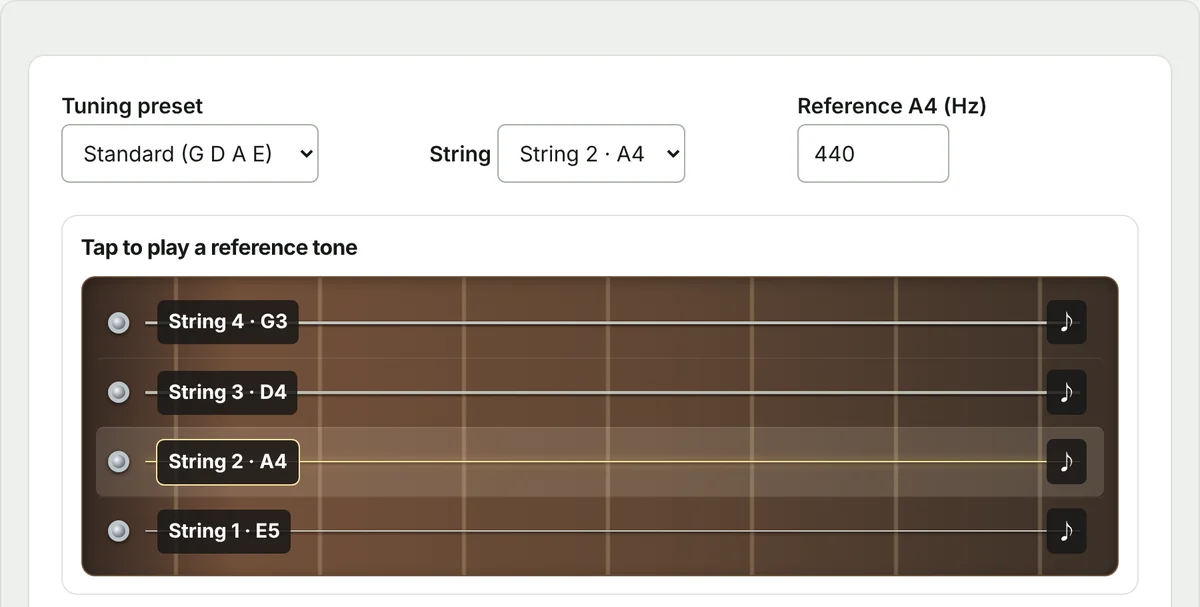
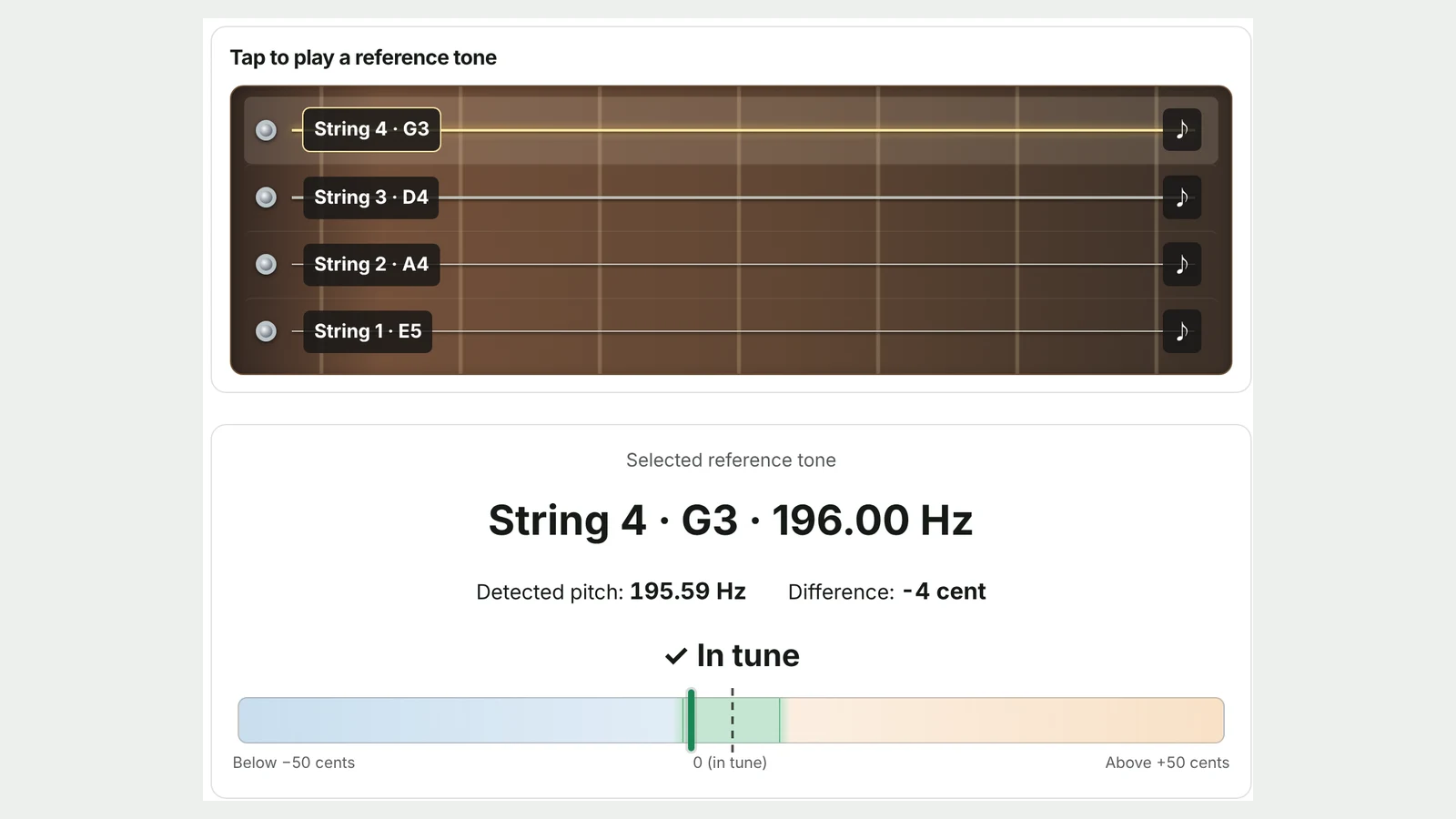
When you tap a string in the fingerboard drawing, that string is selected and its reference tone starts playing at the same time. If you want to tune by ear, play the open string while the reference tone sounds and adjust until the beating (the “wah-wah” wobble) slows down and disappears. “Play reference tone” stops and restarts the tone, and if you tap another string while it is playing, only the pitch switches.
To tune with the microphone, press “Check with microphone” and allow access when the browser asks for permission. Detection works even with the reference tone playing, but the microphone also picks up the speaker, so listen through earphones or stop the reference tone. If you want to select a string without playing its reference tone, choose it from the “String” list instead of the fingerboard drawing.
The microphone works only on HTTPS pages and only after you grant permission in the browser. If it doesn’t respond even after you allowed it, a different microphone may be selected, or another app may be using it. You can narrow that down with the steps in “Test your mic and camera before a video call”.
Reading the verdict
With the A string selected, here is the result of feeding in a tone 16 cents flat (435.95 Hz).
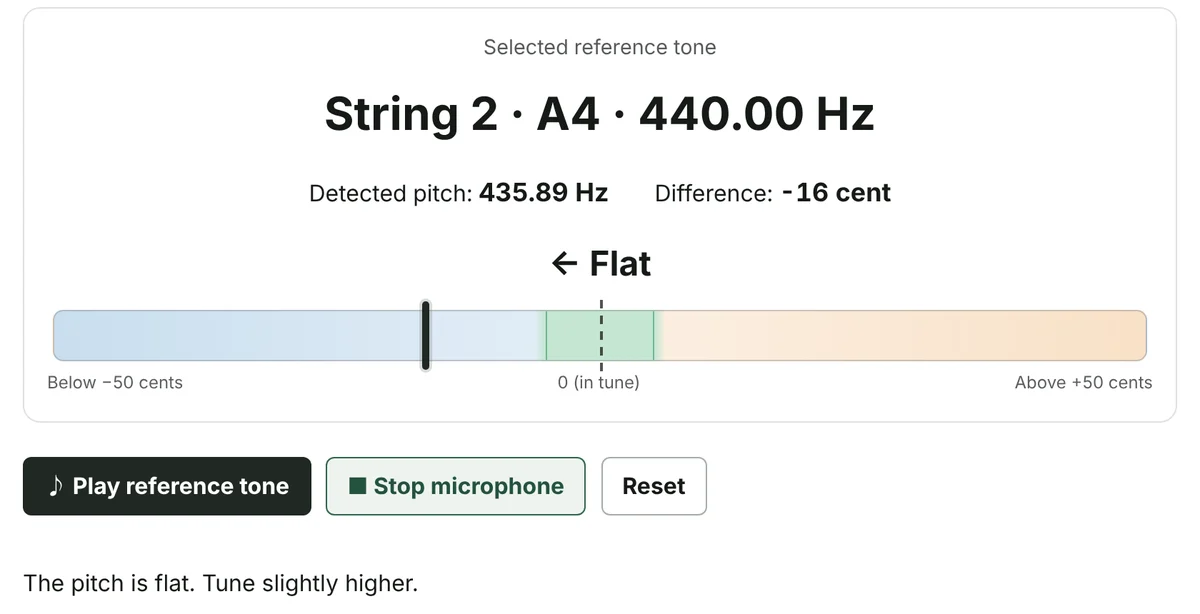
“Detected pitch” showed 435.89 Hz, “Difference” showed -16 cent, and the verdict was “← Flat”. The message below also read “The pitch is flat. Tune slightly higher.” On the meter, the left side is flat and the right side is sharp; tighten the string until the needle enters the green zone in the middle.
The tool shows “✓ In tune” when the deviation is within ±5 cents. Five cents is one-twentieth of a semitone. There is no need to keep chasing the number as it wobbles by 1 or 2 cents; once the needle settles in the green zone, move on to the next string.
It is easiest to use the peg while the deviation is large and switch to the fine tuner (adjuster) once the needle gets close to the green zone. Strings without a fine tuner have to be tuned with the peg alone, so push the peg in slightly as you turn it so that it stays where you leave it.
Playing a different string from the one selected shows nothing
With the A string still selected, I fed in the D-string tone (293.33 Hz). The verdict stayed at “Waiting for microphone input”, and the message read “No stable pitch near the selected note was detected. Check background noise and harmonics.”
This tool doesn’t try to identify which note is sounding. It only searches within three semitones (±300 cents) above and below the selected string’s note. The D string is a fifth (700 cents) below the A string, so it falls outside that range. This design keeps the tuner from being pulled off by a neighboring string’s resonance or by overtones. The trade-off is that nothing is shown when the string you selected and the string you play differ. If the display stays at “Waiting for microphone input”, first check that you are playing the same string you selected. A string that has slackened by more than three semitones gives the same display; in that case, play the reference tone, bring the string roughly close by ear, and then finish with the microphone.
How strings tuned in fifths with double stops look on the tuner
When you learn the violin, you are often taught to tune only the A string with a tuning fork or tuner and to tune the rest against the neighboring string by playing both at once as a double stop. You play A and D together and turn the D string until the beating between the two notes disappears. A fifth with no beating is a “pure fifth”, in which the frequencies of the two strings are in an exact 3:2 ratio.
The tuner’s reference tones, on the other hand, are calculated in equal temperament, which divides the octave into 12 equal steps. An equal-tempered fifth is 700 cents, about 2 cents narrower than a pure fifth (about 701.96 cents). When you measure strings tuned by double stops with the tuner, this difference should show up. To see how large it is, I generated tones at the frequencies you get by tuning in pure fifths from an A string at 440 Hz and fed them in.
| String | Frequency tuned in pure fifths | Tuner reference | Calculated difference | Tool display |
|---|---|---|---|---|
| D string | 293.33 Hz (2/3 of the A string) | 293.66 Hz | -1.96 cent | -1 cent · In tune |
| G string | 195.56 Hz (2/3 of the D string) | 196.00 Hz | -3.91 cent | -4 cent · In tune |
| E string | 660.00 Hz (3/2 of the A string) | 659.26 Hz | +1.96 cent | +2 cent · In tune |
The D and E strings deviate from the equal-tempered pitch by about 2 cents, and the G string, reached by two fifths from the A string, by about 4 cents. Even so, all three fell within the “In tune” range.
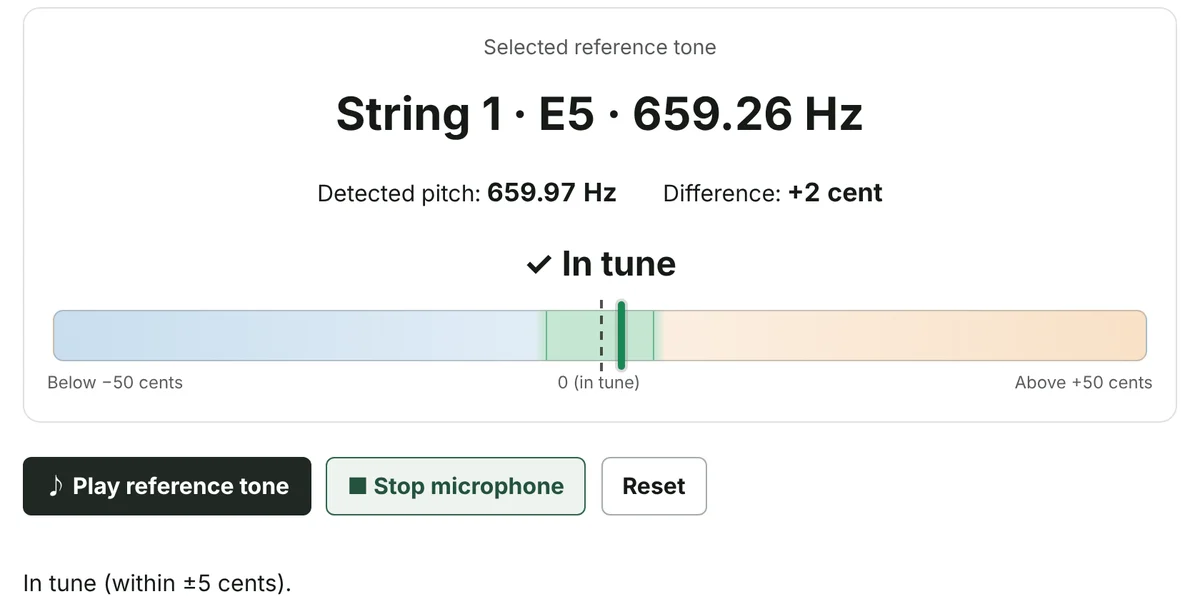
On the violin, whether you tune all four strings to 0 cents with the tuner or tune the fifths with double stops, the result is the same within the tuner’s “In tune” range. If you tune with the tuner and then hear slight beating when you play double stops, feel free to trust your ears and nudge the strings toward pure fifths. Conversely, if strings you tuned with double stops read -4 or +2 cents on the tuner, it doesn’t mean you tuned them wrong.
Applying the same calculation to the viola or cello, which have a C string, the C string reached by three fifths from the A string ends up about 5.9 cents below equal temperament, just outside the “In tune” range. If the Viola Tuner or Cello Tuner says your C string is “Flat” even though it rings cleanly in double stops, this difference may be what you are seeing.
Tuning to 442 Hz for an ensemble
The tool uses 440 Hz as the reference A4, but you can change it to any whole number from 390 to 480 Hz in “Reference A4 (Hz)”. Orchestras and ensembles sometimes agree on a reference a little higher than 440 Hz, such as 442 Hz.
Here is an A string tuned at 440 Hz, measured with the reference A4 set to 442 Hz.
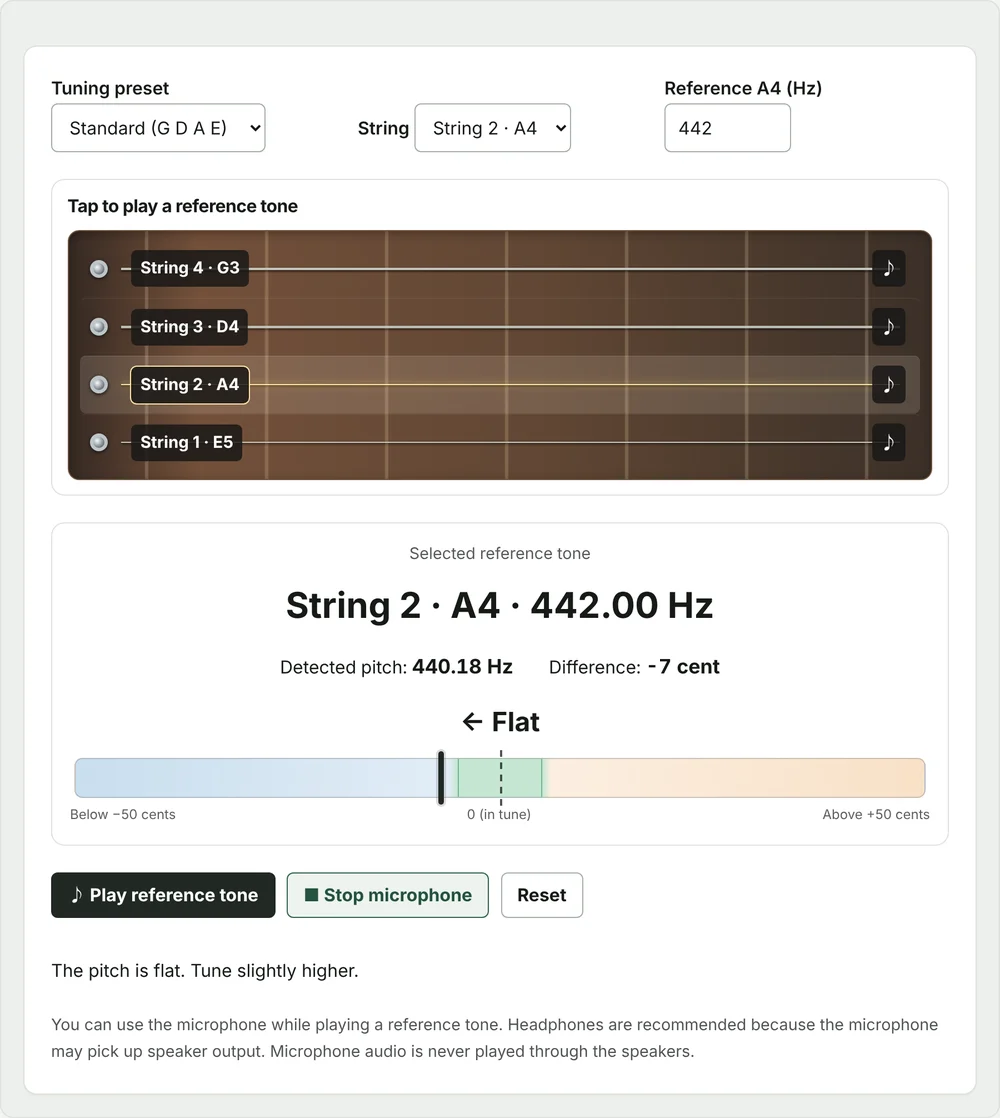
It showed “← Flat” at -7 cents. The calculated difference is about 7.9 cents, beyond the ±5-cent “In tune” range. If your ensemble tunes to 442 Hz and you arrive having tuned at home to 440 Hz, every string will be slightly flat. Set the reference to the ensemble’s value before you practice, and the reference pitches of all four strings switch together (see the first table for each string’s frequency).
To return to the defaults, press “Reset”. This restores Standard (G D A E), the 4th string G3, and A4 = 440 Hz, and stops the reference tone and the microphone.
AEAE and GDGD cross-tuning
In fiddle music, players sometimes retune some of the strings — a cross-tuning — so the open strings ring in a particular key. The tool offers these two.
| Tuning preset | 4th → 1st string | Strings changed from standard |
|---|---|---|
| Standard (G D A E) | G3 D4 A4 E5 | — |
| AEAE cross-tuning | A3 E4 A4 E5 | G string raised a whole step to A, D string raised a whole step to E |
| GDGD cross-tuning | G3 D4 G4 D5 | A string lowered a whole step to G, E string lowered a whole step to D |
Here is the result of selecting “AEAE cross-tuning” on a violin still in standard tuning and feeding a G3 tone into the 4th string.
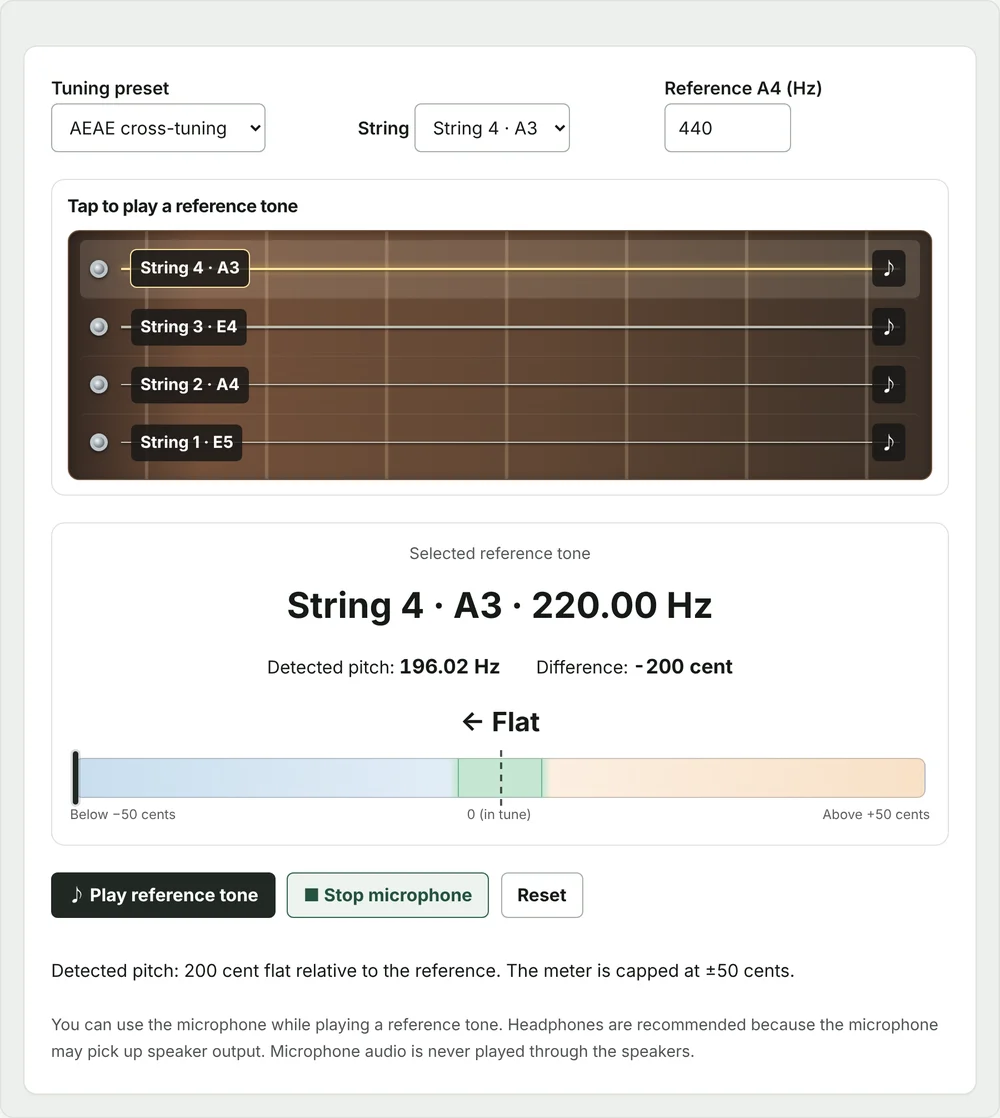
The message read “Detected pitch: 200 cent flat relative to the reference. The meter is capped at ±50 cents.” In other words, raise the string a whole step (200 cents) from G3 to A3. Because the meter stops at ±50 cents, when you are far off, tighten the string while watching the “Difference” number, and once it drops below 50 cents and the needle starts to move, finish with the needle. When the deviation exceeds 50 cents, the tool shows a reading only after the same pitch has continued for a moment, to make sure it isn’t picking up noise by mistake. That is why there is a short pause before the reading appears.
To go back from a cross-tuning to standard, switch the tuning preset to “Standard (G D A E)” and tune with the same steps. Raising or lowering strings by a whole step changes the force on the bridge, so once you finish, also check that the bridge hasn’t tilted.
When detection doesn’t work well
Microphone detection depends on the surrounding sound and the characteristics of the microphone. Play one string at a time and don’t let other strings keep ringing. A faint, scratchy tone from light bow pressure, or a note that has faded after you stop playing, makes the display disappear, so keep bowing the open string straight and for a reasonable length. Pizzicato notes decay quickly, so bowing gives more stable detection.
If you switch screens or turn off your phone’s display, the tool stops the reference tone and the microphone. If you opened another app partway through tuning, press “Check with microphone” again.
Tuners for other instruments
Tuners built the same way are available for other string instruments too. The Viola Tuner and Cello Tuner for C–G–D–A, and the Mandolin Tuner, tuned to the same G–D–A–E as the violin, all work the same way: select a string, then play it, and read the result the same way. When you want to keep a steady tempo while practicing, the Metronome is also available. For guitar tuning, “Tune a guitar with your phone or computer microphone” explains how to tune to half-step down and Drop D.