Add page numbers to a PDF: start at 1 after the cover and contents, and put them in the same spot on landscape pages
You want to add page numbers after the fact to a PDF merged from several files or to a scanned document. Using a browser-based PDF page number tool and an 8-page sample PDF, I check how to skip the cover and table of contents and number the body from 1, what decides the total in “1 / 6”, why numbers turn sideways on landscape pages that carry a rotation setting (/Rotate) and how the tool avoids it, how to skip blank pages, the outside position for double-sided printing, and sequential IDs such as ABC-000021.
Sometimes I put a report or a set of submission documents together as a PDF and only then notice that I forgot the page numbers. If everything came from a single Word file, I can go back to Word, insert page numbers and export the PDF again. But a PDF that combines a Word body, an Excel table and scanned attachments, or a PDF someone sent me, has no such source file. The only way to get consistent page numbers is to write them directly into the finished PDF.
The paid version of Adobe Acrobat can add page numbers as a header or footer. Without Acrobat at hand, an online PDF editing service is an option, but I hesitate to upload confidential material or documents containing personal information.
The PDF page number tool loads the PDF in the browser, writes a number on each page and saves the result. The file is never sent to a server. Here I used the sample PDF that comes with the tool to check how to leave the cover and table of contents unnumbered, and how landscape pages are handled.
The PDF I tested
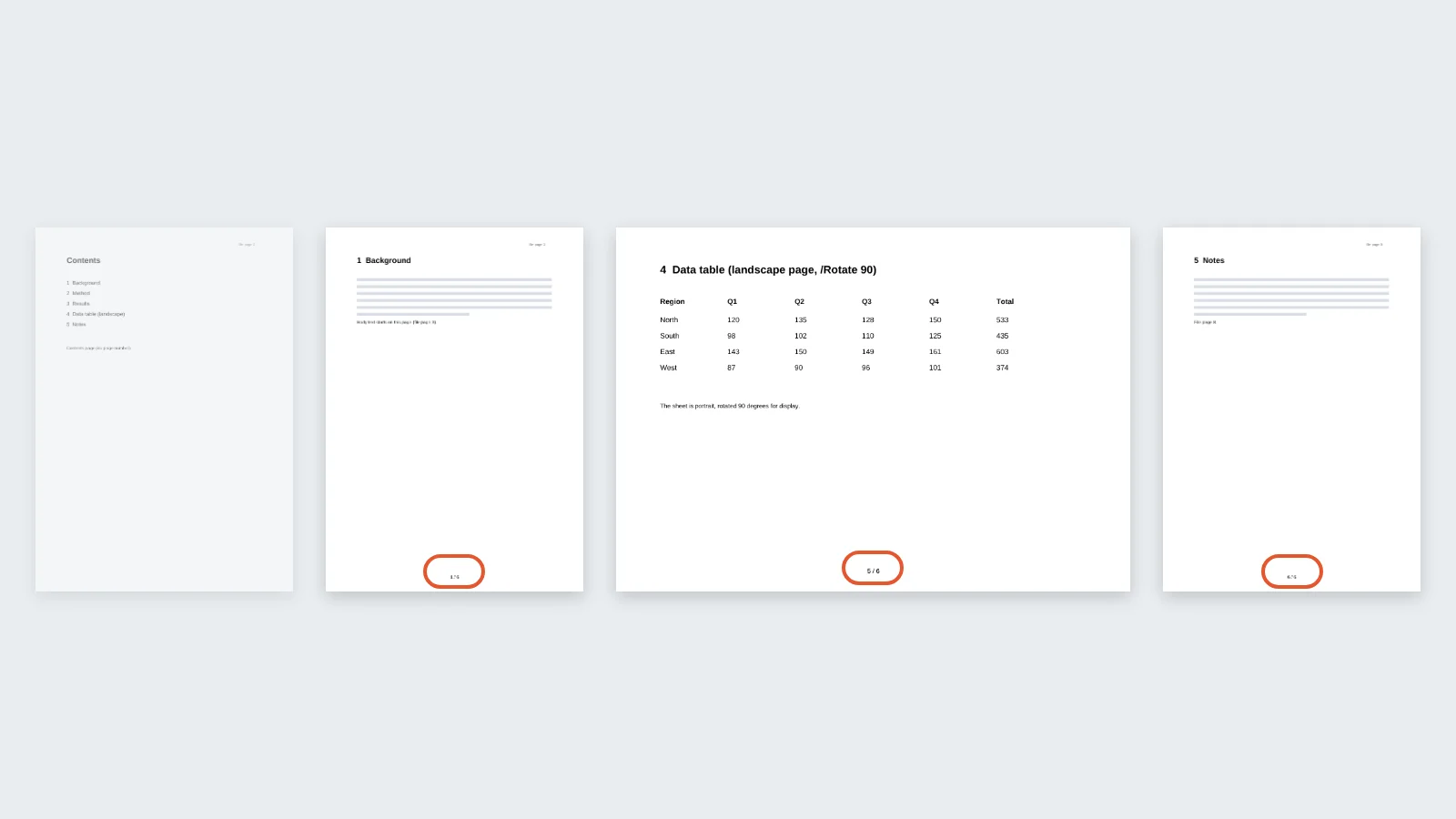
Clicking “Try a sample PDF” in the tool loads an 8-page A4 PDF (sample-report.pdf). It is laid out like this:
| Page in the file | Content |
|---|---|
| 1 | Cover |
| 2 | Table of contents |
| 3–6 | Body (the body starts on page 3) |
| 7 | A landscape data table: a portrait sheet with a 90-degree rotation setting |
| 8 | Rest of the body |
Once loaded, the line under the file name reads “8 pages (1 landscape, 1 with a rotation setting)”. All the screenshots below were taken in the English version of the tool.
To use your own PDF, open it with “Choose PDF” or drag it onto the dashed box.
Skip the cover and contents and make the first body page 1
Reports and theses often leave the cover and table of contents unnumbered and start the body at 1. Two fields handle this: “Start numbering on page” and “Number on that page”.
- Start numbering on page: the page of the file (counting from the first page) where numbers start being written
- Number on that page: the number printed on that page
In the sample, the body starts on page 3 of the file, so I set “Start numbering on page” to 3 and left “Number on that page” at 1. For the format I chose “1 / 12 (with total pages)” and kept the default position, “Bottom center”.
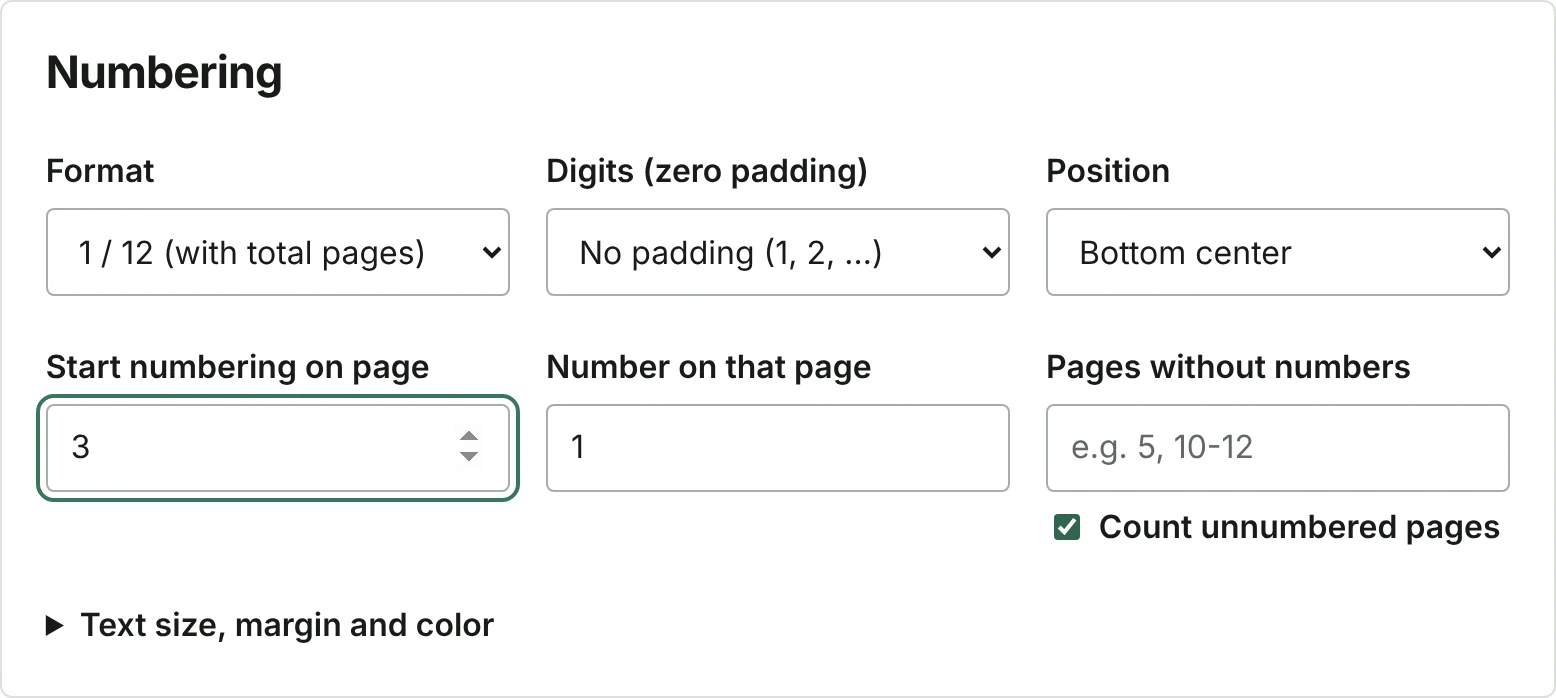
As soon as I entered the values, the “Number on each page” list changed to:
- Pages 1–2: no number
- Pages 3–8:
1 / 6→6 / 6
The two fields are easy to mix up, so here are some common settings. I checked each one on the 8-page sample by feeding it to the tool’s calculation code (pdf-page-numbers-core.js).
| Goal | Start numbering on page | Number on that page | Result |
|---|---|---|---|
| Skip cover and contents, body from 1 | 3 | 1 | Page 3 is 1, page 8 is 6 |
| Count the cover as page 1 but print nothing on it | 2 | 2 | Page 2 is 2, page 8 is 8 |
| Continue a document that ended on page 20 | 1 | 21 | Page 1 is 21, page 8 is 28 |
Whether the cover counts as page 1 depends on the rules of whoever receives the document. With the setting in the second row, nothing is written on the cover and the next page starts at 2.
What the 6 in “1 / 6” counts
The number after the slash in “1 / 12”, or after “of” in “Page 1 of 12”, is not the total number of pages in the PDF but the number given to the last page. In the sample, only the six pages after the cover and contents were numbered, so even though the PDF has 8 pages, the numbers run from 1 / 6 to 6 / 6. If you want to show how many pages the body has, this is the more convenient behavior.
Why numbers turn sideways on landscape pages
The landscape page was what I most wanted to check with this tool. Previewing page 7, I found 5 / 6 at the bottom center of the landscape table, facing the same way as on the other pages.
Separately from its paper size, a PDF page can carry a setting for how many degrees to rotate it when it is displayed (/Rotate). In PDFs scanned from landscape originals on a multifunction printer, or saved after rotating a page in a PDF viewer, it is common to find a portrait sheet with a rotation of 90 or 270 degrees. Page 7 of the sample is built this way: the sheet is still portrait A4, rotated 90 degrees on display so it looks landscape.
What happens if you write the number at the “bottom center” using the sheet’s own coordinates? For comparison, I made a PDF with 5 / 6 written 10 mm above the bottom edge of the sheet, centered, without taking the rotation into account (A). On the right is the same page from a PDF saved with this tool (B).
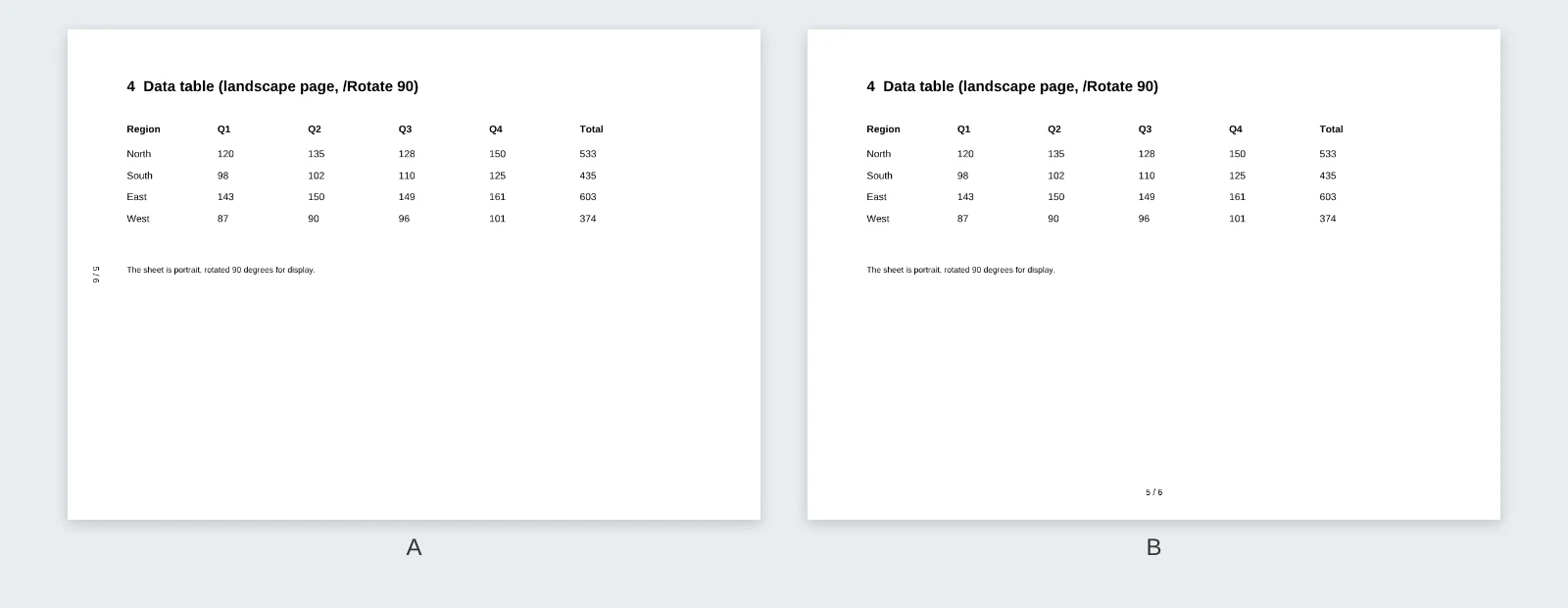
In A, the number ended up on the left edge of the displayed page, running vertically. The sheet’s “bottom” becomes the left side once the page is rotated 90 degrees for display. This tool decides the position on the page as it looks after rotation and rotates the text by the same angle when writing it. So even when portrait, landscape and rotated pages are mixed, every page gets its number where you see it, in a readable orientation.
To find out whether your PDF has landscape pages, look at the “landscape” and “with a rotation setting” counts shown under the file name after loading. It is worth checking pages with a rotation setting in the preview before saving.
Check in the preview, then save
In the “Preview and save” section, you can step through the pages one by one with the numbers already written, using “Previous page”, “Next page” or by typing a page number. Under the preview, a line such as “Page 7 will get “5 / 6”.” shows the number that page will receive.
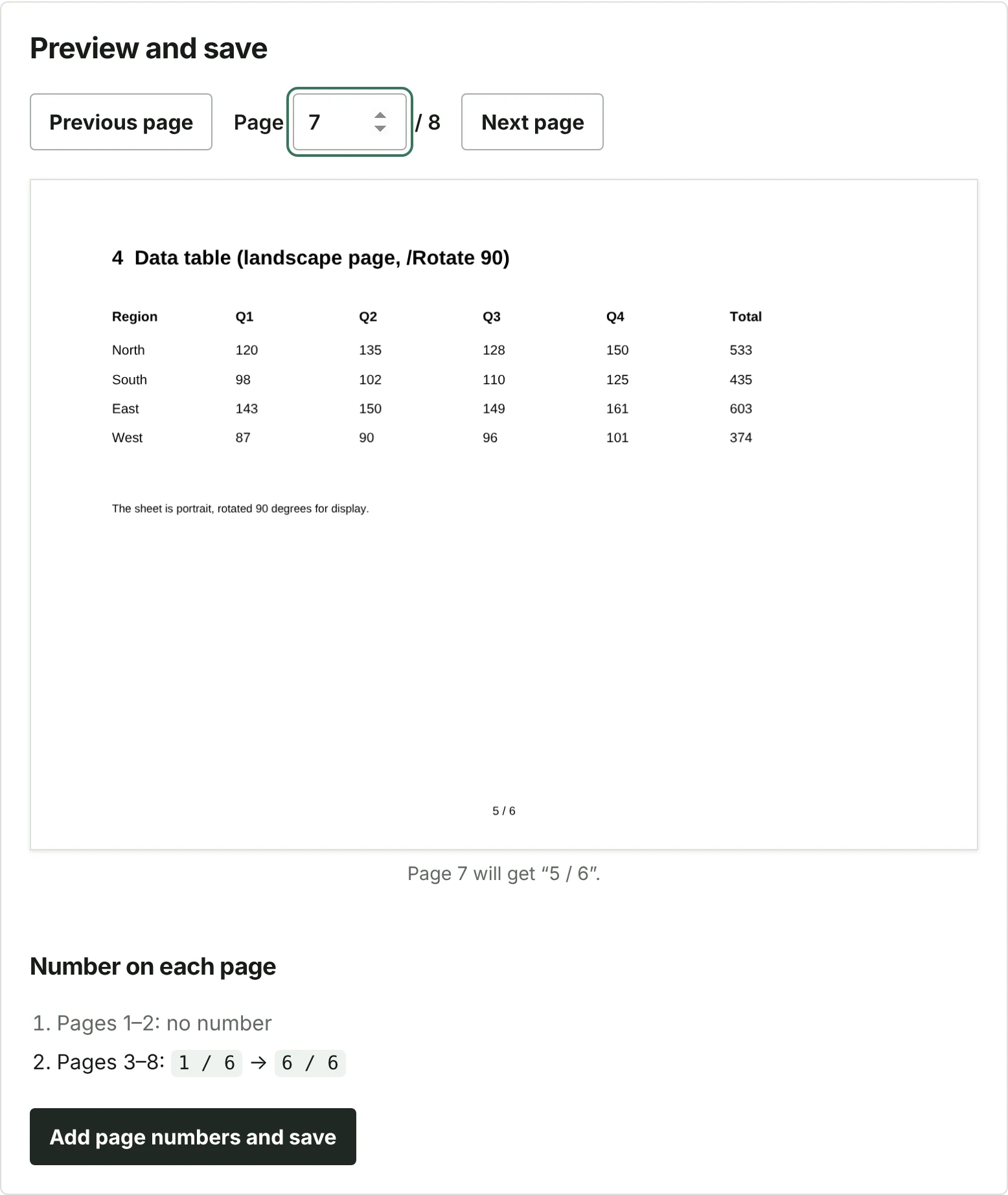
Once the position and numbers look right, click “Add page numbers and save”. With the sample, sample-report_numbered.pdf was saved and the message “Numbered 6 pages and saved the file” appeared. Extracting the text from each page of the saved PDF showed no number on pages 1–2 and 1 / 6 through 6 / 6 on pages 3–8. The numbers are written as text, not as images, so you can search for and select them in the PDF.
The result is saved as a new file; the original PDF is not changed. The default text size is 10.5 pt (the body text size of Japanese editions of Word, a little smaller than the 11–12 pt typical of English documents), and the number sits 10 mm from the edge of the paper. Open “Text size, margin and color” to change the font (Helvetica, Times, Courier and so on), the size, the distance from the edge and the color. Some home printers cannot print the outer few millimeters of the paper, so don’t make the distance too small.
Leave blank pages and inserted drawings unnumbered
If there are pages that should not get a number, such as blank pages added for double-sided printing or fold-out drawings, enter their page positions in the file in “Pages without numbers”, like 6 or 10-12.
The “Count unnumbered pages” checkbox below it decides whether those pages are counted. With “Start numbering on page” set to 3 and “Pages without numbers” set to 6, the sample gives:
| Count unnumbered pages | Pages 3–5 | Page 6 | Pages 7–8 |
|---|---|---|---|
| On (default) | 1–3 | No number (4 is skipped) | 5–6 |
| Off | 1–3 | No number | 4–5 |
Leave it on if, as in a book, blank pages should count as numbered pages; turn it off if you want inserted pages left out and the numbers to close up. When it is on, the number after the slash in the “1 / 6” format is 6, the number of the last page.
“Outside” for documents printed double-sided and bound
In a booklet printed double-sided and bound on the left, numbers in the outer corners are easy to find while flipping through. Set the position to “Bottom outside (double-sided)” and odd pages of the file get the number on the right, even pages on the left.
Left and right are decided by the page’s position in the file, not by the number printed on it. In the sample, where the body starts on page 3 after the cover, page 3 is odd, so the first body page gets its number on the right. If you print the PDF double-sided starting from page 1, the cover, the front and back of each sheet line up with the left and right positions. For booklets bound on the right, as with Japanese or Chinese vertical text or books in right-to-left languages, check “Bound on the right (right-to-left books)” and left and right are swapped.
A saddle-stitched booklet also needs its pages rearranged (imposition). You can check that, including where to put blank pages, with the saddle-stitched booklet imposition calculator introduced in “Check saddle-stitched booklet imposition”.
Continuing a previous document, and sequential IDs like ABC-000021
To number a file as the continuation of another one, enter the next number in “Number on that page”. If the previous file ended on page 20, that is 21.
Legal and audit documents sometimes get a prefixed sequential number like ABC-000001 on every page, the format known as Bates numbering. Set the format to “Custom (sequential IDs, Bates numbers, etc.)”, enter ABC-{n} and set “Digits (zero padding)” to 6 digits. {n} is replaced with the number and {N} with the last number. With “Number on that page” set to 21 on the 8-page sample, the pages were stamped ABC-000021 through ABC-000028.
If you want the table of contents in Roman numerals (i, ii) and the body in Arabic numerals (1, 2), do it in two passes. In the first pass, enter the body pages in “Pages without numbers” and save with Roman numerals. Then open the saved file again and number it with Arabic numerals starting from the first body page.
Limitations and cautions
- Only basic ASCII characters: The tool uses the standard fonts built into PDF and does not embed fonts, so only basic ASCII letters, digits and symbols can be written. If the custom format is
Página {n}, the “á” is reported as a character that can’t be used and the file can’t be saved; the same goes for curly quotes, the en dash and non-Latin scripts such as Chinese or Japanese. On the plus side, adding numbers barely increases the file size. - Existing numbers are not removed: If the PDF already has page numbers printed and you add new ones in the same spot, they overlap. Turning on “White box behind the number” writes the new number on a white box, but the original text remains under the box.
- Password-protected PDFs: PDFs that need a password to open, or that have editing restrictions, can’t be loaded.
- Digitally signed PDFs: Writing on the pages makes the signature show as invalid. Add the numbers before signing.
- File size: Processing happens in the browser’s memory, so PDFs over 200 MB can’t be loaded.
Merge several PDFs first, then add numbers
If the body, tables and attachments are separate PDFs, merge them into one first and the numbering will run through the whole document. The PDF Merger combines and reorders files. For removing unneeded pages or pulling out only some pages for submission, use the PDF Splitter.
To paste numbered pages into a document or chat as images, export them with the PDF to JPG or PNG Converter.
Test environment
- PDF page number tool (operated in the English version), Chromium (via Playwright)
- The sample PDF is the one loaded with “Try a sample PDF” in the tool
- The numbering in the tables was checked with the calculation code in the tool’s
pdf-page-numbers-core.js - Comparison image A was created by writing the number with pdf-lib in the sheet’s coordinates. For both A and B, the saved PDF was rendered with pdf.js, and text extraction was also done with pdf.js