Convert CSV and TSV to JSON and back in your browser
Convert a CSV with headers to a JSON array, then export the same data as tab-separated TSV. Follow an inventory example with screenshots and learn how to handle leading zeros, number types, and spreadsheet imports.
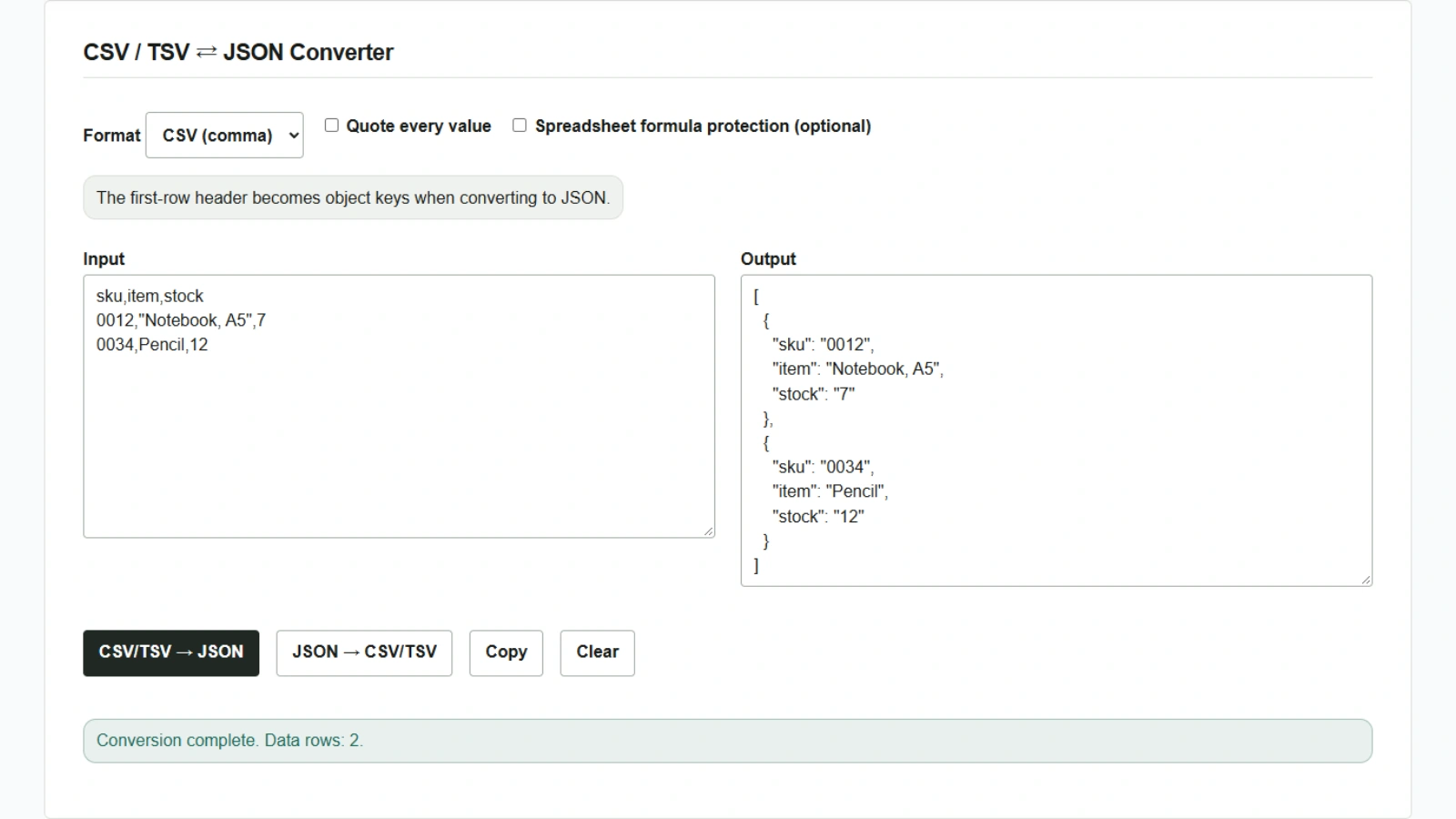
You want to send an inventory table containing the product code 0012 to a system that accepts JSON. To preserve the leading zeros, keep the product code as a string. The CSV / TSV ⇄ JSON Converter uses the first row as keys and turns each remaining row into a JSON object. The data stays in your browser while it is processed.
Convert CSV with headers to JSON
- Open the tool and select “CSV (comma)” under “Format”.
- Paste the sample below into “Input”. The product name
Notebook, A5contains a comma, so enclose the entire field in double quotes. - Click “CSV/TSV → JSON”. Two objects appear in “Output”.
sku,item,stock
0012,"Notebook, A5",7
0034,Pencil,12
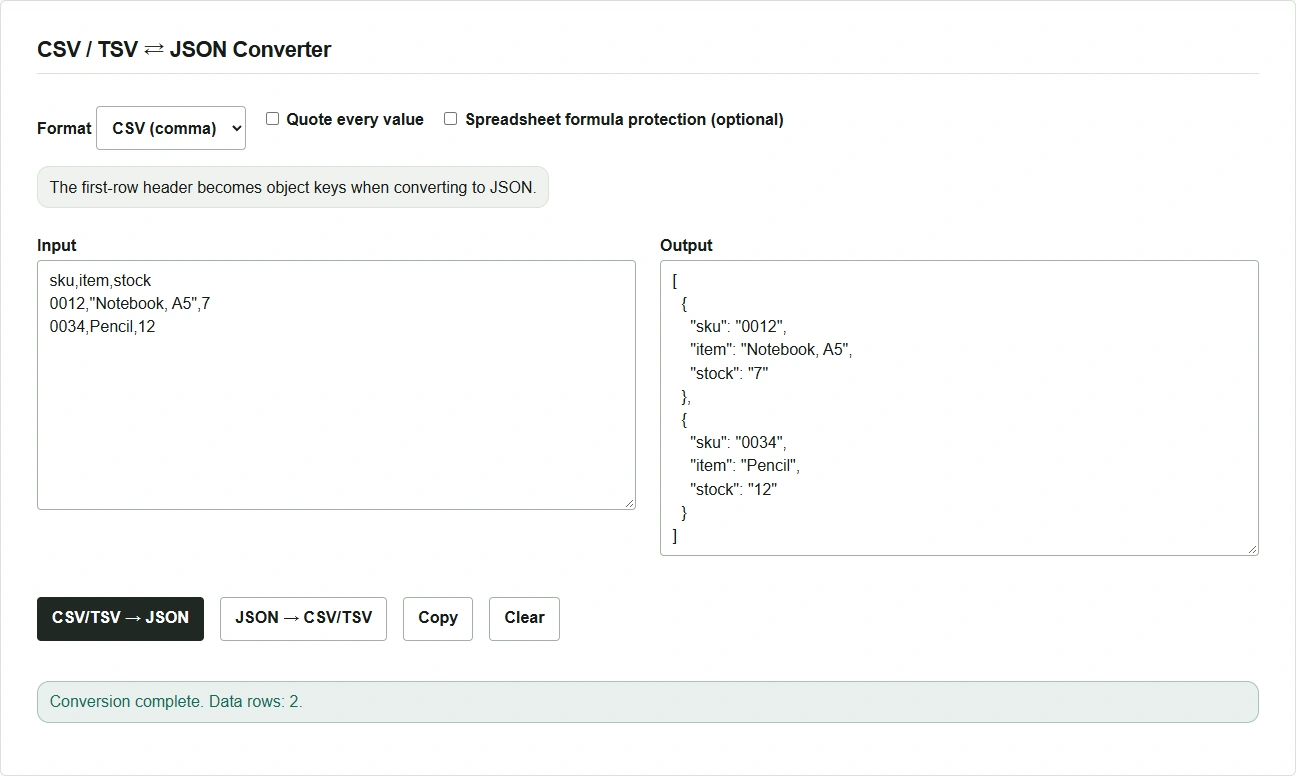
CSV and TSV conversions produce strings for every value. In this example the product code is "0012" and the stock count is "7". If the receiving system expects a JSON number for the count, convert that field to a number before passing it on.
Convert the JSON back to TSV and paste it into a spreadsheet
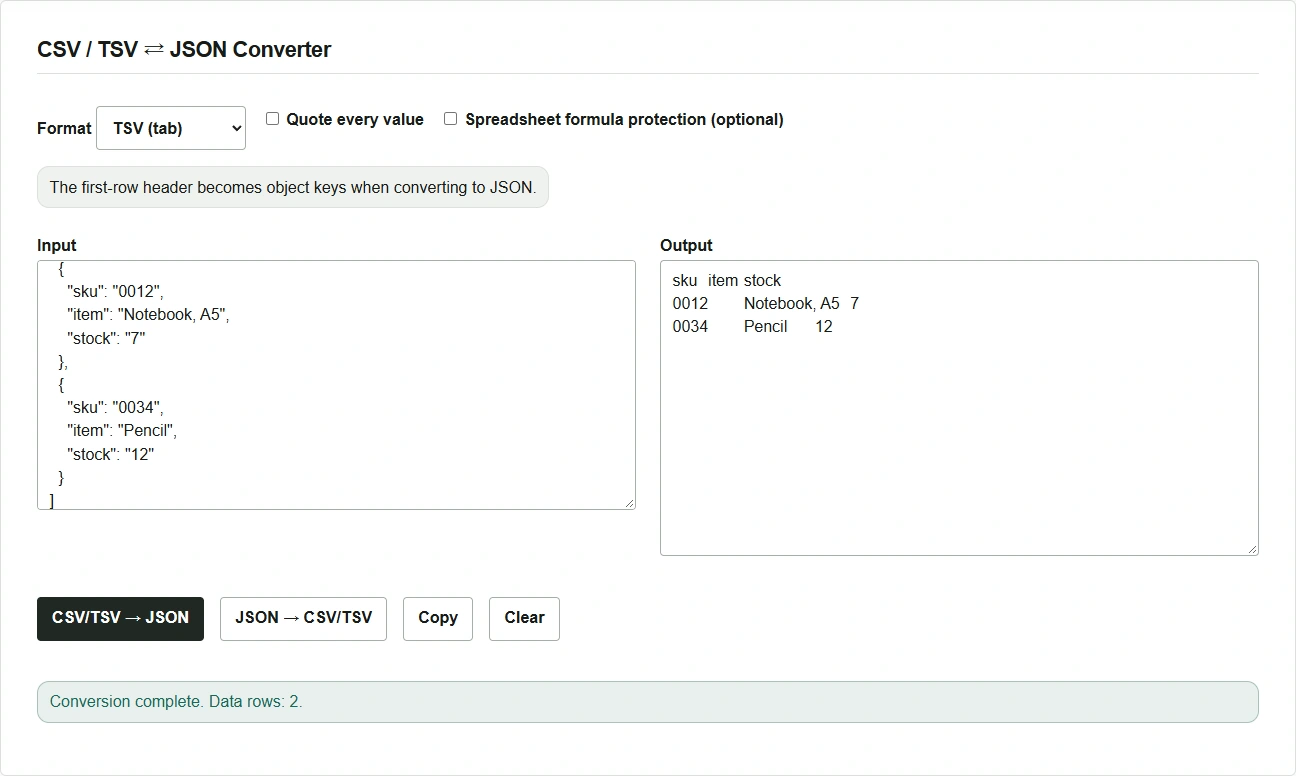
- Click “Copy” to copy the JSON, then paste it back into “Input”.
- Under “Format” choose “TSV (tab)” and click “JSON → CSV/TSV”. The keys appear in the first output row, and values are separated by tabs.
- Click “Copy” again and paste into your spreadsheet. To keep leading zeros, import the product code column as text.
Check errors and changes in values
- If the column count differs, compare the row indicated by the error with the header. Unclosed quotes and empty or duplicate headers also cause errors.
- To convert JSON back to a table, enter an array of objects that share the same kinds of fields. A missing key or a
nullvalue becomes an empty cell. - If you enable “Spreadsheet formula protection (optional)”, export from JSON adds a tab and double quotes to cells that could be interpreted as formulas. It is off by default because it changes values. The effect depends on the spreadsheet application and how you save the data.