Convert YAML to JSON and check how shared settings expand
Convert YAML with shared timeout and retry settings to JSON in your browser, check inherited and overridden values, then edit JSON and convert it back. Learn what happens to comments and anchors.
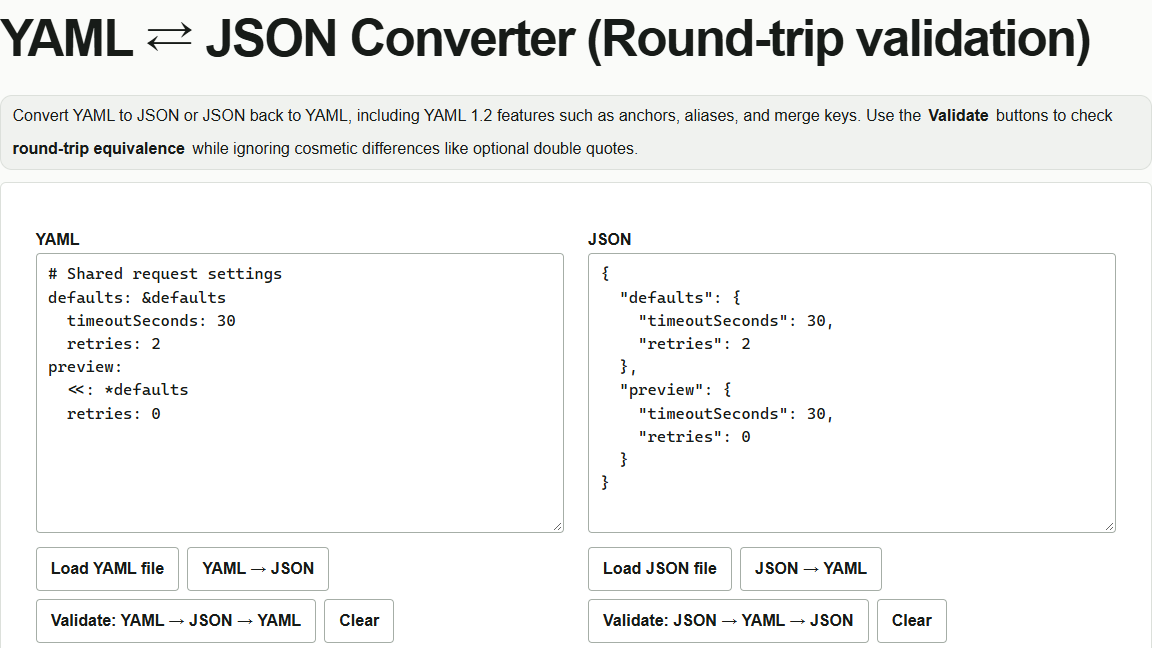
Set a shared timeout of 30 seconds and two retries, but disable retries in the preview environment. YAML can reference shared settings, though tracing where each value comes from gets harder as a configuration grows. The YAML ⇄ JSON converter lets you convert it to JSON and inspect the expanded references.
Expand shared YAML settings into JSON
Paste the following example into the “YAML” field on the left. To use a file, select “Load YAML file.” &defaults names the shared settings, and <<: *defaults merges them into preview.
# Shared request settings
defaults: &defaults
  timeoutSeconds: 30
  retries: 2
preview:
  <<: *defaults
  retries: 0
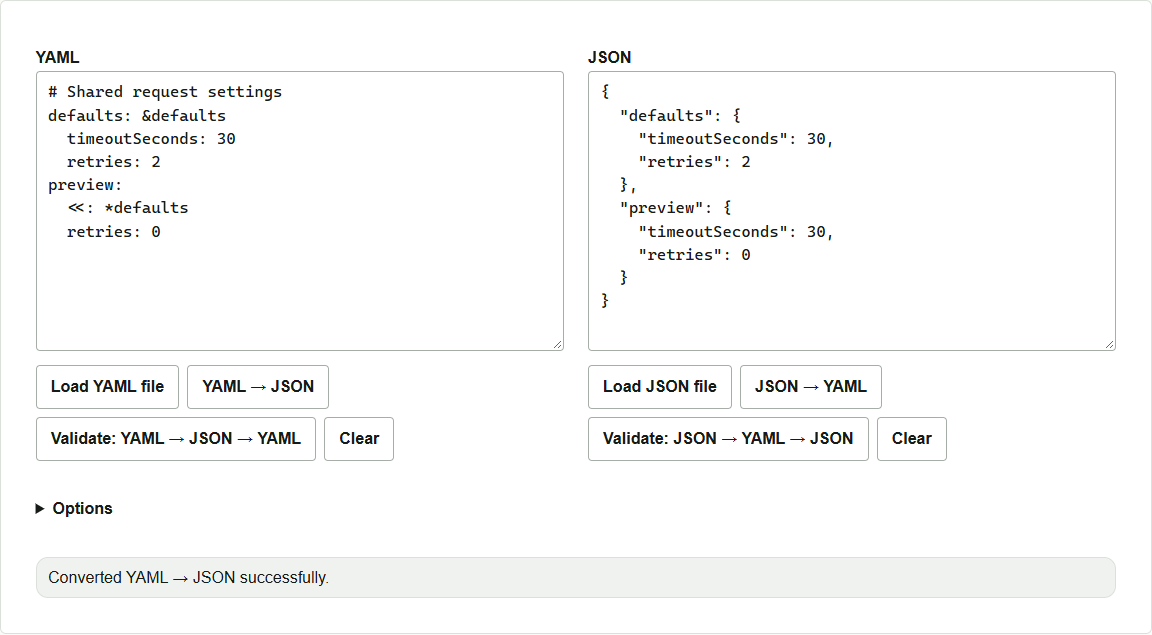
Select “YAML → JSON.” The result appears in the “JSON” field on the right. preview.timeoutSeconds inherits 30 from the shared settings, while the explicit override sets preview.retries to 0. defaults.retries stays at 2.
Edit JSON and convert it back to YAML
- In the JSON field on the right, change
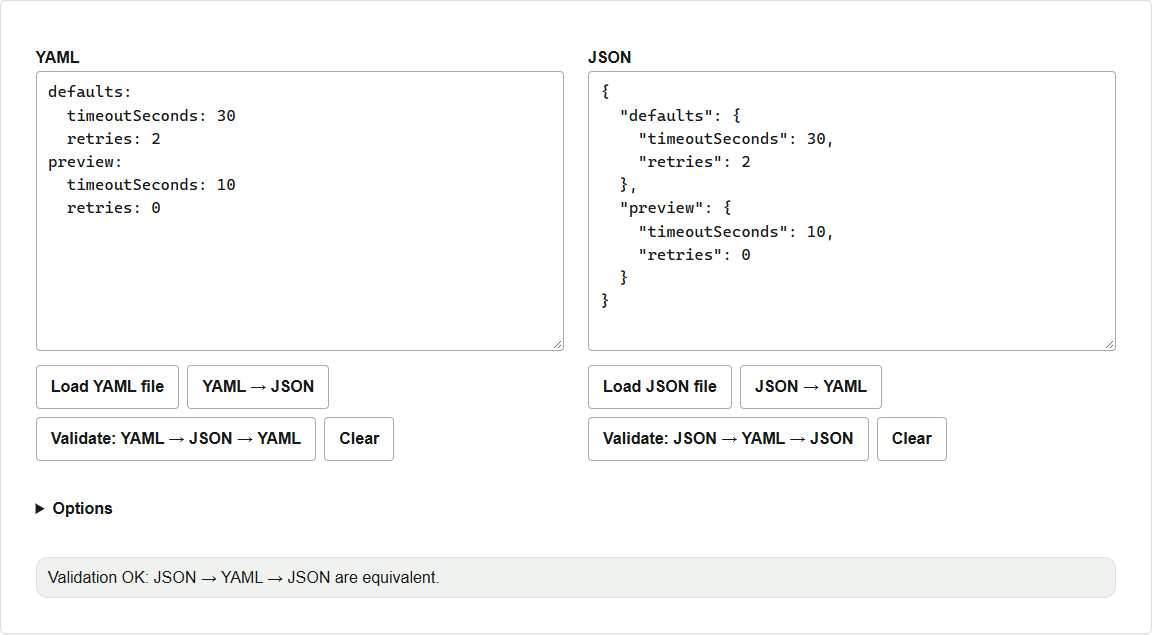
"timeoutSeconds": 30insidepreviewto"timeoutSeconds": 10. Leave the value indefaultsat30. - Select the right-hand validation button (“Validate: JSON → YAML → JSON” in the English interface). New YAML appears on the left, with the validation result below the fields. Check that
preview.timeoutSecondson the left is10. - To keep the conversion result as a file, copy the contents of the required field into a text editor and save it.
When you need to preserve comments or types
JSON does not include the original YAML comments or anchor names. On the same page, selecting “JSON → YAML” may restore the retained original text when the JSON data is equivalent to the original YAML. If you edit a value as in this example, the tool generates new YAML from the expanded data. To change only the timeout while keeping comments and shared-setting references, add timeoutSeconds: 10 to preview in the original YAML.
Validation starting from YAML (“Validate: YAML → JSON → YAML”) outputs JSON and retains the original YAML text. For example, even if validation reports success for limit: .nan, the JSON contains "limit": null. When migrating settings whose types matter, inspect the converted values directly as well.