Fixing $'\r': command not found: converting CRLF line endings to LF in shell scripts written on Windows
When a shell script edited on Windows fails on Linux with "$'\r': command not found", "cannot execute: required file not found" or "syntax error near unexpected token", the cause is a CR at the end of each line. Tested on Ubuntu 24.04: confirming it with file and cat -A, converting to LF with sed -i, and preventing it from coming back with .gitattributes.
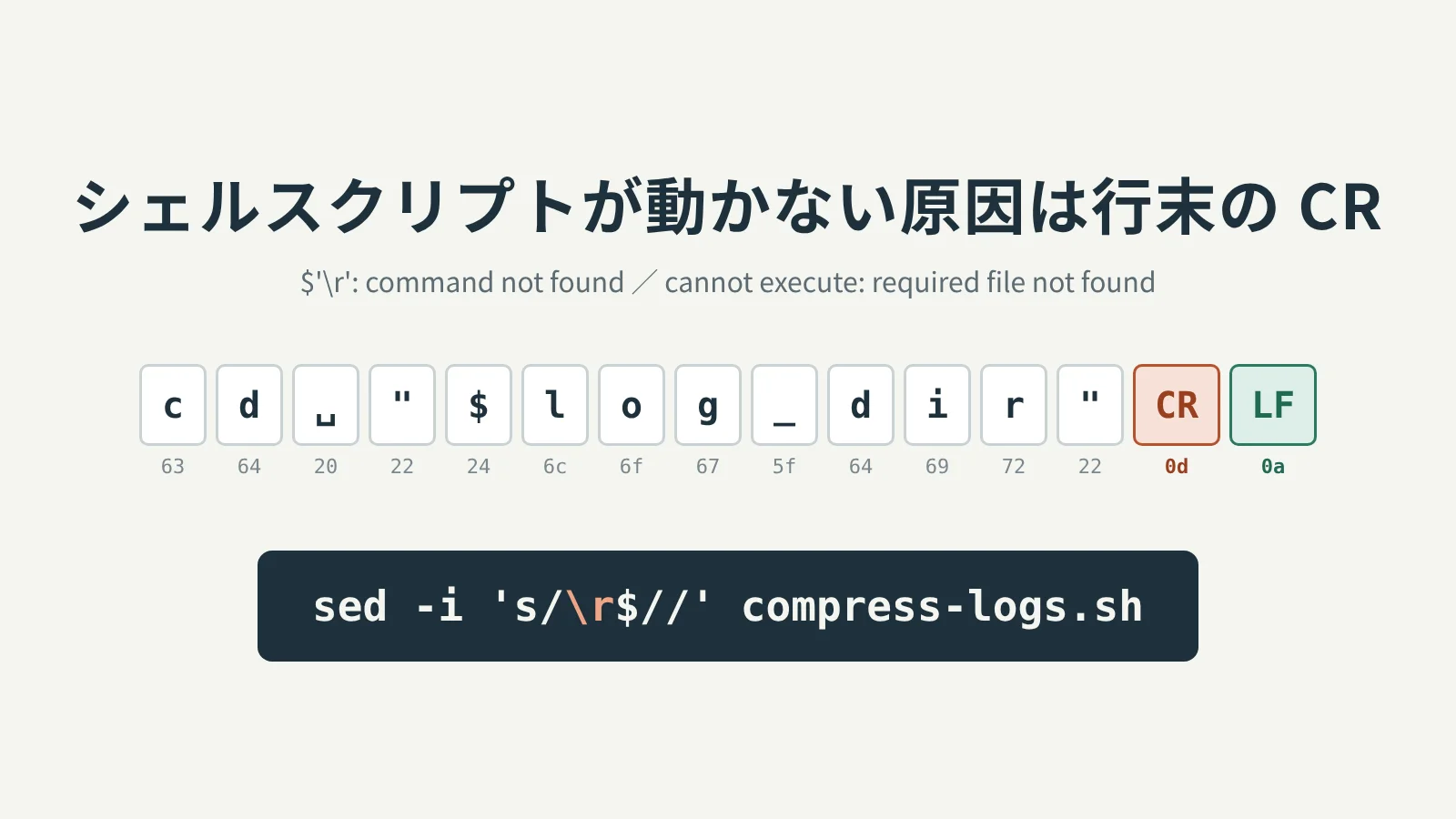
Suppose you write a shell script in a Windows editor, copy it to a Linux server, make it executable and type ./compress-logs.sh. What comes back is cannot execute: required file not found. The file is right there, yet the shell says it cannot be found. So you try again with bash compress-logs.sh, and this time you get $'\r': command not found on a blank line and a syntax error on the for line.
Nothing in the script itself is wrong. The cause is a difference in line endings that never shows up on screen. Text on Windows usually ends each line with two bytes, CR and LF (CRLF), but a Linux shell treats only LF as the end of a line. The leftover CR is read as part of a command name or argument.
In this article I run the same CRLF script in different ways to see what each error means. Then I check whether a file contains CRs, convert it to LF, and configure Git so it does not turn back into CRLF. Everything was tested on Ubuntu 24.04 with bash 5.2.21, dash, GNU coreutils 9.4 and Git 2.43.0.
1. One script, three different errors
The example is a short script that moves into the log directory and compresses each .log file. Line 2 is intentionally blank.
#!/bin/bash

log_dir=/tmp/app-logs
cd "$log_dir"
for f in *.log; do
  gzip -k "$f"
done
I saved these seven lines with CRLF line endings as compress-logs.sh and ran it in different ways. The table shows the results. For bash and sh, the compress-logs.sh: prefix at the start of each error is omitted. “(same)” means the message appeared in the same run as the row above.
| How it was run | Error shown |
|---|---|
./compress-logs.sh |
bash: ./compress-logs.sh: cannot execute: required file not found |
bash compress-logs.sh |
line 2: $'\r': command not found |
| (same) | line 4: cd: $'/tmp/app-logs\r\r': No such file or directory |
| (same) | line 5: syntax error near unexpected token `$'do\r'' |
sh compress-logs.sh (on Ubuntu, sh is dash) |
2: : not found |
| (same) | 4: cd: can't cd to /tmp/app-logs |
| (same) | 5: Syntax error: word unexpected (expecting "do") |
Every one of these messages makes sense once you assume a CR is left at the end of each line.
When run directly with ./, the kernel reads the first line, #!/bin/bash, and starts the interpreter. But the path it actually reads is /bin/bash\r, with a CR at the end. No such file exists, so the launch fails. What “cannot be found” is not the script but the interpreter with a CR stuck to its name. In bash 5.2 this appears as cannot execute: required file not found. When you search online you will also often see /bin/bash^M: bad interpreter: No such file or directory. That has the same cause; ^M is a way of writing CR.
If the first line is #!/usr/bin/env bash, env goes looking for a command called bash\r, and the output changes to the following. The second line is a generic hint added by env and has nothing to do with the CR problem.
/usr/bin/env: 'bash\r': No such file or directory
/usr/bin/env: use -[v]S to pass options in shebang lines
When passed to bash, the first line is just skipped as a comment, so the errors from line 2 onward become visible. $'\r' is bash notation for a single CR character. Only a CR is left on the blank line, and bash tried to run it as a command named \r. In the path passed to cd on line 4, two \r appear at the end. One comes from the end of the value assigned on line 3, and the other from the end of line 4 itself. On line 5, do became a different word, do\r, so the for syntax no longer holds together.
When run with sh, the messages are even more confusing. On line 2, 2: : not found means a command whose name looks empty could not be found; that name is a single CR. On line 4, the failure reads cd: can't cd to /tmp/app-logs, with a path that looks perfectly correct. When a terminal receives a CR it only moves the cursor back to the start of the line, so the CR itself is invisible. Even if you echo the variable to check, the trailing CR leaves nothing on screen. That is why looking at the output never leads you to the cause.
2. Checking whether a file contains CRs
If the errors make you suspect CRLF, check the file first with the following commands. They all only read the file and do not change it.
file compress-logs.sh
compress-logs.sh: Bourne-Again shell script, ASCII text executable, with CRLF line terminators
If with CRLF line terminators appears at the end, the lines end in CRLF. For a file with LF only, that part is not shown.
To see which lines contain a CR, use cat -A. The ^M just before the $ at the end of a line is the CR. The blank line 2 also has a ^M, and that is what produces $'\r': command not found.
cat -A compress-logs.sh
#!/bin/bash^M$
^M$
log_dir=/tmp/app-logs^M$
cd "$log_dir"^M$
for f in *.log; do^M$
  gzip -k "$f"^M$
done^M$
If you only want the number of lines that contain a CR, grep -c $'\r' compress-logs.sh counts them. In this example all seven lines match and it prints 7.
To check the bytes directly, print the first 13 bytes in hexadecimal. If 0d 0a follows the 11 characters of #!/bin/bash, the first line ends in CRLF. Which characters 0d and 0a stand for is covered in detail in “Read 0D 0A line endings and distinguish the digit 0 with an ASCII table”.
head -c 13 compress-logs.sh | od -An -tx1
23 21 2f 62 69 6e 2f 62 61 73 68 0d 0a
3. Converting line endings to LF on Linux
To fix the file on the server right away, use GNU sed to remove the trailing CRs. The following command overwrites compress-logs.sh, so make a copy first if you need one.
sed -i 's/\r$//' compress-logs.sh
s/\r$// means “replace a CR at the end of a line with nothing”. Characters in the middle of a line, and lines that already end in LF only, are left alone. In my environment the execute permission -rwxr-xr-x was kept after sed -i, and with CRLF line terminators disappeared from the file output. Running ./compress-logs.sh again finished without errors and created a.log.gz in /tmp/app-logs.
This syntax assumes GNU sed on Linux. The sed on macOS handles -i and a few other things differently, so do not use it as is there.
If you want to keep the original file and create an LF copy, you can also use tr.
tr -d '\r' < compress-logs.sh > compress-logs-lf.sh
chmod +x compress-logs-lf.sh
tr -d '\r' deletes every CR. A new file created by redirection does not get execute permission, so the second line adds it back. If dos2unix is installed, dos2unix compress-logs.sh converts the file to LF in the same way.
When you do not know how many CRLF scripts a directory contains, list them first and then fix them. -I excludes binary files from the search.
grep -rlI $'\r' --include='*.sh' .
Make sure each listed file is safe to convert, then run sed -i on them one by one. If you convert files that are meant to stay CRLF, such as CSV files or Windows batch files, the programs that receive them may run into problems instead. That is why the search is limited to .sh.
4. Keeping files from turning back into CRLF on Windows
Fixing the file on the server is not enough if the original you edit on Windows is still CRLF: the same error returns the next time you copy it. Set things up so shell scripts are saved with LF both in your editor and in the repository.
In Visual Studio Code, the status bar at the bottom right shows the current file’s line endings as CRLF or LF. Click CRLF, choose LF from the list at the top, and save; the file is then saved with LF.
If the scripts are managed in Git, check Git’s line-ending conversion before the editor settings. Git for Windows is often set up with core.autocrlf=true, which converts LF to CRLF when files are checked out. With that setting, if you zip up files from the working folder or copy them to the server by some other means, scripts that are stored as LF in the repository travel in CRLF form.
To test this, I committed a single LF file, run.sh, to a repository and cloned it on Linux with core.autocrlf=true. git ls-files --eol shows the line endings in the index (i/) and in the working folder (w/).
i/lf w/crlf attr/ run.sh
The repository content is LF, yet the checked-out file is CRLF. I then created .gitattributes at the top of the repository, wrote the following single line in it and committed it.
*.sh text eol=lf
Files marked eol=lf are checked out with LF regardless of the core.autocrlf setting (Git’s gitattributes documentation). The run.sh that was already checked out is not rewritten automatically, so I deleted it and checked it out again with git checkout -- run.sh. The output changed to this:
i/lf w/lf attr/text eol=lf run.sh
If the repository already contains CRLF files
If git ls-files --eol shows i/crlf, the CRLF file was committed as is. Adding .gitattributes alone does not change what is already recorded. In that case, put .gitattributes in place and then use the following commands to re-add existing files with line endings that follow the setting.
git add --renormalize .
git ls-files --eol
In my test, the CRLF-committed run.sh changed from i/crlf w/crlf to i/lf w/crlf. What the repository records is now LF, but the file in the working folder is still CRLF. The file shows up as modified in git status, so make sure no other changes are mixed in before committing. Finally, deleting the file and checking it out again with git checkout -- run.sh made with CRLF line terminators disappear from the file output.
In this commit every line whose ending changed appears in the diff. In a shared repository, keep it separate from content changes and say in the commit message that it normalizes line endings, so people reading the history later are not confused.
Creating and testing a CRLF script yourself (Linux)
Before touching a production script, you can reproduce the same errors in a practice directory. The steps below assume you run them in bash.
-
Create a directory for practice logs and the original script written with LF. In
printf,\nbecomes LF.mkdir -p /tmp/app-logs ~/crlf-test echo sample > /tmp/app-logs/a.log cd ~/crlf-test printf '#!/bin/bash\n\nlog_dir=/tmp/app-logs\ncd "$log_dir"\nfor f in *.log; do\n gzip -k "$f"\ndone\n' > lf.sh -
Add a CR to the end of each line to reproduce a file saved on Windows.
sed 's/$/\r/' lf.sh > compress-logs.sh
chmod +x compress-logs.sh
file compress-logs.sh
If
with CRLF line terminatorsis shown, you are ready. -
Run
./compress-logs.sh,bash compress-logs.shandsh compress-logs.shin turn and confirm that you get the same errors as in the table in section 1. The wording may differ slightly depending on the versions of bash and dash. -
Convert back to LF with
sed -i 's/\r$//' compress-logs.shand run./compress-logs.shagain. Ifls /tmp/app-logsshowsa.log.gz, the fix worked. When you are done, you can delete~/crlf-testand/tmp/app-logs.
A CR does not appear on screen, and the errors look unrelated to one another: the interpreter cannot be found, a command cannot be found, the syntax is wrong. When a script you touched on Windows will not run on Linux, run file on it once before doubting its contents. If it says CRLF, what needs fixing is the single byte at the end of each line.