How to move late SRT subtitles 1.5 seconds earlier
Fix SRT subtitles that lag by the same amount at the beginning and end of a video. Measure a 1.5-second delay, preview the shift, save a separate file and check it in your player.
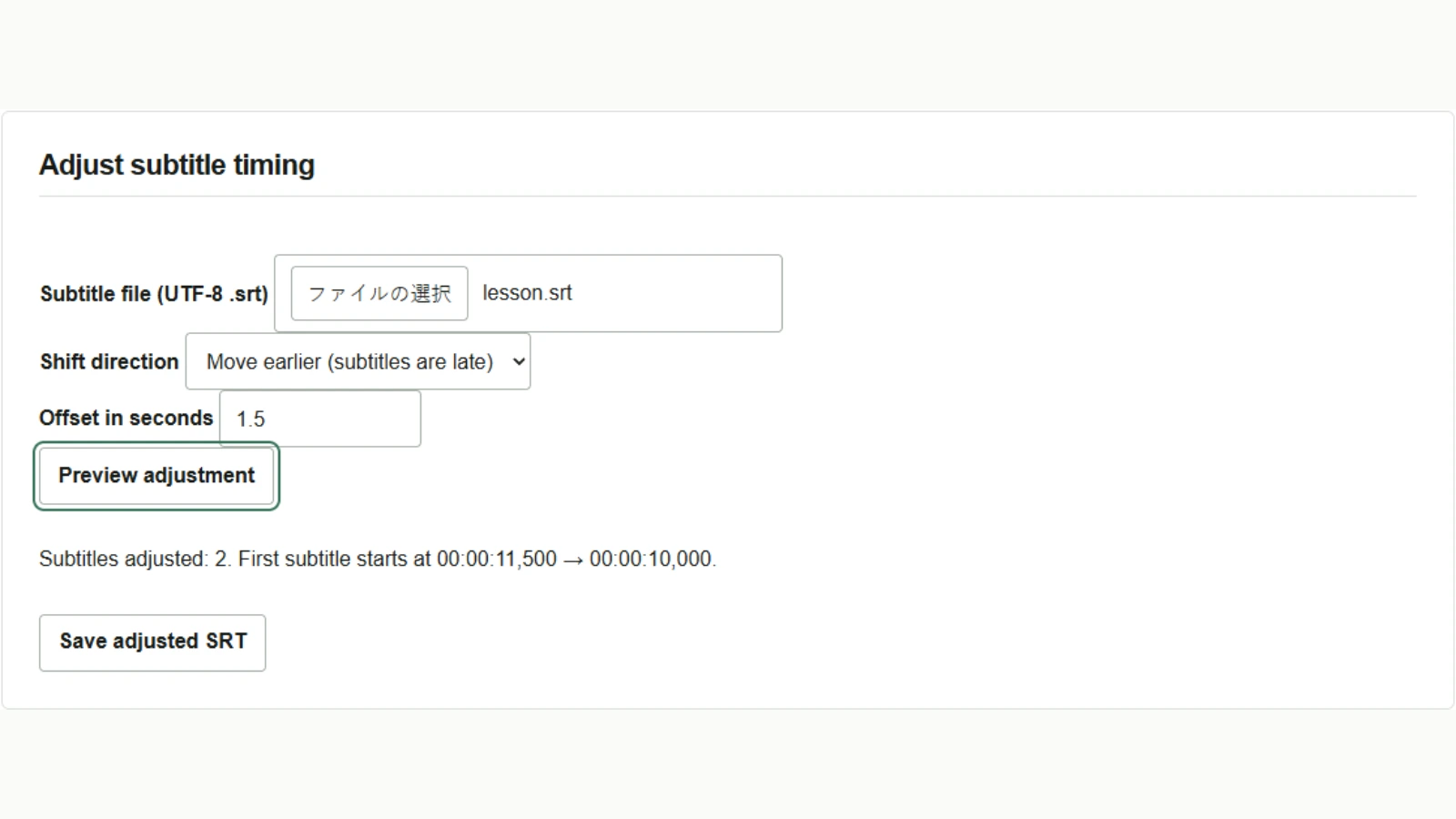
You hear “Let’s get started” 10 seconds into the video, but the subtitle appears at 11.5 seconds. If the same 1.5-second delay persists near the end, use Shift SRT subtitle timing to move every subtitle earlier by the same amount. You only need a UTF-8 .srt file. Keep playing the video in your usual player. The browser reads and adjusts the subtitle file locally.
Measure the delay near the beginning and end
Pick lines you can hear clearly in the player and compare when they start with the corresponding lines in the SRT. In this example, a line near the beginning starts at 10.000 seconds, and a line near the end starts at 42.000 seconds. Save the sample below as lesson.srt in UTF-8 to try adjusting and saving it without the video.
1
00:00:11,500 --> 00:00:13,500
Let's get started.

2
00:00:43,500 --> 00:00:46,000
See you next time.
In SRT, the digits after the comma are milliseconds. The time to the left of the arrow is when the subtitle appears, and the time to the right is when it disappears. Compare the start times. The differences are 11.500 − 10.000 near the beginning and 43.500 − 42.000 near the end. Both subtitles are 1.5 seconds late.
Move the subtitles 1.5 seconds earlier and preview
- Choose
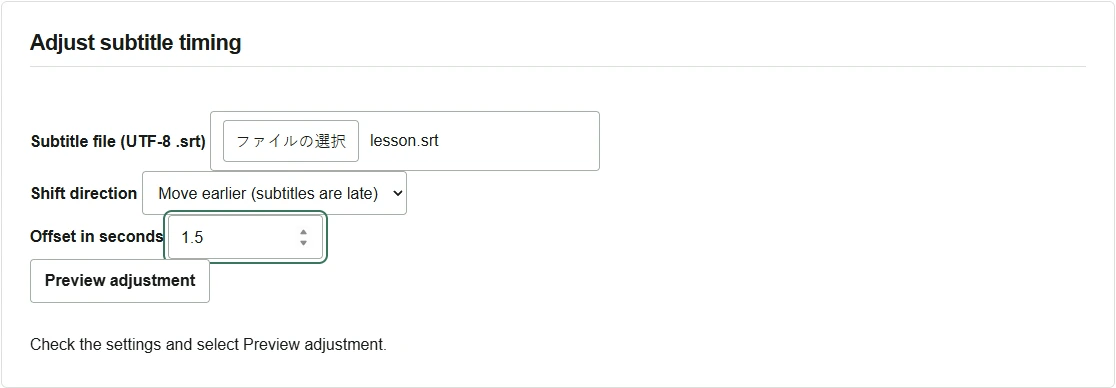
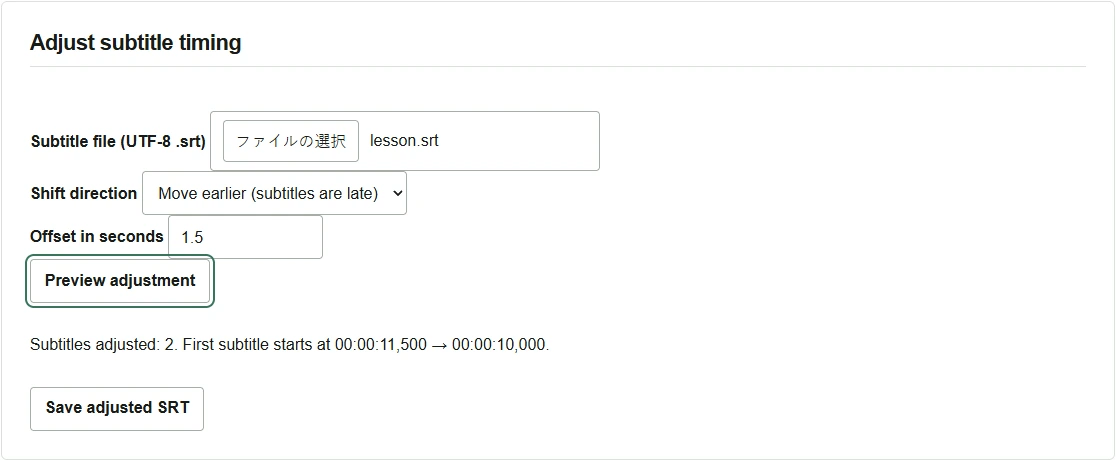
lesson.srtunder Subtitle file (UTF-8 .srt). - Under Shift direction, select Move earlier (subtitles are late). Enter
1.5in Offset in seconds. - Select Preview adjustment. Check that two subtitles were adjusted and that the first start time changed from
00:00:11,500to00:00:10,000.
Save a separate file and check it in the player
Select Save adjusted SRT to download lesson-shifted.srt. Subtitle 1 now runs from 00:00:10,000 --> 00:00:12,000, and subtitle 2 runs from 00:00:42,000 --> 00:00:44,500. The start and end times move by the same amount, preserving the text and display duration.
Load the saved SRT in your player and check that the subtitles match the dialogue near the beginning and end. If the shift would move a subtitle before zero, the tool displays its number. If the problem affects only a subtitle at the beginning, adjust that entry individually and check again. If the gap grows toward the end, check playback speed and whether the subtitles match your version of the video. If the offset changes around cuts, align those sections in a subtitle editor.