Find the third argument for VLOOKUP with an Excel column converter
Find the VLOOKUP column index from a lookup range and a column name, or work backward from an existing formula. Follow both examples in your browser.
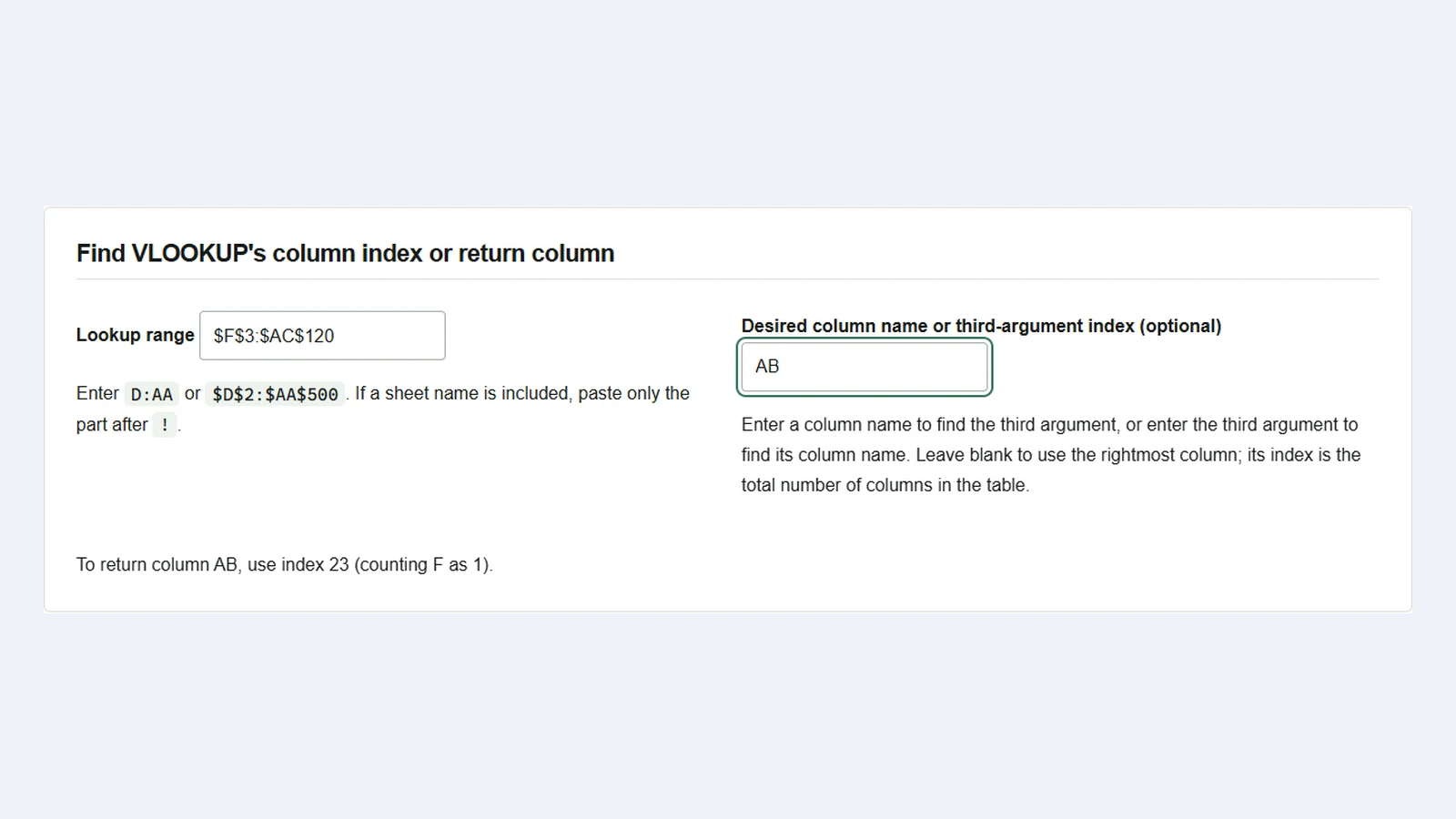
Suppose an inventory sheet has product codes in F and stock quantities in AB. VLOOKUP’s third argument counts columns from the left edge of the lookup range. AB is column 28 of the sheet and column 23 when you count from F. Microsoft’s VLOOKUP documentation
Try the Excel column converter with this fictional inventory. You can use it both to write a new formula and to read one you inherited.
Find the index for column AB
- Open “Find VLOOKUP’s column index or return column” and enter
$F$3:$AC$120in “Lookup range”. - Enter
ABin “Desired column name or third-argument index (optional)”. - The result is 23 for column AB when F counts as 1. AC is the rightmost column, immediately after AB.
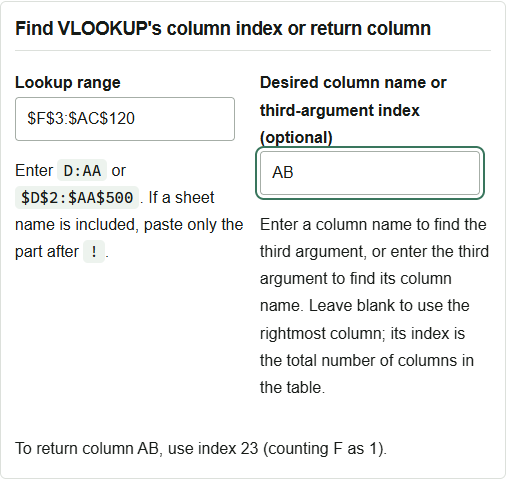
If you enter the product code in B2, use the following formula for the stock quantity. The fourth argument, FALSE, requests an exact match.
=VLOOKUP(B2,$F$3:$AC$120,23,FALSE)
Identify the return column in an existing formula
- Enter the formula’s second argument in “Lookup range”. Here it is
$F$3:$AC$120. For a sheet-qualified reference such asStock!$F$3:$AC$120, enter the range after the!. - Replace
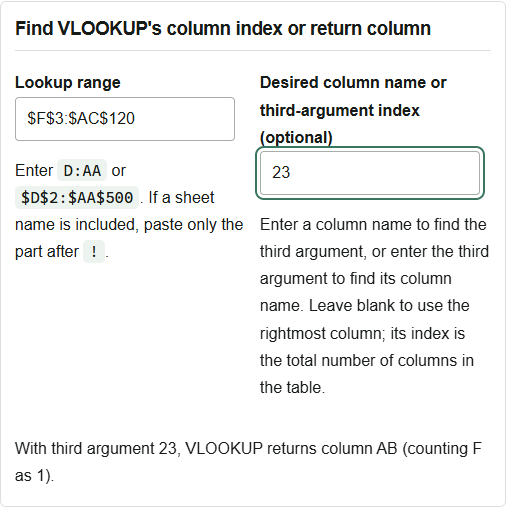
ABin “Desired column name or third-argument index (optional)” with the formula’s third argument,23. The tool shows that index 23 returns column AB. - Open the referenced inventory sheet in Excel and check that AB is headed “Stock quantity”. The tool resolves the column position. Check the heading and looked-up value in the original sheet.
Things to check when counting columns
- Entering
ABin “Column name or number” at the top gives28when counted from worksheet column A. The lookup range is 24 columns wide, so using28as the third argument gives#REF!in Excel. Microsoft’s VLOOKUP documentation - Leaving the return-column field blank gives the result for the rightmost column, AC and 24 in this example. For a table name or named range, check the cell range it refers to in Excel and enter that range.
- Enter only the column name, index or range as text. The tool needs no workbook and processes your inputs in your browser.