Stamp a company seal on a PDF invoice: make a Japanese kaku-in and place it without printing or scanning
When a Japanese client asks for an invoice bearing your company seal, you don't have to print the PDF, stamp it and scan it back in. Using the Electronic Seal Maker, I made a 21 mm square seal reading 株式会社見本商事之印, stamped it over the company name on a sample invoice PDF and saved it. The article covers how line breaks decide the columns, why 21 mm at 350 dpi gives 289 pixels, the resolution of the seal embedded in the PDF, what the option that lets text show through does, and how far Japanese law actually requires a seal.
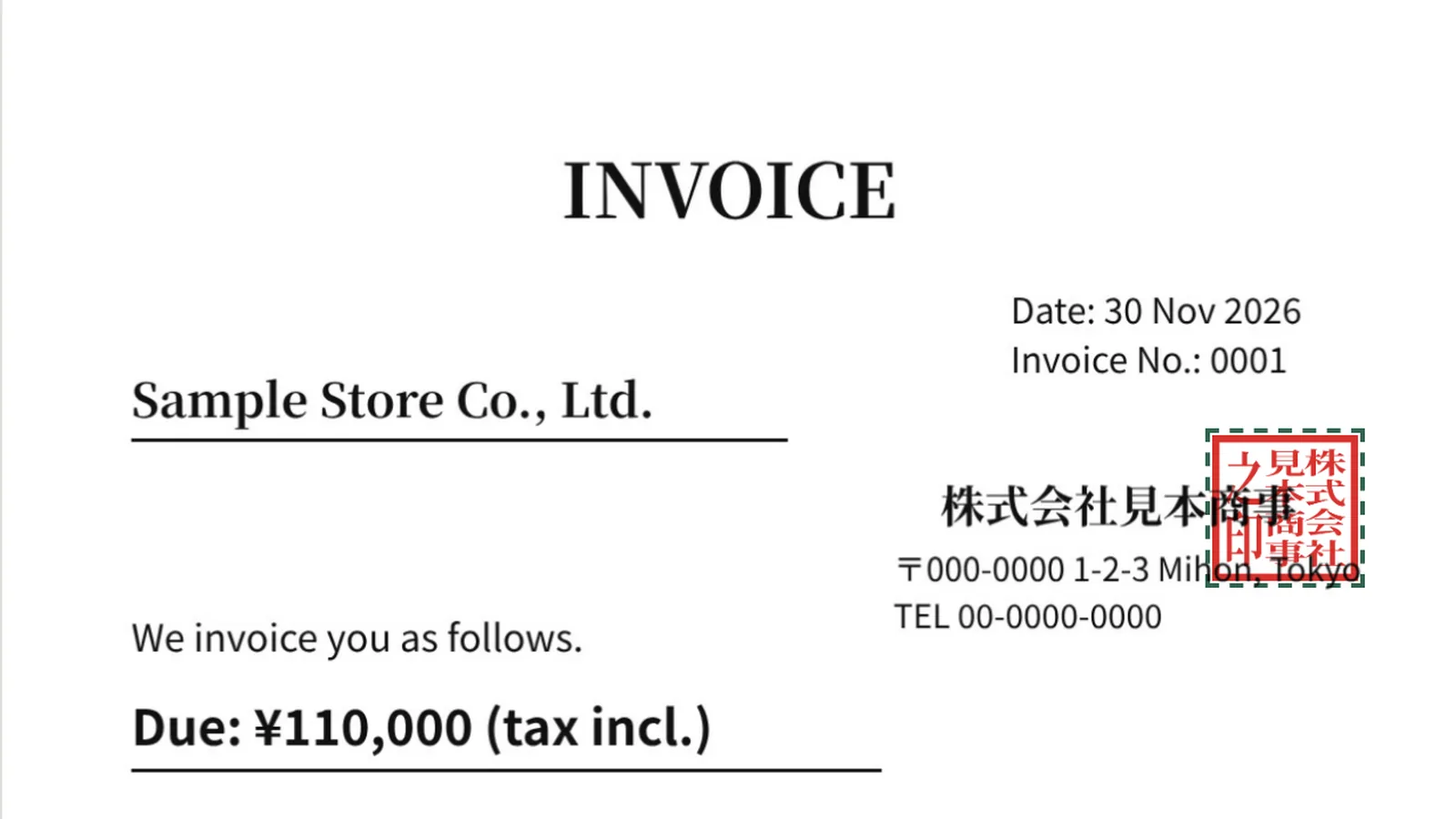
In most Western countries nobody stamps an invoice; a printed company name, perhaps a signature, is enough. Japan is different. Many Japanese businesses still use a hanko (also called inkan), a small seal pressed in red ink, and a company’s square seal, the kaku-in (角印), is customarily stamped on invoices and quotes. If you work with Japanese clients or partners, sooner or later someone will ask for “an invoice with your kaku-in on it.”
Invoices are now usually made as PDFs and sent by email, so following the paper-era routine means printing the PDF, stamping it, then reading it back in with a scanner or phone and turning it into a PDF again. Once is fine, but doing it every month is tedious, and a scanned PDF tends to come out slightly skewed and much heavier.
The Electronic Seal Maker makes the image of a seal from a name or company name and saves it as a PNG with a transparent background. You can then click anywhere on a PDF you have to stamp the seal there and save the result. Both the PDF and the seal are processed inside the browser and are not sent anywhere. Below I go through making a company’s square seal and stamping it on an invoice PDF, and I also check the image size and what ends up inside the PDF. The screenshots are of the English UI; the Japanese version has the same layout.
Three kinds of seal
Under “Seal type” the tool offers three options.
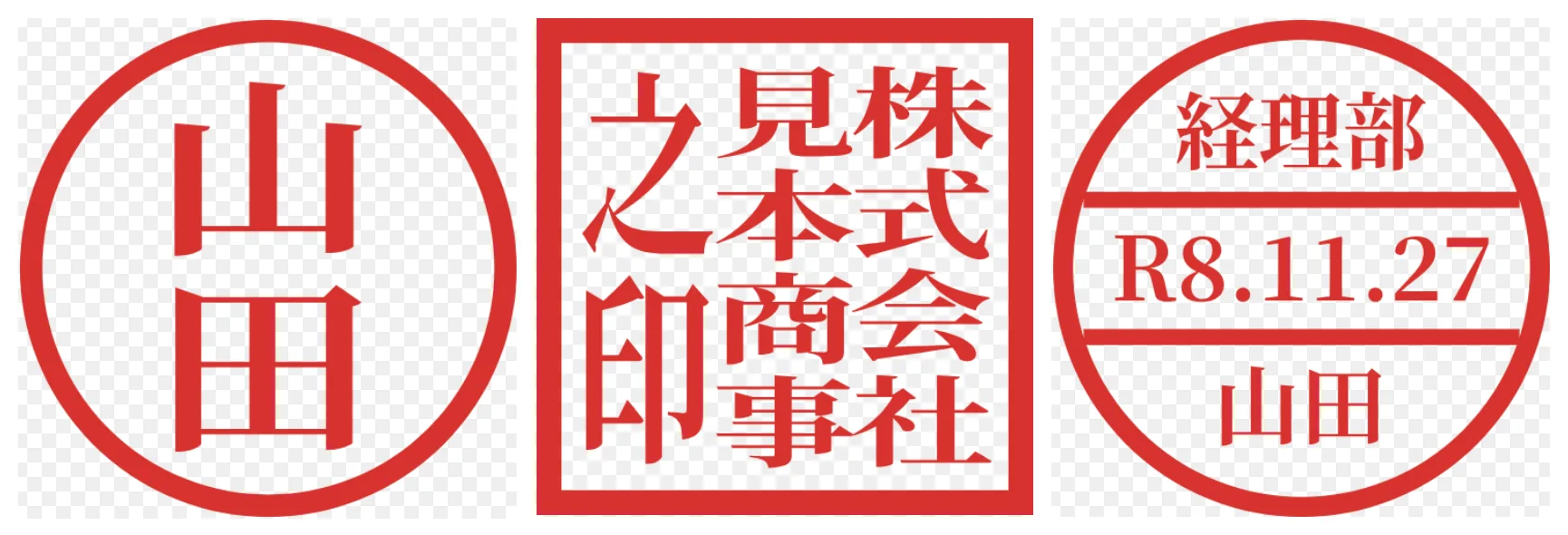
- Round (personal seal): a round seal with a name such as 山田 (Yamada), like the mitome-in (認印) people in Japan use every day to acknowledge receipt or approve a document. It holds 1 to 8 characters.
- Square (company seal): a company or trade name in a square frame. This is the one usually stamped on invoices and quotes, and it holds up to 20 characters.
- Date seal (data seal): a round seal in three tiers, with the department at the top, a date in the middle and a name at the bottom. Japanese offices use it on documents circulated for approval and on receiving records, to show who checked something and when. The top and bottom tiers hold up to 12 characters each.
Japan still widely uses its own era-based calendar alongside the Western one, and the date seal follows that habit. The date can be written as a Japanese era abbreviation such as “R8.11.27”, where R stands for Reiwa and Reiwa 8 is 2026, or chosen from formats such as “令和8.11.27”, “2026.11.27” and “2026年11月27日”. Checking “Leave the date blank” makes a seal with an empty middle tier, so you can print it and write the date in by hand. For how Japanese era years map to Western years, there is an article in Japanese, “平成32年は令和何年か” (Japanese).
Making the square seal
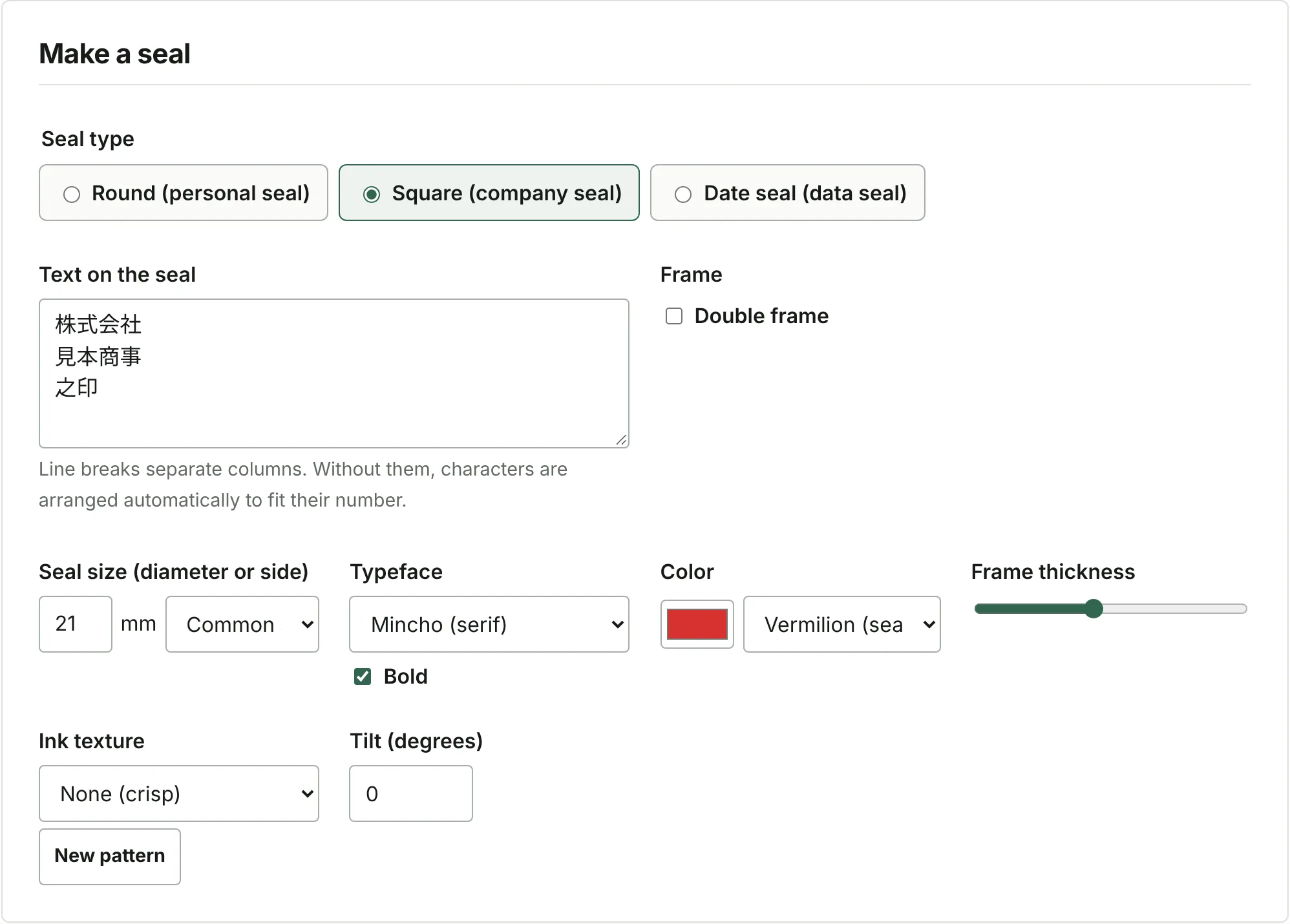
Here I make the square seal to stamp on the invoice. Choosing “Square (company seal)” under “Seal type” fills “Text on the seal” with three lines: 株式会社, 見本商事 and 之印. Together they read 株式会社見本商事之印, roughly “Seal of Mihon Shoji Co., Ltd.” (株式会社 means a joint-stock company, 見本 means “sample”, and 之印 means “seal of”). Replace them with your own company’s name.
Line breaks decide the columns
As on a real kaku-in, the characters are written vertically and the columns run from right to left. Each line break marks the end of a column. When columns have different numbers of characters, the shorter ones are stretched vertically so that all columns are the same height.
If you enter the 10 characters 株式会社見本商事之印 without any line breaks, the tool decides the number of columns from the character count and splits them, from the right, into 株式会社, 見本商 and 事之印.
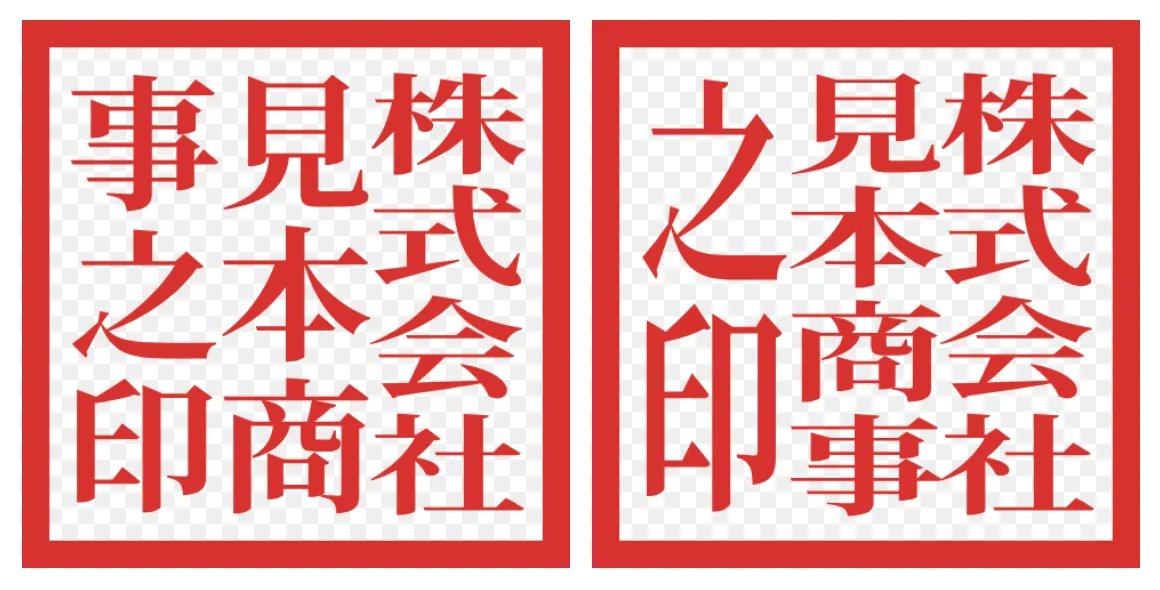
This splits 見本商事 across two columns. To break the columns where the company name breaks, don’t leave it to the tool as in the left example; enter 株式会社, 見本商事 and 之印 on separate lines as in the right example. With a long company name, too, the seal is easier to read when you decide the breaks yourself.
Size and appearance
For a square seal, “Common sizes” under “Seal size (diameter or side)” lists sizes from 15 mm to 30 mm. Japanese company square seals are often around 21 mm or 24 mm per side; here I chose “21 mm (square seal)”.
You can choose Mincho, Kaisho, Gyosho or Gothic as the typeface, but the seal is drawn with the Japanese fonts installed on your computer or phone. Kaisho (regular script) and Gyosho (semi-cursive) only work where fonts such as HG正楷書体 and HG行書体 (bundled with Microsoft Office in Japan) are installed; otherwise the seal is drawn in Mincho. The tensho (seal script) and insō styles common on real company seals are not available.
The default color is “Vermilion (seal ink pad)”, and you can also pick red, indigo or black. Setting “Ink texture” to “Light” or above adds the unevenness of a seal pressed with an ink pad, and “Tilt (degrees)” angles it slightly. For an invoice, a crisp seal with no texture and no tilt stays more legible when the page is printed at a reduced size.
How big the transparent PNG is
The “Preview and save” section shows the seal enlarged, plus a “Size on paper (approximate)” view that puts it next to 16 px text. One millimeter on screen is not necessarily one real millimeter, but it gives you an idea of whether the seal is too large compared with the text.
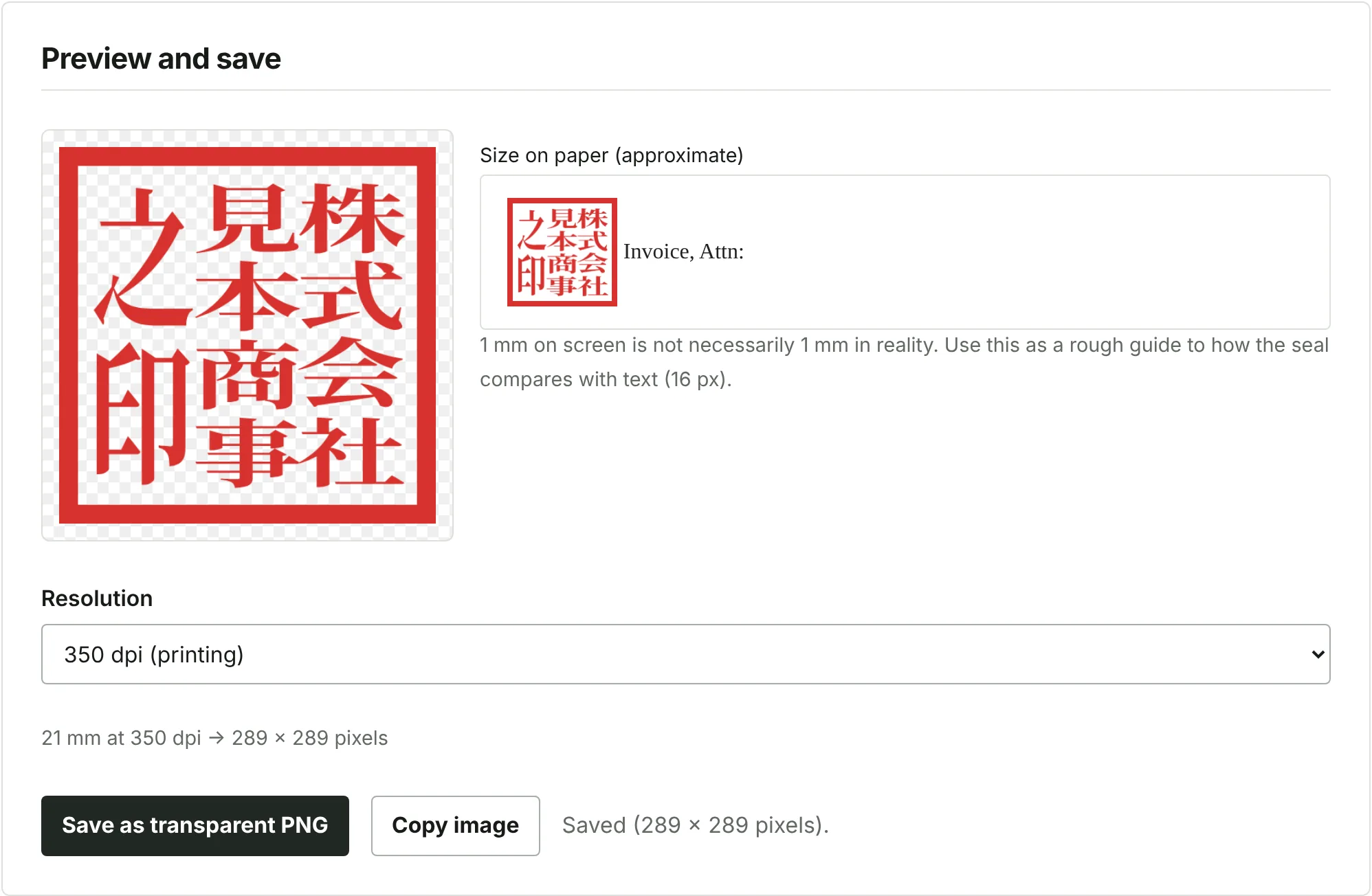
The pixel count of the saved PNG is “size (mm) ÷ 25.4 × resolution (dpi)”. With the 21 mm square seal, each “Resolution” setting showed the following.
| Resolution | Pixels for a 21 mm square seal |
|---|---|
| 96 dpi (screen and email) | 79 × 79 pixels |
| 300 dpi (documents and PDF) | 248 × 248 pixels |
| 350 dpi (printing) | 289 × 289 pixels |
| 600 dpi (high detail) | 496 × 496 pixels |
When I examined the 350 dpi PNG saved with “Save as transparent PNG”, the image was 289 × 289 pixels, and its PNG resolution information (pHYs) recorded 13,780 pixels per meter, which is 350 dpi. Software that reads this information inserts the image at close to its real size of 21 mm. If the seal comes out at a different size when pasted into Word or Excel, set its width and height to 21 mm in the picture’s format settings. If all you need is to paste it into a Word or Excel invoice template, “Copy image” and paste is the quickest route.
A tilted square seal produces a larger image so that the corners don’t get cut off. With a tilt of 5 degrees the display changes to “21 mm at 350 dpi → 313 × 313 pixels”, and the image is saved as 22.8 mm per side. The seal itself is still 21 mm.
Stamping the invoice PDF
To stamp an invoice made as a PDF, use the “Stamp a PDF” section on the same page. Choose the file with “Choose a PDF” or drop it into the box. If you don’t have a PDF at hand, “Try with a sample invoice” loads a one-page invoice issued by 株式会社見本商事. In the Japanese version the sample invoice is in Japanese; in the English version it is in English, with only the company name in Japanese.
Once the PDF page appears, click where you want the seal. The point you click becomes the center of the seal, and the square seal you made above is placed at its set size.
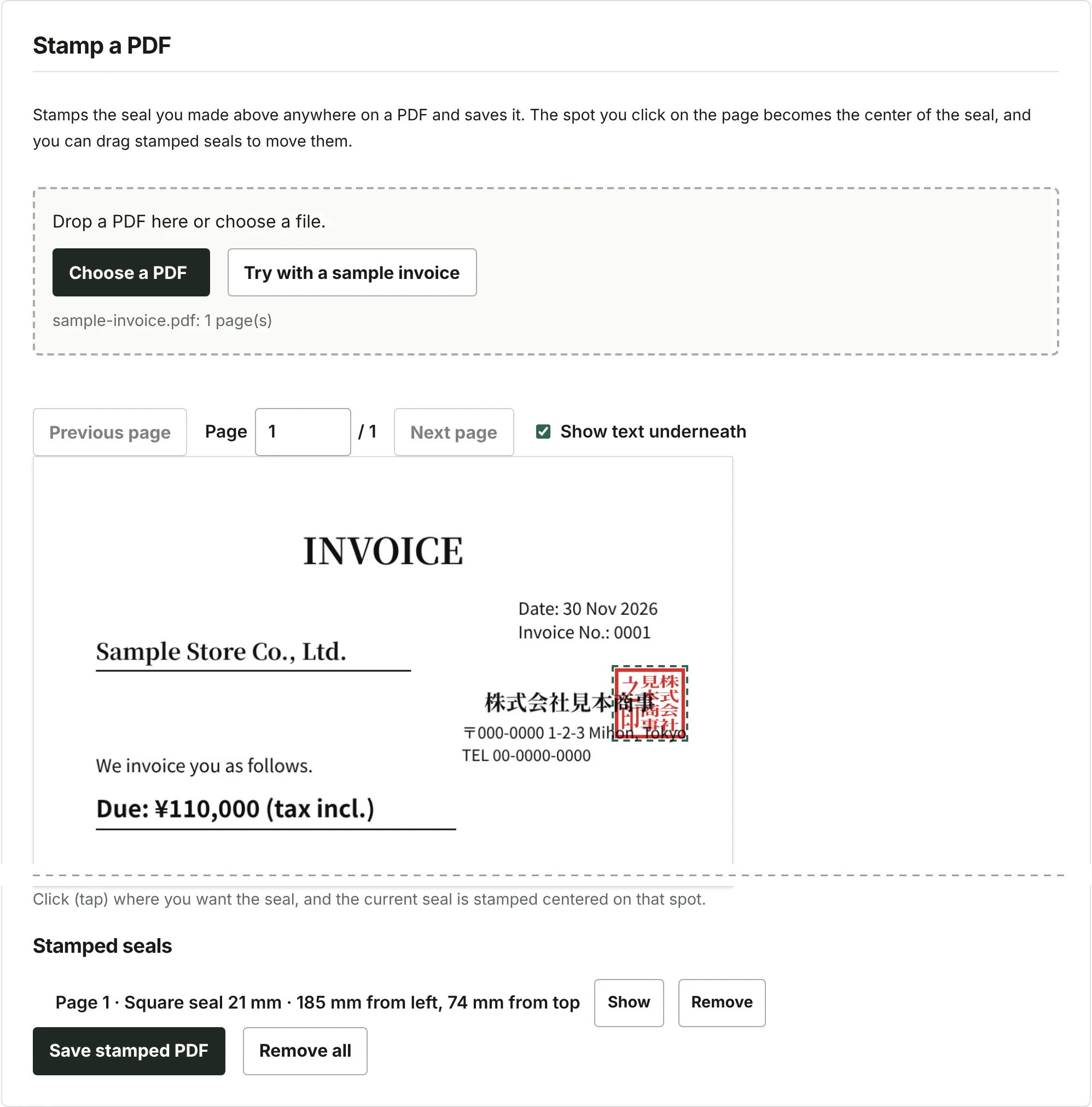
In Japan the kaku-in is usually placed so that it slightly overlaps the last character of the company name. You can drag a stamped seal to move it; once it is selected, the arrow keys move it 1 mm at a time, or 5 mm with Shift held down. Press Delete or “Remove” in the list to undo it. The “Stamped seals” list shows the position in a form such as “Page 1 · Square seal 21 mm · 185 mm from left, 74 mm from top”, so if your invoice uses the same layout every month, you can note these numbers and stamp it in the same place again.
In a multi-page PDF, move between pages with “Next page” and “Previous page” and stamp each page as needed. On landscape pages and pages with a rotation setting, the seal is stamped in the orientation you see on screen.
When the position is right, click “Save stamped PDF”. The PDF is saved with “_stamped” appended to the original file name, and the original PDF is not modified.
What’s inside the saved PDF
Examining the saved PDF, I found that one pair of images had been added on top of the page: the 289 × 289 pixel seal image and a mask image of the same size representing the transparent areas. Inside the PDF the image has a resolution of 350 ppi and measures exactly 21 mm on the page. The two together add about 18 KB, so the file doesn’t balloon the way a printed-and-rescanned PDF does.
The seal is simply laid over the original page content as an image, so the invoice’s text and tables remain as they were. If the PDF had selectable text, you can still select and search it after stamping.
Overlapping the company name with “Show text underneath”
“Show text underneath”, above the page, is on by default. Comparing on and off where the seal overlaps the company name shows the difference.
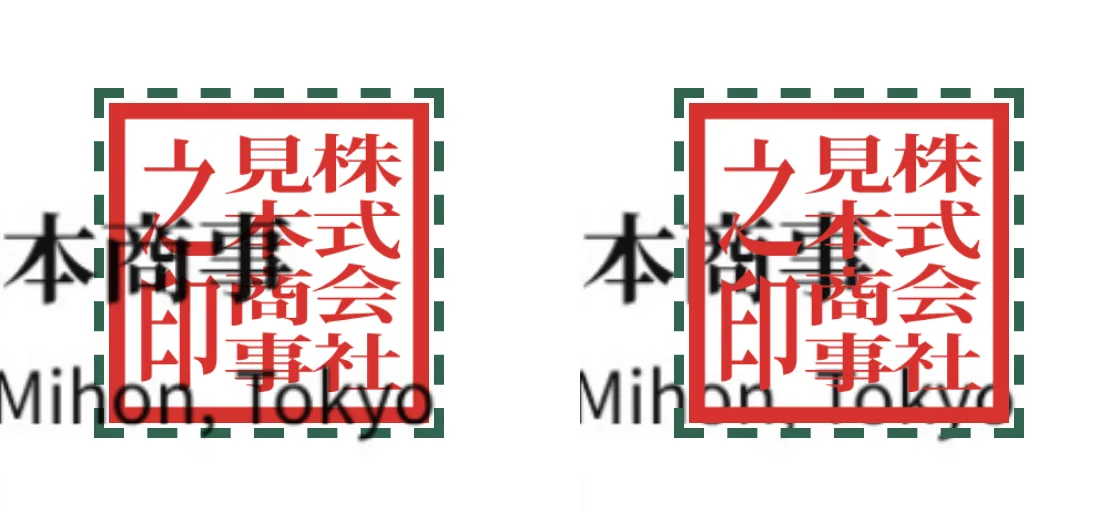
When it’s on, the seal is overlaid with “multiply” blending, which multiplies the seal’s color by the color beneath it. White paper keeps the seal’s color while black text stays black, so the company name remains readable under the seal, just as when a seal is pressed onto paper with an ink pad. When it’s off, the red parts of the seal cover the text beneath. If you are stamping over the company name, leave it on; if you stamp in an empty margin, it makes no visible difference.
PDFs you can’t stamp, and the order of steps
PDFs with a password or editing restrictions cannot be loaded. If an invoice exported from accounting software has such restrictions, you need to export it again without them. Also, because processing happens in browser memory, PDFs over 200 MB cannot be handled.
If you stamp a PDF that already carries a digital signature, the signature will show as invalid, because editing the PDF changes what the signature covers. If your workflow includes a digital signature, stamp first and sign afterward.
If all you have is a paper document, take a photo with your phone, turn it into a PDF with Image to PDF, and stamp that. To combine the stamped invoice with a statement of charges into a single file, use the PDF merge tool; to add page numbers, follow “Add page numbers to a PDF”.
Does an invoice in Japan actually need a kaku-in?
Being asked for a kaku-in makes it feel like a rule, but the legal position in Japan is different. The “押印に関するQ&A” (Q&A on seals, in Japanese) issued by Japan’s Cabinet Office, Ministry of Justice and Ministry of Economy, Trade and Industry in June 2020 states that, under private law, a contract is formed by the agreement of the parties’ intentions, and that preparing a written document or affixing a seal is not a required element unless specifically provided for.
The same goes for qualified invoices under Japan’s Qualified Invoice System, the consumption tax invoice rules introduced in October 2023. The National Tax Agency’s guide “インボイス制度の理解のために” (in Japanese) lists the required items as: the issuing business’s name and registration number, the transaction date, the details of the transaction, the consideration totaled by tax rate together with the applicable rates, the consumption tax amount by tax rate, and the name of the business receiving the invoice. A seal is not among them. No format is prescribed either, so even a handwritten invoice is a qualified invoice as long as the required items are on it.
In other words, a kaku-in on an invoice is there to match the client’s custom or internal rules; an invoice is not invalid without one. Being able to provide it when asked, without the trouble of printing and scanning, is all you need.
That said, the seal this tool makes is “an image shaped like a seal” and has no mechanism for proving who stamped it or when. Anyone who copies the image can use the same seal. For contracts where you need to prove that a person actually agreed, use a digital signature under Japan’s Act on Electronic Signatures and Certification Business, or an e-contract service. The tool also cannot make a jitsuin (registered personal seal) or a bank seal, and you must not make a seal in another person’s or company’s name and use it on documents without their consent.