Calculate a video bitrate for a screen recording under 20 MB
Estimate the average video bitrate for a screen recording with a 20 MB upload limit using its duration, audio bitrate and a safety margin. Follow the screenshots and compare the export settings after cutting 30 seconds.
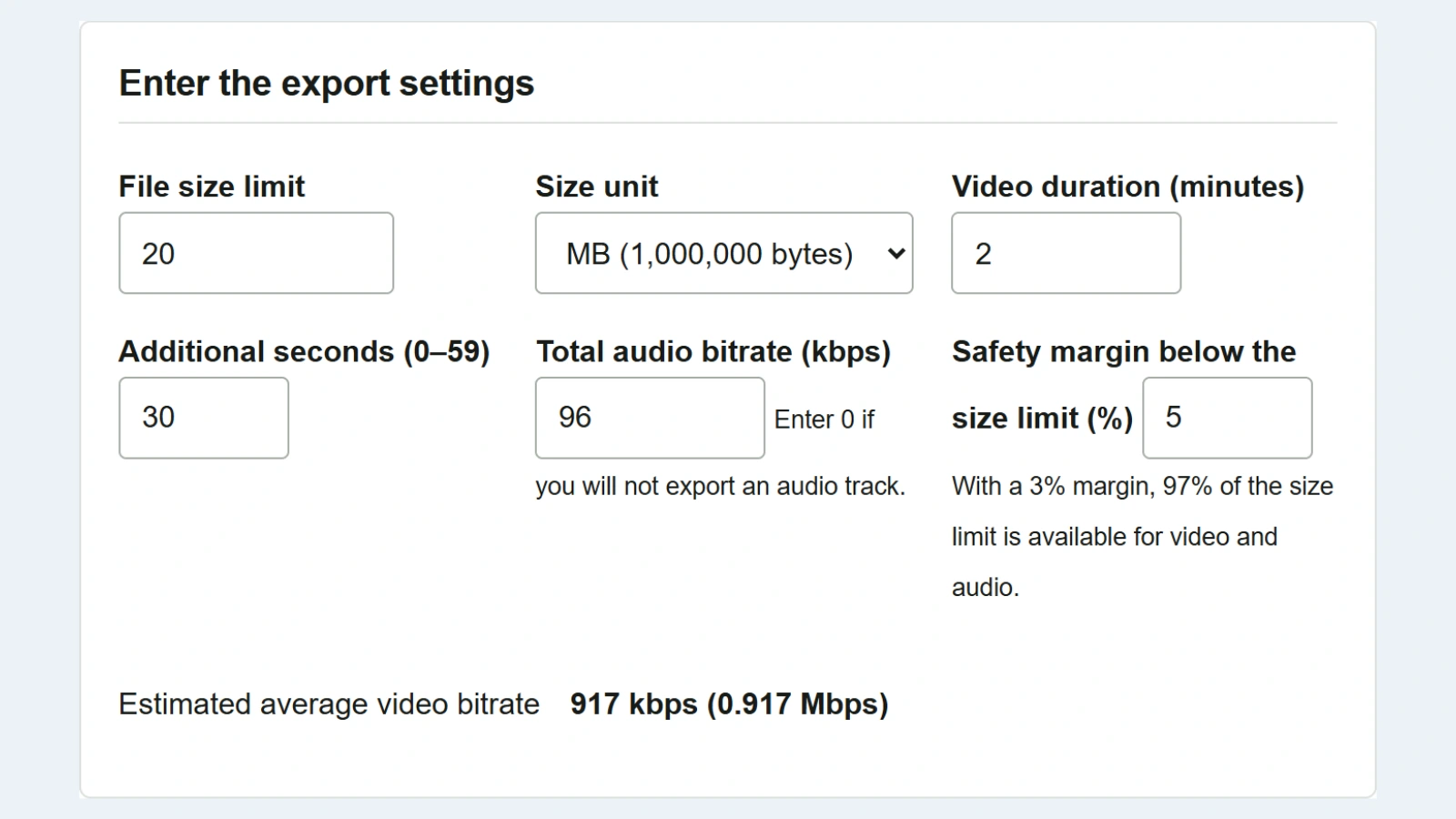
Your recording of a procedure runs for 2 minutes 30 seconds. The submission form has a 20 MB limit and you want to keep the narration. Before trying multiple exports, use the video bitrate calculator to estimate the average bitrate available for video. You need the size limit, the recording duration and the audio export settings. There is no file to select. The browser calculates the result from your inputs.
Divide 20 MB between video and audio
- Enter 20 in File size limit and select MB under Size unit. If the submission service specifies a byte count, use that value. One MB is 1,000,000 bytes and one MiB is 1,048,576 bytes.
- Enter 2 in Video duration (minutes) and 30 in Additional seconds (0–59).
- Enter 96 in Total audio bitrate (kbps). This example keeps one 96 kbps audio track. If you export several tracks, add up their average bitrates.
- Enter 5 in Safety margin below the size limit (%). The result updates as you type and gives 917 kbps (0.917 Mbps) for video.
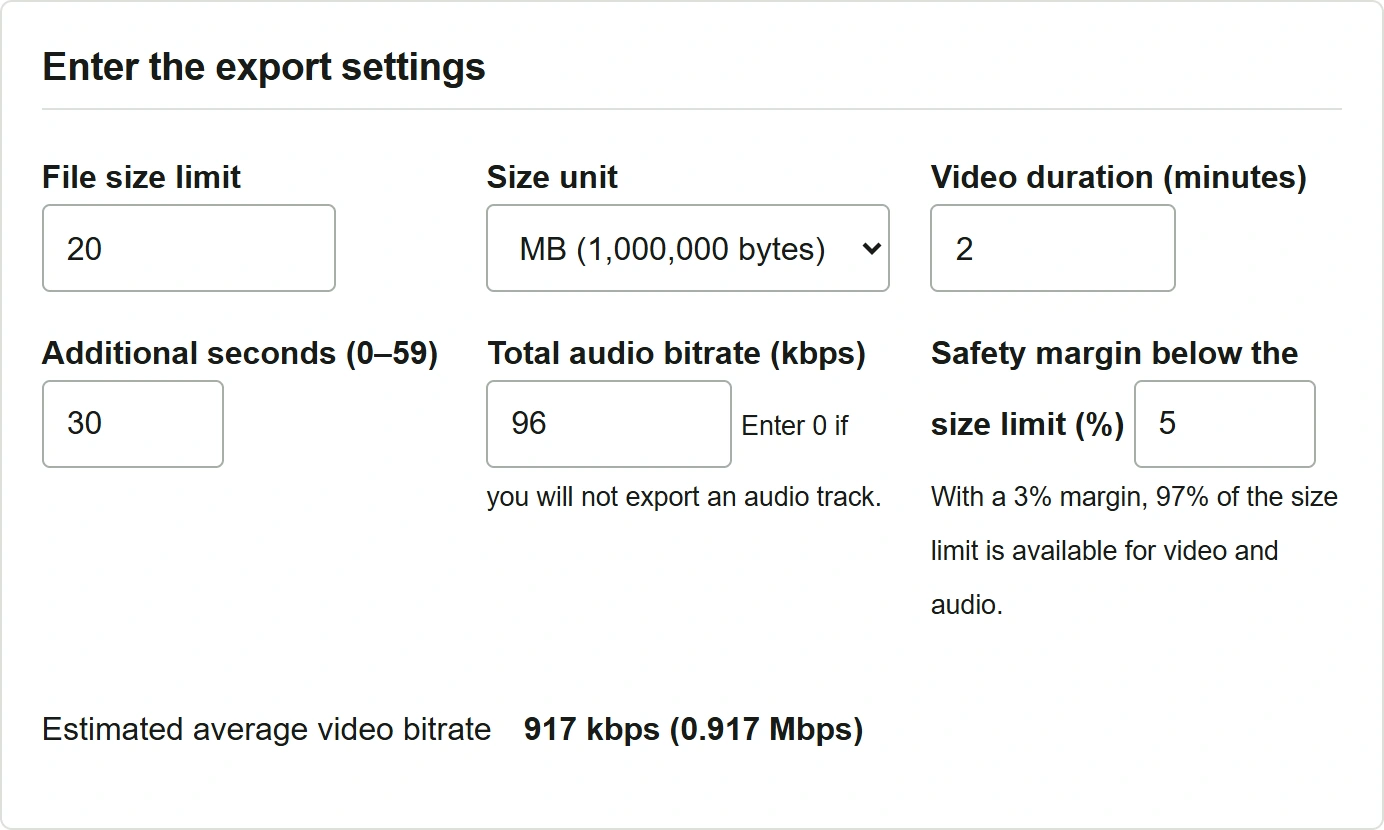
Dividing 19 MB over 150 seconds gives about 1,013 kbps for video and audio combined. Subtract the 96 kbps for audio and round down to a whole number to get 917 kbps. Use that value for the average or target video bitrate in your export software. If it accepts only increments of 0.1 Mbps, round down to 0.9 Mbps.
Trim waiting time if text is hard to read
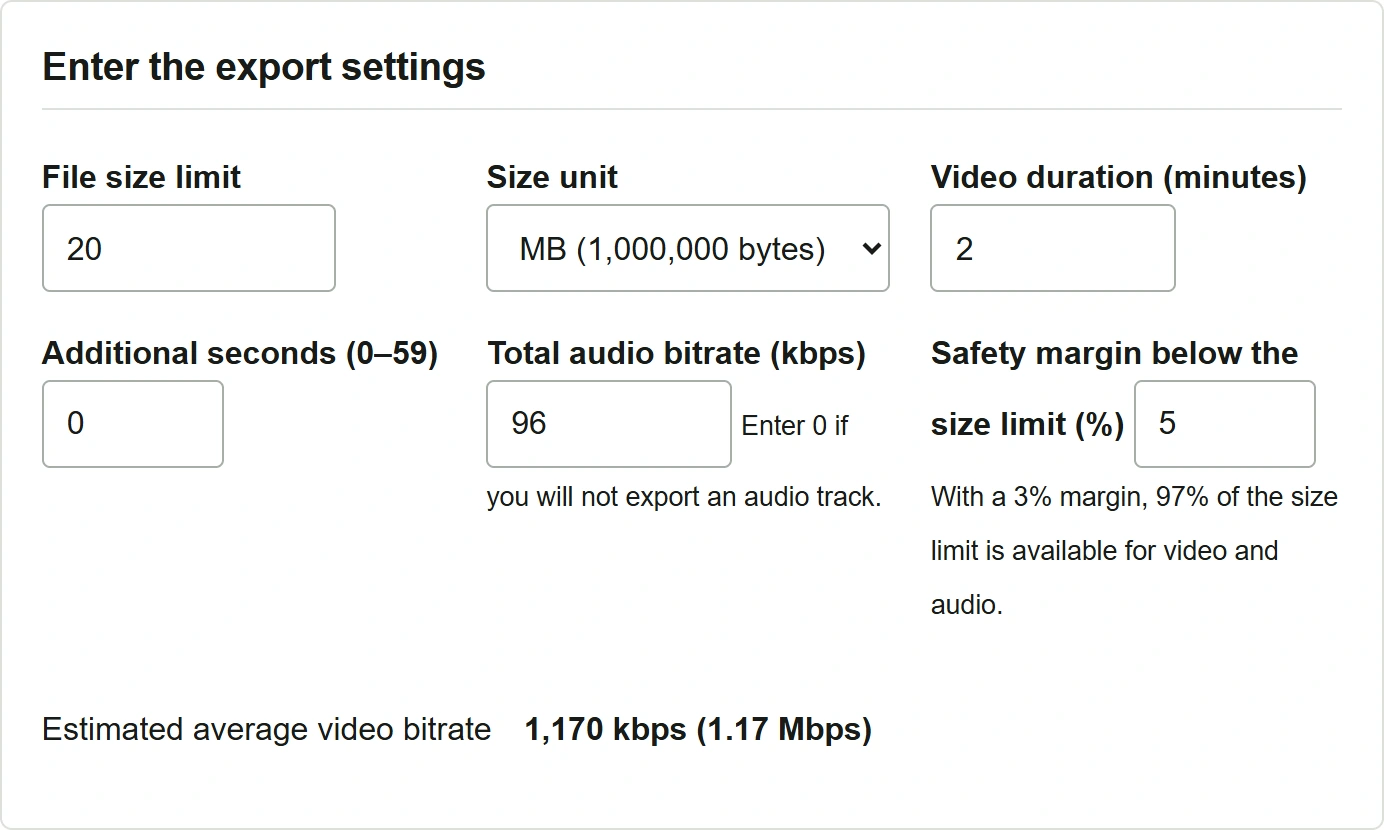
If menu text looks blurry in the exported recording, try cutting a stretch where nothing changes on screen. Cut 30 seconds to bring the recording down to 2 minutes, then change only Additional seconds (0–59) from 30 to 0. With the same limit, audio bitrate and margin, the video estimate rises to 1,170 kbps (1.17 Mbps).
Check the size and readability of the exported file
The bitrate is a target across the whole video. The actual file size depends on how the encoder controls bitrate and on overhead from the container, such as MP4. After exporting, check the byte count in the file properties. This example must fit within 20,000,000 bytes. If it exceeds the limit, increase the margin and recalculate. Play the recording to check that text is readable and the cursor movement is clear.