How long should a password be? Comparing the strength of random passwords in bits and generating them to fit a site’s rules
Are 8 characters enough, and which helps more: adding symbols or making the password longer? Using a password generator that runs in the browser, I measured and compared the strength (in bits) for each length and character set. The article also covers settings that fit site rules such as “symbol required, must start with a letter, only some symbols allowed”, how many words a memorable passphrase needs, caveats about emoji passwords, and the current recommendations from NIST and Japan’s Ministry of Internal Affairs and Communications.
Contents
When you sign up for a new service, or change the initial password of a company system, you are told: “at least 8 characters, including uppercase letters, lowercase letters, digits and symbols”. When you make up a password that meets those rules yourself, it drifts toward familiar shapes, such as a capitalized word with a number and ! tacked on the end. Strings that people think up are easier to guess than their length suggests.
Password Generator picks characters with the browser’s cryptographic random number generator (crypto.getRandomValues()) and shows the strength in bits based on length and character sets. The generated string is not sent anywhere. Here I measured how the strength changes as I vary length and character sets, and checked settings that fit each site’s different rules and how many words a passphrase for everyday use needs.
How many characters are enough?
Official recommendations
The US National Institute of Standards and Technology (NIST) digital identity guidelines, SP 800-63B-4, require at least 15 characters when a password is the only authenticator and at least 8 characters when it is used as part of multi-factor authentication. At the same time, they say services must not require mixing character types (“SHALL NOT impose other composition rules”), and they do not allow forced periodic changes either. They also recommend accepting lengths of at least 64 characters and all printable ASCII characters, including the space.
In Japan, the Ministry of Internal Affairs and Communications runs a cybersecurity site for the general public. Its page Don’t use simple passwords that can be guessed (in Japanese) gives as the ideal “a random sequence of letters and digits” of “at least 10 characters”. Mixing digits, symbols, uppercase and lowercase is treated as “preferable”. The page also says not to reuse a password across services, and that if you do not reuse it, periodic changes are unnecessary.
Both put length and randomness first. Even so, if the service you use imposes rules such as “symbol required”, you cannot register without meeting them. Below, I use the tool’s display to see how much strength changes with length and character sets.
Comparing strength by length and character set
The tool’s strength display is an approximate entropy calculated from the number of candidate characters chosen at random (the pool) and the length. The formula is length × log2(pool size), and each additional bit doubles the number of combinations a brute-force attack has to try. With lowercase, uppercase and digits, the pool is 62 characters; adding the default symbol set !@#$%^&*()-_=+[]{};:,.?/~ (25 characters) makes it 87.
These are the values the tool actually showed when I generated passwords.
| Length | Character sets | Pool size | Strength shown | Combinations |
|---|---|---|---|---|
| 8 | Lowercase | 26 | 37.6 bits (Weak) | about 2.1×10¹¹ |
| 8 | Lowercase, uppercase, digits | 62 | 47.6 bits (Fair) | about 2.2×10¹⁴ |
| 8 | Lowercase, uppercase, digits, symbols | 87 | 51.5 bits (Fair) | about 3.3×10¹⁵ |
| 12 | Lowercase, uppercase, digits | 62 | 71.5 bits (Strong) | about 3.2×10²¹ |
| 15 | Lowercase | 26 | 70.5 bits (Strong) | about 1.7×10²¹ |
| 16 | Lowercase, uppercase, digits | 62 | 95.3 bits (Excellent) | about 4.8×1028 |
| 16 | The above plus 25 symbols | 87 | 103.1 bits (Excellent) | about 1.1×1031 |
| 24 | Lowercase, uppercase, digits | 62 | 142.9 bits (Excellent) | about 1.0×1043 |
At 16 characters, adding symbols gained about 8 bits. That falls well short of the roughly 24 bits gained by going from 12 to 16 characters. Making a password longer raises its strength far more than adding character types.
The same holds when comparing 8-character passwords. Using all four types — uppercase, lowercase, digits and symbols — still only gets you 51.5 bits, while lowercase letters alone at 15 characters reach 70.5 bits, about 500,000 times as many combinations. Adding every symbol is worth about the same as making an alphanumeric password one or two characters longer. Adding character types increases the information per character only by the logarithm of the pool size, whereas length multiplies directly. That relationship is why NIST asks for length rather than mixed character types.
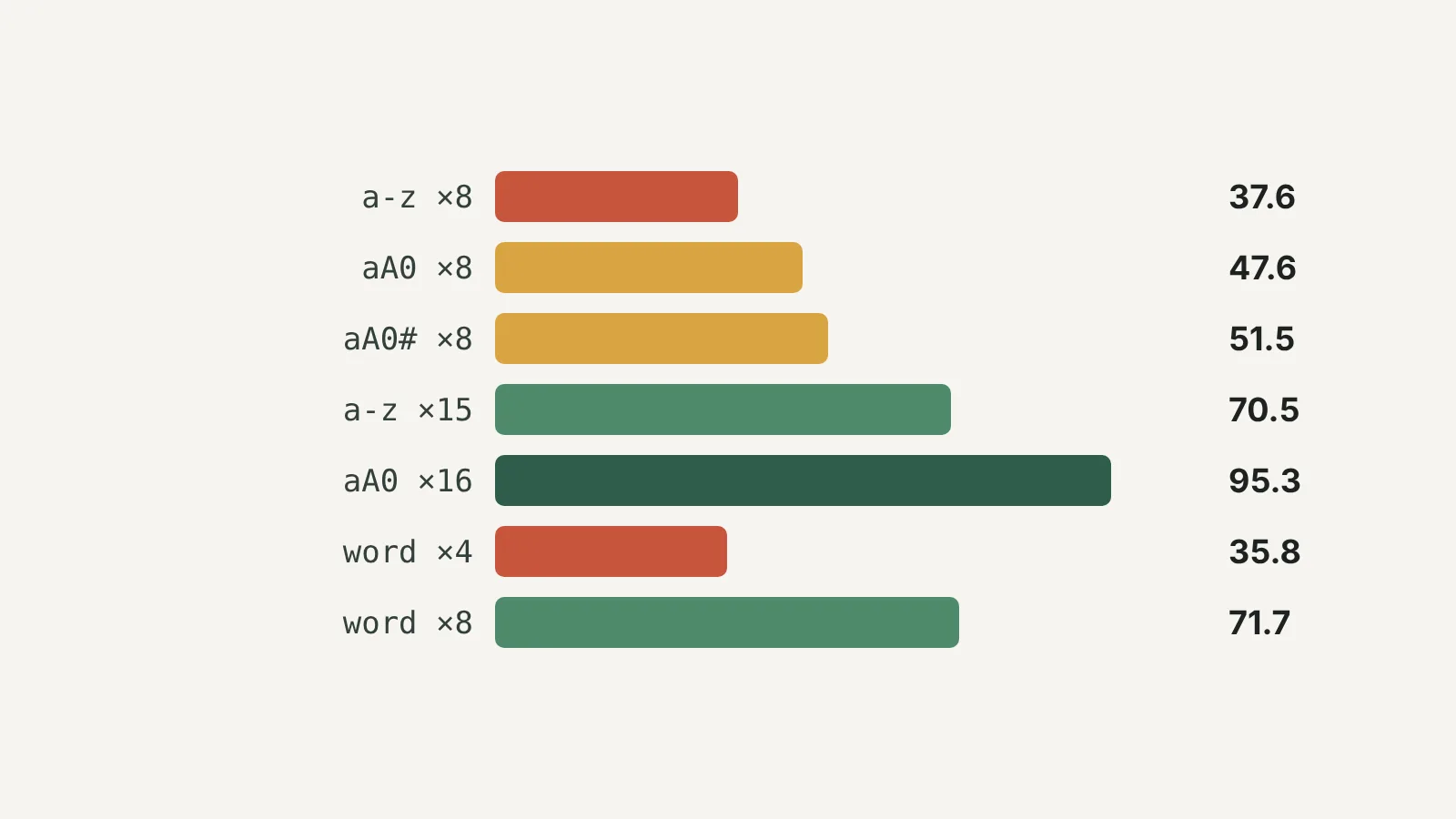
The Weak, Fair, Strong and Excellent grades are rough guides the tool assigns at 45, 65 and 85 bits; they are not an official standard. And this calculation only means something when the characters are chosen at random. A string a person made up, like Password2026!, is tried early from dictionaries and common patterns even though it is 13 characters long, so it is nowhere near as strong as the values in the table.
Generating in standard mode
Leave the mode on “Standard (alphanumeric / symbols)”.
- Enter the number of characters in “Length”. 16, 24 and 32 can also be picked with buttons. You can enter 4 to 128 characters; out-of-range values are corrected to fit when you generate.
- Under “Character sets”, check the characters to use. By default lowercase, uppercase and digits are checked; checking “Symbols” reveals the “Symbol set (editable)” field.
- Press “Generate” and the result appears in the “Password / phrase” field. “Copy” puts it on the clipboard.
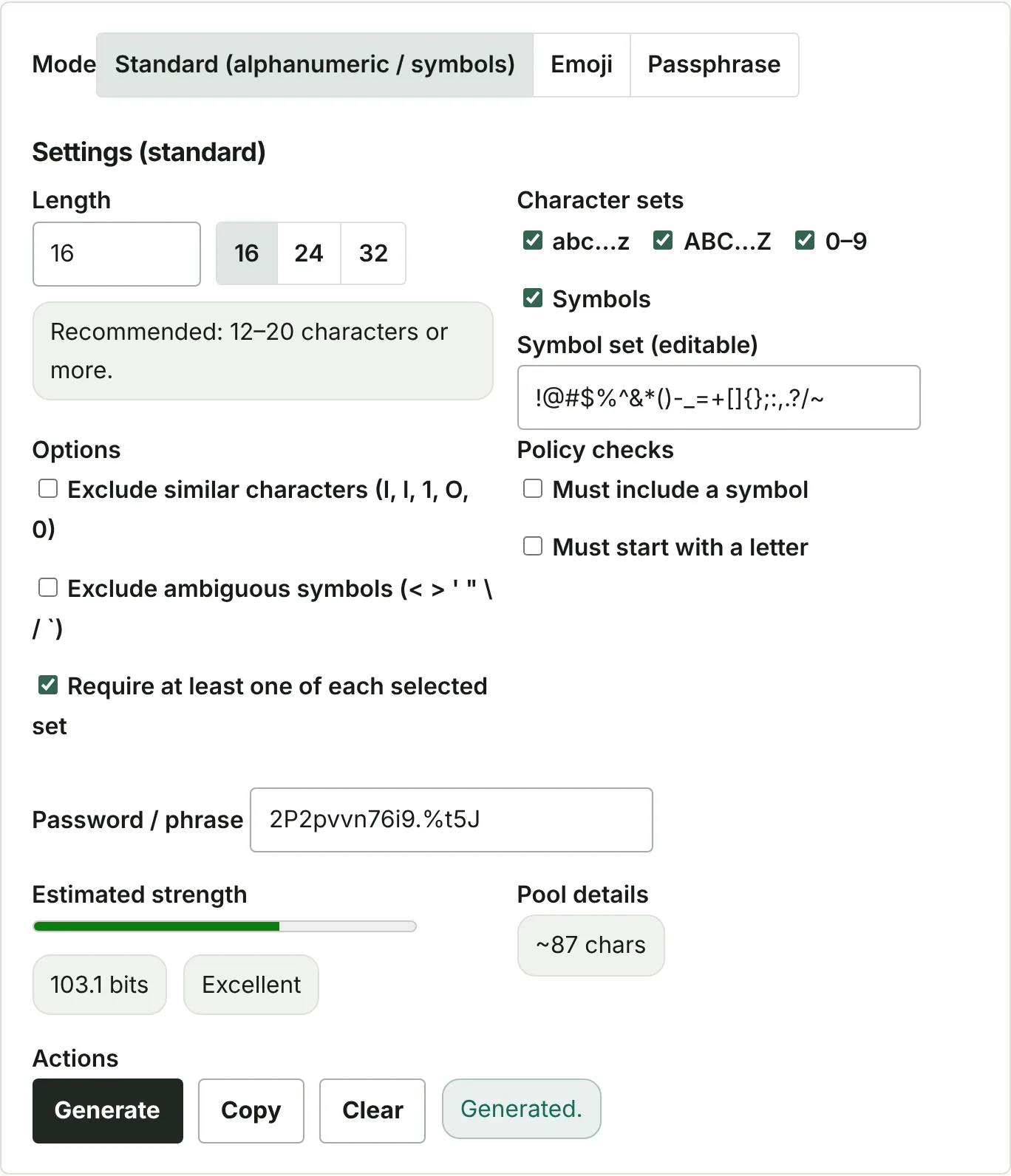
“Require at least one of each selected set” is on by default. It prevents a result that contains no characters from one of the checked sets, and it is what satisfies rules such as “must include uppercase, lowercase, digits and symbols”. If you don’t like a result, press “Generate” again to make a new one.
Fitting a site’s rules
Password rules differ from service to service. Common restrictions include “only !#$%& may be used as symbols”, “must start with a letter” and “16 characters maximum” — rules like these are especially common on Japanese sites. If you generate a password and then edit it by hand to meet them, you undermine its randomness. It is better to have the tool follow the rules from the start.
As an example, take a system that requires the following.
- 12 characters
- At least one each of uppercase, lowercase, digit and symbol
- Only the 5 symbols
! # $ % &are allowed - Must start with a letter
I used these settings.
- Enter 12 in “Length”.
- Check “Symbols”, clear the “Symbol set (editable)” field and enter
!#$%&. - Under “Policy checks”, check “Must start with a letter”.
- Also check “Exclude similar characters (I, l, 1, O, 0)”.
- Press “Generate”.
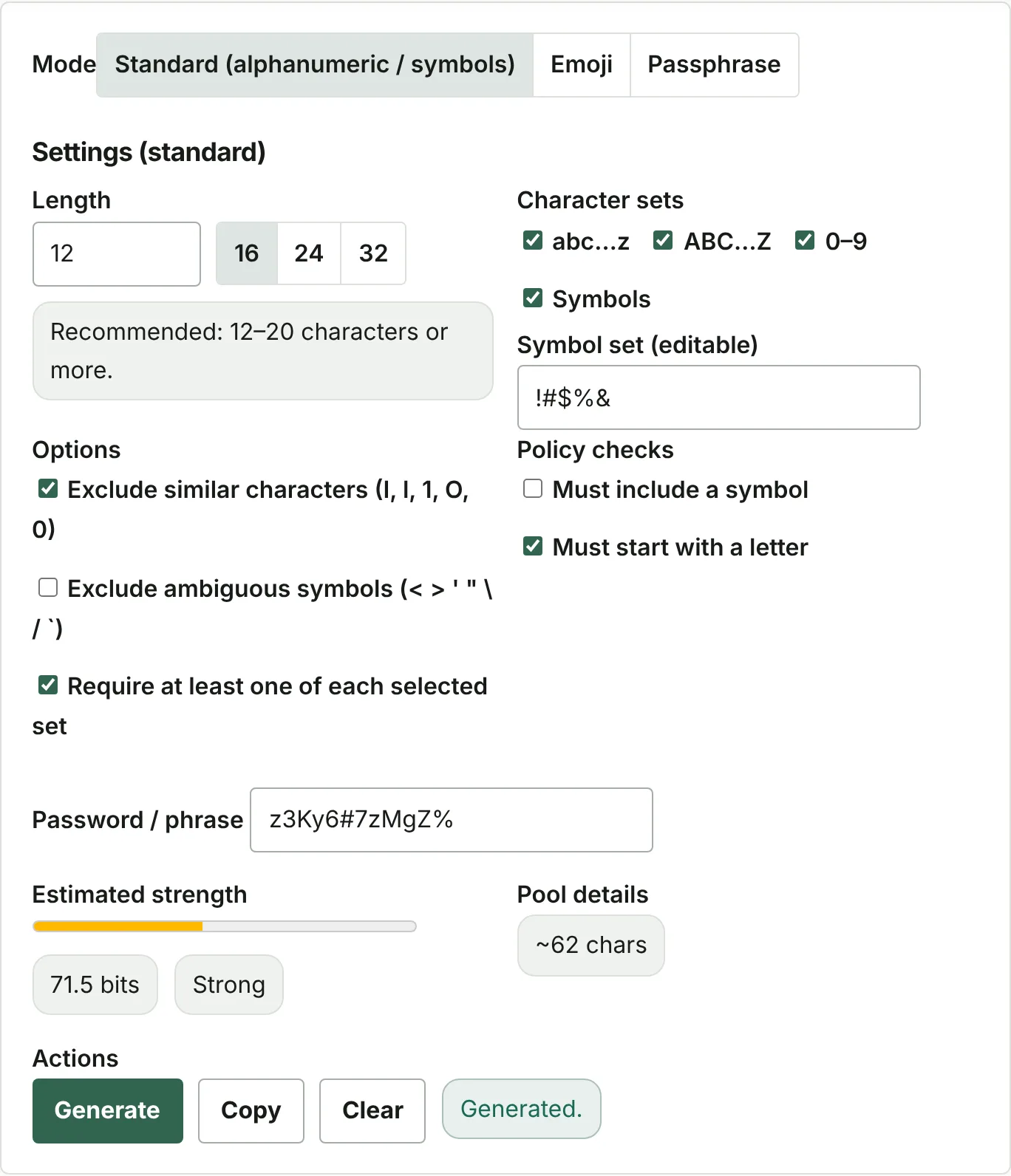
The result was z3Ky6#7zMgZ%. The “~62 chars” in the pool details is 57 alphanumeric characters (after removing the 5 similar ones) plus 5 symbols, and the strength is 71.5 bits.
In the symbol set field, keep only the symbols the site accepts. Conversely, for a site that does not allow symbols, uncheck “Symbols”. “Must include a symbol” always inserts one character from the symbol set, even if symbols are not selected under “Character sets”.
“Exclude similar characters” removes the uppercase I, the lowercase l, the digit 1, the uppercase O and the digit 0 from the pool. Use it when people have to read the password — an initial password handed over on paper, or a Wi-Fi password typed into another device while reading it off a screen — and typos go down. “Exclude ambiguous symbols” removes < > ' " \ / ` . When written into shell commands or configuration files, these are easily interpreted in unintended ways because of quoting and escaping. Both shrink the pool and lower the strength slightly, but at 16 characters the drop is about 2 bits. With 16 alphanumeric characters and “Exclude similar characters” on, the pool became 57 characters and the strength went from 95.3 bits to 93.3 bits.
I generated 2,000 passwords with these settings and confirmed that every one was 12 characters long, started with a letter, and contained lowercase, uppercase, a digit and one of the specified symbols. “Must start with a letter” works by moving one of the letters already in the generated string to the front, so the characters inserted by “Require at least one of each selected set” never disappear.
A passphrase if you need to remember it
For passwords you type yourself every time, such as your computer login or the master password of a password manager, a random string of symbols is hard to remember. The Ministry’s page also suggests, for passwords you have to memorize, “joining several unrelated English words (that do not form a sentence)”.
“Passphrase” mode picks words at random from an English word list of 498 words built into the tool and joins them. Each word is worth log2(498), about 8.96 bits.
| Words | Example | Strength shown |
|---|---|---|
| 4 | pot-movie-poem-hand |
35.8 bits (Weak) |
| 6 | hall-perfect-forest-beat-burst-knife |
53.8 bits (Fair) |
| 8 | fold-atom-flame-middle-deal-kind-cherry-juice |
71.7 bits (Strong) |
| 10 | (omitted) | 89.6 bits (Excellent) |
Four words are weaker than a random 8-character alphanumeric password (47.6 bits). Because the word list is small, one word is only as strong as about one and a half alphanumeric characters. That is why the tool’s default is 6 words and why it says that with this word list six to eight words give adequate strength. If you want about the same strength as 12 alphanumeric characters, use 8 words. Eight words come to more than 40 characters, but since they are a sequence of words, typos are unlikely.
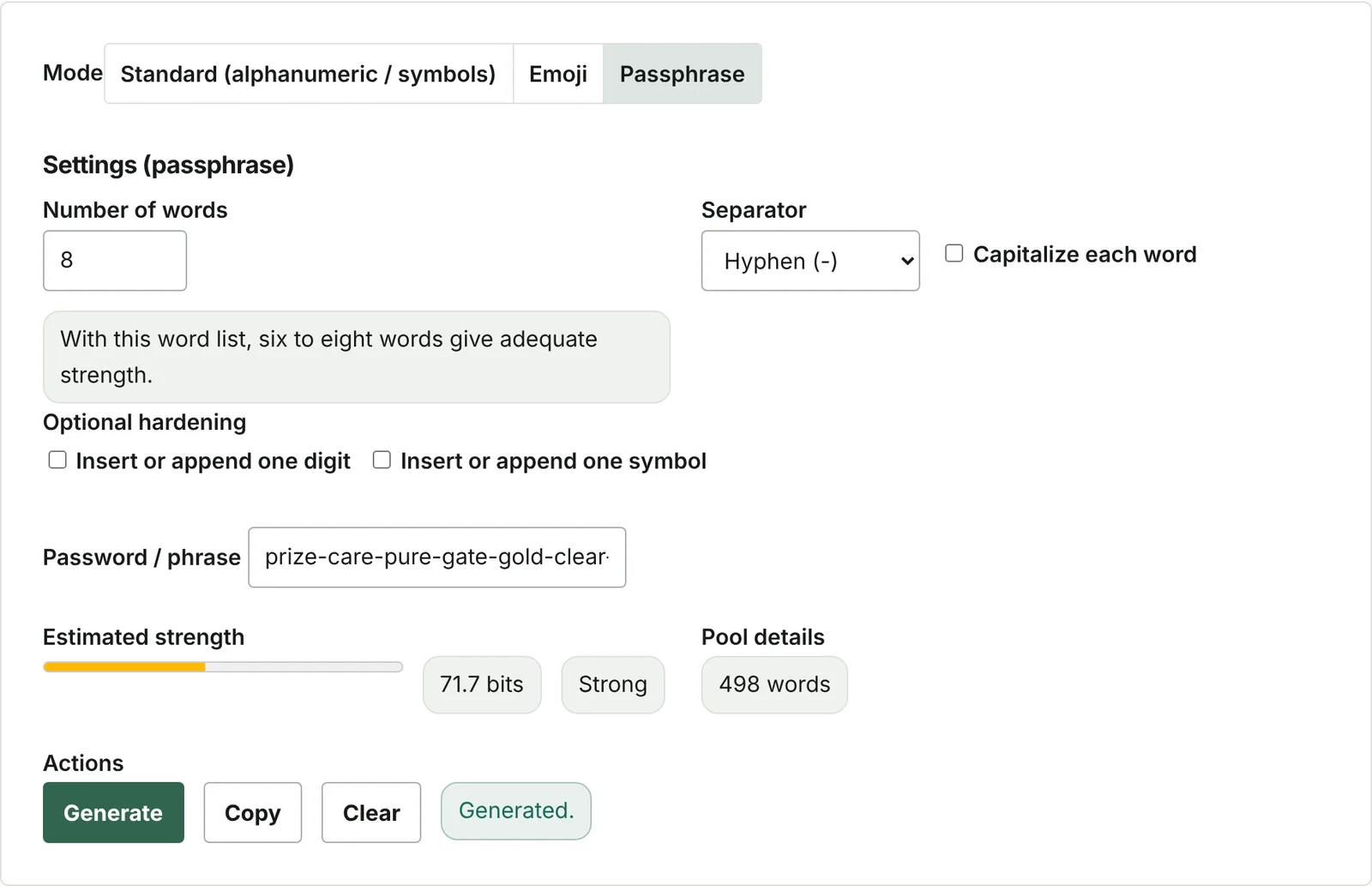
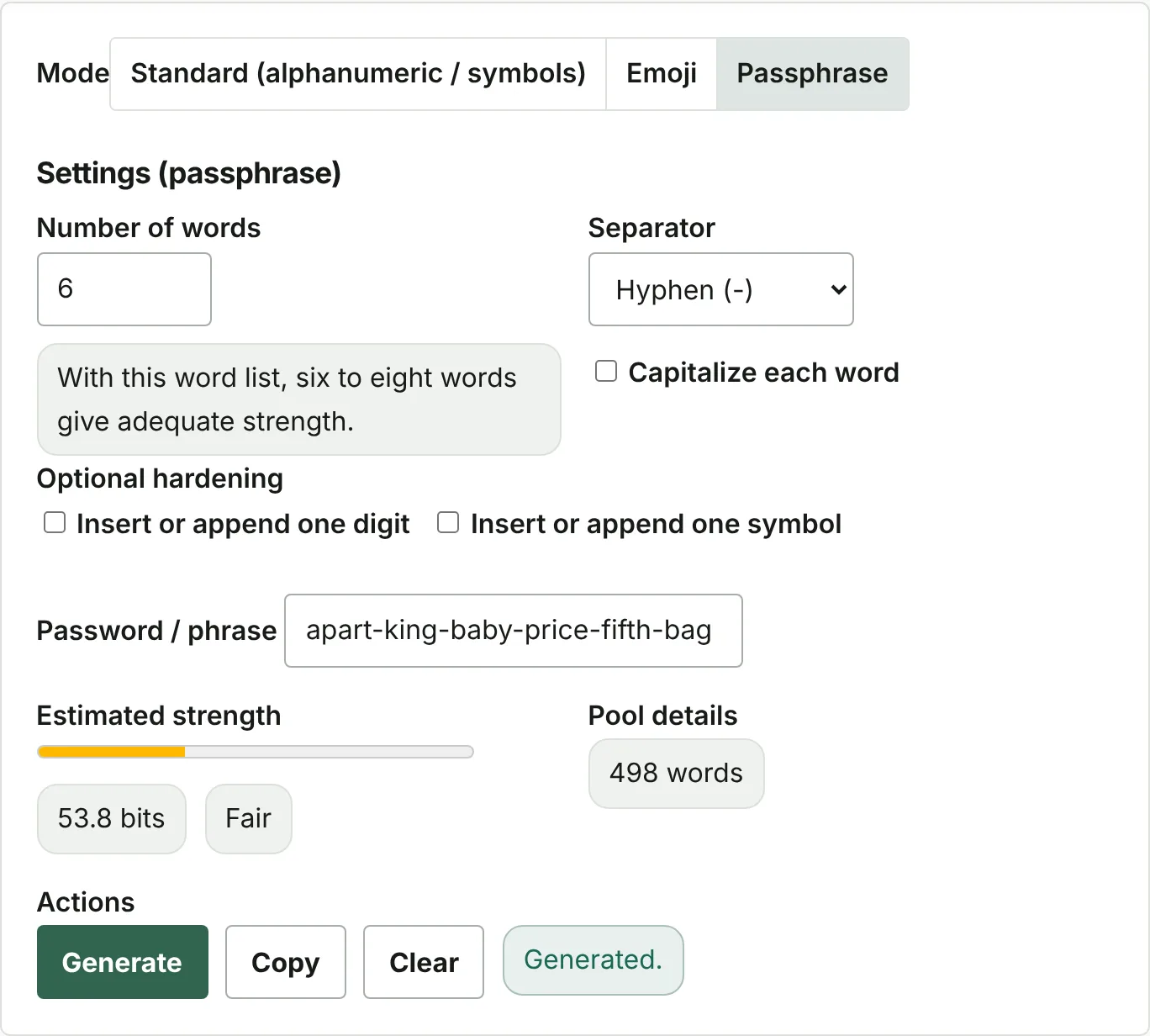
For “Separator” you can choose hyphen, underscore, space, middle dot or period. “Insert or append one digit” and “Insert or append one symbol” are for sites that require digits or symbols, and each adds only about 3 bits of strength. Turning both on for a 4-word phrase gave 42.2 bits, an increase of about 6.3 bits. “Capitalize each word” is for readability and does not count toward the strength. If you want more strength, adding one more word works better.
The strength of a passphrase is determined by the size of the word list. With a scheme like Diceware, which picks from a list of 7,776 words, each word is worth about 12.9 bits, so the same number of words is stronger than with this tool. When another guide says “four words are enough”, it may be assuming a different list size. If you make a passphrase with this tool, decide the number of words by looking at the strength display.
Before using emoji mode
“Emoji” mode picks emoji from four sets — faces, hands, symbols and objects — and lines them up. With the three sets enabled by default, it picks from 93 candidates, so 8 emoji give 52.3 bits and 12 give 78.5 bits.
However, many sites do not accept emoji. Even where they are accepted, the way length is counted does not agree. The generated ⭐❓🔥☃️🤓⭐💛✌️ looks like 8 emoji, but it is 10 Unicode code points and 13 by JavaScript’s length. That is because ☃️ and ✌️ each consist of two code points, including a variation selector that makes them display as emoji. NIST asks that each code point be counted as one character, but how a service counts and checks against its limit differs from service to service. There is also the trouble of finding the same emoji when typing on another device. It is best to try emoji only for uses that stay entirely within your own device and password manager.
Handling the passwords you make
You cannot memorize a random password, so the realistic approach is to store it in a password manager. The Ministry’s page also recommends using a password manager and asks you to protect the manager itself with a master password and device lock. If you generate a different password for each service, a leak from one service cannot be used to log in to the others.
The tool does everything from random number generation to the strength calculation in the browser, and it neither sends nor stores the generated password. Nothing remains once you close the page, so after copying, finish pasting it into the service you are registering with or into your password manager. If you have a feature that keeps copied content, such as Windows clipboard history, delete the entry from the history after pasting.
You can also use a password made here for a ZIP file. Password ZIP Maker supports AES-256 encryption. The steps for making a split ZIP to carry a large video on a FAT32 USB drive are in “Why a video will not copy to a USB drive with free space: moving a 4 GB file on FAT32”. The recipient also needs the ZIP password, so send it by a different channel from the file.
A login screen locks you out after too many wrong attempts or is combined with multi-factor authentication. A password that protects a file in someone’s hands, such as a password-protected ZIP, on the other hand, can be tried as many times as the person who got the file likes. Make passwords for ZIP files longer than the ones you use for logins.
Test environment
- Password Generator (operated on the English version), Chromium (via Playwright)
- Strength values were recorded from the on-screen display. Combination counts were calculated as the pool size raised to the power of the length
- Rule compliance was checked by loading the tool’s script in Node.js, generating repeatedly with the same settings and checking each result