pip install fails with error: externally-managed-environment: choosing between venv, apt and pipx, and when --break-system-packages is OK
On Ubuntu 24.04, Debian 12 and Raspberry Pi OS, pip install stops with error: externally-managed-environment. I reproduced it with Python 3.12 on Ubuntu 24.04 to show why the OS Python carries the PEP 668 marker and how to choose: venv for a project, apt's python3-xxx for system-wide libraries, pipx for command-line tools. Also covers why --user is blocked too, using apt-installed modules in a venv with --system-site-packages, pointing cron and VS Code at the venv's Python, and when --break-system-packages is acceptable.
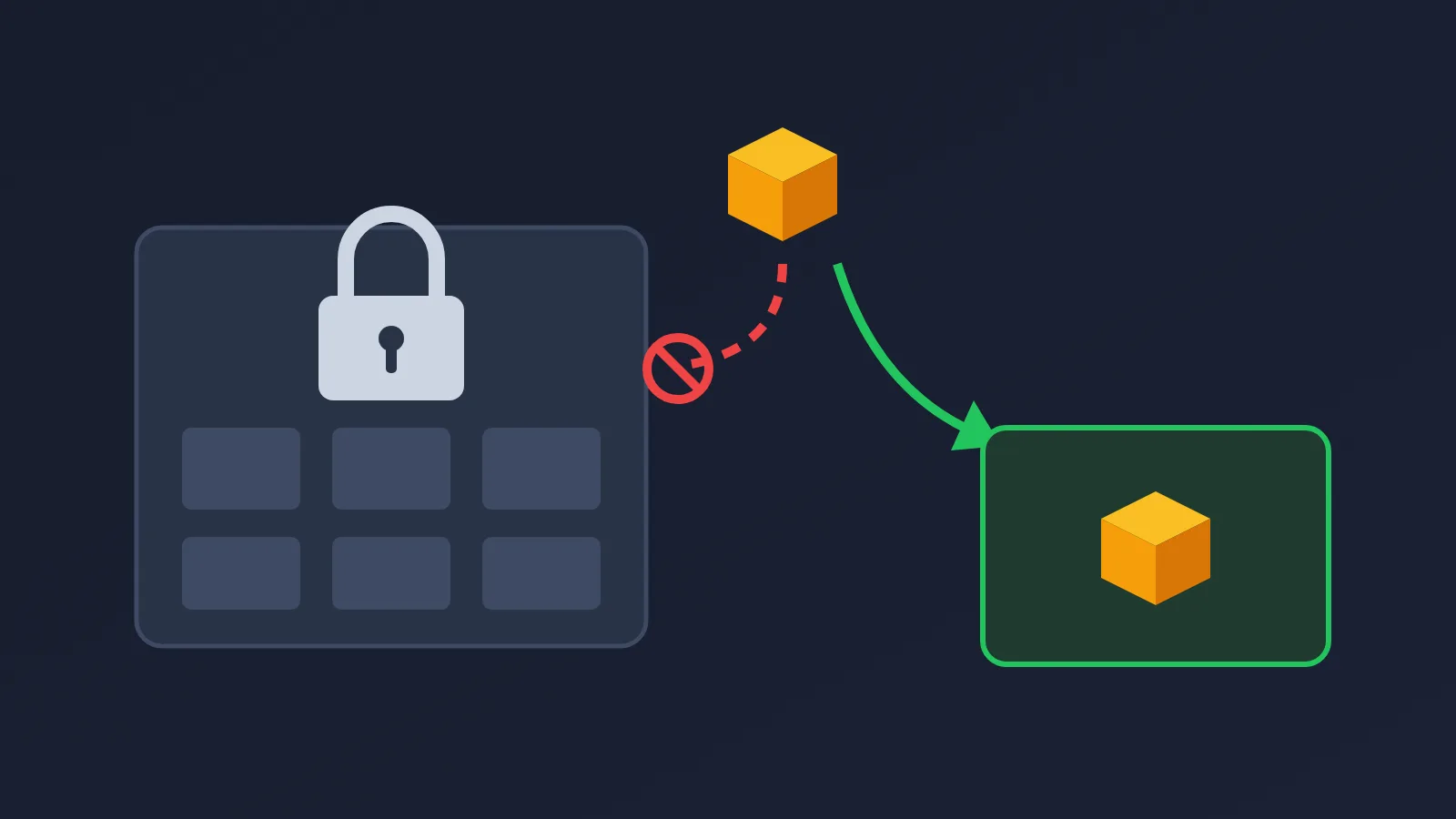
On a fresh Ubuntu 24.04 machine I typed pip install requests as usual, and it stopped with the following error before installing anything.
$ python3 -m pip install requests
error: externally-managed-environment

× This environment is externally managed
╰─> To install Python packages system-wide, try apt install
    python3-xyz, where xyz is the package you are trying to
    install.

    If you wish to install a non-Debian-packaged Python package,
    create a virtual environment using python3 -m venv path/to/venv.
    Then use path/to/venv/bin/python and path/to/venv/bin/pip. Make
    sure you have python3-full installed.

    If you wish to install a non-Debian packaged Python application,
    it may be easiest to use pipx install xyz, which will manage a
    virtual environment for you. Make sure you have pipx installed.

    See /usr/share/doc/python3.12/README.venv for more information.

note: If you believe this is a mistake, please contact your Python installation or OS distribution provider. You can override this, at the risk of breaking your Python installation or OS, by passing --break-system-packages.
hint: See PEP 668 for the detailed specification.
Nothing is broken, and it is not a network problem. The OS has declared “please don’t install into this Python directly with pip,” and pip is honoring that. The same command worked up to Ubuntu 22.04, so many people first run into this after upgrading their OS or after flashing the latest Raspberry Pi OS onto a Raspberry Pi.
Adding --break-system-packages, as the last line suggests, gets the install through, but as the name says, it is an option that can break the OS’s Python. This article explains why pip is stopped and then walks through deciding between venv, apt and pipx depending on what you want to do.
The output in this article was captured on Ubuntu 24.04.5 LTS with the OS-supplied Python 3.12.3 and pip 24.0. The test environment could not reach PyPI, so I checked installs into a virtual environment by installing the setuptools wheel file bundled with the OS using --no-index. When you install requests or anything else from PyPI, the mechanism that decides where it goes is the same.
Why pip is stopped: the OS Python is managed by apt
A Linux distribution’s Python is not only there for users to write programs with. Some of the tools that ship with the OS are written in Python and use the same interpreter and the same libraries. If you look in /usr/lib/python3/dist-packages on Ubuntu 24.04, you will find modules installed as apt packages, such as apt, dbus, cryptography and yaml.
If you install a different version of one of these with pip, apt-installed and pip-installed files get mixed together. For example, you install a newer version of a library with pip for some app, and an OS tool that depended on that library stops working. apt doesn’t know what pip installed, so during upgrades it may overwrite those files or misjudge dependencies.
PEP 668 was defined to avoid this. A distribution places a file named EXTERNALLY-MANAGED in the standard library directory of the OS Python. When pip (version 23.0 or later) finds this file, it refuses to install anywhere outside a virtual environment. On Ubuntu 24.04 the file is here:
$ cat /usr/lib/python3.12/EXTERNALLY-MANAGED
[externally-managed]
Error=To install Python packages system-wide, try apt install
 python3-xyz, where xyz is the package you are trying to
 install.
 ...
The error message is simply the text from this file. The same mechanism is in place on Debian 12 (bookworm), Ubuntu 23.04 and later, and Raspberry Pi OS (Bookworm), which is based on Debian 12. On macOS, a Python installed with Homebrew stops in the same way.
–user and sudo are blocked too
The old advice was “add --user so you don’t pollute the OS,” but that is blocked as well.
$ python3 -m pip install --user requests
error: externally-managed-environment
...
Packages installed with --user go into ~/.local/lib/python3.12/site-packages, and they are always loaded whenever that user runs the OS Python. Because they also affect OS tools running as that user, PEP 668 treats --user the same way. sudo pip install is, naturally, blocked too.
Decide where to install based on what you want to do
The error message lists three approaches. Which one is right depends on what you are going to use the package for.
| What you want to do | Approach | Examples |
|---|---|---|
| Use a library in your own script or project | Create a venv (virtual environment) and install into it | requests, pandas, Flask |
| Use a library across the whole OS and keep it maintained with OS updates | Install python3-xxx with apt |
python3-requests, python3-yaml |
| Use a command distributed through pip as a tool | Install it with pipx | Command-line tools such as black and httpie |
In most cases the answer is venv. Even if you are only writing a single script, creating a venv in that folder causes the fewest problems.
Create a venv and install into it
A venv uses the OS Python as its base and provides a separate place to put packages. Create one in your working folder like this:
$ cd ~/myapp
$ python3 -m venv .venv
This creates a .venv folder containing its own python and pip. Looking at .venv/pyvenv.cfg shows which Python it is based on and that it is configured not to load the OS packages.
$ cat .venv/pyvenv.cfg
home = /usr/bin
include-system-site-packages = false
version = 3.12.3
executable = /usr/bin/python3.12
command = /usr/bin/python3.12 -m venv /home/demo/myapp/.venv
To use it, enable it with activate. The prompt gains a (.venv) prefix, and python and pip now refer to the ones inside the venv.
$ source .venv/bin/activate
(.venv) $ which python
/home/demo/myapp/.venv/bin/python
(.venv) $ python -m pip --version
pip 24.0 from /home/demo/myapp/.venv/lib/python3.12/site-packages/pip (python 3.12)
(.venv) $ python -m pip install requests
pip install doesn’t stop in this state, because the EXTERNALLY-MANAGED check is not performed inside a virtual environment. In the test environment, giving the same wheel file to the OS pip and to the venv’s pip produced clearly different results.
$ /usr/bin/python3.12 -m pip install --no-index /usr/share/python-wheels/setuptools-68.1.2-py3-none-any.whl
error: externally-managed-environment
$ .venv/bin/python -m pip install --no-index /usr/share/python-wheels/setuptools-68.1.2-py3-none-any.whl
Installing collected packages: setuptools
Successfully installed setuptools-68.1.2
The installed package lands under .venv/lib/python3.12/site-packages and is invisible to the OS Python. When you no longer need it, deleting the .venv folder puts everything back. When you finish working, deactivate returns you to your normal shell.
Record your packages in requirements.txt
Treat the venv folder as something you can recreate at any time and keep it out of Git. Instead, keep a list of the packages you installed.
(.venv) $ python -m pip freeze > requirements.txt
On another machine, or in a freshly recreated venv, this one line brings back the same packages:
$ python3 -m venv .venv
$ .venv/bin/python -m pip install -r requirements.txt
When you can’t create a venv
On minimal installs of Ubuntu or Debian, python3 -m venv .venv can fail with a message saying ensurepip is not available. The part venv uses to set up pip lives in a separate package; installing python3-venv with apt (on Ubuntu 24.04, python3.12-venv also works) fixes it. The python3-full mentioned in the error message is a package that installs the full standard library, including venv, in one go.
$ sudo apt install python3-venv
You can use the venv’s Python without activating it
All activate does is put .venv/bin at the front of the shell’s PATH, so that typing python picks the venv’s copy. If you call the venv’s Python by its absolute path, you get the same packages without running activate.
$ /home/demo/myapp/.venv/bin/python app.py
Knowing this makes the next stumbling block, “I installed it into the venv but still get ModuleNotFoundError,” easier to avoid. The cause is almost always that the script is being run with the OS python3.
- Running from cron or systemd: these run in a different environment from your activated shell, so writing
python3 app.pyuses the OS Python. Write the absolute path to.venv/bin/python. Other reasons a job fails under cron are covered in “Shell script works manually but not in cron”. - Shebang line: if the first line of the script is still
#!/usr/bin/python3, running it as./app.pyuses the OS Python. Point the shebang at the venv’s Python, or launch the script explicitly with apythoncommand. - VS Code: choose the Python inside
.venvwith “Python: Select Interpreter” from the Command Palette. Until you do, the editor’s Run button and code completion keep looking at the OS Python.
If in doubt, run import sys; print(sys.executable) in whatever is running the code to see which Python it is using.
Using apt-installed modules from a venv
The opposite problem also happens: you installed python3-yaml with apt, but import yaml fails inside the venv. That is because a venv doesn’t load the OS packages by default.
$ .venv/bin/python -c "import yaml"
ModuleNotFoundError: No module named 'yaml'
If you want the OS packages as well, add --system-site-packages when creating the venv.
$ python3 -m venv --system-site-packages sysvenv
$ sysvenv/bin/python -c "import yaml; print(yaml.__file__)"
/usr/lib/python3/dist-packages/yaml/__init__.py
In this venv, pip install still installs into the venv, so the OS side stays untouched. This is useful when you want to use apt’s build of packages that need C libraries to compile (such as GPIO libraries) and add the rest with pip. Many people use this setup for electronics projects on a Raspberry Pi.
For OS-wide use, apt’s python3-xxx
This is the first approach the error message suggests. Many PyPI packages are available as Debian and Ubuntu packages under the PyPI name prefixed with python3-.
$ sudo apt install python3-requests
Libraries installed with apt are maintained along with OS updates and don’t conflict with OS tools. On the other hand, the version is whatever the distribution chose and may be older than the latest release on PyPI. Package names don’t always match PyPI either, so search with apt search python3- followed by part of the name.
If you need a specific version, or the package isn’t available through apt, install it into a venv.
For tools you use as commands, pipx
Some things distributed through pip are not libraries but tools you run as commands, such as code formatters or commands for sending HTTP requests. Creating a venv and running activate for each of these is tedious.
pipx automatically creates a dedicated venv for each tool, installs the tool into it, and puts only the command in ~/.local/bin.
$ sudo apt install pipx
$ pipx ensurepath
$ pipx install black
$ black --version
pipx ensurepath adds ~/.local/bin to your PATH; it takes effect once you reopen the terminal. Since every tool has its own venv, tools don’t affect each other even if they need conflicting versions of a dependency. Update with pipx upgrade black and remove with pipx uninstall black.
pipx is for using commands, so it isn’t suited to installing libraries you import. Use a venv for those.
When –break-system-packages is acceptable
--break-system-packages is an option that ignores the EXTERNALLY-MANAGED check and installs into the OS Python. The environment variable PIP_BREAK_SYSTEM_PACKAGES=1 or pip’s configuration file can do the same.
If you use it routinely, you get exactly the “apt and pip mixed together” situation that PEP 668 is trying to prevent. On the PC or server you use every day, stick with venv or apt. You will sometimes see advice to delete the EXTERNALLY-MANAGED file to make the error go away, but the effect is the same, and an OS update may bring the file back anyway.
It is acceptable in environments you can rebuild if they break and where you don’t need to care about OS tools that use that Python: for example, a throwaway CI job, or a container that installs a single Python package. Even in a container, if you are dealing with several packages, creating a venv in the Dockerfile and putting its bin at the front of PATH keeps things from mixing with the OS Python.
RUN python3 -m venv /opt/venv
ENV PATH="/opt/venv/bin:$PATH"
RUN pip install -r requirements.txt
With this setup, pip and python after the ENV line refer to the venv’s copies, so there is no need to write activate.
Steps to reproduce
On Ubuntu 24.04, you can check the behavior described in this article with the following steps. The last two lines show the same wheel file being rejected by the OS pip and accepted by the venv’s pip.
cat /usr/lib/python3.12/EXTERNALLY-MANAGED
python3 -m pip install requests            # error: externally-managed-environment
python3 -m pip install --user requests     # same error

python3 -m venv .venv
cat .venv/pyvenv.cfg
.venv/bin/python -m pip --version          # shows the pip inside .venv

python3 -m venv --system-site-packages sysvenv
sysvenv/bin/python -c "import yaml; print(yaml.__file__)"   # if python3-yaml is installed
.venv/bin/python -c "import yaml"                            # ModuleNotFoundError

python3 -m pip install --no-index /usr/share/python-wheels/setuptools-*.whl    # rejected
.venv/bin/python -m pip install --no-index /usr/share/python-wheels/setuptools-*.whl   # installs
/usr/share/python-wheels/ is where the wheels used to create venvs are kept; the setuptools wheel is placed there by the python3-setuptools-whl package. The contents may differ depending on your environment. If you can reach PyPI, just try it with requests or another package instead of the wheel file.
Other errors you are likely to run into when handling files in Python include the UnicodeDecodeError you get when reading a CSV saved by Excel (on Japanese-language Windows, Excel saves CSV files in Shift_JIS/cp932 rather than UTF-8; covered in a Japanese-language article), and round() not rounding half up, as explained in “Why round(2.5) returns 2”.