Shell script works manually but not in cron: reproducing and fixing PATH, working directory and % problems
A script that succeeds from the terminal fails with command not found or No such file or directory once it is in crontab. I reproduced the causes on Ubuntu 24.04: cron's PATH is only /usr/bin:/bin, the working directory is your home, commands run under /bin/sh, and % turns into a newline. Also covers how to log errors and how to test a job in the same environment as cron before you register it.
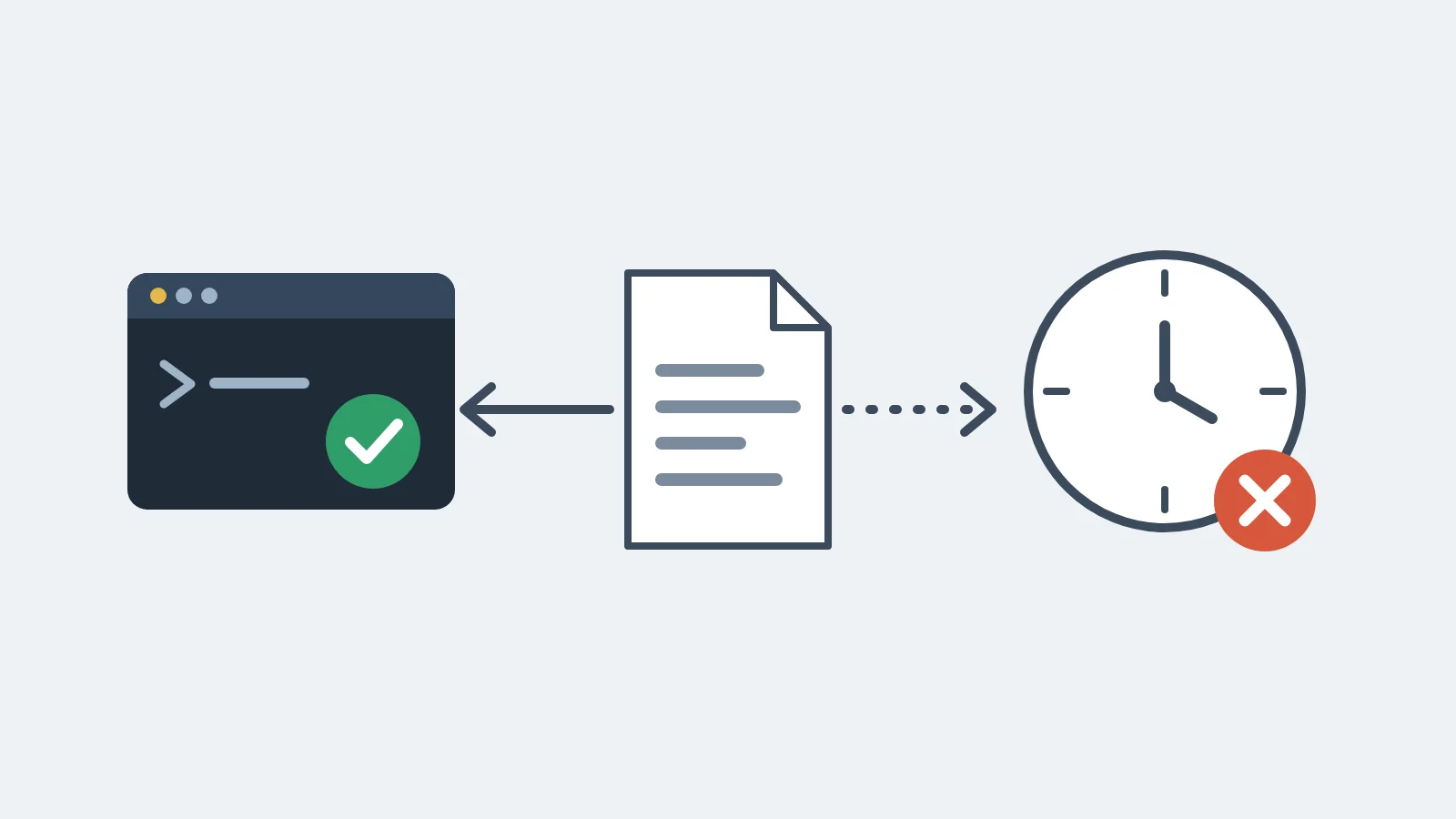
I wrote a script to take a backup every night at 3 a.m. Running ./backup.sh in the terminal finished without a problem, so I registered it with crontab -e and went to bed. The next morning there was no backup file. No error mail had arrived either.
When something fails only under cron, the script itself is usually fine. What differs is the environment it runs in. When you run it from a terminal, it inherits the PATH loaded at login, the folder you moved into with cd, and your bash settings. cron passes on none of that; it starts the command with a minimal set of environment variables.
This article checks how cron’s execution environment differs from a terminal, then reproduces and fixes the common failures one by one. At the end it shows how to try a script under the same conditions as cron before you put it in crontab.
Test environment
The output was captured on Ubuntu 24.04 (bash 5.2.21, dash 0.5.12). The container used for testing has no cron daemon, so I recreated the environment cron sets up at run time with env -i. What it sets up is exactly what the manual for the cron used on Debian-based systems such as Ubuntu, crontab(5), describes. There are four items:
SHELL=/bin/shPATH=/usr/bin:/binHOMEandLOGNAME: the home directory and user name of the crontab’s owner- The working directory (current directory) is
HOME
cronie, used on Red Hat-based systems (RHEL, Rocky Linux, AlmaLinux and so on), documents the same defaults in its manual page of the same name. Some distributions add variables such as LANG, but they all share a short PATH and the fact that login configuration files are not read.
Example: a backup script that succeeds in the terminal
User demo has an app folder in their home, containing a data folder and the script below. The idea is to pack data into a dated tar.gz and send it with mytool, a transfer command installed in /usr/local/bin.
#!/bin/bash
# Pack the data folder into a dated tar.gz and transfer it with an external command
tar czf "backup-$(date +%Y%m%d).tar.gz" data
mytool "backup-$(date +%Y%m%d).tar.gz"
Move into app from a terminal and run it, and it succeeds.
$ cd ~/app
$ ./backup.sh
uploaded: backup-20261126.tar.gz
Starting the same script in the same environment as cron gives this:
$ cd ~
$ env -i HOME=/home/demo LOGNAME=demo SHELL=/bin/sh PATH=/usr/bin:/bin \
    /bin/sh -c '/home/demo/app/backup.sh'
tar: data: Cannot stat: No such file or directory
tar: Exiting with failure status due to previous errors
/home/demo/app/backup.sh: line 4: mytool: command not found
One script, two failures with different causes. Let’s go through them in order.
Cause 1: PATH is short, so commands are not found
mytool: command not found comes from the difference in PATH. The PATH you get when you log in at a terminal contains many folders, such as /usr/local/bin and ~/.local/bin. cron’s PATH is only /usr/bin:/bin, so /usr/local/bin/mytool is never searched.
/usr/local/bin tends to hold commands installed outside the package manager: a cloud CLI installed with its official installer, a manually installed Node.js, and the like. /usr/sbin, where administrative commands live, is not included either, so calling a command in /usr/sbin by name alone from root’s crontab will not find it.
There are two ways to fix this. Either one has the same effect, so pick whichever is easier to maintain.
- Write commands with absolute paths inside the script (
/usr/local/bin/mytool). Runningcommand -v mytoolin a terminal tells you where it is. - Set
PATHat the top of the script, or add aPATH=line at the top of the crontab.
When you set PATH in crontab, write out the full value. Variable assignments in crontab do not expand $PATH or $HOME, so PATH=$HOME/bin:$PATH will not give you the value you intended. crontab(5) states this explicitly.
PATH=/usr/local/bin:/usr/bin:/bin
Cause 2: the working directory is your home
tar: data: Cannot stat: No such file or directory happened because the working directory was different. In the terminal I ran cd ~/app first, so data meant ~/app/data. cron starts commands with HOME as the working directory, so data meant ~/data, and no such folder exists.
Worse, tar created the output file even though it failed. After the test, an empty 45-byte archive was left in the home directory.
$ ls -l ~/backup-*
-rw-r--r-- 1 demo demo 45 Nov 26 13:52 /home/demo/backup-20261126.tar.gz
If you see symptoms like “the file exists but is empty when extracted” or “files keep piling up in my home directory for some reason”, suspect this cause.
The fix is to move into the script’s own folder at the top of the script. $0 holds the path used to start the script, so take its folder part with dirname and cd there.
cd "$(dirname "$0")" || exit 1
|| exit 1 makes sure the script does not continue if the move fails. Deleting or overwriting files by relative path after a failed cd could destroy files somewhere else. You could also write cd /home/demo/app && ./backup.sh in the crontab, but moving inside the script means it behaves the same no matter where it is started from.
Cause 3: it runs under /bin/sh, and bash syntax fails
The command line you write in crontab is executed by the shell set in SHELL, which is /bin/sh by default. On Ubuntu and Debian, /bin/sh is not bash but a lightweight shell called dash, which rejects some bash-specific syntax.
For example, if you put source or [[ ]], both of which work in bash, directly on a crontab command line, it fails like this:
$ env -i PATH=/usr/bin:/bin /bin/sh -c 'source /home/demo/app/env.sh'
/bin/sh: 1: source: not found
$ env -i PATH=/usr/bin:/bin /bin/sh -c '[[ -f /etc/hostname ]] && echo yes'
/bin/sh: 1: [[: not found
If the first line of the script file is #!/bin/bash and the crontab starts it by path, as in /home/demo/app/backup.sh, the script’s contents run under bash. The dangerous case is writing sh backup.sh in the crontab. Naming sh explicitly makes the first line of the file irrelevant, and the contents are read by dash too. On top of that, the run may count as a success overall even though errors occurred.
$ cat t.sh
#!/bin/bash
if [[ -d data ]]; then echo ok; fi
$ sh t.sh; echo "exit=$?"
t.sh: 2: [[: not found
exit=0
$ ./t.sh
ok
The if condition evaluated as false because the command was not found, and the then branch was simply skipped, so the exit code was 0. Looking at cron’s records, it would not look like a failure.
The fix is to start the script directly by its path (give it execute permission with chmod +x). If you want bash syntax on the command line itself, put SHELL=/bin/bash at the top of the crontab. On Red Hat-based systems /bin/sh is bash, so this problem is especially likely on Ubuntu and Debian.
Cause 4: .bashrc and .profile are not read
cron does not start a login shell, so settings in ~/.bashrc, ~/.profile and ~/.bash_profile are not loaded. The PATH from Cause 1 is part of this, but the following disappear for the same reason:
- Python or Node.js versions switched with pyenv, nvm, conda and similar tools. cron uses
/usr/bin/python3, which complains that the libraries you installed are missing - API keys or proxy settings (
HTTPS_PROXYand so on) set withexport - Shortcut commands defined with
alias
You can use a Python virtual environment without running activate by specifying the Python inside the virtual environment with an absolute path (/home/demo/app/.venv/bin/python job.py). For environment variables, either load a configuration file explicitly inside the script, or write only the values you need in the crontab. I do not recommend sourcing the whole .bashrc, because it drags in settings meant for interactive use (prompt decorations, branches that exit early when the shell is non-interactive, and so on).
Cause 5: % turns into a newline
Everything so far was about the script’s contents, but % is a crontab syntax problem. According to crontab(5), % on a command line is replaced with a newline, and everything after the first % is passed to the command as standard input. To use % as a literal character, write \%.
Say you write a dated file name directly in crontab:
0 3 * * * tar czf /home/demo/backup-$(date +%Y%m%d).tar.gz /home/demo/app/data
What cron executes is tar czf /home/demo/backup-$(date +, up to just before the first %; the remaining Y, m, d… go to standard input. Passing this converted command to /bin/sh gave a syntax error because the closing parenthesis is missing.
$ printf 'Y\nm\nd\n' | env -i PATH=/usr/bin:/bin /bin/sh -c 'tar czf /home/demo/backup-$(date +'
/bin/sh: 1: Syntax error: end of file unexpected (expecting ")")
Copying the line into a terminal to test it works fine, which makes this easy to miss. In crontab you would write date +\%Y\%m\%d, but moving the date handling into the script is easier to read. % inside a script file, like the backup.sh here, is not converted.
Cause 6: execute permission, line endings and file names
Sometimes the script cannot even be started.
No execute permission: If you forgot chmod +x, starting it by path gives Permission denied.
$ env -i PATH=/usr/bin:/bin /bin/sh -c '/home/demo/app/backup.sh'
/bin/sh: 1: /home/demo/app/backup.sh: Permission denied
CRLF line endings: A script saved in a Windows editor may have CRLF line endings. The first line, #!/bin/bash, ends with a CR, and the script fails to start with cannot execute: required file not found or bad interpreter. This is not specific to cron; it happens in the terminal too. How to check and convert to LF is covered in Fixing $’\r’: command not found.
A “.” in a file name under /etc/cron.daily: Scripts placed in /etc/cron.daily and similar directories on Ubuntu and Debian are run in turn by run-parts, but the only characters allowed in file names are letters, digits, _ and -. Give a script an extension, as in backup.sh, and it is silently skipped. run-parts --test shows which files will actually run.
$ ls rp
backup  backup.sh
$ run-parts --test rp
rp/backup
No user name in /etc/cron.d or the system crontab: Unlike per-user crontabs edited with crontab -e, /etc/crontab and files in /etc/cron.d/ use a format where the name of the user to run as comes after the five time and day fields (0 3 * * * demo /home/demo/app/backup.sh). If you drop in a file in the per-user format, the first word of the command is read as the user name.
Keep errors in a log
To investigate any of these causes, you first need the error message. cron tries to mail a command’s output to the crontab’s owner, but on a server with no mail delivery system (MTA) the output is discarded. In that case Ubuntu’s cron records only (CRON) info (No MTA installed, discarding output). The “no error mail had arrived” at the start of this article is usually this.
The reliable approach is to append standard output and standard error to a file on the crontab line.
0 3 * * * /home/demo/app/backup.sh >> /home/demo/app/backup.log 2>&1
>> appends, and 2>&1 sends standard error to the same file. If you write them in the order 2>&1 >> file, errors stay with their original destination (mail).
Whether cron started the job at all is something you check in cron’s own records. On Ubuntu and Debian use journalctl -u cron (or the CRON lines in /var/log/syslog if rsyslog is installed); on Red Hat-based systems use journalctl -u crond or /var/log/cron. These record the user and command that were started. If nothing is recorded there, suspect the time specification or the crontab format. It also happens that the server’s time zone is UTC, so a job you meant to run at 3 a.m. Japan time (UTC+9) actually ran at noon. Check the next weekday morning cron runs in Japan time and UTC shows how to list the next run times of a cron expression side by side in Japan time and UTC.
The fixed script
Handling Causes 1 and 2 inside the script gives this:
#!/bin/bash
set -eu
cd "$(dirname "$0")"
export PATH=/usr/local/bin:/usr/bin:/bin

tar czf "backup-$(date +%Y%m%d).tar.gz" data
mytool "backup-$(date +%Y%m%d).tar.gz"
set -e stops the script as soon as a command fails, and set -u makes using an undefined variable an error. If cd fails, set -e stops the script, so || exit 1 is omitted here. Started in the same environment as cron, with logging, it succeeded.
$ env -i HOME=/home/demo LOGNAME=demo SHELL=/bin/sh PATH=/usr/bin:/bin \
    /bin/sh -c '/home/demo/app/backup.sh >> /home/demo/app/backup.log 2>&1'
$ cat ~/app/backup.log
uploaded: backup-20261126.tar.gz
$ ls ~/app
backup-20261126.tar.gz  backup.log  backup.sh  data
Test in the same environment as cron before registering
To check without waiting for the real scheduled time, the env -i used throughout this article is handy. env -i clears all environment variables and starts the command with only the ones you specify. If you run it after cd ~ to move to your home, the working directory matches cron as well.
cd ~
env -i HOME="$HOME" LOGNAME="$USER" SHELL=/bin/sh PATH=/usr/bin:/bin \
  /bin/sh -c 'the command line you will put in crontab'
The one thing this method does not reproduce is the % conversion. If your crontab line contains %, check that you changed it to \% as described in the previous section.
If you want to know which environment variables the cron on your server actually passes, temporarily register a line that dumps the environment every minute.
* * * * * env > /tmp/cron-env.txt
Wait a minute until the file appears, then be sure to remove the line. The file shows what values such as PATH have under that server’s cron, so match the values you pass to env -i to them.
The order for narrowing down the cause
When something fails only under cron, checking in this order is quickest:
- Add
>> logfile 2>&1to the crontab line and get the error message. Also check cron’s records (journalctl -u cronand so on) to see whether the job was started at all. command not foundmeansPATH. Use absolute paths for commands, or setPATH.No such file or directorywith a relative path in it means the working directory. Addcd "$(dirname "$0")"at the top of the script.- If the thing that is
not foundissourceor[[, it is/bin/sh. Start the script by its path, or setSHELL=/bin/bash. - If the crontab line contains
%, change it to\%. - If the job is not even started, check execute permission, line endings, file names in
/etc/cron.daily, and the user name field in/etc/cron.d.
If the script sets up its own environment, it will also behave the same when started by something other than cron, such as a systemd timer or a CI job. Instead of “it ran in my terminal, so it’s fine”, write scripts against the standard of “does it run in an environment where nothing is set up?” and you will see far fewer failures like these.