Check a UTF-8 byte limit with the character counter
Screenshots show how to check a 24-byte UTF-8 limit for a CSV field name, find what fits without splitting an emoji, and shorten the text to keep the emoji.
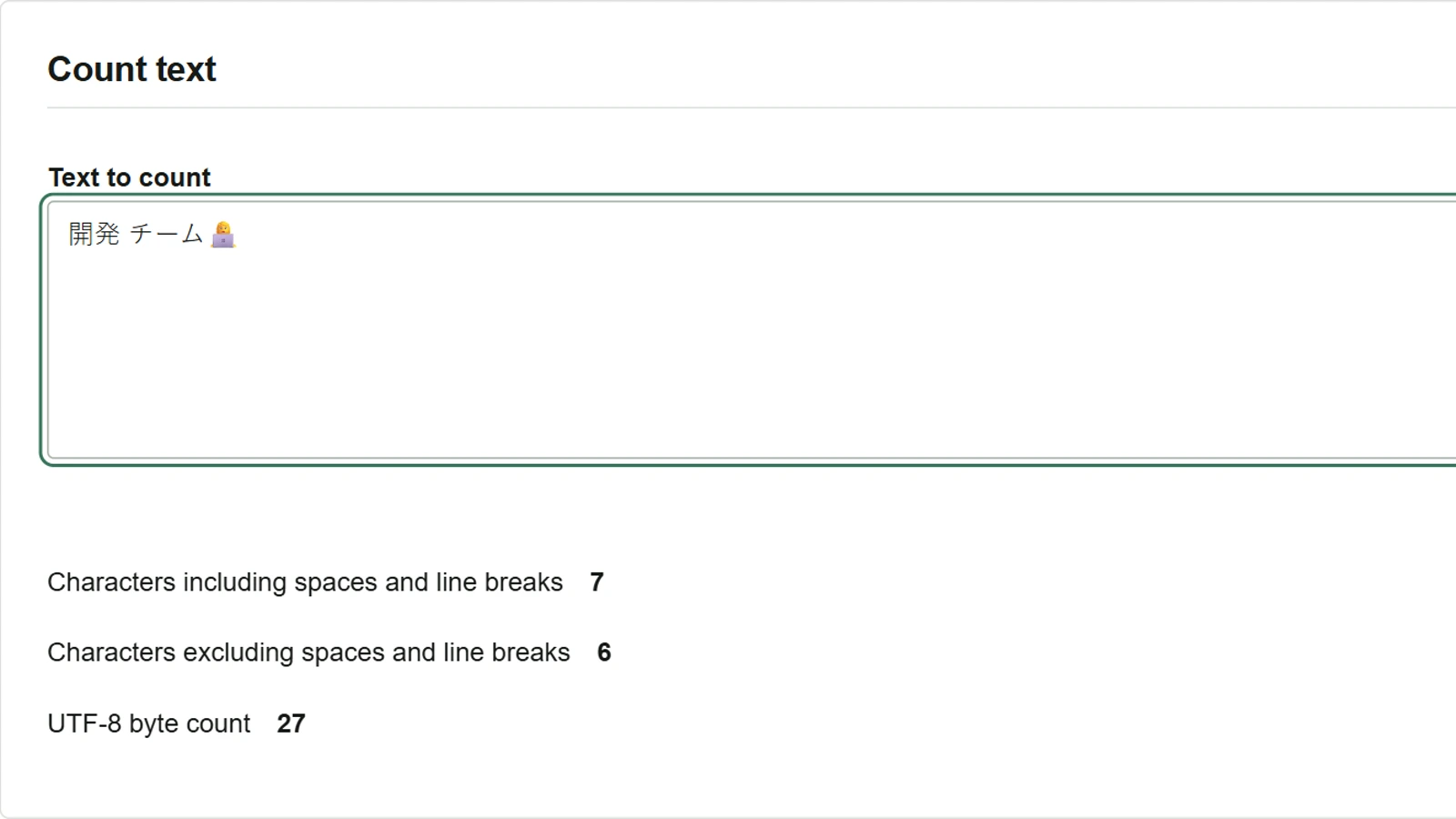
A CSV importer allows up to 24 UTF-8 bytes in a field name. The proposed text 開発 チーム👩💻 contains seven characters including the space, but takes 27 bytes. Open the character counter to see what fits before editing the text.
Find the beginning that fits in 24 bytes
- Paste
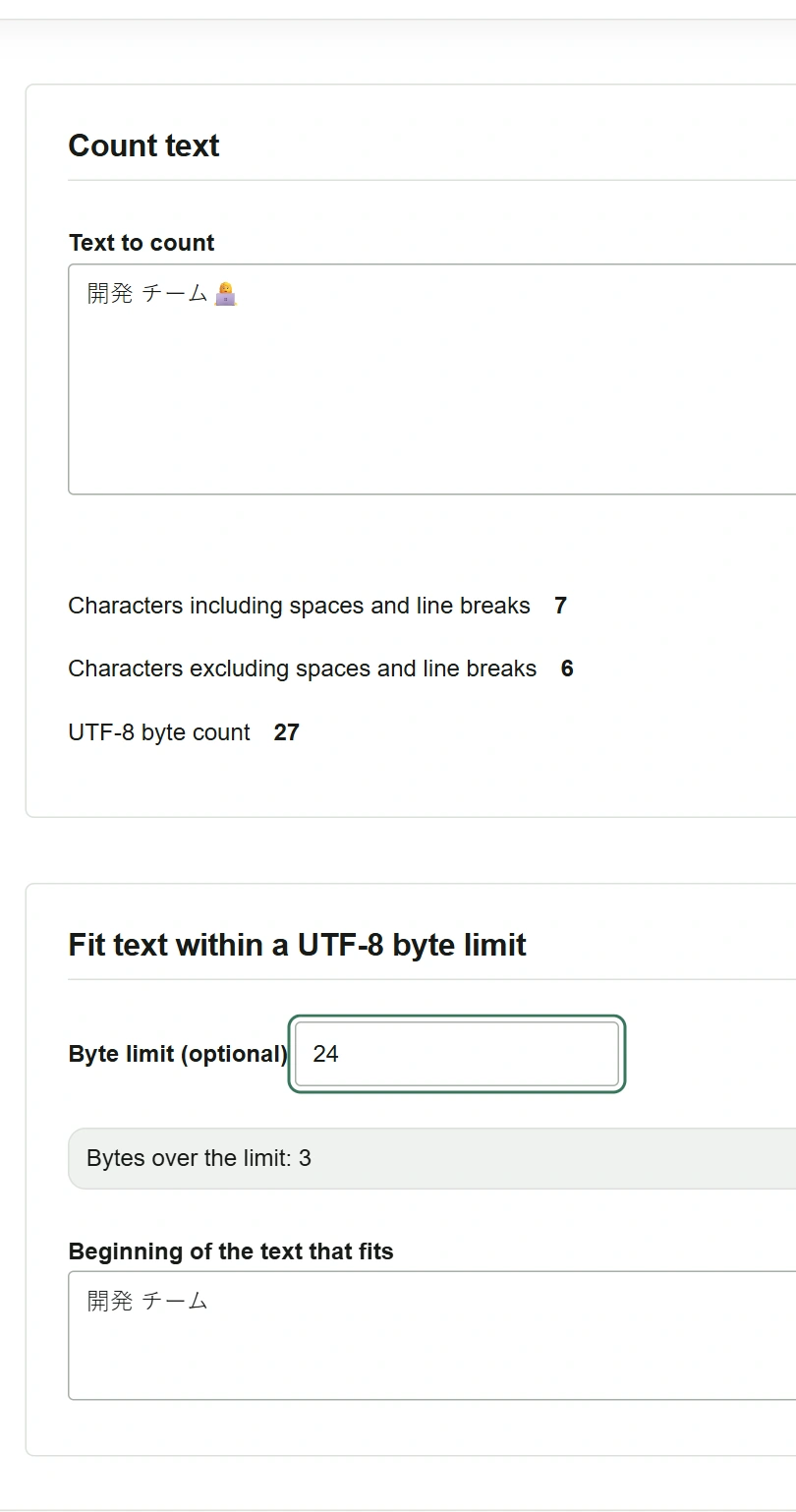
開発 チーム👩💻into Text to count. Check for seven characters with whitespace, six without, and 27 UTF-8 bytes. - Enter
24in Byte limit (optional). - The original text is three bytes over the limit. The prefix field shows
開発 チーム. To use it, select and copy it. The original text with the emoji stays in the input.
Shorten the text and keep the emoji
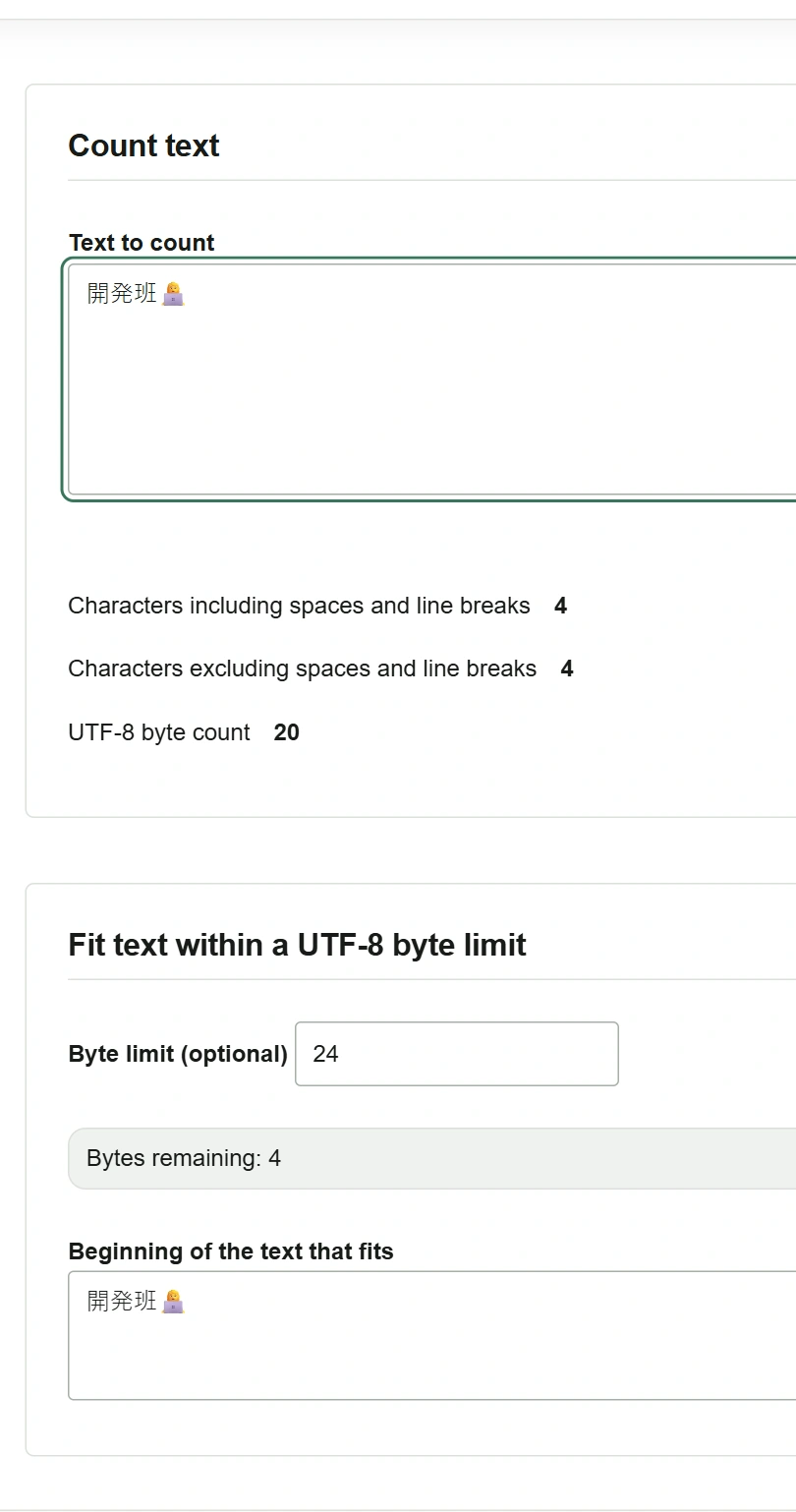
- Keep the limit at
24and replace the text in the first field with開発班👩💻. - The revised text takes 20 bytes, leaving four. The prefix field now shows the entire text. Copy it to the destination and check that it is accepted.
Count the field value as UTF-8. To measure the whole CSV, including delimiters and quotes added on export, check the saved file. Pasted line breaks count as one byte (LF), whereas CRLF in the saved file takes two bytes per line break. Follow the rules of the importer if it uses another encoding or character counting method.