Encode a URL component and recover the original text
Compare encodeURIComponent and encodeURI, decode from the right-hand field, and see how the URL Encoder / Decoder handles spaces and plus signs.
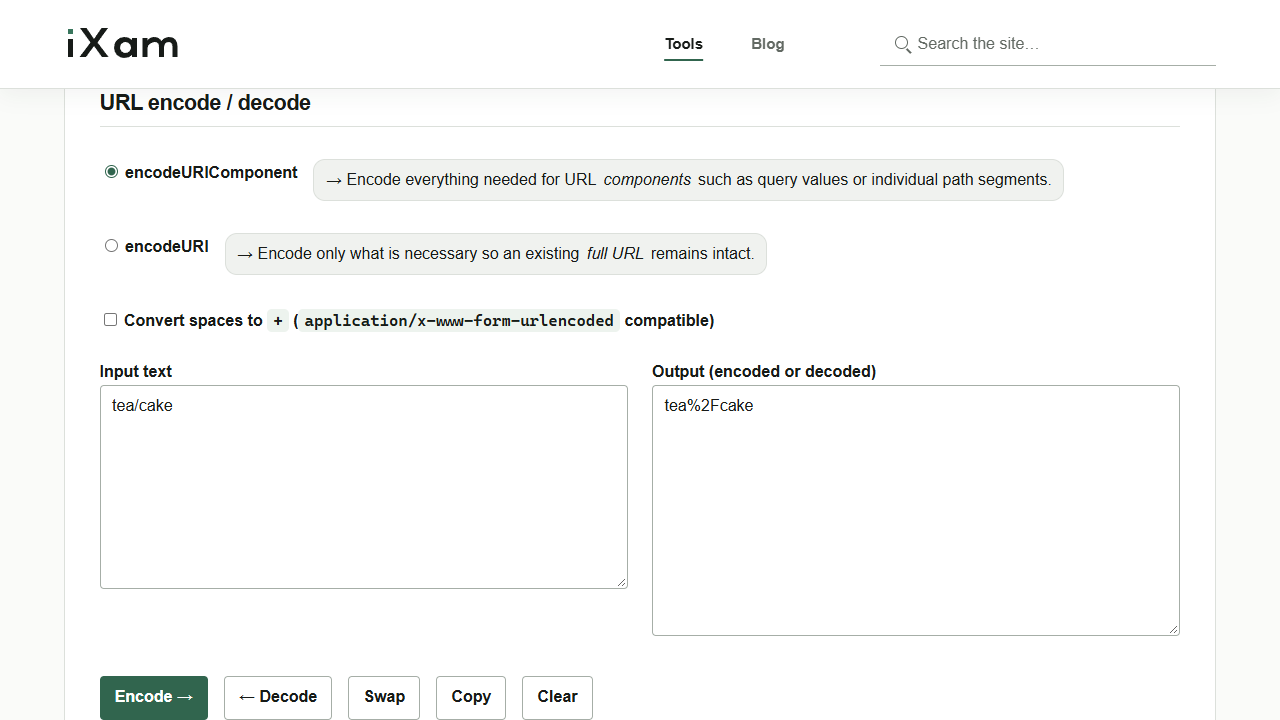
Suppose you search for tea/cake. The slash is part of the search term. It looks like a URL path separator, but whether you keep it or turn it into %2F determines which mode to use. Try both modes in URL Encoder / Decoder. The browser handles the conversion locally.
Encode a URL component
- Open the tool and switch from the default
encodeURItoencodeURIComponent. - Enter
tea/cakein the input field on the left. - Click Encode →.
tea%2Fcakeappears on the right.
tea%2Fcake fits into a URL as a single search value. What happens if you pass the entire assembled URL to encodeURIComponent? It encodes the colon and slashes in https:// too. Use encodeURI to preserve delimiters in a complete URL. That mode also leaves the slash inside the search term intact, which is why you encode the search term first.
Decode from the field on the right
- Keep
encodeURIComponentselected and check thattea%2Fcakeis in the output field on the right. To decode a different string, paste it directly into that field. - Click ← Decode.
- Check that
tea/cakeappears in the input field on the left.
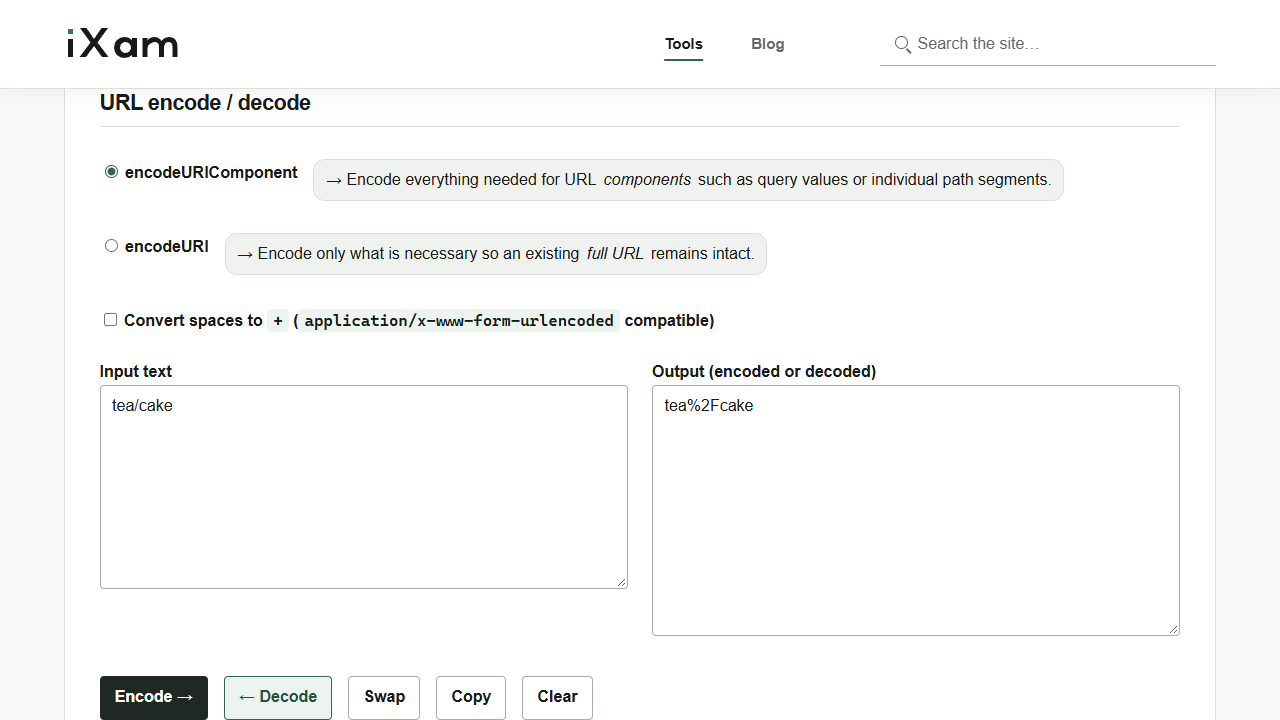
Copy copies the right-hand field. To use the decoded text on the left, select and copy it manually. To save it in a file, paste it into a text editor and save. The tool has no download button.
Check spaces and plus signs
Turn on Convert spaces to + (application/x-www-form-urlencoded compatible) to encode %20 as +. Only with this option on does decoding treat + as a space. Check whether the plus sign represents a literal character or a space before choosing the setting.
Changing the mode or checkbox re-encodes any text on the left and updates the right-hand field. Set your options before pasting a string you want to decode on the right.
An incomplete % escape can cause decoding to fail. Any text left in the input field is a previous value. Check that each % in the text you pasted into the output field is followed by two hexadecimal digits. Encoding changes how the text is represented without encrypting it. Anyone you share the URL with can read the values it contains, so keep secrets out of it.