Remove unused styles when Excel reports too many cell formats
Investigate Excel’s format limit, distinguish direct formatting from custom styles and defined names, and delete only the intended style with VBA on a workbook copy.
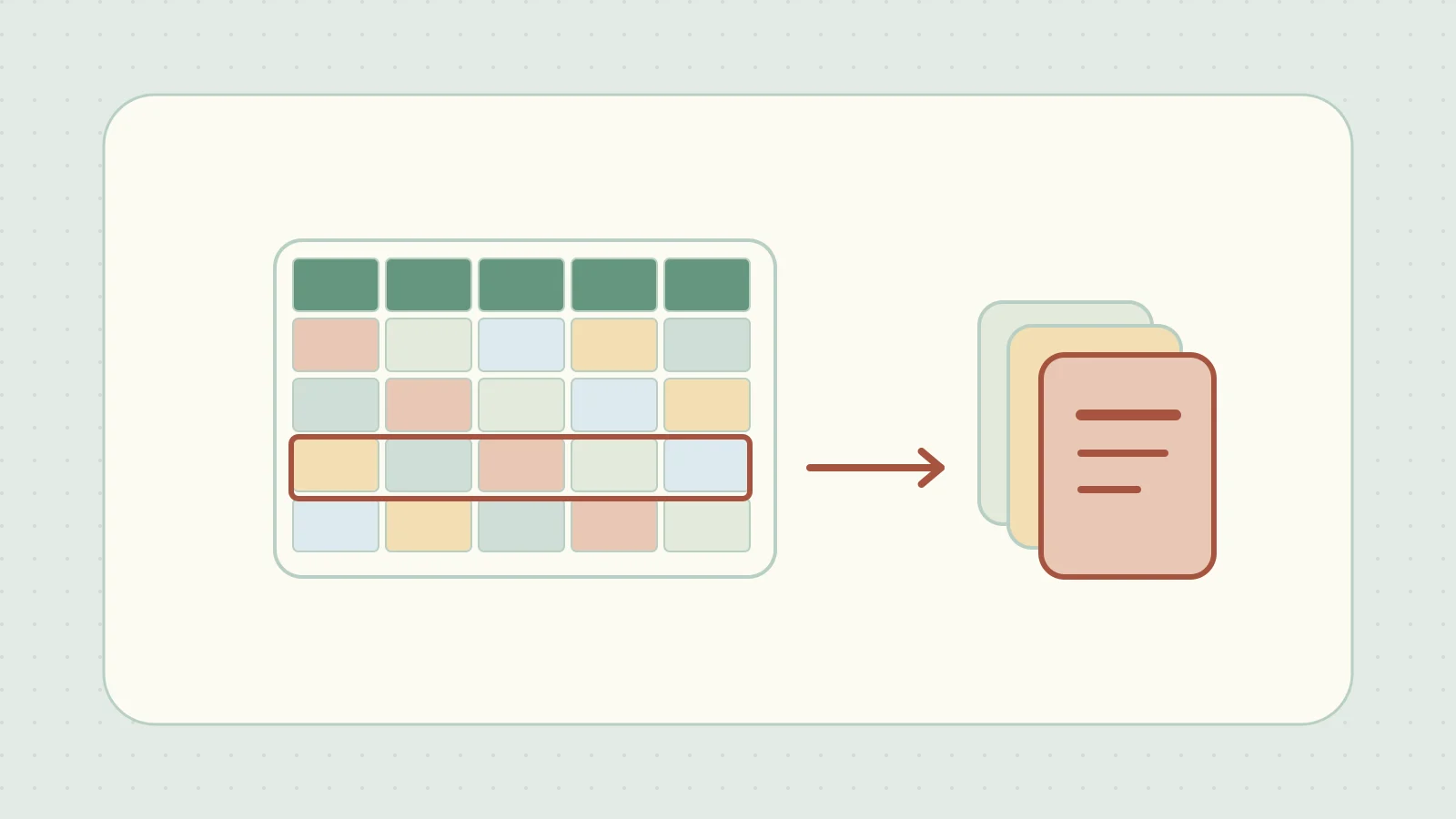
A workbook that has accumulated copies of worksheets over many years may report that it has too many different cell formats. Microsoft lists a limit of 65,490 unique cell formats or styles in current Excel. Combinations of direct formatting such as borders also count, so the number of entries in the style gallery cannot identify the cause on its own. Excel specifications and limits
Start by listing custom styles in a copy of the workbook and deleting only those you identify by name. If sheets have been copied repeatedly, also check Name Manager. Formulas, drop-down lists, and print areas can all refer to defined names, so check their purpose before removing them.
Verify each style before deleting it with VBA
Use the desktop edition of Excel for Windows. Save a copy of the workbook as a macro-enabled workbook (.xlsm). In that copy’s VBA editor, select Insert → Module and paste the following code. ThisWorkbook refers to the workbook that contains the code.
Option Explicit

Public Sub ListCustomCellStyles()
    Dim cellStyle As Style

    For Each cellStyle In ThisWorkbook.Styles
        If Not cellStyle.BuiltIn Then Debug.Print cellStyle.NameLocal
    Next cellStyle
End Sub

Public Sub DeleteOneCustomCellStyle()
    Const targetName As String = "OldBanner"
    Dim cellStyle As Style

    For Each cellStyle In ThisWorkbook.Styles
        If Not cellStyle.BuiltIn And cellStyle.NameLocal = targetName Then
            cellStyle.Delete
            Exit Sub
        End If
    Next cellStyle

    MsgBox "Custom style not found: " & targetName, vbInformation
End Sub
- Run
ListCustomCellStylesand inspect the names in the VBA editor’s Immediate window (Ctrl+G). For a test, create a style namedOldBannerfrom Cell Styles in a blank workbook. - Enter the exact style name in
targetNameand runDeleteOneCustomCellStyle. It shows a message if it cannot find the style and skips Excel’s built-in styles. - Run the listing again to verify the style is gone. Check the affected cells’ appearance, representative formulas and data validation rules, and print preview before saving under a new name.
Deleting a style can affect cells that use it. If deletion fails, review the reported error. If you spot an unintended change before saving, close the copy without saving and start again from the original workbook. VBA Style object
If cleaning up the style gallery does not help
Blank rows and columns can still carry fills or borders across a large area. Use a separate copy and identify the ranges where formatting can safely be cleared. Some editions of Excel offer an option to clean excess cell formatting on the Inquire tab. Microsoft’s guide to cleaning excess cell formatting
Review defined names
Repeatedly copying sheets may leave identical names in several places. In the workbook copy, open Formulas → Name Manager. Scope shows whether a name belongs to the workbook or to a sheet. Refers To shows the cell range or formula. Delete only names you have verified are unused, and check related formulas, data validation rules, and print areas before saving under a new name.