Create Code 128 barcodes for shelf labels and save them as SVG or PNG
Use a warehouse shelf number to create a Code 128 barcode in your browser and save SVG and PNG files. Follow the actual screens, adjust text and margins, and scan the output to check the shelf number before printing.
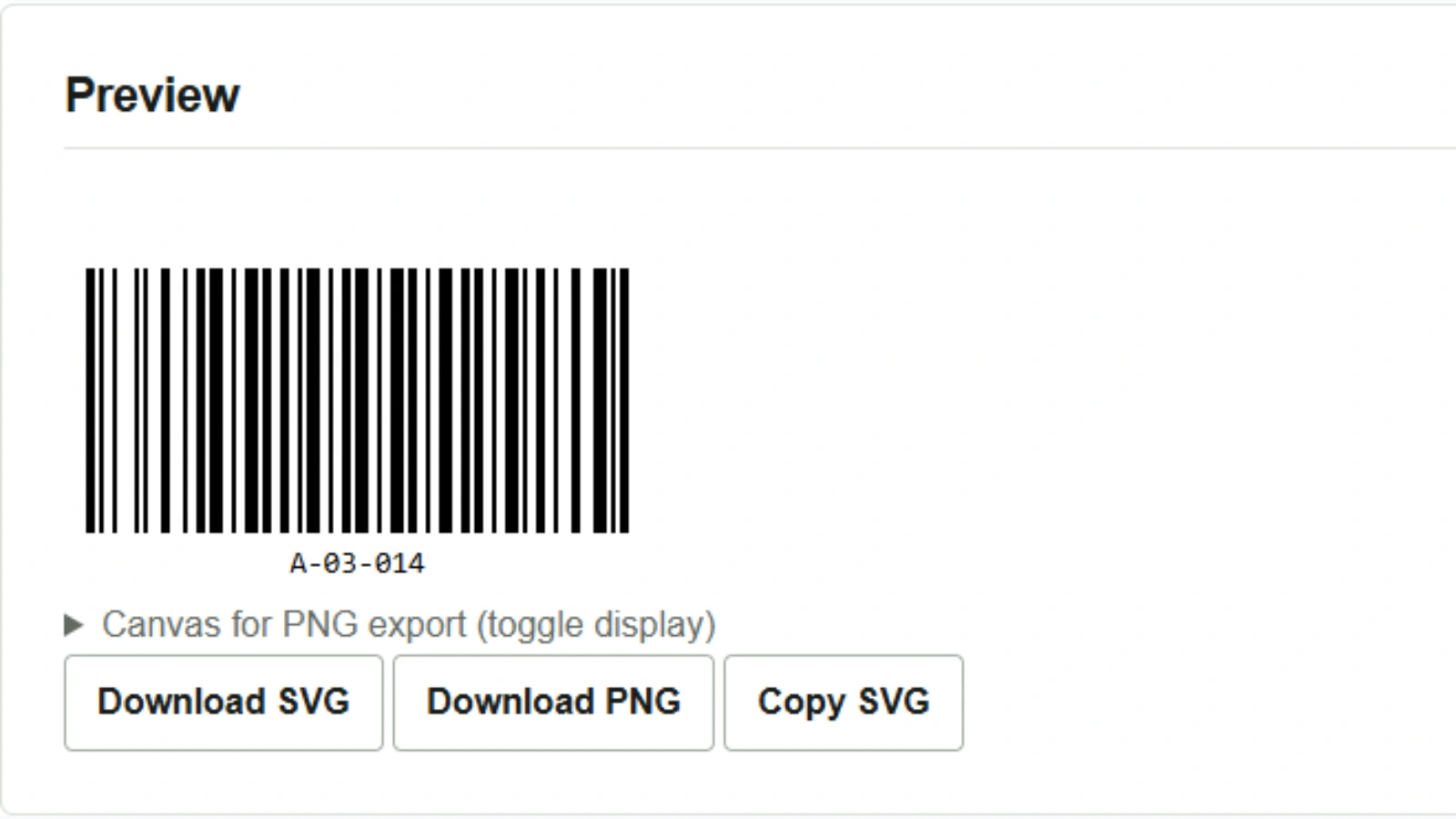
If a warehouse shelf number contains letters and digits, such as A-03-014, Code 128 can be used to prototype a shelf label. Enter the shelf number in the barcode generator to create a barcode, check its preview, and save an image to place in a label-sheet layout. Processing takes place entirely in your browser.
Enter the shelf number and generate a barcode
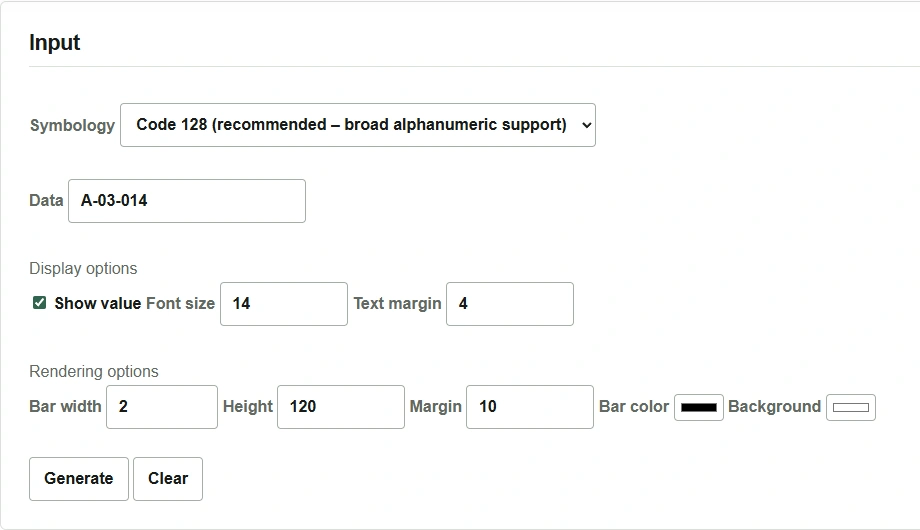
- Select Code 128 under Symbology.
- Enter
A-03-014in Data, using ordinary ASCII letters, digits, and hyphens. Leave Show value enabled so that you can also check the shelf number by eye. - Press Generate below the settings and confirm that
A-03-014appears beneath the barcode in the preview.
Save as SVG or PNG
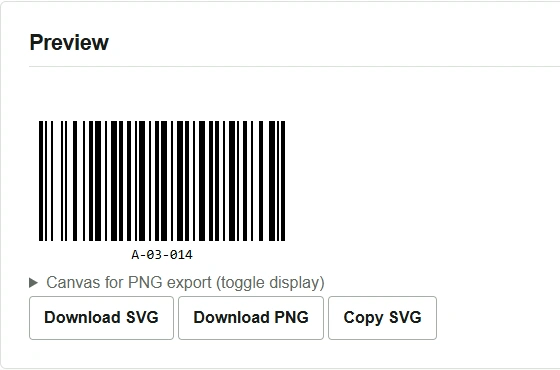
Press Download SVG or Download PNG below the preview. Choose SVG if you will resize the barcode to fit a label-sheet layout, or PNG if the application receiving the image does not support SVG. If the PNG is too small, adjust Bar width or Height in the tool, generate the barcode again, and then save it.
Scan the barcode after placing it in the label layout
For paper labels, retain white space to the left and right of the bars after placing the barcode in the layout. Print a sample at its actual size and use the scanner you will use on site to confirm that the decoded value is A-03-014. Compressing only the barcode’s width excessively in an image editor, or cropping close to the bars, can make it difficult to scan.
To create a JAN barcode image for a product, prepare the product code that has already been assigned and select EAN-13 / JAN-13. JAN is the name used for the EAN barcode system in Japan. This tool turns the value you enter into an image.