Format one-line SQL to see where conditions end, and build IN clauses from an Excel column (with the ORA-01795 1,000-item split)
I took one-line SQL copied from logs and ORM output and formatted it with a line break per clause. The result shows a condition hiding in a LEFT JOIN's ON, the scope of mixed AND and OR in WHERE, and the NULL trap in NOT IN. I also built an IN clause that quotes leading-zero codes from an Excel column, and split 1,500 IDs every 1,000 values to avoid Oracle's ORA-01795, all with the SQL Formatter tool.
SQL that shows up in application logs or ORM debug output is usually crammed onto a single line. When you scroll sideways through a SELECT statement several hundred characters long, it is easy to lose track of where the WHERE conditions end and where GROUP BY begins. The opposite job is just as tedious: when someone hands you a list of customer IDs or product codes in Excel and you need WHERE code IN ('A001', 'A002', …), adding quotes and commas one value at a time is a chore, and with a long list something always gets missed.
The SQL Formatter & Beautifier, Minifier and IN Clause Generator does both in your browser. It puts each clause of pasted SQL on its own line with indentation, and turns a single Excel column into an IN clause. Here I used the aggregate query that the tool loads as its example, plus a few variations of it, to see what you can actually read from the formatted result.
Formatting a one-line query from a log
When you open the page, “SQL to format” already contains the following line. It counts each member’s paid orders and adds up the amounts, then returns the 20 members whose total exceeds 10,000.
select u.id, u.name, count(o.id) as order_count, sum(o.amount) as total from users u left join orders o on o.user_id = u.id and o.status = 'paid' where u.created_at >= '2024-04-01' and (u.plan = 'pro' or u.plan = 'team') and u.id not in (select user_id from blocked_users) group by u.id, u.name having sum(o.amount) > 10000 order by total desc limit 20;
There is no button to press; “Formatted SQL” below updates as soon as you type. With the default settings (uppercase keywords, 2-space indent, trailing commas), it came out like this.
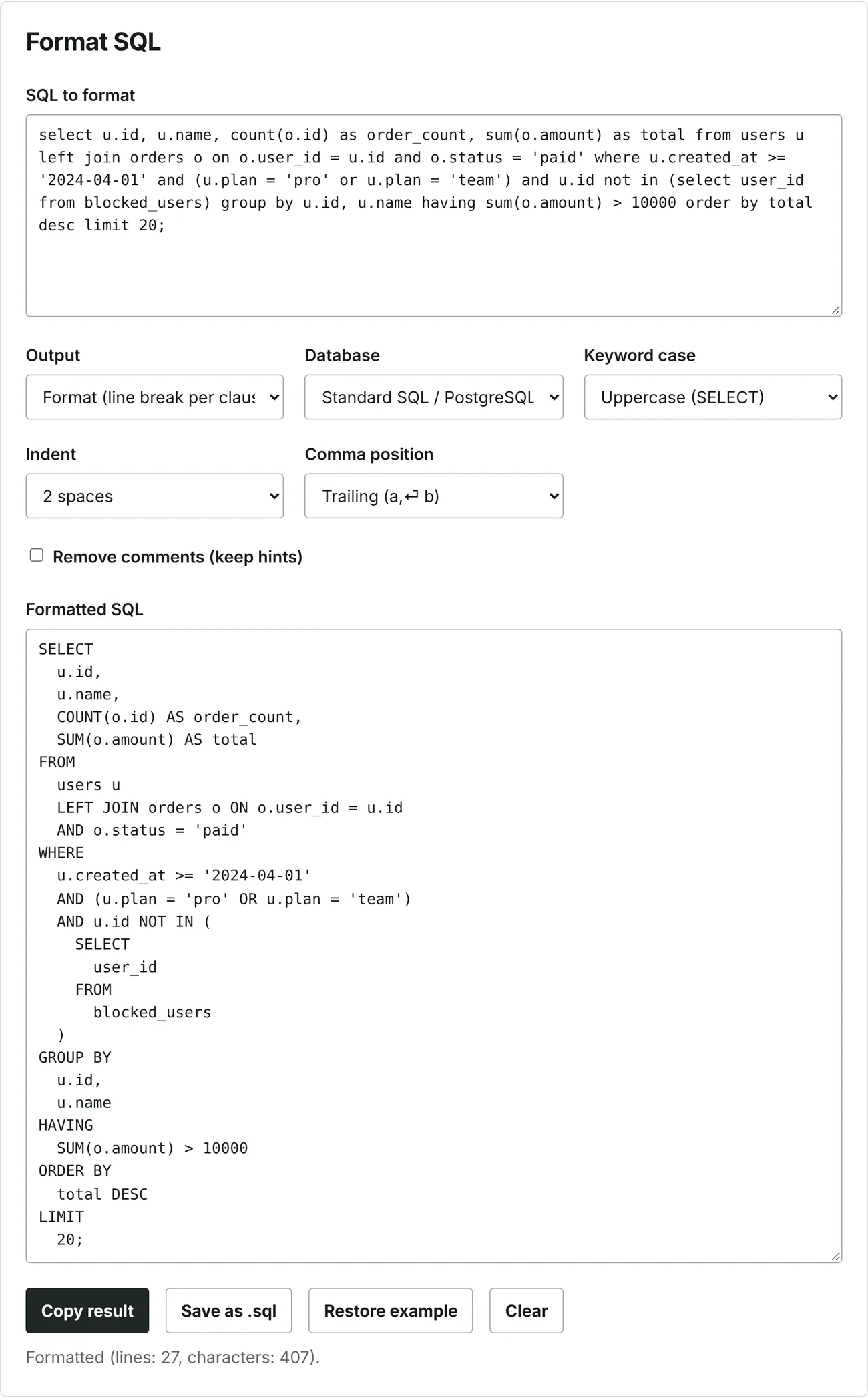
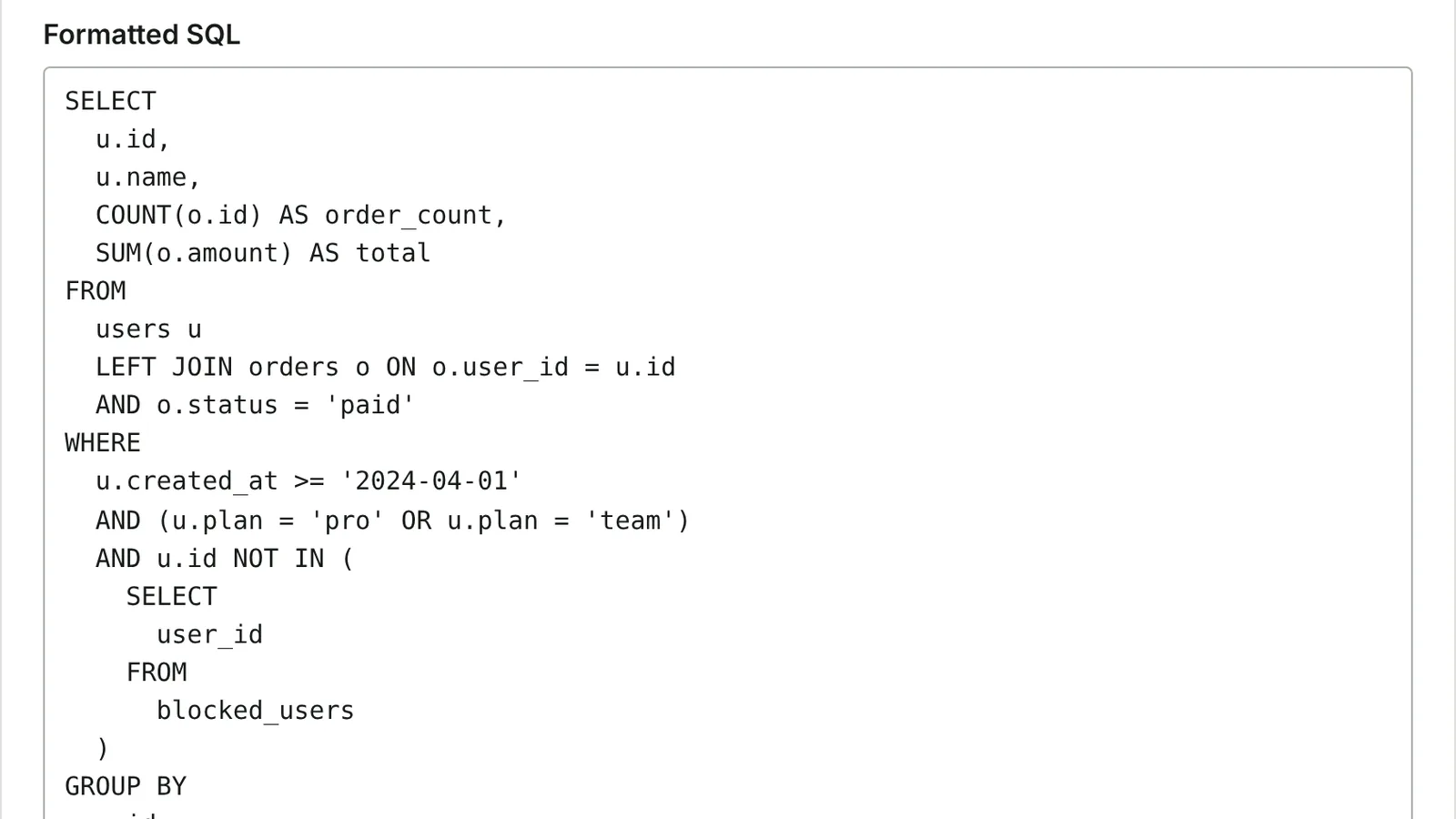
SELECT
  u.id,
  u.name,
  COUNT(o.id) AS order_count,
  SUM(o.amount) AS total
FROM
  users u
  LEFT JOIN orders o ON o.user_id = u.id
  AND o.status = 'paid'
WHERE
  u.created_at >= '2024-04-01'
  AND (u.plan = 'pro' OR u.plan = 'team')
  AND u.id NOT IN (
    SELECT
      user_id
    FROM
      blocked_users
  )
GROUP BY
  u.id,
  u.name
HAVING
  SUM(o.amount) > 10000
ORDER BY
  total DESC
LIMIT
  20;
The tool only changes whitespace, line breaks, indentation and the case of keywords and function names. Table names, column names, strings and numbers stay exactly as they were. “Copy result” puts the formatted SQL on the clipboard, and “Save as .sql” saves it as a file named formatted.sql.
What formatting reveals
On one line it is easy to miss, but once formatted you can see that o.status = 'paid' is not in WHERE. It is part of the LEFT JOIN’s join condition (ON), and it sits right after the JOIN line, before WHERE.
With a LEFT JOIN, writing a condition in ON or in WHERE gives different results. In ON, members with no paid orders at all are still kept, as rows whose order columns are NULL. In WHERE, rows where o.status is NULL do not match the condition, so those members disappear from the result. In this query HAVING already filters to totals over 10,000, so the final result is the same either way. But if you remove HAVING to get “paid orders for every member, including those with zero”, the difference shows up. Before rewriting a query, it is worth checking which clause each condition belongs to.
The formatted result also makes it obvious that the NOT IN contains a subquery on blocked_users. If that subquery returns even one NULL, u.id NOT IN (…) is never true, and the query returns no rows. If blocked_users.user_id can contain NULL, it is safer to add WHERE user_id IS NOT NULL to the subquery or to rewrite it with NOT EXISTS. The formatter does not judge what the query means, but because the subquery sits on its own indentation level, it is easier to spot the parts that need checking.
Checking how far a mixed AND/OR condition reaches
When WHERE mixes AND and OR, it is easy to misread where one condition ends. Suppose you meant to get “active members on either the pro or the team plan” and wrote this:
select id, name from users where status = 'active' and plan = 'pro' or plan = 'team' order by id
Formatted, it looks like this:
SELECT
  id,
  name
FROM
  users
WHERE
  status = 'active'
  AND plan = 'pro'
  OR plan = 'team'
ORDER BY
  id
The tool breaks the line before both AND and OR and puts them at the same level. In SQL, AND binds more tightly than OR, so this condition is read as (status = 'active' AND plan = 'pro') OR plan = 'team'. In other words, any team-plan member is included regardless of status, even one who has cancelled. Whenever an OR appears at the start of a line, check how far the group before and after it extends. If it is not what you meant, add parentheses, as in status = 'active' AND (plan = 'pro' OR plan = 'team'). Formatted after adding the parentheses, AND (plan = 'pro' OR plan = 'team') stays together on one line, just like in the default example. The tool keeps short parenthesized expressions on one line as long as they contain no subquery or CASE, so a grouped condition is not broken apart.
SQL with a WITH clause (CTE) or a CASE expression is laid out by level in the same way.
WITH
  recent AS (
    SELECT
      user_id,
      MAX(created_at) AS last_at
    FROM
      orders
    GROUP BY
      user_id
  )
SELECT
  u.id,
  u.name,
  CASE
    WHEN r.last_at >= '2026-10-01' THEN 'active'
    WHEN r.last_at IS NULL THEN 'none'
    ELSE 'dormant'
  END AS status
FROM
  users u
  LEFT JOIN recent r ON r.user_id = u.id
Each WHEN and ELSE of the CASE gets its own line, and END returns to the level of CASE, so it is easy to count the branches and see their order.
Matching your team’s style and choosing the database
The details of the layout can be changed with the selectors in the form. “Keyword case” offers Uppercase, Lowercase or Keep as typed, and “Indent” offers 2 spaces, 4 spaces or Tab. Setting “Comma position” to “Leading” lays out the columns like this:
SELECT
  u.id
  , u.name
  , COUNT(o.id) AS order_count
  , SUM(o.amount) AS total
With leading commas you can delete or add the last column without touching the comma on the line before, which keeps review diffs small. Which style to use is simply a matter of your team’s coding conventions.
“Database” controls how strings and comments are read. With MySQL / MariaDB selected, everything from # to the end of the line is a comment, and \' inside a string is treated as an escaped quote. With SQL Server selected, square brackets such as [Order ID] are read as identifiers. PostgreSQL’s $1 parameters, ::int casts and $$ … $$ dollar quoting are handled with the standard SQL setting. Placeholders such as ? and :name are left as they are, so parameterized SQL from ORM logs can be formatted too.
Putting formatted SQL back on one line to embed it in code
Sometimes you want the opposite of formatting: SQL on a single line in program code, a shell script or a configuration file. Setting “Output” to “One line (minify)” removes line breaks and indentation and leaves a single space between words.
The thing to watch out for is -- comments. Let’s put the following SQL on one line.
SELECT id,
  name -- display name
FROM users
WHERE deleted_at IS NULL -- exclude cancelled members
  AND plan = 'pro'
With comments kept, the result is not one line: line breaks remain after the -- comments, like this.
SELECT id, name -- display name
FROM users WHERE deleted_at IS NULL -- exclude cancelled members
AND plan = 'pro'
Everything from -- to the end of the line is a comment, so joining the lines here would turn the following FROM users … into part of the comment and break the SQL. The tool keeps those line breaks to avoid that. If you really need a single line, turn on “Remove comments (keep hints)” and you get SELECT id, name FROM users WHERE deleted_at IS NULL AND plan = 'pro'. Oracle hints such as /*+ INDEX(…) */ and MySQL’s /*! … */ are kept even when comments are removed.
Building an IN clause from an Excel column
From here on I used “Build an IN clause from a list” in the lower part of the page. Select a column in Excel or a spreadsheet, copy it, and paste it straight into “Values”. Each line is read as one value, and the result appears in “Generated IN clause” on the right. Leading and trailing spaces and empty lines are removed.
I tried it with product codes that start with zeros. I entered item_code in “Column name (blank for parentheses only)” and pasted six lines that include duplicates into the values.
00123
00456
01200
00123
10050
00456
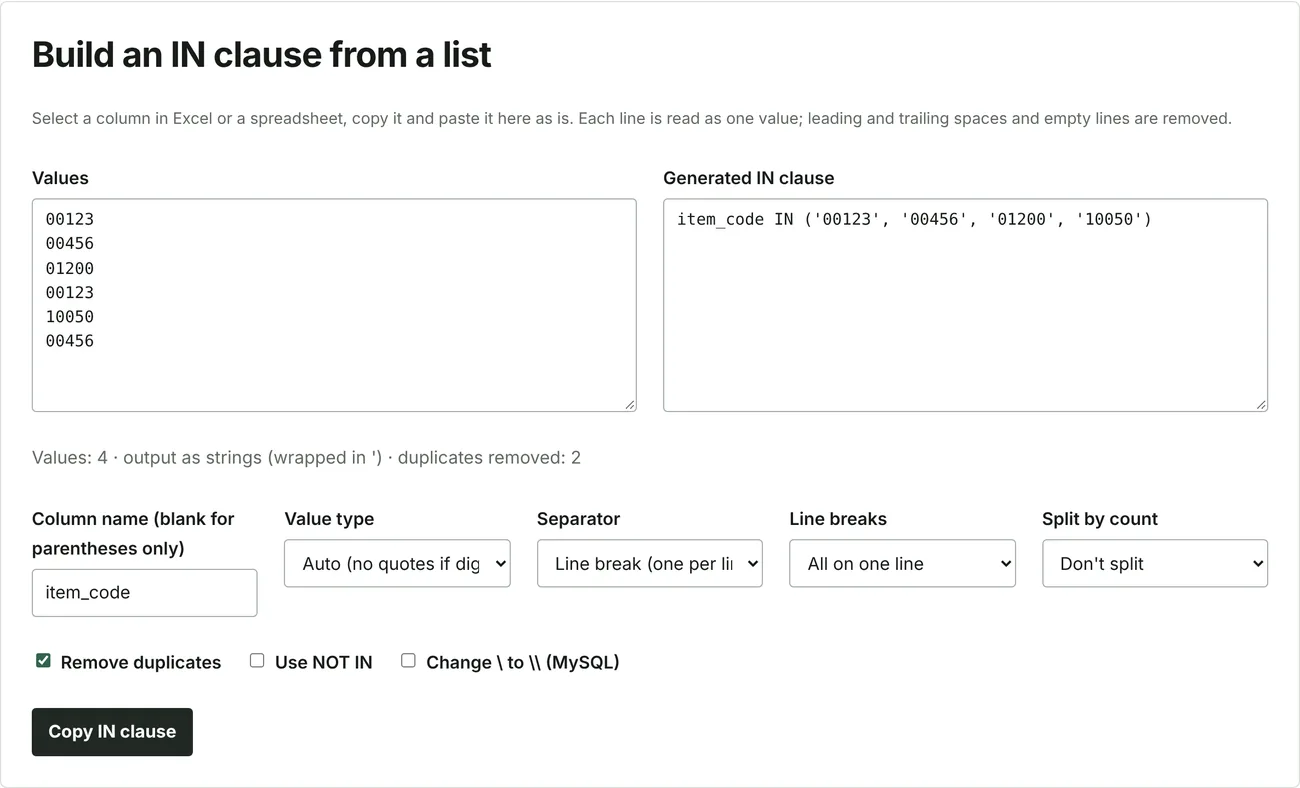
The result was item_code IN ('00123', '00456', '01200', '10050'), and the line below said “Values: 4 · output as strings (wrapped in ‘) · duplicates removed: 2”. “Remove duplicates” is on by default and drops every repeat after the first occurrence.
When “Value type” is “Auto” and every value consists only of digits, the values are listed as numbers without quotes. However, a value starting with 0 such as 00123 would lose its leading zero and become a different value if treated as a number, so it is wrapped in ’ as a string. Without 00123 and the other zero-prefixed codes in the example above, a list of values like 10050 would be output as numbers. For product codes or postal codes that consist only of digits but are stored in a string column in the database, setting “Value type” to “String” is the safer choice. Comparing a string column with numbers can trigger an implicit type conversion in some databases, and the index may then not be used.
When a value contains ', it is doubled to '' as SQL requires. The O'Brien in the tool’s default example becomes 'O''Brien'. With default settings MySQL and MariaDB treat \ as an escape character, so if you have values such as C:\temp, turn on “Change \ to \ (MySQL)”.
If you select two or more columns in Excel and copy them, the columns are separated by tabs. With “Separator” set to “Tab or line break (multiple Excel columns)”, both the codes and, say, the product names would end up as separate values in the IN clause. An IN clause uses only one column, so select just that column before copying.
To find rows that are not in the list, turn on “Use NOT IN”. Keep in mind that rows where the column is NULL match neither IN nor NOT IN. If you want NULL rows included, add OR item_code IS NULL yourself.
IN clauses with more than 1,000 values and ORA-01795
In Oracle Database, a single IN list can contain at most 1,000 values; more than that raises ORA-01795: maximum number of expressions in a list is 1000. To simulate a list of 1,500 customer IDs, I pasted 1,500 lines from 100001 to 101500 and set the column name to customer_id.
At this point the line below the result read “Values: 1,500 · output as numbers · more than 1,000 values (Oracle will raise error ORA-01795)”. So I set “Split by count” to “Every 1,000 (Oracle limit)” and “Line breaks” to “Break every 10 values”.
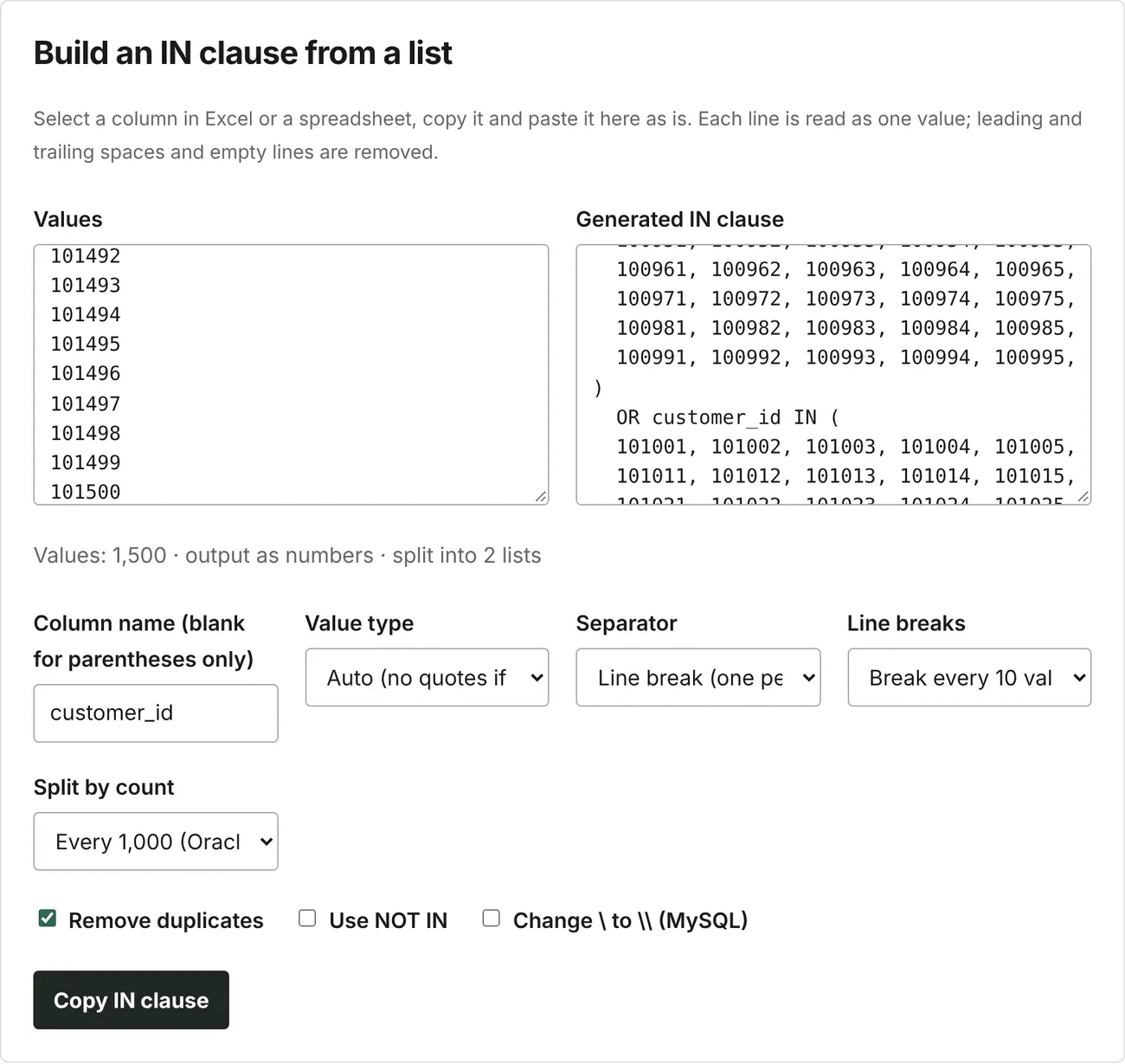
The output looked like this (middle part omitted).
(customer_id IN (
  100001, 100002, 100003, 100004, 100005, 100006, 100007, 100008, 100009, 100010,
  …
  100991, 100992, 100993, 100994, 100995, 100996, 100997, 100998, 100999, 101000
)
  OR customer_id IN (
  101001, 101002, 101003, 101004, 101005, 101006, 101007, 101008, 101009, 101010,
  …
  101491, 101492, 101493, 101494, 101495, 101496, 101497, 101498, 101499, 101500
))
The whole thing is wrapped in parentheses so that when you combine it with other conditions using AND, the OR does not cause the kind of scope misreading described in the previous section. With “Use NOT IN” on, the lists are joined with AND instead, as in customer_id NOT IN (…) AND customer_id NOT IN (…). You are looking for rows that are in neither list, so the connector has to be AND, not OR.
Splitting avoids the error, but once you are dealing with thousands or tens of thousands of values, loading them into a temporary table and joining it is easier to handle than an ever longer IN clause. It is often better in terms of SQL statement length limits and execution plans as well. I think of the IN clause generator as a tool for one-off lookups with anywhere from a few dozen to a few thousand values.
What this tool cannot tell you
If the formatter finds an unclosed quote or comment, unmatched parentheses or a CASE without END, it reports it below the formatted result. It also warns about full-width spaces and full-width symbols (such as , ( =) outside strings, which easily slip into SQL copied from chat messages or documents. These are characters typed by Japanese and Chinese input methods: they look like an ordinary space or comma but are different characters (the full-width space is U+3000, the ideographic space), so they often come along when you copy SQL from East Asian documents or from a colleague who uses such an input method. A full-width space cannot act as a separator in SQL, so the tool formats it as an ordinary space and tells you so in a warning.
On the other hand, this tool does not run the SQL to check it. It does not check whether tables and columns exist, whether a function is available in your database, or whether a condition placed in ON or WHERE does what you intended. After reading the formatted result and fixing the query, run it against the actual database to confirm. The SQL and value lists you paste are processed only in your browser and are never sent to a server, which makes the tool convenient even for SQL copied from production logs.
Related tools and articles
If you format both the old and the new version of a query and paste them into the Side-by-Side Text Comparison (Diff), you can compare only the changed conditions line by line. I explain how in “Compare configuration changes with Text Diff”. When an API returns its response as one-line JSON, the JSON Formatter / Validator makes it readable in the same way; the steps are in “Format JSON and copy a value’s JSON Pointer”. If you want to turn a 10-digit timestamp from a log into a search condition in SQL, see “Read Unix timestamps in JST and set the start of a log search”. On handling the database itself, I also wrote “Is copying the .db file enough to back up SQLite? Why two records went missing in WAL mode”.
Test environment
- SQL Formatter & Beautifier, Minifier and IN Clause Generator (operated in the Japanese version of the page; the screenshots shown here were taken in the English version with the same input and settings), Chromium (via Playwright)
- For formatting, I entered the tool’s default SQL, the modified AND/OR example, the WITH and CASE example, and the example with
--comments, using the settings described in the text. For IN clauses, I checked six lines of zero-prefixed codes and 1,500 lines from 100001 to 101500.