Format JSON and copy a value’s JSON Pointer
Format a one-line API response in your browser, find a value in the tree, and copy its JSON Pointer. The examples also cover minification and syntax checks.
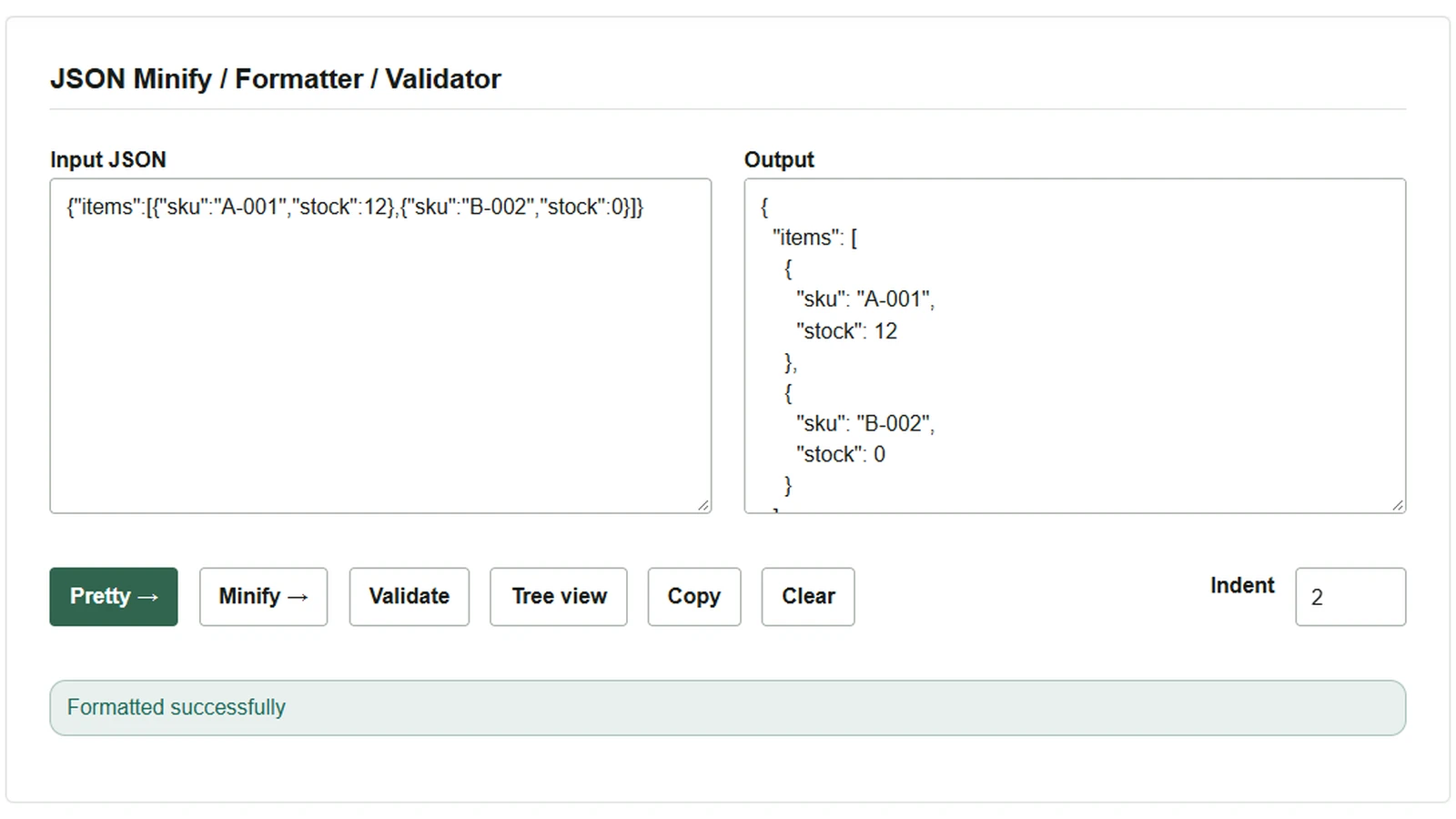
When an API returns a single line of JSON, adding line breaks makes the values easier to read. If you need to report that the second item is out of stock, include the path so someone else can locate the same value. Try both operations with a fictional product list in the JSON formatter, minifier, and validator. The browser processes the pasted data locally.
Make a one-line response easier to read
Paste this sample into “Input JSON”.
{"items":[{"sku":"A-001","stock":12},{"sku":"B-002","stock":0}]}
- Set “Indent” to
2and click “Pretty →”. - In “Output”, find the second entry in
items. ItsskuisB-002and itsstockis0. - To save the formatted result, click “Copy”, then paste it into an editor and save. For a compact single line, click “Minify →” before copying.
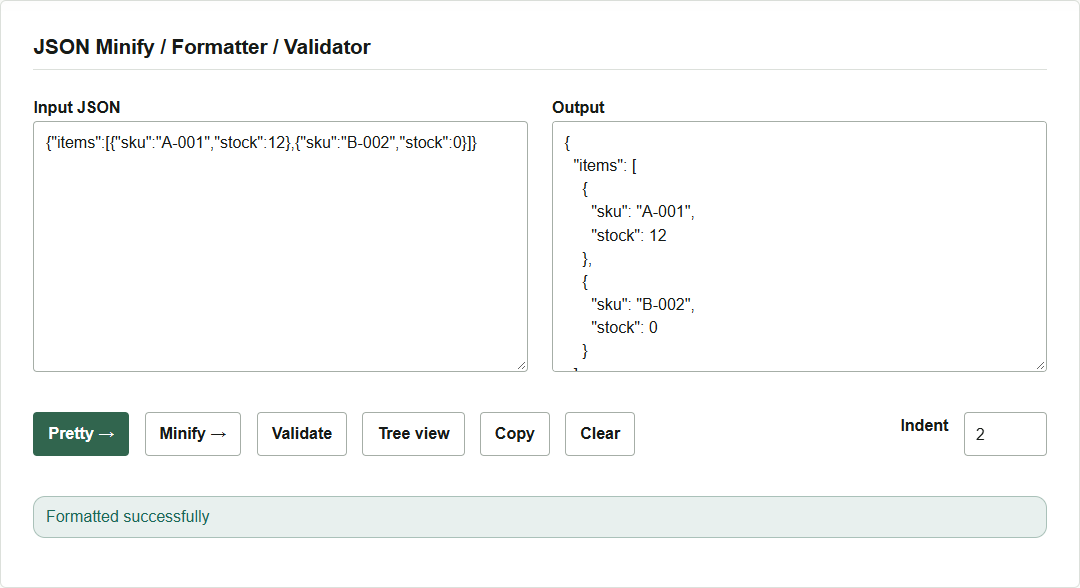
Find the second stock value’s path in the tree
- With the same input, click “Tree view”.
- Expand
items, open[1], and select"stock": 0. Array indexes start at zero, so[1]is the second entry. - Check that the selected JSON Pointer is
/items/1/stockand click “Copy path”. Record the path along with the response you inspected.
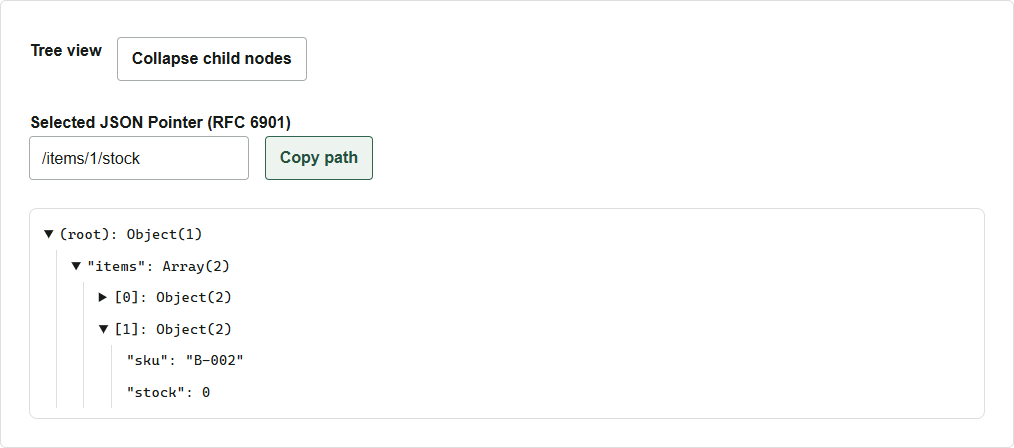
In a JSON Pointer, a slash in a key is written as ~1 and a tilde as ~0. For example, the single key stock/on-hand becomes stock~1on-hand. See RFC 6901 syntax.
Check the syntax when formatting fails
If you write the second entry as {"sku":"B-002","stock":0,}, the trailing comma before the closing brace causes a syntax error. Click “Validate” to check. If the browser supplies the error position, the tool shows the line and column. Remove the comma and run “Validate” again before formatting.
“Validate” checks JSON syntax. Consult the API documentation or schema for rules such as whether stock is required or can be negative.