Is copying the .db file enough to back up SQLite? Why two records went missing in WAL mode
I committed three SQLite records and compared a live .db file copy, Python’s backup API and a copy made after a clean shutdown. See why all three integrity checks passed with different results, and how to back up an active database.
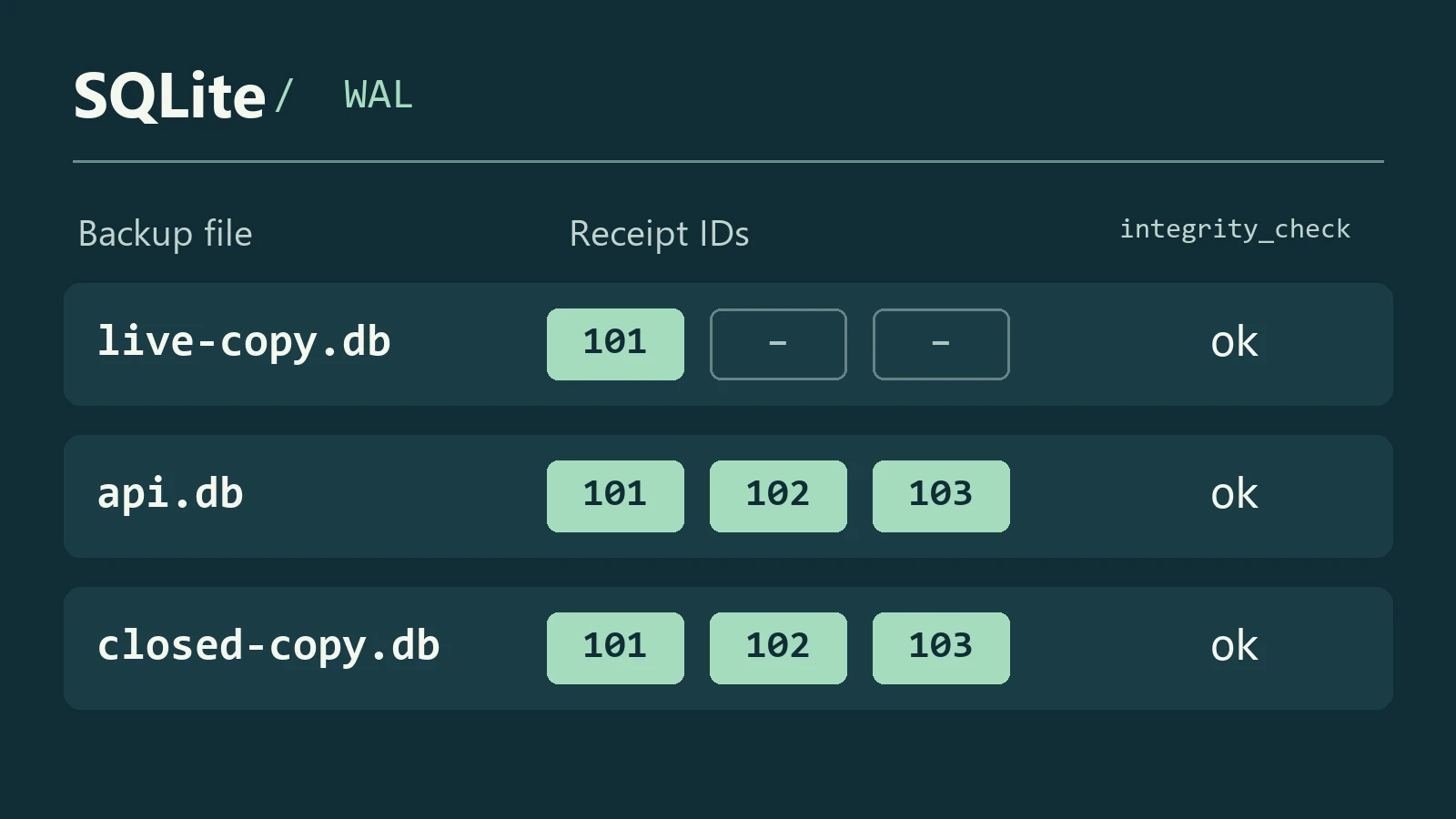
I entered record 101 and tried copying just the .db file while the SQLite register was still open. The copy opened and there was 101, right where I expected it. Could it really be that simple? I added records 102 and 103 and copied the same file again. It still opened and its integrity check returned ok, but the last record was still 101.
I wouldn’t use this kind of file copy to back up an active register. The first copy worked because record 101 had already been written to the main file. To back up the register while the app keeps running, use SQLite’s backup API to capture the committed records. SQLite Online Backup API documentation
One register, three ways to back it up
The test database, counter.db, has a single column for record IDs. I entered 101 and wrote the changes back to the main file, then made the first copy described above. Next I entered 102 and 103 and committed them. With no further entries, I backed up the register in three ways.
| Method used after committing record 103 | Record IDs recovered from the copy | Integrity check |
|---|---|---|
Copy only the .db file while the connection is open (avoid this) |
101 | ok |
Call Python’s backup() on the same connection |
101, 102, 103 | ok |
| Close the last connection cleanly and copy the main file | 101, 102, 103 | ok |
Just before the copy in the first row, I could read through 103 in the source database. I paused writes during the copy, so it opened as an older version of the register. If a write overlaps the copy, old and new pages can end up in the same file and corrupt the copy itself. SQLite documentation on writes during a backup
A commit can still be waiting to reach the main file
In WAL (write-ahead logging) mode, SQLite first appends changed pages to counter.db-wal, alongside the main file. When SQLite opens the register, it reads both files, which makes records 102 and 103 visible. Select counter.db alone in File Explorer and those two records stay behind in the neighboring file. SQLite documentation on how WAL works
Writing changes from the WAL back to the main file is called a checkpoint. I forced a checkpoint after entering 101 so the next two records would exist only in the WAL. When I closed the last connection cleanly, SQLite wrote the remaining changes to the main file. That’s how the copy in the third row ended up with all three records.
In a real app the outcome depends on when automatic checkpoints run and whether connections are still open. Closing a single window may leave a connection open. If the database is still changing, copying the main file and its WAL one after the other can pick up versions from different points in time. Keep any -wal file still in the source folder with its main file and leave its removal to SQLite. SQLite documentation on the WAL file
Back up an active database with SQLite’s backup API
To save one SQLite database while the app is running, you can have SQLite read the register and write the backup. The second row of the table uses Python’s sqlite3.Connection.backup(). Python reference for backup()
- On a machine with Python 3.7 or later and the standard
sqlite3module, open the folder containing the originalcounter.db. Save the following assave_db.pyin that folder. If your database has a different filename, adjust thesourceline.
from contextlib import closing
from pathlib import Path
import sqlite3

source = Path("counter.db").resolve()
folder = Path("snapshot-001")

with closing(sqlite3.connect(source.as_uri() + "?mode=ro", uri=True)) as db:
    folder.mkdir()
    with closing(sqlite3.connect(folder / "counter.db")) as dest:
        db.backup(dest)

print("Destination:", (folder / "counter.db").resolve())
- Run
python save_db.pyfrom that folder. This opens the original register read-only and saves a backup namedcounter.dbin a separate folder calledsnapshot-001. The script stops if the destination folder already exists. Changefolderto make the next backup. - Open the file printed next to “Destination” in the software you use to view the register. Look for the IDs you expected to be present when the backup was taken. This example uses the table
receiptand the columnid, so you can list the IDs withSELECT id FROM receipt ORDER BY id;. Adapt the query to your own table and the records you want to verify.
All three files in the table passed PRAGMA integrity_check. It checks the consistency of structures such as pages and indexes. The register with only record 101 was also consistent. To verify a restore, compare the recovered records with something you know independently, such as the record IDs or their contents at the time of backup. What SQLite’s integrity_check examines
Try all three methods in a temporary folder
You can reproduce the table without the original register. Save the code below as wal_demo.py and run python wal_demo.py. Each run creates the test database in a fresh temporary folder and cleans it up after displaying the results. The test used Windows 11, Python 3.12.14 and SQLite 3.53.1.
from contextlib import closing
from pathlib import Path
import shutil
import sqlite3
from tempfile import TemporaryDirectory

def show(label, db):
    ids = [row[0] for row in db.execute("SELECT id FROM receipt ORDER BY id")]
    check = db.execute("PRAGMA integrity_check").fetchone()[0]
    print(label, ids, check)

with TemporaryDirectory() as tmp:
    folder = Path(tmp)
    source = folder / "counter.db"
    with closing(sqlite3.connect(source)) as db:
        print("journal_mode", db.execute("PRAGMA journal_mode=WAL").fetchone()[0])
        db.execute("PRAGMA wal_autocheckpoint=0")
        db.execute("CREATE TABLE receipt (id INTEGER PRIMARY KEY)")
        db.execute("INSERT INTO receipt VALUES (101)")
        db.commit()
        db.execute("PRAGMA wal_checkpoint(TRUNCATE)").fetchall()
        shutil.copyfile(source, folder / "copy-at-101.db")

        db.executemany("INSERT INTO receipt VALUES (?)", [(102,), (103,)])
        db.commit()
        show("source", db)
        shutil.copyfile(source, folder / "live-copy.db")
        with closing(sqlite3.connect(folder / "api.db")) as dest:
            db.backup(dest)

    shutil.copyfile(source, folder / "closed-copy.db")
    for name in ("copy-at-101.db", "live-copy.db", "api.db", "closed-copy.db"):
        path = folder / name
        with closing(sqlite3.connect(path)) as saved:
            show(name, saved)
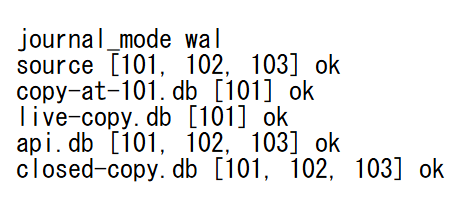
The first line shows journal_mode wal, and source lists all three records. Both copy-at-101.db and live-copy.db show [101] ok. The former contains every record available when it was copied, but the latter is missing two. The demo applies wal_autocheckpoint=0 to this connection alone to prevent an automatic checkpoint during the comparison. Ordinary backups do not require this setting.