Is 20% Off Plus Another 10% Off Really 30% Off? Checking Stacked Discounts, Percent Change, Percentage Points and Original Prices
20% off followed by another 10% off is a 28% discount, not 30%. An item that costs 2,800 after 30% off was 4,000, not 2,800 × 1.3. Going back after a 15% increase is a 13.04% decrease, not 15%. A tax rate moving from 8% to 10% is up 2 percentage points and 25%. Each answer depends on what counts as 100%, and each was checked by entering it into the Percentage Calculator.
A percentage calculation is only one multiplication and one division. People still get it wrong because the number that counts as 100% changes from one situation to the next.
If a sale says “20% off the marked price, plus another 10% off at the checkout”, how much do you save in total? If an item costs 2,800 after 30% off, can you find the original price by adding 30% to 2,800? If sales grew by 15% and then fell back to the old level the next year, was that a 15% drop? In every case, the answer depends on which amount you subtract from, add to or divide by.
The Percentage Calculator splits these calculations into six sections and shows the answer and the formula as soon as you type a number. Below, I enter each of the questions above and check the results. The examples come from prices in Japanese yen, but the calculations work the same in any currency.
The six sections and what each treats as 100%
When the page opens, all six sections already contain example numbers and show their answers. Change a number and the result updates without pressing a button. You can type 1,980, full-width digits, or numbers with a currency symbol or % attached.
| Section | What it finds | What counts as 100% | Formula |
|---|---|---|---|
| A is what percent of B? | Percentage | B | A ÷ B × 100 |
| What is X% of B? | Amount for a percentage | B | B × X ÷ 100 |
| If X% is A, what is the whole? | The whole | The answer | A ÷ X × 100 |
| Percent increase or decrease | Percent change | The value before | (after − before) ÷ before × 100 |
| Price after X% off or X% markup | Price after the discount or markup | The original price | price × (100 ∓ X) ÷ 100 |
| Find the original price from a discounted price | Original price | The answer | discounted ÷ (100 − X) × 100 |
The first three rearrange “part = whole × rate” depending on which value you are looking for. With the initial examples, 45 is 37.5% of 120, 15% of 8,000 is 1,200, and if 30% is 36 the whole is 120.
The first section also shows 37.5% as the decimal 0.375 and in the Japanese notation “3割7分5厘” (3 wari 7 bu 5 rin). In Japan, ratios are often expressed in tenths (wari), hundredths (bu) and thousandths (rin): a batting average of .375 is read this way, and a price tag that says 2割引 means 20% off. The tool shows this notation so you can check such numbers against percentages.
If an answer does not divide exactly, it is rounded to the number of places chosen under “Display” at the top of the page (2 decimal places by default) and marked with “≈”. You can choose to round half up, round down or round up. Only the display is rounded; the calculation itself uses exact fractions.
20% off followed by another 10% off is 28% off
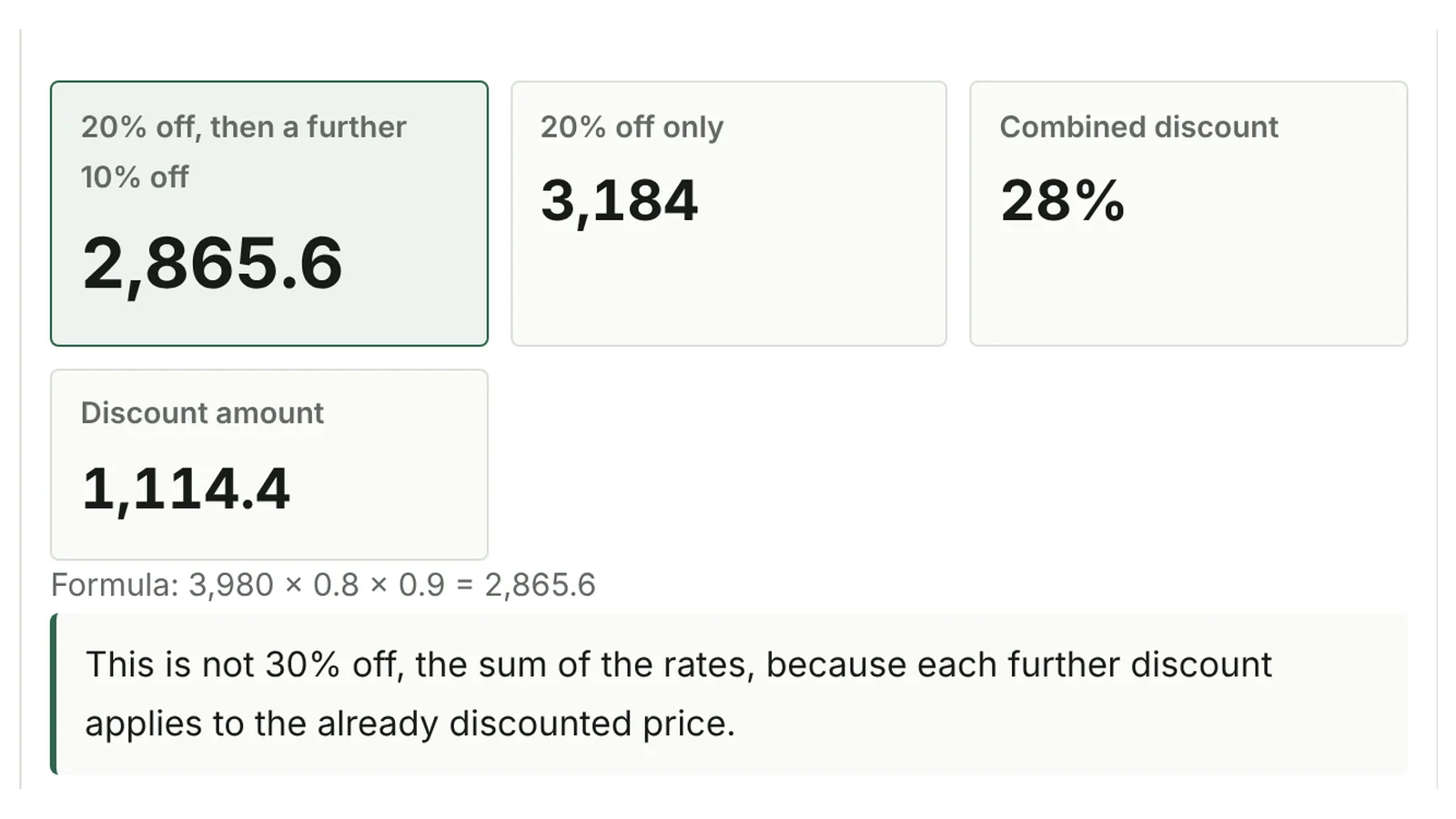
The “Price after X% off or X% markup” section starts with an original price of 3,980, a rate of 20, the unit “%” and the calculation “Off (discount)”. The answer in that state is 3,184. I then entered 10 in “Then a further X% off (optional)”.
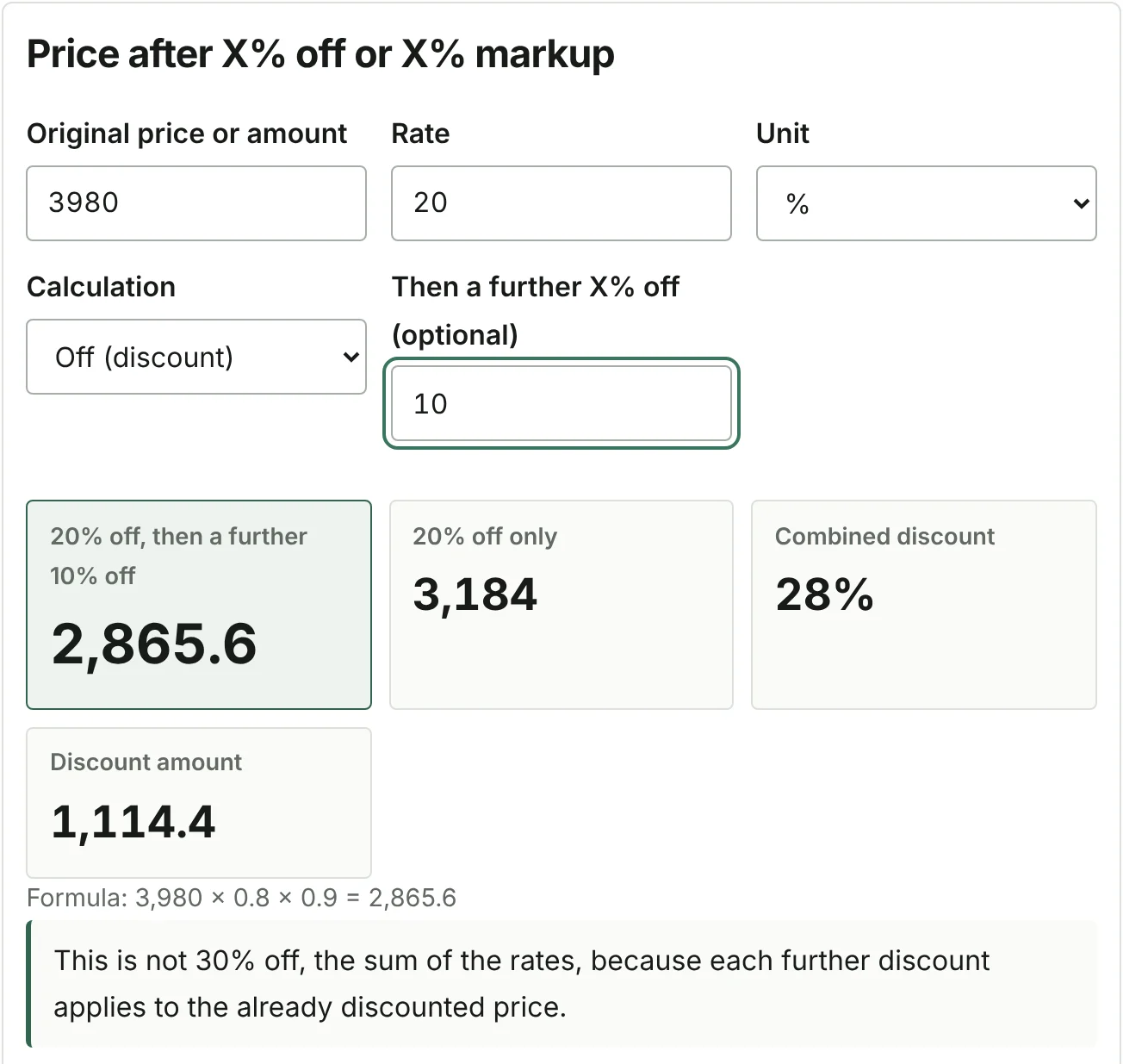
The answer is 2,865.6 with a combined discount of 28%. The formula is 3,980 × 0.8 × 0.9: after 20% off you pay 80%, and then 90% of that. Since 0.8 × 0.9 = 0.72, you pay 72% of the original price, a discount of 28%. The second 10% is taken from the already reduced 3,184, so it is 318.4 — less than 10% of the original 3,980 (398).
Below the result, a note says that this is not 30% off, the sum of the rates. If there are three or more discounts, separate them with spaces, as in 10 5. 20% off, then 10% off, then 5% off comes to a combined 31.6% off, and the gap from the simple sum of 35% grows wider.
This assumes the second discount applies to the discounted price. Some stores mean “30% off the original price in total”. In that case, enter 30 as the rate and leave the “further” field empty.
The answer 2,865.6 has a fraction smaller than the smallest unit of yen. How it is handled at the register depends on the store. Set “Display” to “Whole number (0 places)” and the tool shows ≈2,866 with rounding half up, or 2,865 with rounding down.
A 10% price rise followed by a 10% cut leaves the price 1% lower
Switch the calculation in the same section to “Markup (increase)” to calculate a raised price. With an original price of 10,000, a rate of 10 and “Markup”, the result is 11,000. When I then entered 10 in “Then a further X% off”, the answer was 9,900 with a combined discount of 1%.
10% of 11,000 is 1,100, which is more than the 1,000 that was added. Because the base changes, raising and lowering by the same percentage does not bring you back to where you started.
Changing the unit to “wari (×10%)” lets you enter the Japanese notation directly. 3割5分引き (3 wari 5 bu off, that is, 35% off) is entered as 3.5, and 3,980 becomes 2,587. The conversion “(3.5 wari = 35%)” is added after the formula. Below the section, the “Price table by discount rate” lists prices and discount amounts from 5% off to 90% off, and highlights the row for the rate you entered.
The original price of an item that costs 2,800 after 30% off is 4,000
Sometimes a price tag only shows the sale price and you want to know what it originally cost. With 30% off and a price of 2,800, it is tempting to add 30% to 2,800 and get 3,640. But the 30% is a share of the original price, not of 2,800.
The “Find the original price from a discounted price” section opens with exactly this example.
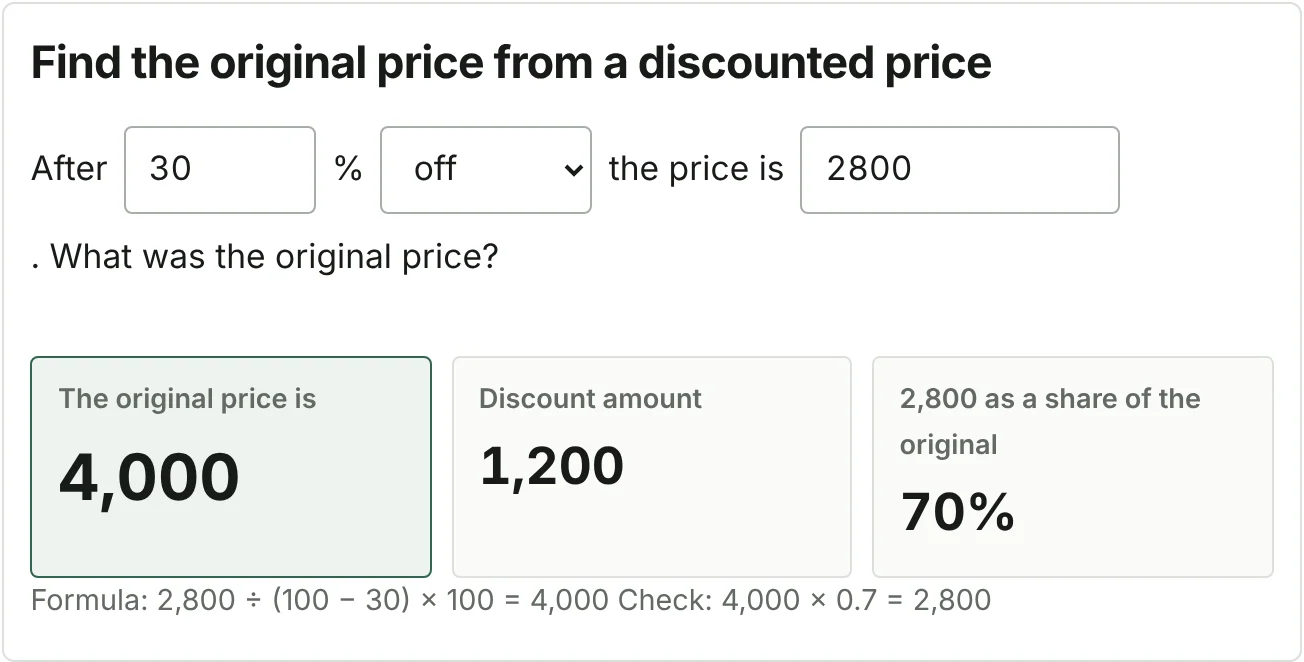
A price after 30% off is 70% of the original, so the original price is 2,800 ÷ 0.7 = 4,000 and the discount was 1,200. Because the result also shows “Check: 4,000 × 0.7 = 2,800”, you can see right away that you have not mixed up the direction of the discount. Applying 30% off to 3,640 gives 2,548, not 2,800.
Switch “off” to “markup” to find the original amount from a total that includes a surcharge. If the total with a 5% fee is 10,500, the original amount is 10,000.
Working out a pre-tax price from a tax-inclusive price is the same kind of calculation. In practice, however, sales tax or VAT is often rounded to the smallest currency unit, so the pre-tax price can be off by one unit; in Japan, the consumption tax is rounded to whole yen. When you need an exact pre-tax price, also check how the tax is rounded where you are.
Going back after 15% year-over-year growth is a 13.04% decrease
The “Percent increase or decrease (percent change, year over year)” section starts with a change from 800,000 to 920,000. It shows a 15% increase, a difference of +120,000, and that the new value is 1.15× (115%) of the old one.
A year-over-year figure can mean “what percentage of last year” (115%) or “how much it grew from last year” (15% increase). The numbers differ by 100 for the same change, so when you write a report, make it clear which one you mean.
Next, I swapped the two values: a change from 920,000 back to 800,000.
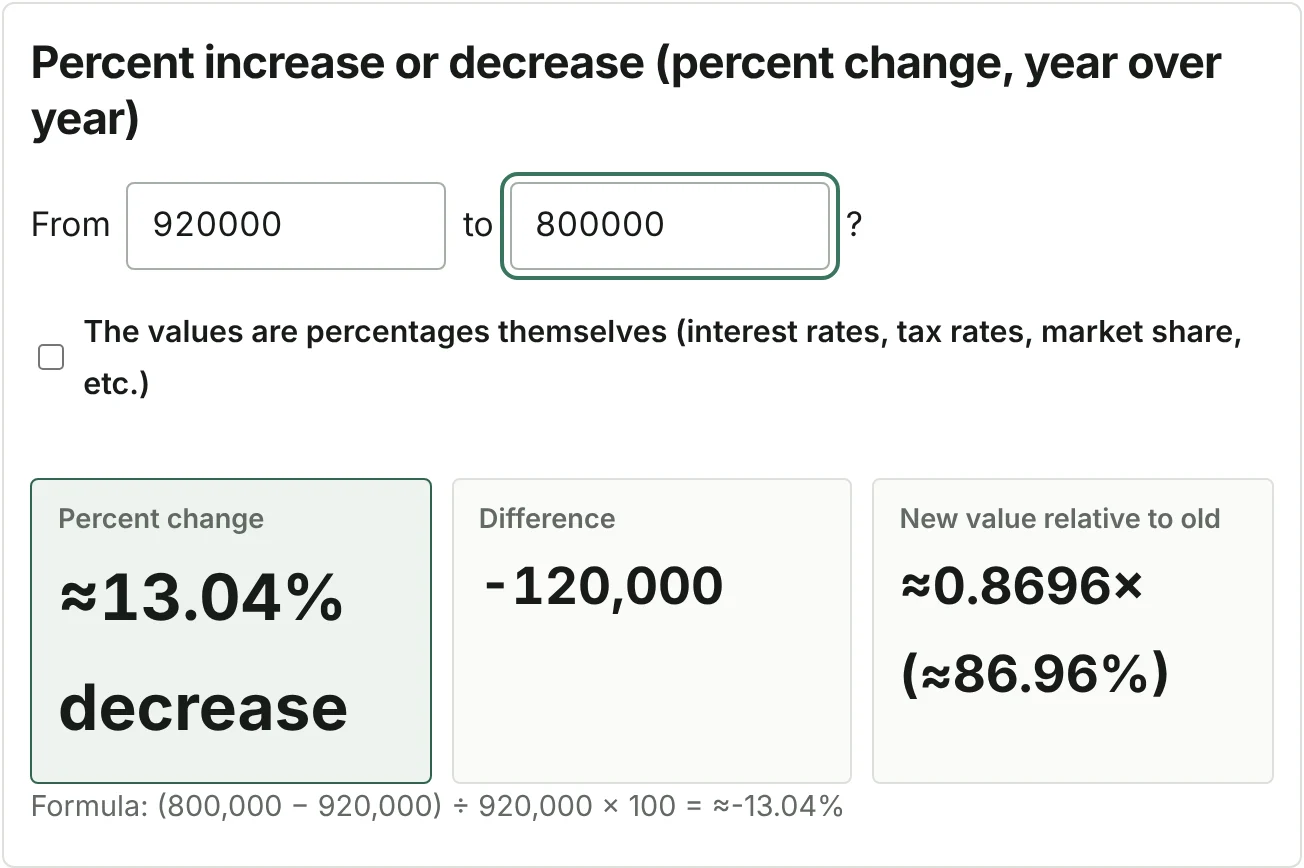
The change is a decrease of about 13.04%, not 15%. The difference is 120,000 in both directions, but the number you divide by has changed from 800,000 to 920,000. If something grows by 15% and then falls by 15%, 1.15 × 0.85 = 0.9775, leaving only 97.75% of the original. It is the same logic as the 10% price rise and cut above.
From 8% to 10% is “up 2 percentage points” and “up 25%”
When the values you compare are themselves percentages — interest rates, tax rates, market share, approval ratings — tick “The values are percentages themselves”. Japan raised its consumption tax rate from 8% to 10% in 2019. Entering that change gives the following.
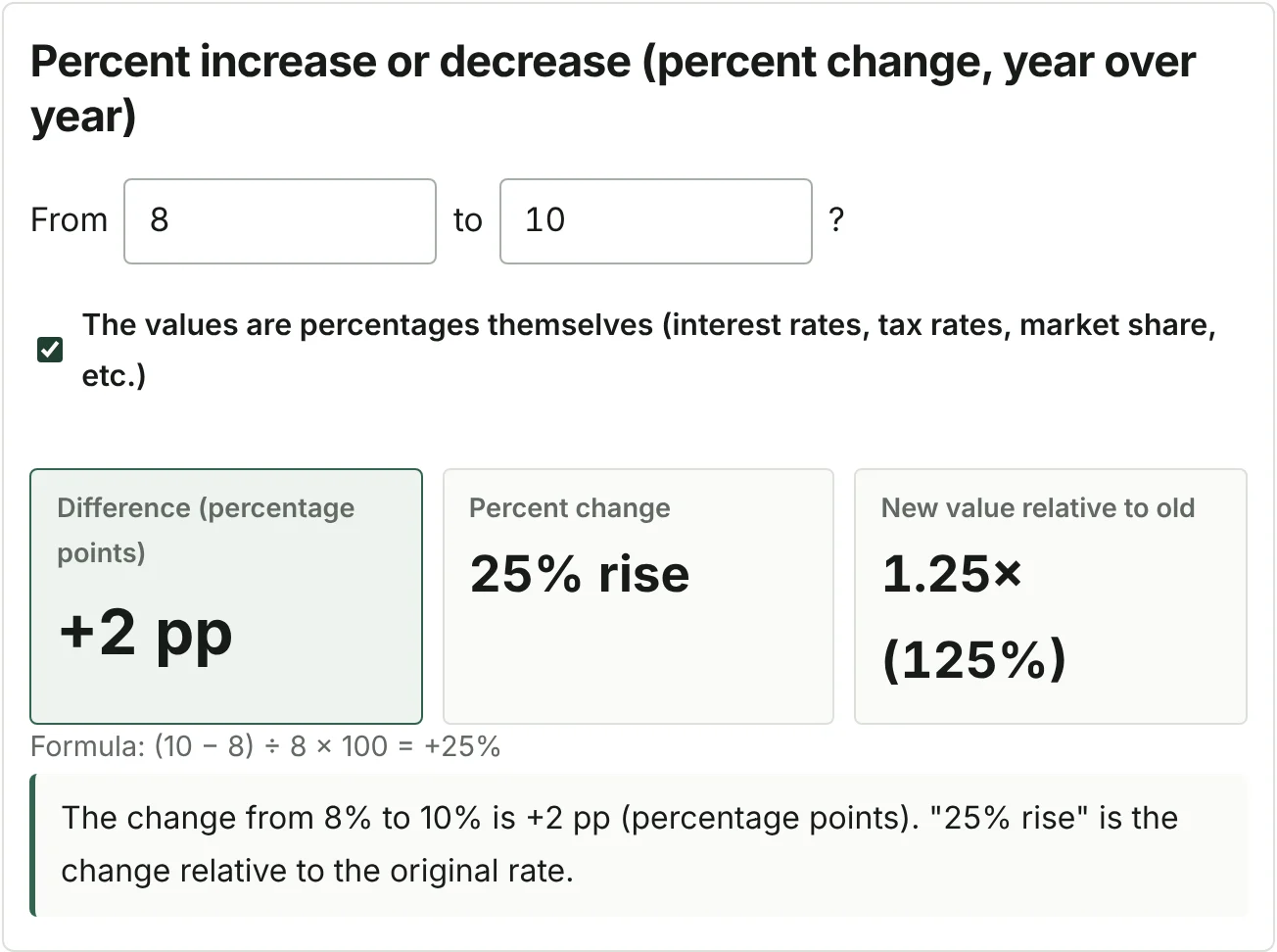
10 − 8 = 2, so the difference is 2 percentage points; 2 ÷ 8 = 0.25, so the relative change is 25%. Both are correct, but they mean different things. “The tax rate went up by 2%” could also be read as 8% increased by 2% (8.16%). Using “percentage points” for the difference between two percentages avoids that ambiguity.
When the starting value is 0 or negative
If the starting value is 0, no percent change can be calculated. For a change from 0 to 5, the tool says that the value before the change is 0 and shows only the difference of 5.
If the starting value is negative — for example, operating income going from −2,000,000 (a loss of 2 million) to 1,000,000 (a profit of 1 million) — the tool divides by the absolute value so that an increase is positive and shows a 150% increase. But as the result “new value is −0.5× the old one” shows, a percentage feels wrong when the sign changes. The tool adds a note that such a comparison is clearer as a difference. In this case, “an improvement of 3 million” gets the point across better.
Keeping and sharing a calculation
Your inputs are saved in the page URL after #. Bookmark it and the same prices and discount rates open again. “Copy all results” copies the answers and formulas of all six sections to the clipboard as text, which is handy for recording how a discount was calculated in a quote or a note. “Reset to examples” puts every section back to its initial example.
Under the tool, “Share or embed this result” lets you send a URL that includes your inputs to X (formerly Twitter) or LINE, the messaging app widely used in Japan. “Save result as image” turns the answer of the last section you used into a PNG image.
Why there are no decimal errors
When you calculate percentages in a spreadsheet or a program, you may see errors such as 0.1 + 0.2 = 0.30000000000000004. They happen because numbers are stored as binary floating-point values. This tool keeps your inputs as fractions, so 3,980 × 0.8 × 0.9 comes out as exactly 2,865.6 with no error. Inputs can have up to 15 integer digits and 10 decimal places.
When you round a percentage calculated in a program, the rounding method matters too. Why Python’s round() does not round half up is explained in “Python round() Doesn’t Round Half Up”.
Related tools
The Percentage Calculator does not compound a rate over several years. To calculate the aspect ratio of an image or video as a ratio such as “16:9”, or to resize while keeping the ratio, use the Aspect Ratio Calculator.
Test environment
- Percentage Calculator (operated in the English version of the page), Chromium via Playwright
- “Display” left at the default of 2 decimal places with rounding half up. The stacked discount, original price and percent change examples use each section’s initial numbers; the examples with changed values (920,000 → 800,000, 8 → 10, a 10% markup on 10,000 followed by 10% off, and so on) were checked by entering the numbers given in the text