Can an MP4 still contain frames cut with FFmpeg stream copy?
A two-second MP4 starts with the talk, but contains 25 frames from before it. Compare FFmpeg stream copy, keyframe trimming and re-encoding using a numbered sample.
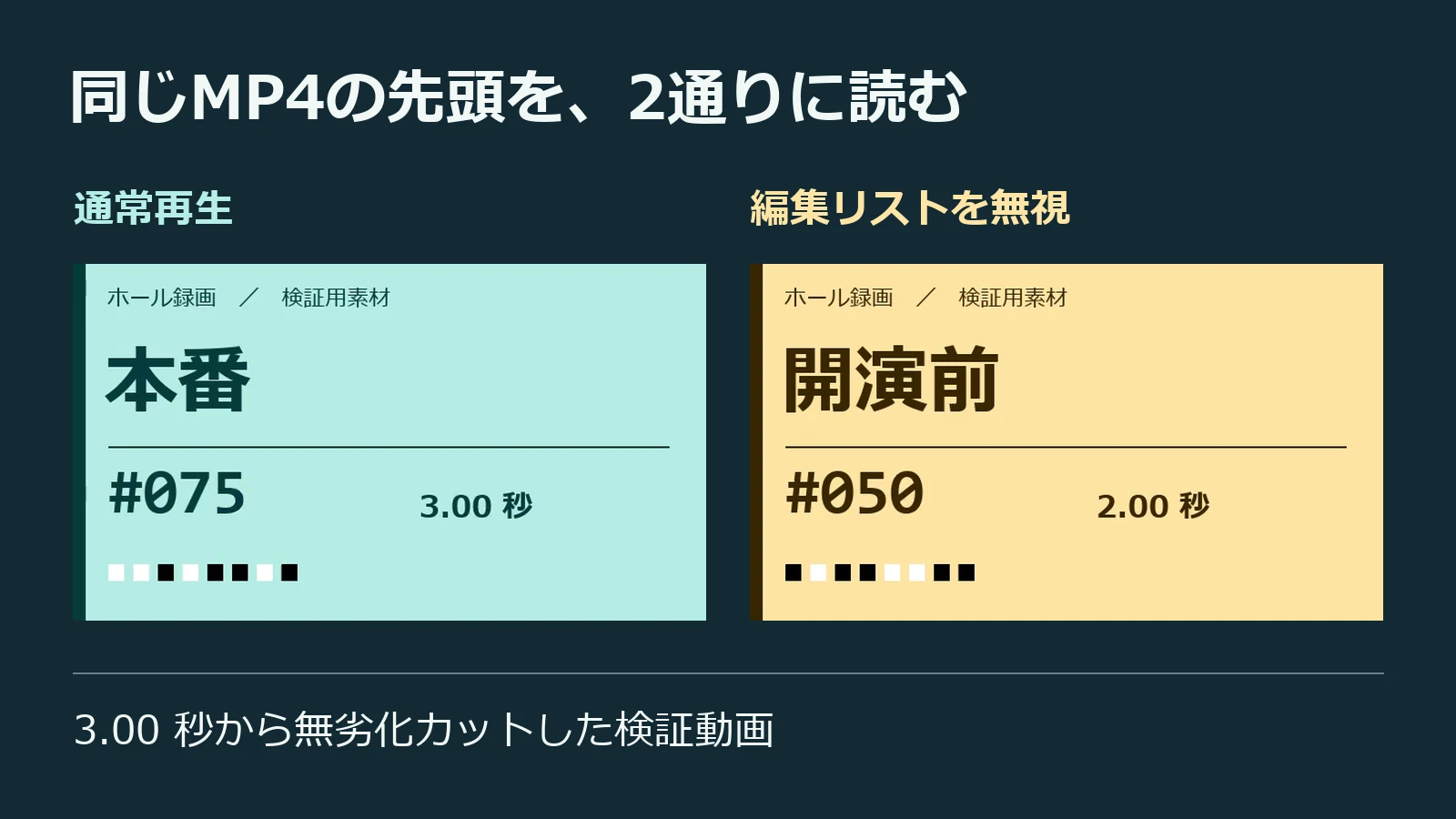
You want to cut the setup at the lectern out of a recording before sharing it. You tell FFmpeg when the talk starts and trim without a quality loss. If the result opens on the first frame of the talk, did the preparation footage disappear from the file?
I made a video that switches from yellow “before the talk” to green “talk” at exactly three seconds. I used stream copy to take two seconds starting at 3 s. The file opened on green, and I could still extract 25 yellow frames from it. The retained footage was the second immediately before the talk.
Where is the extra second in a two-second clip?
The source lasts eight seconds at 25 frames per second. Every frame is numbered, starting at 0. The color changes at frame 75. The keyframes, where decoding can start, are at 0, 2, 4 and 6 seconds, so the start of the talk falls halfway between two keyframes.
I changed the start time and trimming method, exporting two seconds each time. I then read each file normally and again with the MP4 edit list ignored. The edit list tells the player where in the stored video to start playback. The table gives source frame numbers read from the pictures, with frame counts in parentheses.
| Cut | Normal playback | Edit list ignored |
|---|---|---|
| Stream copy from 3 s | 75–124 (50) | 50–124 (75) |
| Stream copy from 4 s | 100–149 (50) | 100–149 (50) |
| Re-encode from 3 s | 75–124 (50) | 75–124 (50) |
Chrome and Edge both showed the first result as 2.00 seconds, starting at 75 and ending at 124. The file contains video from the keyframe at 2 s, frame 50. FFmpeg’s -c copy copies compressed video, including the earlier frames needed to decode frame 75. The player reads them and displays the video from 75, as instructed by the edit list. FFmpeg start-time option · MP4 edit-list handling
Starting on a keyframe in the second row removes the preparation footage and also drops the first second of the talk. To keep the first words and leave the preceding footage out of the file, use the re-encode in row three for this example. It takes processing time and compresses the video again, so frame 75 can be the first frame of the new video.
Extract two images from the same file on your PC
-
Save the eight-second source stage.mp4 (about 144 KiB) to an empty folder. If it opens in the browser, use the link’s right-click menu to save it. Open a terminal with FFmpeg in that folder. To see the result directly, play the two-second stream-copy MP4. It starts on green.
-
Make
copy.mp4with a start time of 3 seconds and a duration of 2 seconds. Place-ssbefore the input filename. Pause at the beginning in your player and you should see green.ffmpeg -ss 3 -i stage.mp4 -t 2 -c copy copy.mp4 -
Use these two commands to extract one starting frame each from
copy.mp4. The first writes the green talk frame 75 toplayback.png. The second ignores the edit list, sostored.pngshows yellow preparation frame 50. Both commands read the two-second file alone.ffmpeg -i copy.mp4 -frames:v 1 playback.png ffmpeg -ignore_editlist 1 -i copy.mp4 -frames:v 1 stored.png
Make a distribution MP4 that starts at the first frame of the talk
In the same folder, export the desired two seconds from the original stage.mp4. Re-encoding in H.264 lets the new video start at 3 s. In -t 2, the 2 is the output duration.
ffmpeg -ss 3 -i stage.mp4 -t 2 -c:v libx264 -crf 18 -c:a aac share.mp4
ffmpeg -ignore_editlist 1 -i share.mp4 -frames:v 1 share-start.png
This time share-start.png shows green frame 75. The sample has no audio. With material that has sound, the export command also converts the selected audio to AAC. For a real recording, replace stage.mp4, 3 and 2 with your filename, start time in seconds and desired duration. Play the file you’ll share, and listen to check that the opening words are intact.
Tested with FFmpeg 9.0.2 on Windows. The H.264 source uses a fixed 25 fps, a 50-frame keyframe interval and no B-frames. The amount of earlier footage retained depends on where the source has keyframes, among other factors. I decoded each trimmed file to the end and checked all the frame numbers for the table.