What Is Inside the PDF417 Barcode on a Paper Boarding Pass? How to Read the Flight, Seat and Date, and Why You Shouldn't Post a Photo of It
How to read the wide barcode (PDF417) printed on a paper boarding pass in your browser, then split its 60-character string into flight, seat, travel date and booking reference. Using the example string from IATA's BCBP standard, we show field widths such as a 20-character name and a 7-character booking reference, why the travel date appears as a day-of-year number like 226 with no year, and why posting a boarding pass photo on social media exposes your booking reference. All of it was checked by actually generating and decoding the code.
Contents
The paper boarding pass you get at the airport carries a wide, striped barcode. Hold it up to a machine at the security gate or the lounge entrance and you get through without typing a name or a flight number. What is actually stored in that barcode? And could you read it yourself from a photo of your own boarding pass?
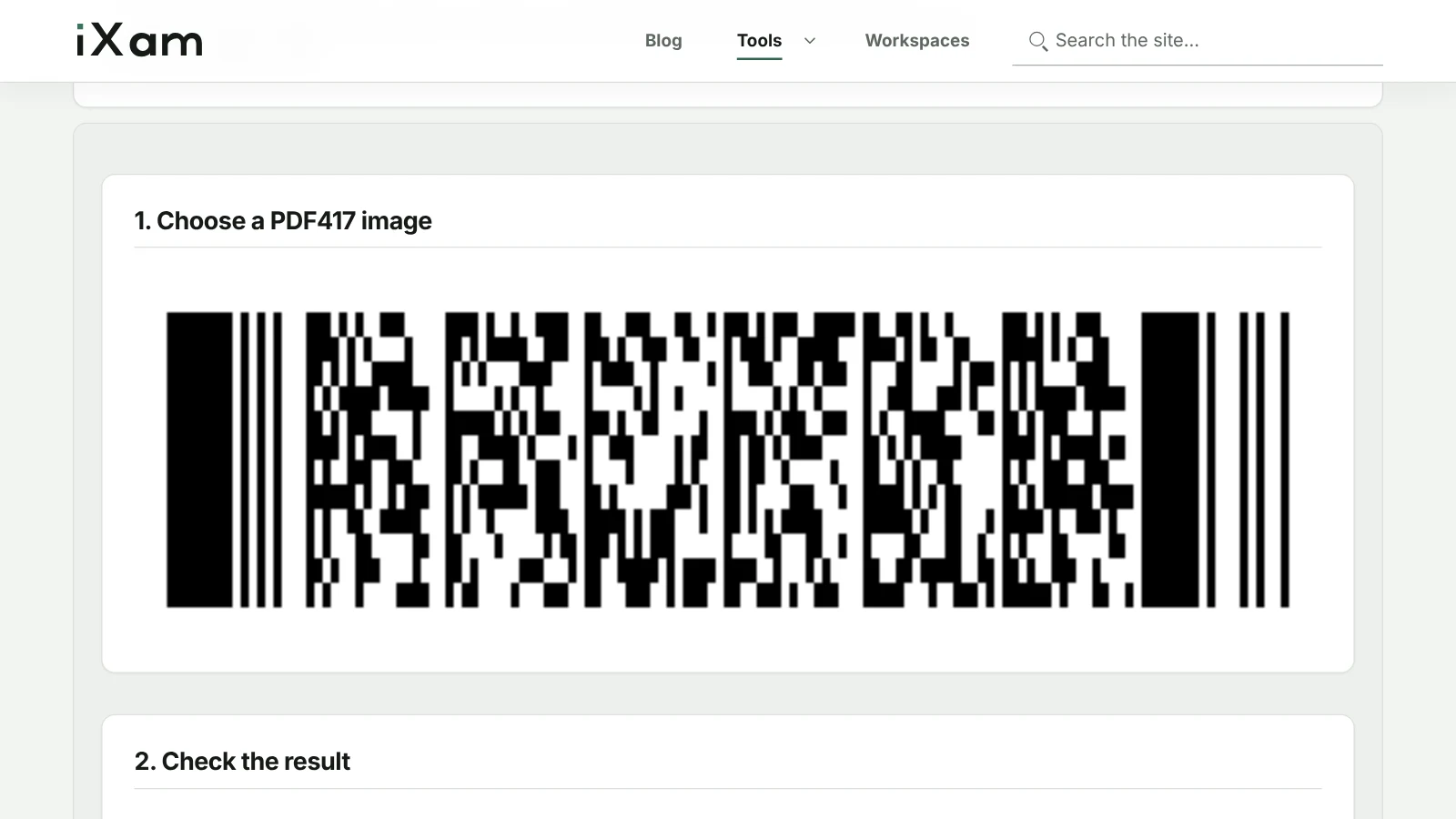
The stripes are a two-dimensional code called PDF417. In the boarding pass standard defined by the International Air Transport Association (IATA), BCBP (Bar Coded Boarding Pass), it is the standard format for paper boarding passes. The content is not encrypted: it is a string of about 60 alphanumeric characters. Read it from an image with this site’s PDF417 Reader, split it at the field widths the standard defines, and anyone can see what it says.
In this article we use an example string written in the BCBP format, generate a PDF417 from it, read it back, and go through the decoded string field by field. At the end we cover something that follows directly from how readable it is: how to handle photos of your boarding pass.
Generate an example PDF417 and read it back with the reader
The example string in BCBP format is the following 60 characters. Every character, spaces included, has a meaning, so do not trim the spaces in the middle when you copy it.
M1DESMARAIS/LUC EABC123 YULFRAAC 0834 226F001A0025 100
Instead of an image of a boarding pass, we first make a PDF417 from this string. Open the PDF417 Generator and paste the string into the input field. The number of columns and the error correction level stay on “Auto”, and the cell size (width of one module) stays at the default 3 px.
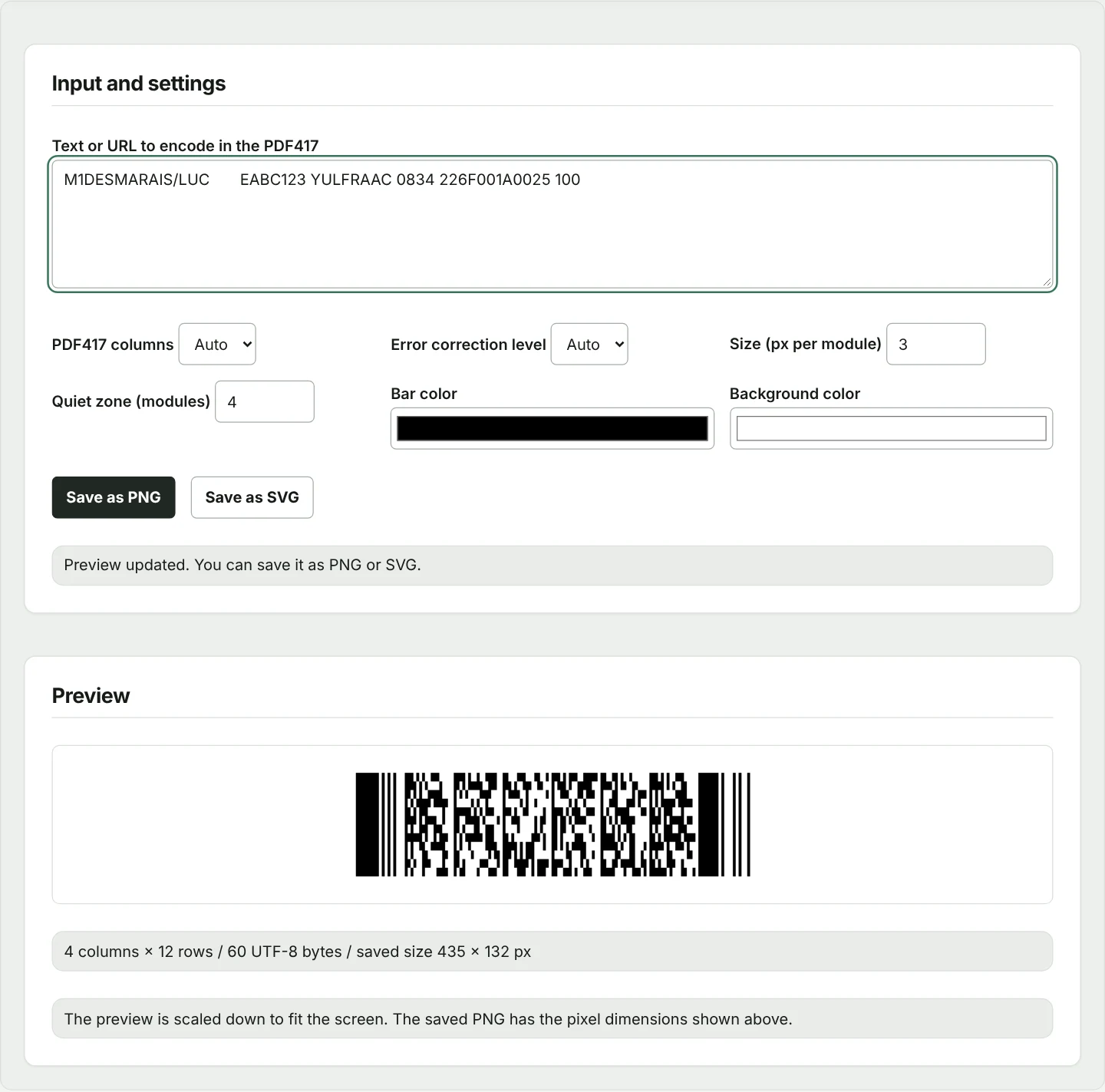
Under the preview it showed “4 columns × 12 rows / 60 UTF-8 bytes / saved size 435 × 132 px”. So this is a 4-column, 12-row PDF417 holding 60 bytes of data. The field widths in the standard, which we will add up shortly, also come to 60, matching the byte count the tool reported.
Next, load the image saved with “Save as PNG” into the PDF417 Reader. You can pick the image with “Choose File”, drag and drop it onto the page, or simply paste a copied image.
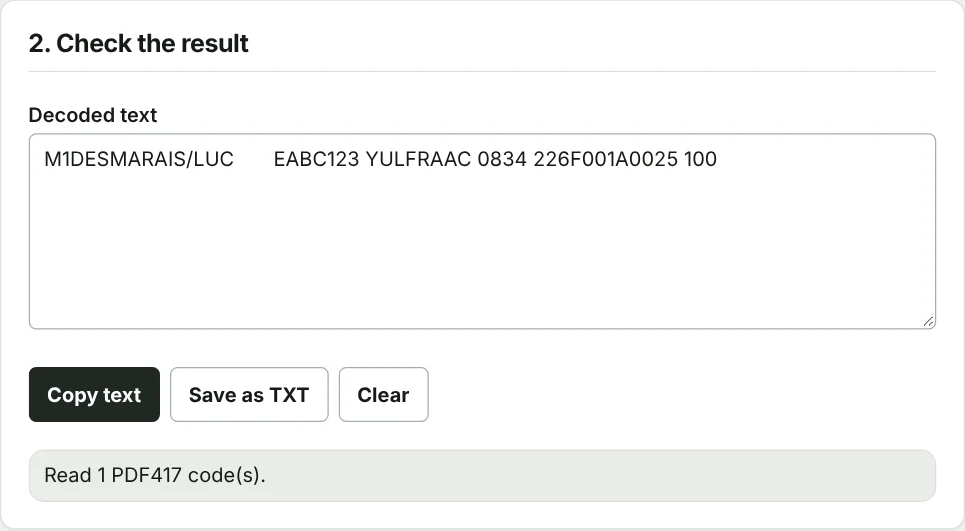
Under “Decoded text” in the result box, the string we entered came back identical, down to the number of spaces. This confirms that PDF417 is simply a string turned into stripes, and the reader just turns it back into the original string. What remains is to cut these 60 characters at the field boundaries.
Cut the 60 characters at the field widths and the itinerary appears
A boarding pass string is a sequence of fields, each with a fixed width, starting from the first character. IATA’s standard calls the fixed-width fields “mandatory items” and lists them in the order below. Alphabetic fields such as the name are left-aligned and padded with spaces, while numeric fields such as the seat number are padded on the left with zeros (the Implementation Guide’s examples are DESMARAIS/LUC______ and 001A).
| Chars | Field | Example value | How to read it |
|---|---|---|---|
| 1 | Format code | M |
Indicates the format of the boarding pass data. |
| 1 | Number of legs | 1 |
The number of legs (flights) contained in this boarding pass. |
| 20 | Passenger name | DESMARAIS/LUC + 7 spaces |
Surname/given name. The remainder is padded with spaces. |
| 1 | Electronic ticket indicator | E |
Shows that the passenger holds an electronic ticket (e-ticket). |
| 7 | Booking reference (PNR) | ABC123 + a space |
The number used to retrieve the reservation. |
| 3 | Origin | YUL |
Airport code. Montreal. |
| 3 | Destination | FRA |
Airport code. Frankfurt. |
| 3 | Operating carrier | AC + a space |
Airline code. |
| 5 | Flight number | 0834 + a space |
A 4-digit flight number, plus a trailing letter if needed. |
| 3 | Date of flight | 226 |
Day of the year, counted from January 1. |
| 1 | Compartment code | F |
The cabin where the passenger sits, not the fare class. |
| 4 | Seat number | 001A |
Padded on the left with zeros. |
| 5 | Check-in sequence number | 0025 + a space |
A running number unique within the same flight. |
| 1 | Passenger status | 1 |
Indicates the check-in status. |
| 2 | Length of the following variable field | 00 |
Hexadecimal. There are no additional fields, so 00. |
Split at those widths, the example reads: “Air Canada (AC) flight 834 from Montreal (YUL) to Frankfurt (FRA), seat 1A, 25th to check in.” The 00 at the end of the example means that no further fields, such as the channel through which the boarding pass was issued or a baggage tag number, follow the booking reference and seat. On a real boarding pass, airline-specific additional information continues from here, so the string is longer.
The widths, such as 20 characters for the name and 7 for the booking reference, are rules that the IATA Implementation Guide explains as necessary so that the parties who read the content (other airlines, lounge and security operators that interoperate with the pass) can all read it with the same widths. That is why, whichever airline issued the pass, the same procedure can split it once you know the positions.
What date is “226” in the date of flight?
The travel date is the field that trips people up most when decoding. The 226 in the example is not a date itself but the day of the year counted from January 1 (January 1 is day 1), and it contains no year information.
To convert a day-of-year number into a month and day, add up the days of each month. In a common year, January through July add up to 31+28+31+30+31+30+31 = 212 days. Subtracting 212 from 226 gives 14, so in a common year it is August 14. In a leap year February has 29 days, so the same 226 is August 13. When converting the number to a month and day, you therefore need to check whether the year in which the boarding pass was issued is a leap year.
The standard also has a separate field for the date the boarding pass was issued (date of issue), written as “the last digit of the year + a 3-digit day of the year”. In the Implementation Guide’s examples, January 1, 2016 is 6001 and December 31, 2016 is 6366. Because the flight date and the issue date use different formats, on a boarding pass that contains both, count the characters so that you do not mix them up.
Reading a boarding pass that differs from the standard’s example
Your own boarding pass may look as if the field boundaries are shifted from the example. There are two main causes.
The first is multiple legs. A boarding pass for a connecting trip has 2 as its number of legs. The format code and passenger name appear only once at the start, while the 37 characters from the booking reference through the compartment code, seat and so on are repeated for each leg. The second is airline-specific additional fields at the end, which push the string well beyond 60 characters. When you count characters, paste the string from the result box into a text editor once and check that the number of spaces has been preserved.
Mobile boarding passes (the kind shown on a smartphone) are displayed not as PDF417 but as an Aztec, Data Matrix or QR code. The standard explains that square two-dimensional codes are used because they fit easily on a smartphone screen. A boarding pass with an Aztec code can be read with the Aztec Code Reader. The PDF417 covered in this article is the standard for paper boarding passes. Version 7 in 2018 extended the standard so that paper boarding passes can also use Aztec, Data Matrix or QR codes, so even on paper you may find a boarding pass whose barcode is not the striped kind.
Why you should not post a boarding pass photo on social media
The string in a boarding pass holds the passenger name, booking reference, flight and seat without any encryption. It is the same content as the printed text, but if the barcode appears in a photo, anyone can read it accurately with a machine.
The IATA Implementation Guide also lists the items that contain no personal information and that identify a boarding pass uniquely by flight and check-in order alone: the date of flight, operating carrier, flight number, check-in sequence number and origin. In other words, the name and the booking reference are not items needed to identify a boarding pass uniquely.
With a booking reference and a surname, you can sometimes get into an airline’s booking management page (how this works differs by airline). When you post travel photos, either hide the boarding pass barcode or leave the image out altogether. Reading in this article should likewise be limited to checking your own boarding pass, photographed by you, on your own device.
When it won’t read, and when the barcode is another format
If a photo of a boarding pass gives no result, check the image first. The PDF417 Reader cannot read a code unless the whole code and the white margin around it are in the picture. If the code appears small in a large photo, crop it with the margin included and load it again. If there are creases or stains, flatten the pass as much as you can and photograph it again. Even when a crease line runs across the bars, PDF417’s error correction can often still read it, but there is no guarantee.
Since this tool handles PDF417 only, use the QR Code Reader for QR codes and the Barcode Reader for linear barcodes such as JAN codes. How to read with a camera is covered in “Reading Barcodes with a Phone or PC Camera”.
If you want to turn a string of your own into a PDF417, the PDF417 Generator can save it as PNG or SVG. To make dozens of address labels or tickets at once, CSV to PDF417 Batch Generator and PDF Printer creates PDF417 codes in bulk from a CSV and lays them out on A4 PDFs. The tools for creating and reading two-dimensional codes are gathered in the 2D Codes Workspace.