Read barcodes with a phone or PC camera for stocktaking and delivery checks
Use actual screens to learn how to scan one-dimensional barcodes with a phone or PC camera for stocktaking and checking deliveries. Start continuous scanning, copy or save codes as text, and check duplicate records.
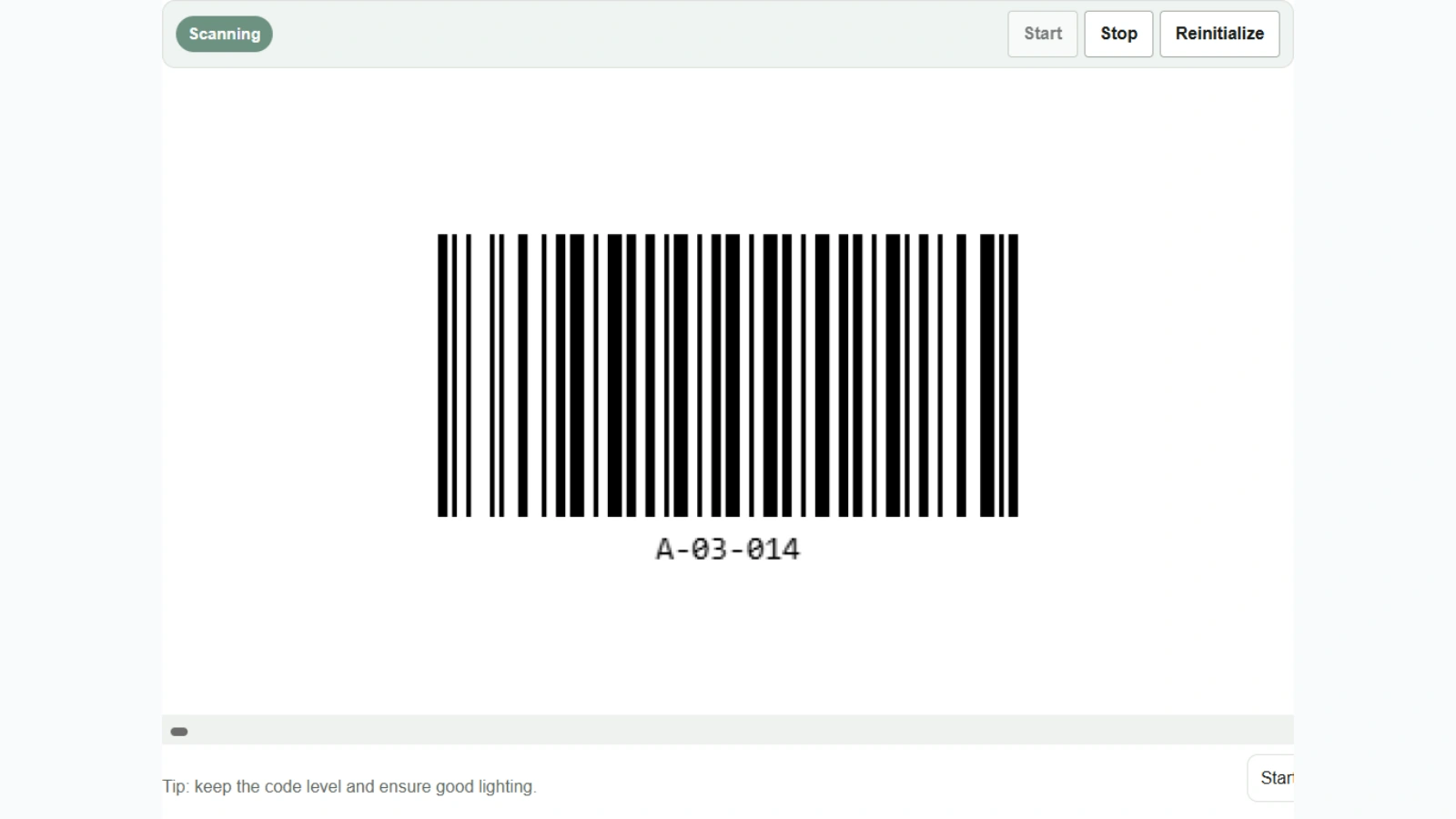
When copying shelf numbers or product codes by hand, it is easy to confuse similar numbers or lose leading zeros. Open the barcode reader to scan one-dimensional barcodes on labels with a phone’s rear camera or a PC webcam and record the codes as text. Scanning takes place entirely in your browser.
Where it can help
- Stocktaking. Walk around the shelves, scan their labels with your phone, and record the shelf numbers you have checked. Count the quantity of each product separately and enter it in the stocktaking sheet alongside the shelf number.
- Checking incoming goods. Connect a webcam to the PC at your workstation and present the labels on boxes or products one by one. Compare the scanned product codes with the delivery note or order data.
- Checking equipment out and back in. Scan equipment asset labels at a reception PC and copy the codes into the equipment register. Record the borrower and date and time in the relevant fields of the register.
Scan shelf labels with the camera
- Select Camera (continuous) under Input mode. To check just one label, select Camera (single).
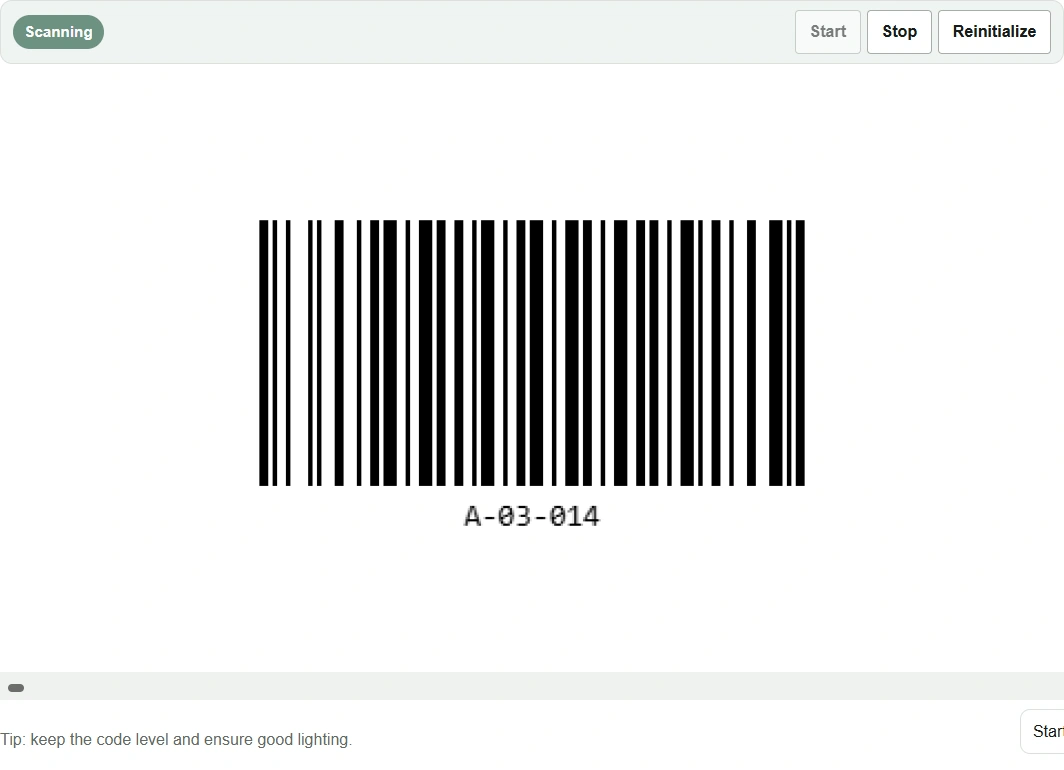
- Press Start in the preview and allow camera access if the browser asks. If multiple cameras are available, switch to the phone’s rear camera or the PC’s external camera.
- Check that Code128 is selected under Symbologies, and hold the Code 128 shelf label level. If light reflects off it, tilt the label slightly and find a distance where the camera focuses.
Copy and save the scanned results
When shelf number A-03-014 appears in Results, compare it with the number printed on the label. Press Stop when you have scanned the labels you need. Use Copy to paste the results into a register, or Save .txt to save them as a text file.
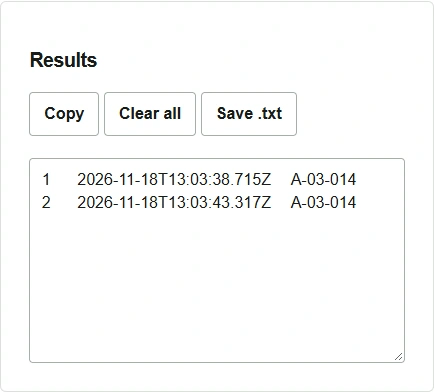
Duplicate lockout prevents the same code from being recorded repeatedly within a specified interval. Holding one label in view for a long time can add another line; conversely, scanning consecutive boxes with the same product code within that interval can leave a record out. Check the number of result lines and the physical quantity separately. When pasting into a spreadsheet, set the destination column to text beforehand to preserve leading zeros in product codes.
If you already have a photograph, select Image (single), load the image, and press Scan. If it cannot be read, check that the appropriate symbology is selected and that the image includes all the bars and the margins on both sides.