How to undo git reset --hard: recover lost commits with git reflog, and how much uncommitted work you can save
Ran git reset --hard HEAD~2 and lost commits you needed? Find the previous position with git reflog and move the branch back. I reproduced every case in a real repository: recovering staged (git add) changes with git fsck, why unstaged edits cannot come back, restoring a branch deleted with git branch -D or a dropped stash, and how long reflog entries last.
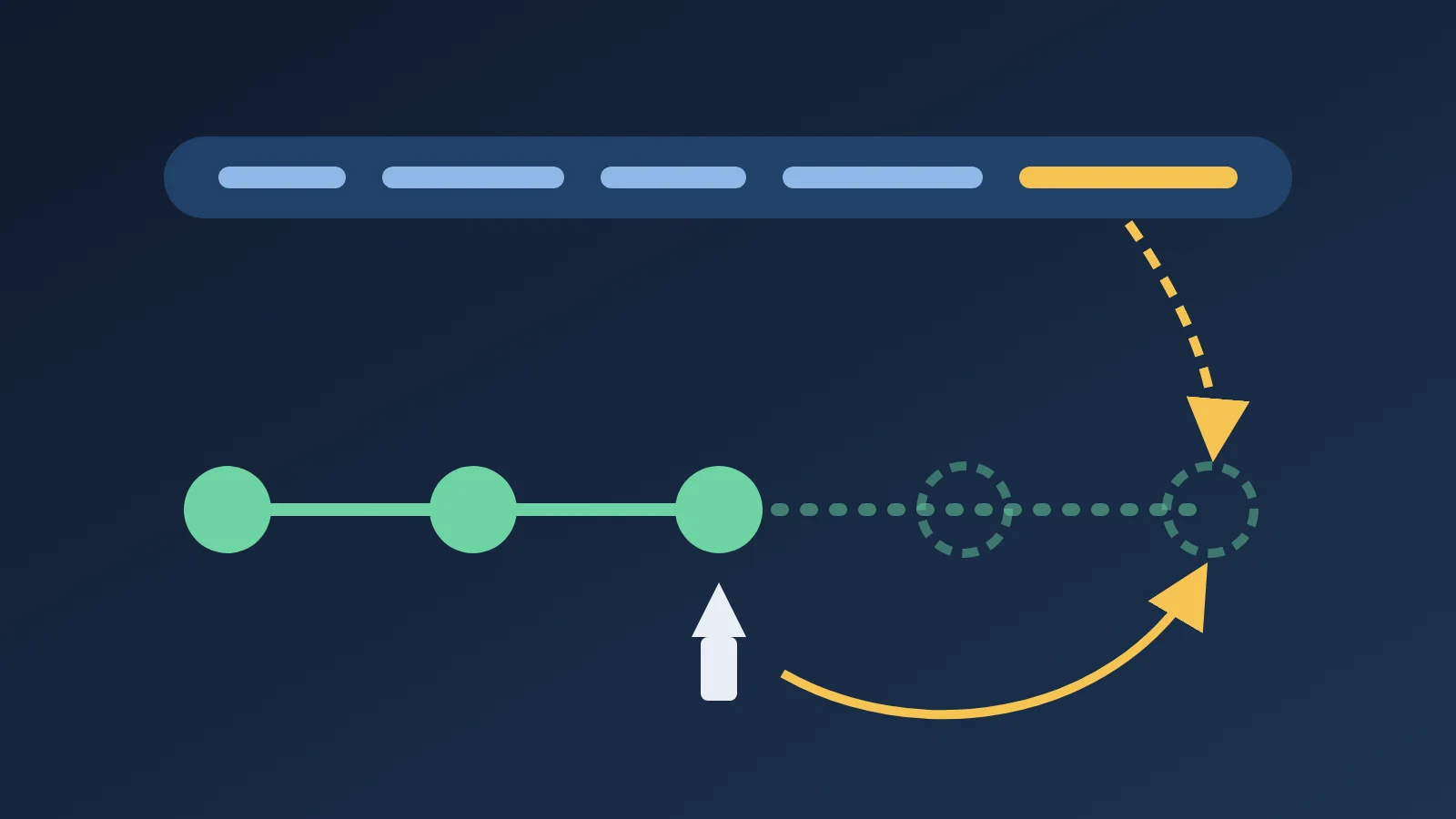
I meant to undo just the last commit, but I typed git reset --hard HEAD~2. When I looked at git log, both of the commits I had been stacking up since yesterday were gone. Maybe you typed HEAD~2 instead of HEAD~1, miscounted in git log before undoing, or thought you were on a different branch. Whatever the trigger, on screen it looks as if the commits have vanished without a trace.
In reality, what you committed is not gone. git reset only moves the commit a branch points to, and the commits left behind stay in the repository for a while. Where the branch used to point is written in the reflog (the record of reference movements), so you can find the old position there and point the branch back at it.
What you can rescue, though, stops at committed content. For changes you had not committed, the outcome depends on whether you had run git add. In this article, besides the steps to undo the reset, I try each case one by one in a small repository to see which kinds of changes come back and which don’t.
The output was captured with Git 2.43.0 (Ubuntu 24.04). The commit dates are fixed, so you can reproduce the same hashes with the steps at the end of the article.
1. The example repository
I’ll use a repository for an online shop’s settings file, config.yml, where items were added in four separate commits.
$ git log --oneline
c2690fd 冬のクーポンを追加
da4bc1d 返品期限を追加
75002f9 送料を追加
98fb7fc 初期設定
The commit messages are in Japanese. From the bottom up they mean “Initial settings”, “Add shipping fee”, “Add return deadline” and “Add winter coupon”. I’ve left them as they are because the hashes in the reproduction steps depend on them.
Now suppose I wanted to undo only the coupon but went back two commits by mistake.
$ git reset --hard HEAD~2
HEAD is now at 75002f9 送料を追加
$ git log --oneline
75002f9 送料を追加
98fb7fc 初期設定
“Add return deadline” and “Add winter coupon” have disappeared from git log, and config.yml has gone back to the version that ends with the shipping fee.
2. Don’t rush into the next command
Right after the commits seem to vanish, it’s tempting to run git reset again, try to fetch everything back with git pull, or run git gc to see whether that fixes anything. All of these only get in the way of recovery.
- Each extra
git pullorgit resetadds entries to the reflog and makes the position you want harder to find. It also overwritesORIG_HEAD, which I’ll come back to later. git gc --prune=nowdeletes objects that nothing refers to, right now. That includes things that have dropped out of the reflog.- If you had already pushed the same commits to the remote,
git pullmight bring them back, but commits that exist only on your machine, as in this case, are not on the remote.
First, stop what you’re doing and type the git reflog from the next section.
3. Find the old position in the reflog and go back
git reflog shows, newest first, which commits HEAD has pointed to.
$ git reflog
75002f9 HEAD@{0}: reset: moving to HEAD~2
c2690fd HEAD@{1}: commit: 冬のクーポンを追加
da4bc1d HEAD@{2}: commit: 返品期限を追加
75002f9 HEAD@{3}: commit: 送料を追加
98fb7fc HEAD@{4}: commit (initial): 初期設定
HEAD@{0} is the current position, and “reset: moving to HEAD~2” is the operation I just ran. The line below it, HEAD@{1}, is where HEAD was just before the reset, and it points to c2690fd 冬のクーポンを追加 (“Add winter coupon”). HEAD@{n} means “the commit HEAD pointed to n moves ago”, which counts differently from HEAD~n, which follows a commit’s parents.
Before going back, check that this commit is really the one you’re looking for.
$ git show --stat HEAD@{1}
c2690fd 冬のクーポンを追加

 config.yml | 1 +
 1 file changed, 1 insertion(+)
The reflog lists every reset, checkout, merge, rebase and so on, so after a long day of work it can run to dozens of lines. Use the commit messages and the “reset: moving to …” line as clues, and look for the line just below the operation you want to undo. With git reflog --date=iso, each line gets a timestamp, so you can also search by time, as in “the state around 3 p.m.”
Once you’ve checked, point the branch back at that commit. To be safe, create a rescue branch first; then, if you miscount the number in the next command, you can still get back from rescue.
$ git branch rescue HEAD@{1}
$ git reset --hard HEAD@{1}
HEAD is now at c2690fd 冬のクーポンを追加
$ git log --oneline
c2690fd 冬のクーポンを追加
da4bc1d 返品期限を追加
75002f9 送料を追加
98fb7fc 初期設定
All four commits are back, and so is config.yml. Once you’ve confirmed everything, you can delete the rescue branch with git branch -D rescue.
Instead of HEAD@{1}, you can pass the hash shown in the reflog, c2690fd, directly; the result is the same. If you’ve done nothing else since the reset, git reset --hard ORIG_HEAD also works. Git automatically writes the position from before a reset, merge or rebase into ORIG_HEAD. It is overwritten by the next reset or merge, however, so if you’ve done any work in between, checking the reflog is the safer route.
Removing only the commit you meant to remove
With everything restored, redo what I wanted in the first place: undo only the coupon. This time, go back just one commit with HEAD~1.
$ git reset --hard HEAD~1
If the commit you want to undo has already been pushed, use git revert c2690fd, which creates a commit that cancels it out, rather than reset, which rewrites history. If you rewrite shared history with reset and force push, your branch will diverge from the copies of everyone else working on it.
4. What happens to changes you hadn’t committed
So far we’ve only dealt with committed content. Besides moving the branch, git reset --hard throws away changes in the working tree and the staging area (the index). Whether discarded changes can come back depends on whether they had ever been handed to Git.
To test this, I prepared three changes in different states:
- Changed the price in
config.ymlto 1200 and rangit add - Created a new file
notes.mdand rangit add - Created a new file
draft.txtbut did not rungit add
$ git status --short
M  config.yml
A  notes.md
?? draft.txt
$ git reset --hard
HEAD is now at c2690fd 冬のクーポンを追加
$ git status --short
?? draft.txt
config.yml went back to the original price, and notes.md disappeared. draft.txt is still there. git reset --hard only deals with files Git tracks; it doesn’t touch new files you’ve never run git add on (git clean is what deletes those).
Staged changes can be picked up with fsck
As soon as you run git add, Git stores the file’s contents in the repository as a blob (an object holding file contents). Even after reset removes it from the index, the blob itself survives for a while, so use git fsck to look for blobs that nothing refers to.
$ git fsck --lost-found
dangling blob 3a4f9578cdc2f7cd46a34a319f9e36a62040627d
dangling blob 9e2600fb38e818c5907e462f41a2860a1251ba5f
With --lost-found, the contents of the blobs it finds are written to .git/lost-found/other/ as files named after their hashes.
$ cat .git/lost-found/other/3a4f9578cdc2f7cd46a34a319f9e36a62040627d
メモ
$ cat .git/lost-found/other/9e2600fb38e818c5907e462f41a2860a1251ba5f
price: 1200
shipping: 500
return_days: 14
coupon: WINTER
Out came the contents of notes.md (the Japanese word for “memo”) and the config.yml with the price set to 1200, exactly as they were. A blob holds only the contents, though; no file name or directory information is kept. You have to work out which file was which from the contents and copy each back to where it belongs. If you ran git add on a file several times, each version comes out as a separate blob, so you need to pick the newest one. In a repository that produces a large number of dangling blobs, it’s quicker to use grep -l to find files containing a distinctive string.
Changes you never added don’t come back
On the other hand, if you only edited a tracked file and never ran git add, that change was never handed to Git.
$ echo 'return_days: 30' > config.yml   # edited only, not added
$ git reset --hard
$ git fsck --lost-found
dangling blob 3a4f9578cdc2f7cd46a34a319f9e36a62040627d
dangling blob 9e2600fb38e818c5907e462f41a2860a1251ba5f
Only the two blobs from before show up; there is no new blob containing return_days: 30. That content was never stored anywhere in the repository, so Git has no way to bring it back. Your remaining hopes are your editor’s local history or unsaved buffers, or OS backups (Windows File History, macOS Time Machine and the like). VS Code and JetBrains IDEs keep a per-file local history, so it’s worth looking outside Git.
To sum up:
| State just before reset –hard | Recoverable? | How |
|---|---|---|
| Committed | Yes | Find the position with git reflog, then git reset --hard or git branch |
Staged with git add (not committed) |
Contents only | Find the blobs with git fsck --lost-found and give them file names yourself |
| Tracked file edited only | Not with Git | Look in your editor’s local history or OS backups |
New file never git added |
Not lost | reset --hard doesn’t touch it (git clean does delete it) |
5. Deleted branches and dropped stashes
Apart from reset, there are other operations that make commits you never meant to delete disappear from view. The idea is the same: as long as something was saved as a commit, you can track it down.
A branch deleted with git branch -D
$ git branch -D feature/sale
Deleted branch feature/sale (was c951953).
The message printed when you deleted it shows the commit the branch last pointed to, c951953. Use it to recreate a branch with the same name.
$ git branch feature/sale c951953
$ git log --oneline -1 feature/sale
c951953 セール設定を追加
(The commit message means “Add sale settings”.) Even if the message has scrolled away, if you were working on that branch it’s still in the reflog of HEAD. The branch’s own reflog is deleted along with the branch, but the HEAD record still shows which commits you were on.
$ git reflog -5
c2690fd HEAD@{0}: checkout: moving from feature/sale to main
c951953 HEAD@{1}: commit: セール設定を追加
c2690fd HEAD@{2}: checkout: moving from main to feature/sale
…
A dropped stash
A stash you removed with git stash drop, or one you wish you could get back after git stash pop, also has its hash shown in the message printed when it was dropped.
$ git stash drop
Dropped refs/stash@{0} (4650118236a1226f4a67271ffaa29d01f6ba5d8f)
There’s a pitfall here. If instead of the full hash shown you type the short form, git stash apply 4650118, it fails.
$ git stash apply 4650118
error: refs/stash@{4650118} is not a valid reference
git stash apply interprets an all-digit argument as the number in stash@{number}, so if your abbreviated hash happens to consist only of digits, it goes looking for stash number 4,650,118. Pass the full hash and it applies.
$ git stash apply 4650118236a1226f4a67271ffaa29d01f6ba5d8f
$ git diff
…
-shipping: 500
+shipping: 600
If the message for a stash has scrolled away, the reflog won’t help either. Stashes are stacked in the reflog of refs/stash, and dropping one deletes that very record. In that case, use git fsck to list the commits that nothing refers to.
$ git fsck --unreachable --no-reflogs | grep commit
unreachable commit 4650118236a1226f4a67271ffaa29d01f6ba5d8f
unreachable commit c951953485719f37f5c04cfdc7f9cb7be0db7cf8
unreachable commit faf1297c9b7ec54ea70856b9a53c5af21fd3a051
$ git log --format='%h %s' --no-walk 4650118236a1226f4a67271ffaa29d01f6ba5d8f c951953485719f37f5c04cfdc7f9cb7be0db7cf8 faf1297c9b7ec54ea70856b9a53c5af21fd3a051
4650118 On main: 送料改定の作業中
c951953 セール設定を追加
faf1297 index on main: c2690fd 冬のクーポンを追加
On main: 送料改定の作業中 (“work in progress on the shipping fee change”) is the stash itself, carrying the message I gave it with git stash push -m. index on main: … is a commit that stash creates internally to save the state of the index, so when applying, use the hash of the stash itself. c951953 is the commit from the branch I deleted earlier; it also appears in this list until you recreate the branch.
6. How long can you still recover?
Reflog entries and unreferenced objects don’t last forever. git gc (garbage collection) clears out old ones over time. Even if you never type git gc yourself, it can run automatically as git gc --auto after commits or fetches.
The default expiry periods are as follows; unless you’ve changed them with git config, these values apply.
| Setting | Default | Applies to |
|---|---|---|
gc.reflogExpire |
90 days | Reflog entries pointing to commits reachable from the current branch |
gc.reflogExpireUnreachable |
30 days | Reflog entries pointing to commits not reachable from the current branch (such as commits removed by reset) |
gc.pruneExpire |
2 weeks | Objects nothing refers to (dropped stashes, blobs that were only git added, and so on) |
Commits removed by reset aren’t deleted while they’re listed in the reflog, so you can reach them for 30 days. On the other hand, dangling blobs and dropped stashes, which aren’t in the reflog either, may be removed by the next gc once they’re more than two weeks old. The safe course is to fish them out the same day you notice.
One more thing: the reflog is a record that exists only in that local repository, and it isn’t sent when you push. Even if you clone the same repository again, the new copy’s reflog starts with a single line recording the clone.
$ git clone shop shop-copy
$ cd shop-copy
$ git reflog
c2690fd HEAD@{0}: clone: from /tmp/x/shop
You need to look at the reflog in the same working folder where you ran the reset. If you delete the whole working folder and clone again, commits that existed only on your machine can no longer be recovered.
7. So it doesn’t happen again
It’s hard to avoid situations that call for reset altogether, so get into the habit of running it in a state you can come back from.
-
Mark your position before a big rewind. If you create a branch at the current position, as in
git branch backup-before-reset, you can go back by name without reading the reflog. Delete it only after you’ve checked everything. -
If you have uncommitted changes, use
--keepinstead of--hard.git reset --keep HEAD~1stops instead of overwriting when the changes in the range being undone collide with your work in progress in the same file.$ git status --short M config.yml $ git reset --keep HEAD~2 error: Entry 'config.yml' not uptodate. Cannot merge. fatal: Could not reset index file to revision 'HEAD~2'.When it stops, both the branch and your work in progress are untouched, so stash your changes with
git stashand try again. -
Run
git stashonce before throwing away work in progress. A stash is saved as a commit, so if it turns out you didn’t need it, justgit stash dropit later; if you did need it, you can get it back from the reflog or fsck. If you discard edit-only changes directly withreset --hard, Git can’t bring them back, as shown in the previous section. -
Commit often. Anything committed can be restored with the reflog. Work-in-progress commits can be tidied up with
git rebase -iorgit commit --amendbefore you push.
Note also that files listed in .gitignore and files you’ve never run git add on are outside Git’s protection to begin with. I cover how to check a file’s tracking state in Does .gitignore seem to have no effect? Stop tracking a log and keep your local copy.
Build the same repository as in the article and try it (bash, Git 2.43.0)
The commit dates are fixed with environment variables, so if you also use the same author name and email address, you’ll get the same hashes as in the article. Do the work in a throwaway directory.
mkdir -p /tmp/x && cd /tmp/x
git init -q -b main shop && cd shop
git config user.name "Arima"
git config user.email a@example.com
export GIT_AUTHOR_DATE="2026-11-26T10:00:00+09:00" GIT_COMMITTER_DATE="2026-11-26T10:00:00+09:00"

printf 'price: 1000\n' > config.yml && git add . && git commit -qm "初期設定"
printf 'price: 1000\nshipping: 500\n' > config.yml && git commit -qam "送料を追加"
printf 'price: 1000\nshipping: 500\nreturn_days: 14\n' > config.yml && git commit -qam "返品期限を追加"
printf 'price: 1000\nshipping: 500\nreturn_days: 14\ncoupon: WINTER\n' > config.yml && git commit -qam "冬のクーポンを追加"

# Section 3: go back two commits by mistake, then recover from the reflog
git reset --hard HEAD~2
git reflog
git reset --hard HEAD@{1}

# Section 4: discard staged and unstaged changes with reset --hard
printf 'price: 1200\nshipping: 500\nreturn_days: 14\ncoupon: WINTER\n' > config.yml
printf 'メモ\n' > notes.md
printf 'test\n' > draft.txt
git add config.yml notes.md
git reset --hard
git fsck --lost-found
ls .git/lost-found/other/

# Section 5: delete a branch
git switch -q -c feature/sale
printf 'sale: 20%%\n' > sale.yml && git add sale.yml && git commit -qm "セール設定を追加"
git switch -q main
git branch -D feature/sale

# Section 5: drop a stash
printf 'price: 1000\nshipping: 600\nreturn_days: 14\ncoupon: WINTER\n' > config.yml
git stash push -q -m "送料改定の作業中"
git stash drop
git fsck --unreachable --no-reflogs | grep commit
The hashes in git log and git reflog will match the article. The stash hashes match if you run the operations in the same order as the article. Clean up with rm -rf /tmp/x.
What looks deleted has only had its pointer moved
Commits that vanish from git log after git reset --hard have only dropped out of sight because the branch was made to point somewhere else, and following the reflog lets you bring them back for 30 days. Don’t pile on more commands in a panic: find the line just before the reset with git reflog, check its contents with git show, and then go back. That’s the basic procedure.
The only thing you can’t get back is a change you never handed to Git. If you ran git add, the contents can be picked up; if you committed, the whole position can be restored. Put the other way around, just slipping a git stash or a commit in before the reset means you’ll lose almost nothing.
I’ve written about how the merge method changes a PR’s diff in Why merged files reappear in a GitHub PR after Squash and merge.