Turn an MP3 or WAV song into piano MIDI: a browser-made draft for transcribing by ear without perfect pitch (accuracy and inner workings, tested on “Twinkle, Twinkle” and Japan’s national anthem)
How to use, and how it works: a browser tool that turns MP3, WAV, FLAC or M4A audio into a single-track piano MIDI file with melody and chords. On a synthesized “Twinkle, Twinkle, Little Star” (66 known notes) it caught all 66 notes but added 75 extra notes on overtones. The article shows how to spot them, what turning refinement on and off and snapping to 32nd notes change, and how to handle an estimated BPM that is off in a DAW. On a recording of Kimigayo, Japan’s national anthem, by the Japan Maritime Self-Defense Force Tokyo Band, it presents the converted audio, the MIDI file and a check against the 47 melody notes. It also covers transcribing by ear from the draft without perfect pitch, how Basic Pitch is combined with post-processing, and how vibrato turned into false notes a semitone away or on overtones.
Contents
You want to play a favorite song on the piano, write out a phrase for your band, or re-enter a part in your DAW. The first chore in each case is transcribing by ear: stopping the recording again and again and hunting for the notes on a keyboard. It is tempting to hand at least the rough draft to a machine. Search for “MP3 to MIDI” and you will find plenty of conversion services, but most of them upload your audio to a server, and I hesitate to send off an unreleased recording of my own or audio a client has entrusted to me. Being asked to create an account just to try something is a nuisance too.
So I built Audio to Piano MIDI Converter, which loads an audio file and converts it into piano MIDI entirely inside the browser. It picks out the pitched sounds in WAV, MP3, FLAC or M4A audio and writes all of them into a single-track MIDI file played on piano. For transcription it uses Basic Pitch, a pre-trained model published by Spotify, and neither the audio nor the analysis results are sent anywhere. In places it falls short of paid transcription services built on large AI models, but it has reached the point where you can usually tell what the original song is. For a conversion that does not rely on a large AI, I think it does pretty well. With a draft from this tool, you can transcribe by ear even without perfect pitch.
Turning audio into notes, however, is not a calculation with a single right answer. If you use the tool without knowing what kind of notes come out and what needs fixing, the number of extra notes will puzzle you. In this article I convert synthesized audio whose notes are known, check the resulting MIDI note by note, and use that to explain how to operate the tool and how to read its results. After that I check how recognizable the MIDI is for a real recording (Kimigayo, Japan’s national anthem), show how to go on from this draft to a full transcription without perfect pitch, and describe how the conversion runs inside the browser.
Drums and timbre are dropped; only pitched sounds become piano
First, it helps to be clear about what the tool produces. The output is a Standard MIDI File (SMF Type 1) consisting of one piano track (General MIDI program 001, Acoustic Grand Piano) and a control track that records the tempo.
Even if the original song has vocals, guitar and bass, the tool does not split them into tracks per instrument. All pitched sounds go into the same piano track. Unpitched sounds such as drums are not written, and the drum channel is not used.
The resulting MIDI is therefore best thought of not as a finished score but as a draft you will edit in a DAW or notation software. Where you will need to edit it becomes clear in the following sections, which look at actual results.
Testing with “Twinkle, Twinkle, Little Star”, where the right answer is known
To judge a conversion result in numbers, you need audio whose score is known. So I prepared a 66-note score of “Twinkle, Twinkle, Little Star”, consisting of the 12-bar melody (42 notes) and a bass that plays one note every two beats (24 notes), and rendered it to audio in Python. The tempo is quarter note = 96 (96 BPM) and the length is 31 seconds. Each note stacks five overtones on the fundamental frequency and decays right after it is struck, giving a piano-like sound. I also made a second file with the same performance plus sounds imitating a kick drum, snare and hi-hat.
I loaded these WAV files into the tool page opened in Chromium, read the saved MIDI files with a script I wrote, and compared them with the original 66 notes. A note counted as a “match” when it had the same pitch and its onset was within 50 milliseconds of the original.
The screenshots of the “Twinkle, Twinkle” test were taken on the Japanese version of the tool. The English and other language versions have the same layout and behavior.
Loading an audio file
When you open the tool, the “01 Load audio” panel appears.
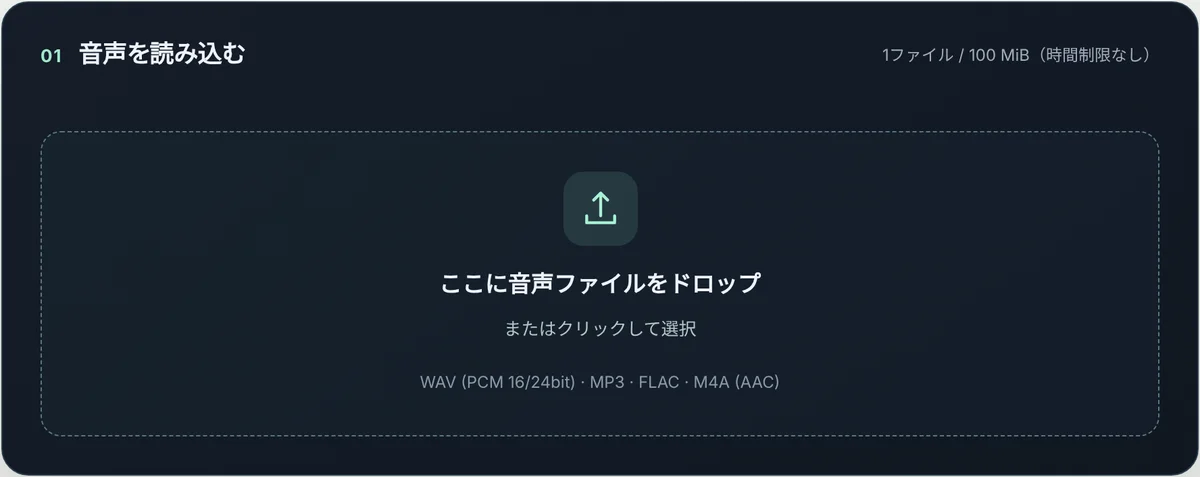
Drag and drop an audio file onto the dashed box, or click the box and pick a file. Supported formats are WAV (16-bit or 24-bit PCM), MP3, FLAC and M4A containing AAC, up to 100 MiB per file. There is no limit on the length of the song.
For WAV, only 16- and 24-bit PCM is supported. A file exported from a DAW as 32-bit floating-point WAV cannot be loaded, so export it again as 24-bit, or use MP3 or FLAC. Video files such as MP4 or MOV and DRM-protected files are not supported either.
Once you choose a file, the analysis begins and its progress is shown as a percentage. Because the analysis runs on your own device, how long it takes depends on the device’s performance and the length of the song. The 31-second audio used here finished in about 6 seconds on my test environment. To stop partway, press “Cancel”.
The four numbers and the note layout on the result screen
When the analysis finishes, the “02 Results” panel opens.
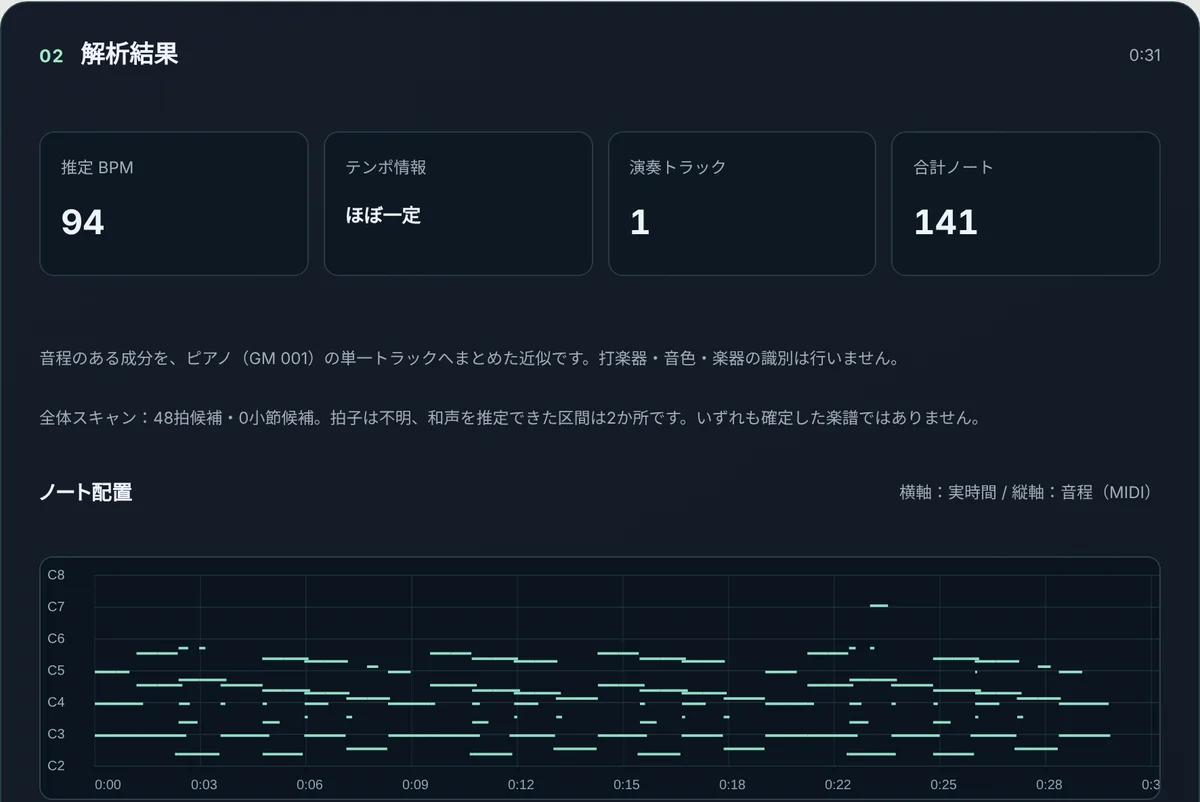
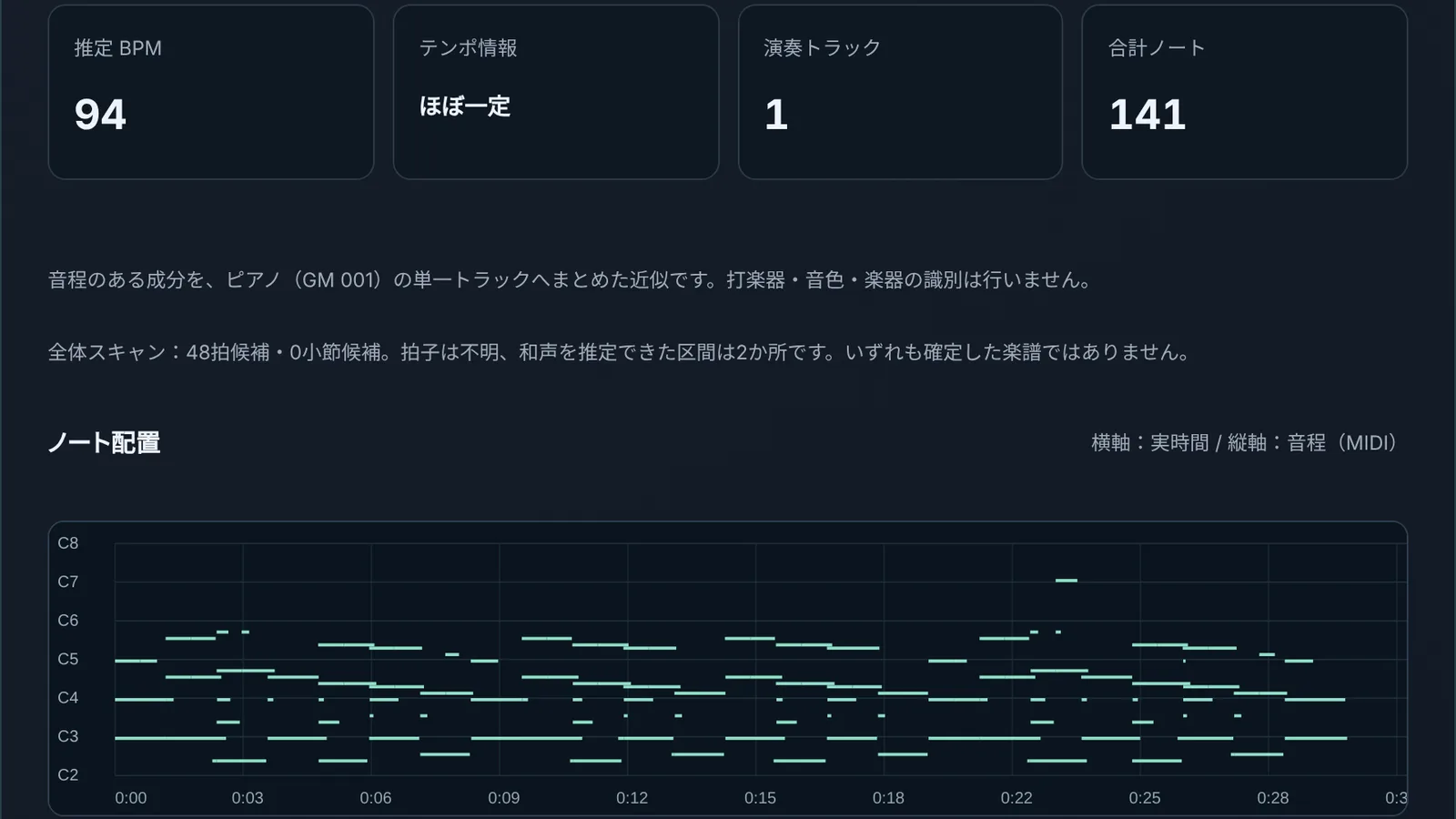
The four fields at the top are the estimated tempo (BPM), whether the tempo changes during the song, the number of tracks, and the total number of notes to be written. Tracks is always 1.
This time the estimated BPM was 94 and the total was 141 notes. The real tempo is 96 and the score has 66 notes, so both differ from the right answer. The “Full scan” line below is the result of searching the whole song for beat, bar and chord candidates; here the meter could not be determined and was reported as “unknown”. The tool is designed to leave undecided anything it cannot say for certain from the audio.
The “Note layout” is a piano roll with time on the horizontal axis and pitch on the vertical axis. The bass sits around C3 and the melody runs from C4 to C5, and up to that point it looks just like the score. Above that, between C5 and C6, there is another row of short notes shaped much like the melody. These account for most of the difference between 141 and 66.
Most of the 75 extra notes sat on overtones
When I compared the saved MIDI with the original score, all 66 notes of the score were found at the same pitch with onsets within 50 milliseconds. The onset difference averaged 3.9 milliseconds, and no notes were missed. The remaining 75 notes were extra notes that are not in the score.
Of those 75 extra notes, 55 were exactly one octave above a note that was sounding at the time. Counting every pitch that corresponds to an overtone of a sounding note, such as an octave plus a fifth above (12 + 7 = 19 semitones) or two octaves above, brings the total to 63. The sound of an instrument contains components at 2, 3, 4 … times the frequency of the fundamental (overtones). The 2× component has the same pitch as the note an octave up, and the 3× component the same pitch as the note an octave and a fifth up, so strong overtones were picked up as separate notes. In this synthesized sound the 2× component is at 60% of the fundamental’s strength, which makes the overtones quite strong. The other 12 notes were short notes of 0.14 seconds or less around the points where the bass changed.
The extra notes had one more thing in common. The velocities (key-strike strength, 1–127) of the 66 notes from the score ranged from 86 to 116, while the 75 extra notes ranged from 16 to 84 — all weaker. The “velocity of weak notes adjusted: 40 notes” shown in the results panel is the number of notes with weak evidence that were written out more softly.
Notes an octave up tend to blend into the original note when played on piano, so you may not notice them just by listening. They stand out when you turn the MIDI into a score or switch it to another instrument’s sound, so they are the first thing worth cleaning up.
Comparing with refinement on and off
The lower half of the results panel has two settings you choose before previewing and saving.
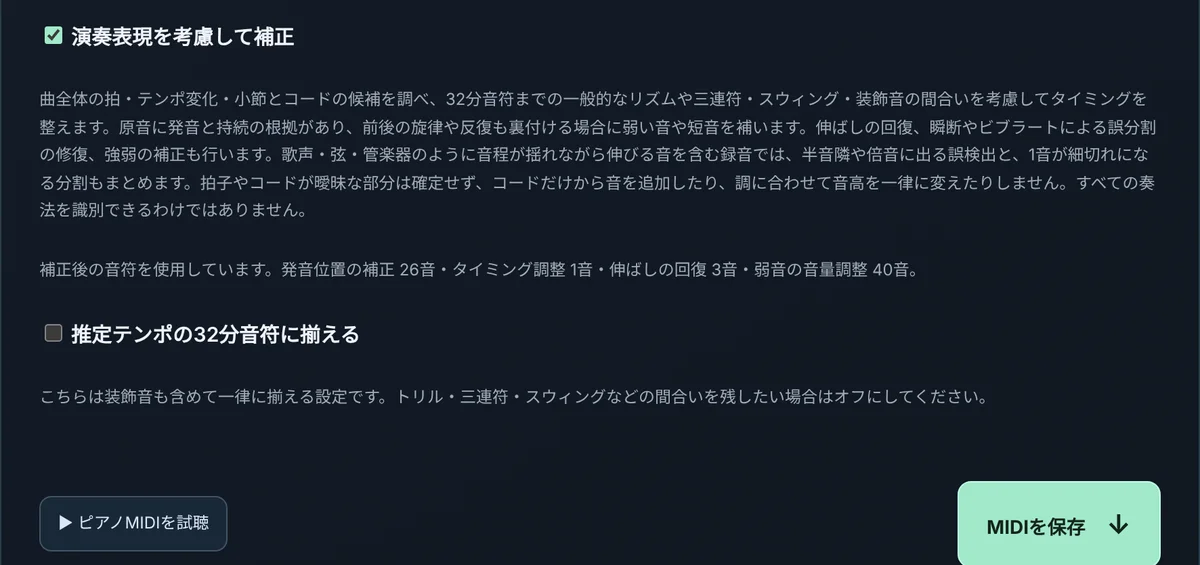
“Refine for musical expression” is on by default. It checks the notes produced by the model against clues from the whole song — beats and tempo, note onsets and sustains — and corrects onset positions, sustains that broke off partway, notes chopped into pieces, and dynamics. This time it reported “onsets corrected: 26 notes · timing adjusted: 1 notes · sustain restored: 3 notes · velocity of weak notes adjusted: 40 notes”.
If you uncheck it, the tool switches to the unrefined notes without analyzing again, and the note layout, preview and saved file all use the unrefined version. When I also saved the unrefined MIDI for the same audio and compared the two, the difference showed up in the onset positions.
| Audio | Refinement | Notes matching the score | Onset difference (mean) | Notes written |
|---|---|---|---|---|
| Piano only | Off | 65 / 66 | 12.9 ms | 141 |
| Piano only | On | 66 / 66 | 3.9 ms | 141 |
| With drums | Off | 64 / 66 | 14.8 ms | 145 |
| With drums | On | 66 / 66 | 3.5 ms | 145 |
Without refinement, onsets were off by 13–15 milliseconds on average, and some notes fell outside the 50-millisecond threshold and counted as misses. With refinement the offset dropped to 4 milliseconds or less, and all 66 notes matched for both files. The number of notes written, on the other hand, did not change. Refinement also includes steps that add short notes with solid evidence or remove weak isolated notes, but here only the steps that tidy the position, length and strength of the detected notes took effect. The extra notes from overtones were not removed by refinement either; they were written out more softly.
As the explanation of the setting says, not every playing technique can be identified. If a result sounds different from the original, turn refinement off, compare the two by ear, and save whichever is closer to the original.
Snapping to 32nd notes lines notes up with the beat but changes the spacing
The other setting, “Snap to 32nd notes at the estimated tempo”, moves the start and end of every note to the nearest 32nd-note position at the estimated tempo. It is off by default.
In MIDI saved with it on, the mean onset difference was 18.9 milliseconds — further from the original performance than with refinement alone (3.9 milliseconds). The estimated tempo here was 94, so 32nd notes are about 80 milliseconds apart. The notes moved away from their real times by however much they were pulled onto that grid.
The reason to snap anyway is that notes line up on the beat lines when you view them in a DAW or turn them into a score. If the MIDI is the basis for re-entering a part, snapped notes are easier to work with. On the other hand, in performances where fine spacing matters — trills, triplets, swing — that spacing is also forced onto the grid. As the tool’s explanation says, save such performances with the setting off. For songs whose tempo could not be estimated, this setting is unavailable.
Adding drums did not produce drum notes
The results for the audio with drums are in the table in the previous section. It wrote 145 notes, four more than without drums, and all 66 notes of the score matched. The MIDI file had no notes on the drum channel (channel 10), and the snare and hi-hat did not show up as masses of piano notes at plausible-looking pitches.
The additional extra notes were, as without drums, mostly at overtone positions. The step that discards unpitched sounds works, at least against drums of this level. In real songs, however, vocals, distorted guitar and reverb overlap, and pitched sounds blend into each other too. The tool’s result screen also says, “Where vocals or several instruments overlap, some notes may be wrong or missing.” A result on synthesized audio does not mean that real songs will reach the same accuracy.
Testing on a real recording: Kimigayo
Synthesized audio is good for checking answers, but real recordings have overlapping instruments and wavering pitch. So I also checked how recognizable the MIDI is for a real performance. The audio I used is a performance of Kimigayo, Japan’s national anthem, published on the website of the Japan Maritime Self-Defense Force Tokyo Band (a 72.7-second MP3). It opens with an introduction built on the first two bars of the melody, followed by the 11 bars of the anthem itself. Because the pitches of the melody are fixed by the score, it is a good subject for checking whether a conversion is correct.
Source: the national anthem “Kimigayo” recording on the Japan Maritime Self-Defense Force Tokyo Band “Download” page (in Japanese).
Here is the MIDI I got by loading it into the tool and converting it with the default settings. It is rendered with the same simple piano synthesis as the tool’s “Preview piano MIDI”, playing the MIDI notes exactly as they are.
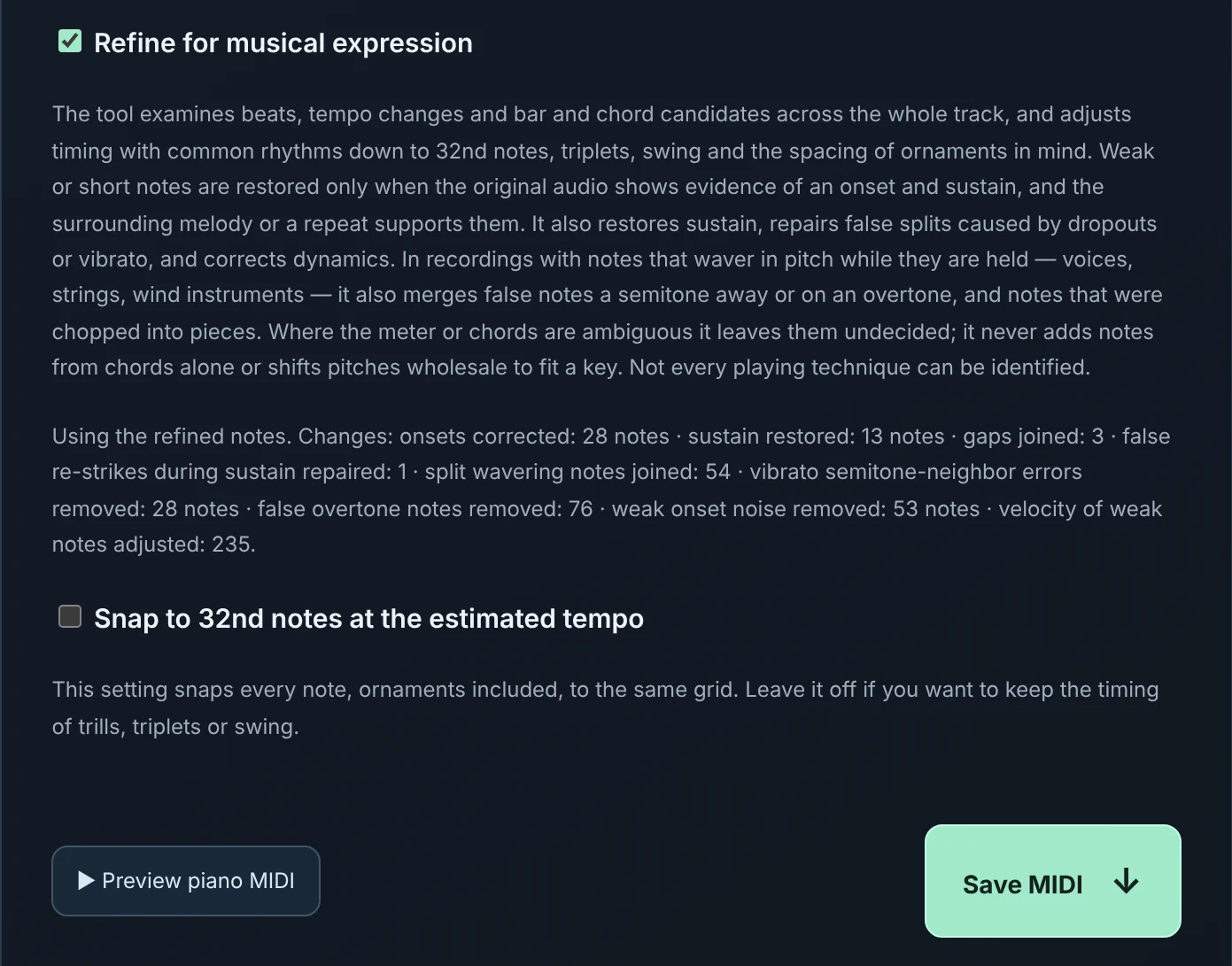
The converted MIDI file (kimigayo01_piano_improved.mid) is available too. Open it in a DAW or notation software and you will find 386 notes on a single piano track.
For comparison, here is the sound with “Refine for musical expression”, covered in the previous sections, turned off. It is the model’s notes laid out as they are, 601 in all.
Listening to them side by side, the unrefined version has notes a semitone off and high notes warbling in every time a long note is held. With refinement much of that noise is gone and the melody is easier to follow. The accompaniment’s chords remain as piano notes too, so it sounds less like Kimigayo arranged for solo piano and more like every part squeezed onto one piano. Even so, you can tell right away which piece it is.
The result screen showed an estimated BPM of 148 and 386 total notes. For the 72-second audio, on the Windows machine I measured during development, model inference took about 9 seconds and post-processing about 2.4 seconds.
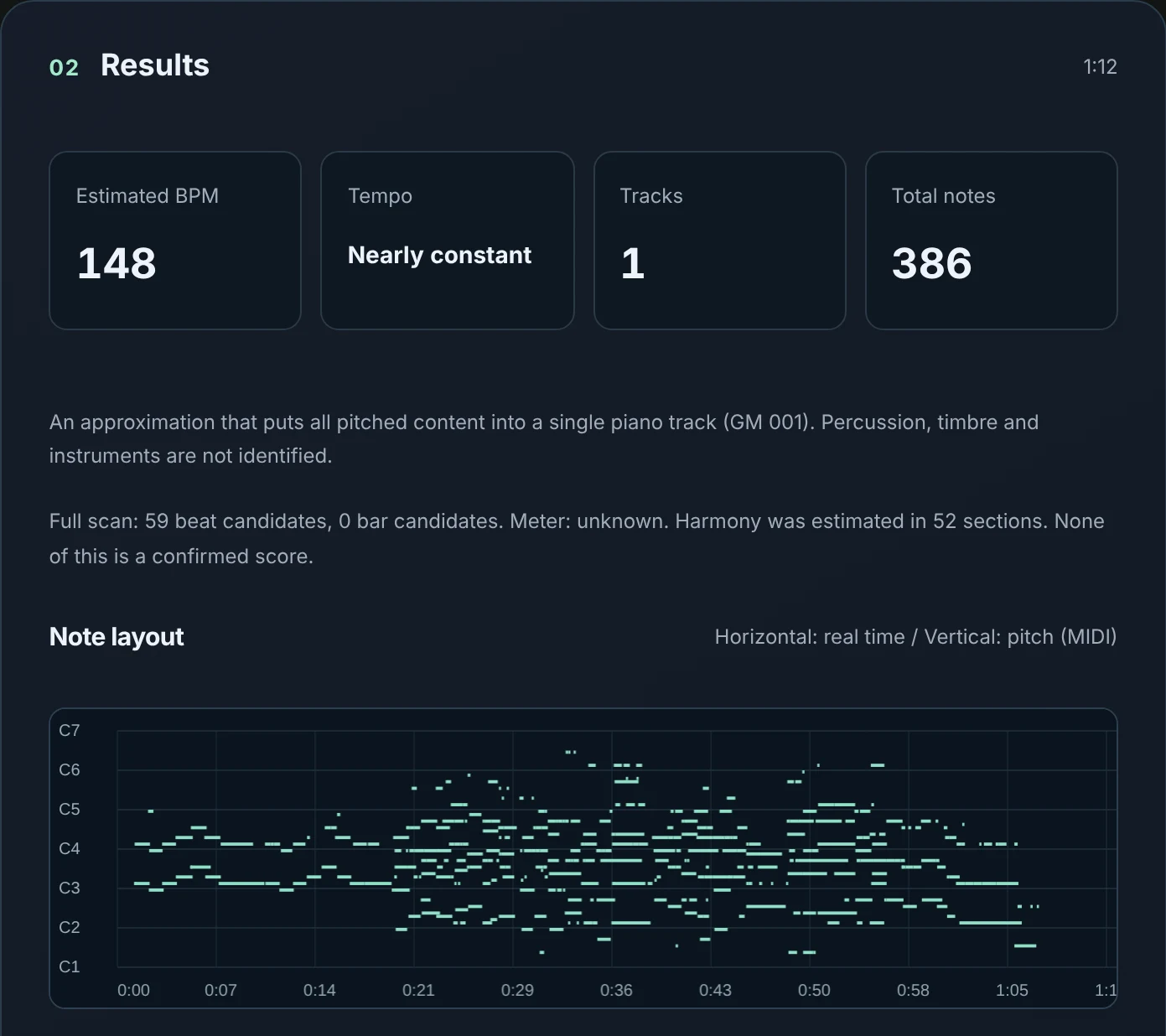
The actual beat of this piece is very slow, around 45 quarter notes per minute, so the estimated 148 BPM is wrong. In a piece with many long notes and no percussion clearly marking the beats, tempo estimation easily goes astray.
Far more refinement steps took effect here than with “Twinkle, Twinkle”. The breakdown lists notes that waver while sustained being joined back together and false notes on overtones or a semitone away being removed.
Almost all 47 melody notes were caught
Let me put “you can tell which piece it is” into numbers as well. The Kimigayo melody has 47 notes: 7 in the introduction and 40 in the anthem itself. I laid out the melody as written, estimated from the original audio where each note sounds in the performance, and counted whether the conversion had a note of the same name starting near that time. The reference times come from analyzing the original audio and include an error of about 0.1 seconds.
| Metric | Before the last improvement | Now |
|---|---|---|
| Number of notes | 597 | 386 |
| Short notes under 0.1 s | 128 | 15 |
| Notes outside the C major scale | 65 | 14 |
| Notes whose semitone neighbor is stronger in the original | 71 | 16 |
| Extra fragments at the same pitch overlapping a melody note | 170 | 97 |
| Melody onsets detected within ±150 ms | 47 / 47 | 46 / 47 |
Both columns are with refinement on. “The last improvement” refers to the vibrato countermeasures described in a later section.
The melody is detected for 46 of 47 notes. The one missing note is a side effect of the improvement joining fragments of the same note: its onset ended up about 0.12 seconds earlier, so the note itself did not disappear. Meanwhile, short notes, notes outside the scale, and “notes that are not really sounding” — ones whose neighbor is stronger in the original — dropped to roughly a quarter to an eighth with the last improvement.
“Notes outside the C major scale” include correct ones such as the F♯ that appears in the accompaniment’s chords, so zero is not the right answer. Nor are all 97 extra fragments errors, because in this recording the melody is doubled by several instruments whose notes end at different times. Treat these figures not as exact measurements of the errors but as a rough gauge of the noise.
Handling an estimated BPM that differs from the real one in a DAW
Now for the BPM discrepancy. For “Twinkle, Twinkle” the estimate was 94, two less than the real 96.
The notes in the saved MIDI are placed at their actual times in the audio, using the estimated tempo. So when you play the MIDI in a DAW, the notes sound at the same moments as in the original. What drifts is the relationship between the notes and the bar and beat lines. Forty-eight beats at tempo 94 reach about 30.6 seconds from the start, while 48 beats of the real performance take 30.0 seconds, so near the end of the song the beat lines and the notes are about 0.6 seconds apart — roughly one beat at tempo 96.
Even when the estimate is far off, as with Kimigayo at 148 versus about 45, the note times are still recorded correctly in seconds, so the preview and the piano roll look fine. If you plan to make a score from the MIDI or line its beats up with other parts, check the original’s tempo before using the result. Once you know the tempo, you set the DAW to it and realign the note positions. Another option is to use Performance Duration Calculator (BPM and Bars), which works out the performance time from the number of bars and the tempo, to check whether a combination of song length and tempo adds up. Its use is explained in “Calculate performance duration from BPM and bars”.
Without perfect pitch, this tool’s draft is enough to transcribe by ear
At the start I wrote that you can transcribe by ear without perfect pitch. Here is why. Perfect (absolute) pitch is the ability to name a note you hear — D or C — without a reference note. Most of what transcribing by ear actually draws on, however, is relative pitch: hearing the difference in height between two notes. Once you know the first note, you can find the rest by playing them on an instrument and comparing: “the next one went down a little”, “from there it went up three”.
Where people without perfect pitch usually get stuck is that first note and the key of the song. Playing keys one by one from the end of the keyboard to find the one that matches takes time. With a thick accompaniment, it is hard even to hear which line is the melody. The MIDI from this tool takes over exactly this part. Picking out only the long notes of the introduction from the Kimigayo conversion gives the following.
| Time | Notes in the conversion (appearing in two octaves) |
|---|---|
| 1.3 s | D3, D4 |
| 2.3 s | C3, C4 |
| 3.3 s | D3, D4 |
| 4.3 s | E3, E4 |
| 5.4 s | G3, G4 |
| 6.4 s | E3, E4 |
| 7.4 s | D3, D4 |
D, C, D, E, G, E, D. That matches the opening of the score exactly. In the performance the same melody sounds in two octaves, so it appears on two levels in the MIDI as well. Even without knowing the right notes beforehand, you get a starting point.
What is left is to check by ear whether this draft is right and fix it. Relative pitch is plenty for that. Here is how to go about it.
- Convert the audio in the tool and save the refined MIDI.
- Open it in a DAW or notation software and follow mainly the top register first to find the sequence of notes that looks like the melody.
- Listen to the original and the MIDI alternately, a few bars at a time, and only where the melody sounds different, move the MIDI notes by a semitone or a whole tone until they match. Whether two notes match is something you can hear without perfect pitch if you play them one after the other.
- Once the melody is settled, look at the low register to pick up the bass line, and sort the remaining notes as chord candidates.
Compared with finding everything from scratch by ear, the work becomes “check whether it is right” and “fix only what is wrong”, which is much easier. Wrong and overlapping notes remain even after refinement. Still, checking and trimming a draft that is close to correct is something you can see through to the end without perfect pitch.
Previewing and saving
Press “▶ Preview piano MIDI” to play the MIDI, with the refinement and snapping settings applied, using a simple piano sound generated in the browser. “Original audio” at the very bottom of the screen plays the source audio, so you can listen to the two alternately. The preview sound is not a recording of a real piano, so listen for whether the sequence of notes matches the original, not for the quality of the tone.
Press “Save MIDI” to download a MIDI file named originalfilename_piano.mid. Here, twinkle-piano.wav produced twinkle-piano_piano.mid. It contains two tracks, “iXam Tempo” recording the tempo and “Piano Copy” holding the performance; the performance was on MIDI channel 1 with a piano sound (program number 0).
Because it is a Standard MIDI File, you can load it into a DAW or notation software to change the instrument, delete extra notes or turn it into a score. If you play a transposing instrument such as the clarinet or trumpet, the piano note names differ from what is written on the staff, so check the transposition with Transposing Instruments Staff Simulator.
When the conversion does not work
When loading or analysis fails, the reason is shown below the load panel. The main ones are as follows.
| Message | Cause and fix |
|---|---|
| Only 16/24-bit PCM WAV files in mono or stereo are supported. | A WAV such as 32-bit floating point. Export it again as 24-bit PCM, or use MP3 or FLAC |
| Supported formats are PCM WAV, MP3, FLAC and audio-only AAC M4A. | An unsupported format such as OGG. Convert it to WAV or MP3 before loading |
| MP4/MOV files that contain a video track are not supported. | A video file. Export just the audio before loading |
| Please use a file of 100 MiB or less. | The file is too large. Split the song, or convert it to MP3 to make it smaller |
| No valid pitches were detected. An empty MIDI file will not be created. | No pitched sound was found, as with silence |
| The audio cannot be processed because of browser memory or length limits. | The device is short of memory. Split the song or close other tabs |
If the analysis finishes but the result screen says “Expressive refinement is not available with this analysis method.”, the device could not run the pre-trained model and the tool fell back to a simpler frequency analysis. In that case the refinement settings cannot be used.
In songs with prominent vocals or many overlapping instruments, besides the false overtone notes seen here, missed notes and confusion with the neighboring semitone also increase. If you cut out just the part you want to learn to play and load that, there is less to check and the amount of fixing is easier to gauge.
Once the notes are picked up and you want to play along on piano or another instrument, you can practice with Metronome sounding the estimated tempo.
A small pre-trained model and hand-written post-processing
From here on, a look inside. I wrote that the tool does not rely on a large AI, but it does not avoid AI entirely. To estimate pitch it uses Basic Pitch, a pre-trained model published by Spotify. It is, however, a small neural network whose weights file is only about 0.7 MB. It runs with TensorFlow.js in a Web Worker inside the browser, so no server or cloud inference API is involved.

The processing runs as shown in the diagram.
- The loaded audio is decoded with the browser’s audio decoder and converted to mono at 22,050 Hz.
- The audio is passed to Basic Pitch in overlapping chunks of about 2 seconds. Roughly every 11.6 milliseconds, the model returns, for each of the piano’s 88 keys, “the probability that a note starts here (onset)” and “the probability that this note is sounding (activity)”. Accuracy drops at both edges of each window, so 15 frames are discarded at each end before the chunks are joined.
- The peaks of probability are tracked for each key and turned into notes (pitch, start, end, strength).
- Post-processing adds, joins and removes notes while comparing the model’s probabilities with the original audio.
- The result is written as a Standard MIDI File (Type 1) with a single piano (GM 001) track.
Basic Pitch is trained to work on any instrument and handles chords as well. Even so, simply turning the model’s output into notes gives the “unrefined” sound you heard above. Almost all of this article’s subject matter is step 4, the post-processing. “Fast repeated notes”, “the middle of a sustained note”, “vibrato” and “overtones” each leave a characteristic shape in the sequence of the model’s probabilities, and hand-written rules tell them apart.
From frequency analysis to Basic Pitch
It was not built this way from the start. I improved the tool over 11 PRs. The broad course was as follows.
| Stage | What I did | Result |
|---|---|---|
| First version | Estimate notes, drums and instrument timbres by frequency analysis and write MIDI with up to 10 tracks | Neither instrument identification nor drum classification reached usable accuracy |
| Stronger analysis | Match the original spectrum against synthesized notes up to 1,000 times; separate percussive components (HPSS) | Only about 26% of the original spectrum could be explained |
| Change of direction | Drop instrument separation and put all pitched sounds on one piano track | The purpose of the output became clear and easier to verify |
| Basic Pitch adopted | Estimate onsets and sustains per key for all 88 keys with the model | On three ensembles synthesized from known scores, F1 for pitch and onset within 50 ms rose from 0.446 to 0.766 |
| Expressive refinement | Restore sustains, repair false splits, reflect dynamics | F1 on synthesized scores with sustained notes and vibrato rose from 0.783 to 0.900 |
| Onsets and rhythm | Align early rises in probability to the onset peak; compare beat subdivisions | On a 60 BPM pattern, the onset error shrank from 28.7 ms to 6.4 ms |
| Whole-song structure | Find beat, bar and chord candidates across the song and use them to decide whether to fill in weak notes | Notes are added only when the evidence lines up |
| Vibrato countermeasures | Clean up false notes, fragments and overtones from wavering sustained notes (next section) | Kimigayo went from 597 notes to 386 |
At first the spec was ambitious: “split tracks by instrument and program the drums too”. Doing that with frequency analysis alone was unrealistic. Even with more spectral matching, less than 30% of the original could be explained. So I narrowed the goal to “turn pitched sounds into MIDI you can play on piano”. That was the first turning point.
The second was adopting Basic Pitch. Comparing piano, guitar + bass, and strings + piano versions synthesized from the same score, F1 rose from 0.446 to 0.766. F1 is a metric that accounts for both missed and false detections; the closer to 1, the better. A gap that no amount of tinkering with hand-written frequency analysis could close was filled by a 0.7 MB model. The frequency-analysis method is still kept as a fallback for devices that cannot load the model.
The improvements after that went into how to read the model’s output. For example, the model’s “sounding” probability rises a little earlier than the actual onset, so the start time is aligned to a nearby peak of the “started” probability. That alone shrank the onset error on a 60 BPM pattern from 28.7 milliseconds to 6.4 milliseconds. Conversely, nothing is moved without evidence. Rhythm correction moves a note by at most 45 milliseconds, and a note with a clear onset peak from the model is moved by no more than half a frame (about 5.8 milliseconds).
With every improvement I run a test that converts 13 synthesized recordings with known scores in a real browser. It checks that the unrefined MIDI matches the previous version byte for byte and that the refined MIDI does not drop any known notes. Something that improves on synthesized audio can get worse on real songs, and the reverse also happens, so both need checking.
Notes wavering while sustained turned into false notes a semitone away and on overtones
The last improvement started when I felt the Kimigayo conversion was “doing well for something without a big AI, but noisy”. Comparing the conversion with the score showed almost no missed melody notes. Most of the noise fell into three kinds.
- False notes a semitone away: with notes held while the pitch wavers — singing voices, wind instruments, strings — the model’s probability periodically spills onto the neighboring keys on both sides. That becomes short C♯ or G♯ notes of around 0.1 seconds.
- One note chopped into pieces: the same wavering raises the “started” peak again and again on the held key. A single note splits into 3–4 fragments on average.
- False overtone notes: the overtones of a low held note (an octave up, an octave and a fifth up, two octaves up, two octaves and a major third up) appear as separate weak notes.
All three can be told apart by looking at the sequence of the model’s probabilities. With a vibrato note, while the center key keeps sounding strongly, the probabilities of the neighboring keys rise and fall several times a second. With sounds that decay after being struck, like piano or guitar, the neighboring keys do not waver this way.
So first, across the whole recording, the tool counts in 0.3-second units the stretches where “the neighbors on both sides of a strongly sustained key waver periodically”. If such stretches make up 2% or more of the whole, the recording is treated as containing wavering sustained notes. For Kimigayo, 30 out of 611 stretches (4.9%) qualified. In synthesized piano and plucked-string recordings the figure is 0%, so their output is unchanged. On top of this judgment, the following four steps are applied in order.
- Remove semitone-neighbor islands: short notes of 0.26 seconds or less where a neighboring key has a sustained note covering the same time whose probability is continuously at least 1.15 times stronger.
- Join fragments: fragments on the same key that follow within 70 milliseconds, where the probability does not drop in between and the new onset peak is weak and coincides with wavering on the neighboring keys.
- Remove overtones: notes of 0.35 seconds or less with low probability that are clearly weaker than the lower key they are an overtone of. If they were struck together with the lower note, they are kept as doubled octaves.
- Remove weak onset noise: notes of 0.1 seconds or less whose probability never clearly rises. Notes protected as part of fast passages are excluded.
Steps 3 and 4 run only when wavering sustained notes are found across the recording, because applying the same rules to piano music would also remove softly played octaves and fast ornaments.
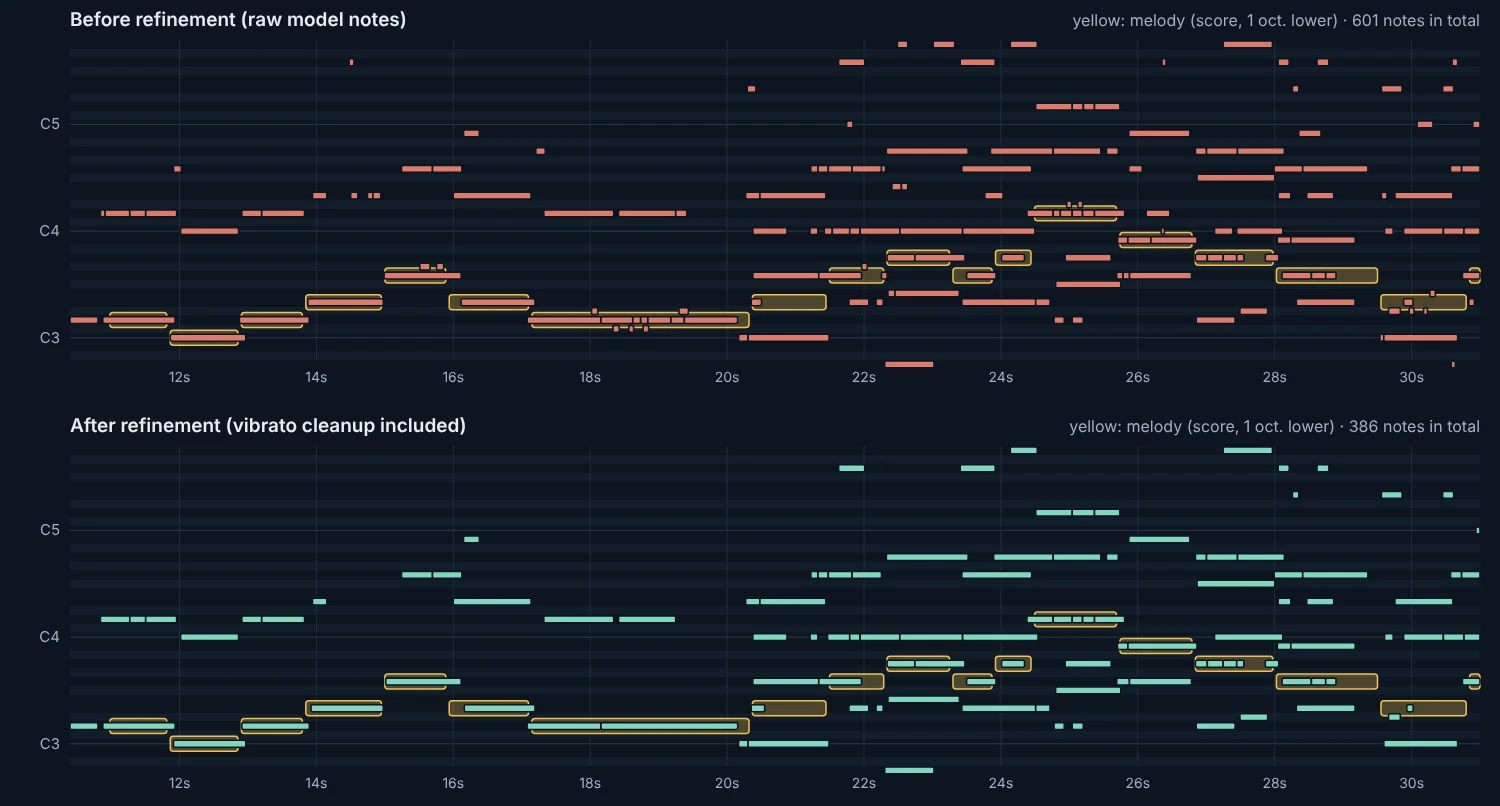
Around 17–20 seconds in the figure is the clearest. Without refinement, the long melody notes break up into small pieces, with short notes a semitone away scattered above and below. After refinement, the same notes join into single notes and most of the false notes around them are gone. Even after 0:20, where the accompaniment comes in, there are fewer dots in the high register.
With this many rules it may look ad hoc. But none of the rules looks at “the song title” or “the score”. All they look at is how the model’s probabilities change over time and how the keys relate to each other. Kimigayo was the material for finding the kinds of errors; the rules themselves work as they are on other recordings with vibrato.
What it still struggles with
Let me also be clear about the limits of its accuracy.
- Every part goes onto one piano: because instruments are not separated, the accompaniment and overlapping melodies go into the same track. To make a score you can play on piano, you need to sort out melody and accompaniment in a DAW or similar.
- Tempo and meter can be wrong: for Kimigayo, the estimated BPM did not match the real one. Note times are recorded correctly in seconds, but to read the result against bars you need to fix the tempo.
- Pop songs with layered vocals and synths are hard: duets with close pitches, distorted guitars and recordings with heavy reverb increase false and missed notes. Percussion is not output, but low hits such as a kick drum can turn into low piano notes.
- Refinement is not all-powerful: it can remove intentional dissonances or ornaments. If something sounds off, turn refinement off and compare.
Paid transcription services separate the instruments with large models before transcribing, so they handle these cases better. Still, just by dropping in a file, you get piano MIDI in which you can recognize the song, entirely in your own browser. Even without perfect pitch, it is good enough as a draft for transcribing by ear or as a starting point for editing in a DAW. If you have a recording you are curious about, try it in the audio-to-piano-MIDI tool.