Split freee Sales product master CSV files into batches of 999
freee Sales accepts up to 1,000 product-master CSV records including the header. Set a CSV splitter to 999 data records per file, retain headers, and check leading zeros and import behavior.
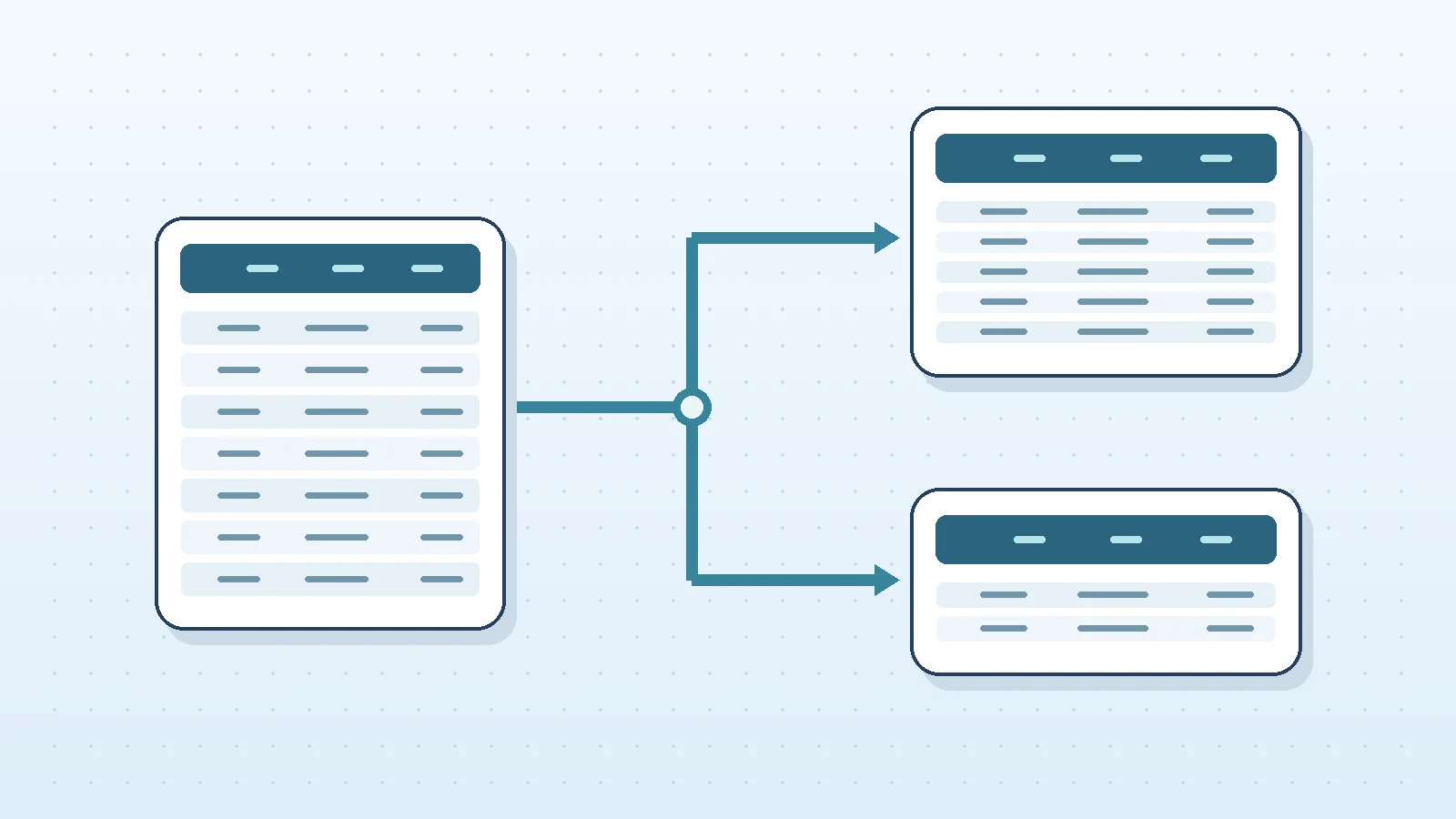
To split a freee Sales (freee販売) product-master CSV, set Maximum data rows per file to 999 in the CSV Splitter and enable the option to repeat the first record as a header in each file. Every output file then has at most 999 data records plus one header: 1,000 records in total.
This is not a rule for every CSV import in freee. It applies specifically to importing product information into freee Sales. The official import/export documentation sets a limit of 1,000 rows including the header. Exports have no equivalent row limit, so an exported CSV may not be importable again as a single file. This requirement was checked on November 21, 2026.
The splitter interface is currently in Japanese. Its original control labels are included below to make the instructions actionable.
Configure 999 data records and the header separately
Keep the original CSV, and prepare the data according to freee’s latest official template and field definitions. The splitter does not translate column names or convert field values for freee.
- Open the CSV Splitter and choose a file under 分割するCSV / TSV (CSV/TSV to split).
- Set 区切り文字 (delimiter) to カンマ(CSV) (comma). Open 先頭プレビュー(文字コードを確認) (initial preview) and check Japanese characters and column boundaries. If text looks garbled, set 入力文字コード (input encoding) to match the actual file.
- Under 分割方法 (split method), choose データ行数の上限 (data-row limit), then enter
999for 1ファイルの最大データ行数 (maximum data rows per file). - Turn on 先頭レコードをヘッダとして各ファイルに付ける (add the first record as a header to each file). The 999 data records do not include that header.
- For an existing UTF-8 CSV that needs no conversion, set 出力文字コード (output encoding) to 入力と同じ(BOMの有無も保持) (same as input, preserving BOM). To match an official UTF-8-with-BOM template, UTF-8(BOMあり) is available; a BOM is not necessarily required in every case. Set 出力のレコード区切り (output record separator) to 入力と同じ(混在も保持) (same as input, including mixed separators).
- Under 保存方法 (save method), select 1ファイルずつダウンロード (download files individually) and press 検証して分割する (validate and split).
- Click このCSVを保存 (save this CSV). Confirm the browser has finished saving it before clicking 保存を確認して次へ (confirm save and continue). Check the last file as well, then review 出力結果 (output results).
Compatible browsers also support フォルダに直接保存(巨大ファイル向け) (save directly to a folder for large files). With individual downloads, advancing before saving invalidates the previous file’s link. Do not skip the confirmation.
The CSV is processed in your browser; its contents are not uploaded to the tool’s server.
For 1,001 fictional products, split into 999 and 2
Consider a fictional CSV containing 1,001 products. This excerpt contains only the first three records, not the full import file. For real imports, use the latest official template. The Japanese field names below reflect that import format.
名称,帳票・明細への表示名称,コード,販売単価
サンプル商品0001,サンプル商品0001,0001,100
サンプル商品0002,サンプル商品0002,0002,100
サンプル商品0003,サンプル商品0003,0003,100
Suppose product codes run from 0001 through 1001, and the source is products.csv. With a 999-data-record limit, the result is:
| Output file | Data records | Records including header | Product-code range |
|---|---|---|---|
| products_part_000001.csv | 999 | 1,000 | 0001–0999 |
| products_part_000002.csv | 2 | 3 | 1000–1001 |
The second file also needs the same column headings. Do not forget to repeat the header or accidentally set the data limit to 1,000, creating a 1,001-record file.
This example has no newlines within cells. The tool counts CSV records, not physical text lines; a newline inside a quoted cell is not a new record. That does not guarantee freee accepts every multiline value, so inspect real data in the import preview.
Check leading zeros and empty columns separately
The splitter does not convert values into numbers or dates, so 0001 remains 0001. However, reopening and saving the CSV in spreadsheet software may convert codes into numbers. Treat code columns as text, or inspect the CSV in a text editor. The splitter cannot restore zeros that were already lost.
During import, a code matching an existing product can update it, while an unmatched code can create a new product. Omitting a column is not the same as including it with an empty value. Update semantics differ by field; use the official field table. A successful split does not establish that an import will make the intended changes.
Check freee’s preview before importing
In freee Sales, navigate from 商品一覧 (product list) through ・・・ → CSVインポート (CSV import), select a split file, and continue to プレビュー画面へ (preview). Check product codes, names, values to be updated, and the row count. If anything is wrong, correct the source and split it again; do not combine old and new output files.
The example uses fictional data and has not been verified with an actual freee Sales import. The official freee guidance takes precedence for required columns, permissions and value constraints. Check the actual import results afterward. iXam’s CSV Splitter is not an official freee tool; no partnership is implied.